Point a focused beam of light at a sheet of plywood and watch it cut clean, repeatable parts in seconds. Laser cutting is one of the fastest ways to go from a design on screen to a physical robot chassis in your hands.
What is Laser Cutting?
A laser cutter moves a high-powered laser beam across a flat sheet of material — wood, acrylic, cardboard, MDF, leather — either cutting all the way through or engraving a surface pattern. The two main types you’ll encounter as a maker are:
- Diode lasers — affordable desktop units (5 W to 40 W) like the Creality Falcon. Great for plywood, MDF, and thin acrylic.
- CO₂ lasers — more powerful, typically found in makerspaces, cut thicker acrylic and a wider range of materials cleanly.
You design your parts as vector files (SVG or DXF), set the laser’s speed and power, and the machine does the rest. Once the design is right, you can cut identical parts again and again — brilliant for modular or flat-pack robot kits.
Watch out for kerf — the sliver of material the laser removes along the cut line. For tight-fitting joints, offset your design by about 0.1–0.2 mm depending on your machine.
From vector to part
The workflow is short. You draw your parts as flat vector outlines, set the beam’s speed and power, and the machine traces those lines — cutting all the way through or engraving the surface:
flowchart LR
    DESIGN["Vector design<br/>(SVG / DXF)"] --> SET["Set speed +<br/>power (LightBurn)"]
    SET --> CUT["Laser traces<br/>the lines"]
    CUT --> PARTS["Flat parts<br/>(ready to assemble)"]
Finger joints and kerf
Because you’re working in 2D, flat parts are joined with interlocking finger joints — tabs on one piece slot into matching slots on another, turning flat sheet into a rigid 3D box. The catch is kerf: the laser burns away a thin sliver, so a tab cut to exact size ends up loose:
   Piece A          Piece B          Joined

   ┌─┐ ┌─┐ ┌─┐                       ┌─┬─┬─┬─┐
   │ └─┘ └─┘ │      │ ┌─┐ ┌─┐ │      │ │ │ │ │
   tabs            slots            tabs slot in

   kerf = the ~0.1–0.2 mm the beam removes.
   Offset tabs slightly OVERSIZE so they
   press-fit snugly instead of rattling.
Get the kerf offset right once for your machine and material, and every flat-pack design after that just clicks together.
Why robot builders care
Laser cutting gives you structural parts that are light, flat, and accurate. Chassis plates, motor mounts, standoffs, cable guides, and decorative panels all come out cleanly with edges you’d struggle to achieve by hand.
Flat-pack designs nest tightly on a sheet, so material waste is low. Plywood at 2–3 mm thickness is rigid enough for most small robot frames yet light enough to keep your robot nimble. Acrylic adds a professional finish or lets you show off the electronics inside.
Unlike 3D printing, there’s no wait for layers to build up. A chassis that would take an hour to 3D print might take four minutes to cut. The trade-off is that you’re working in 2D — you can’t make organic curved forms, but clever joinery (finger joints, living hinges, press-fit tabs) gets you a long way.
Get started
The best starting point is getting familiar with your laser cutter and the software that drives it. LightBurn is the go-to application for most diode and CO₂ lasers — it handles both design and machine control. For free vector design, Inkscape works well.
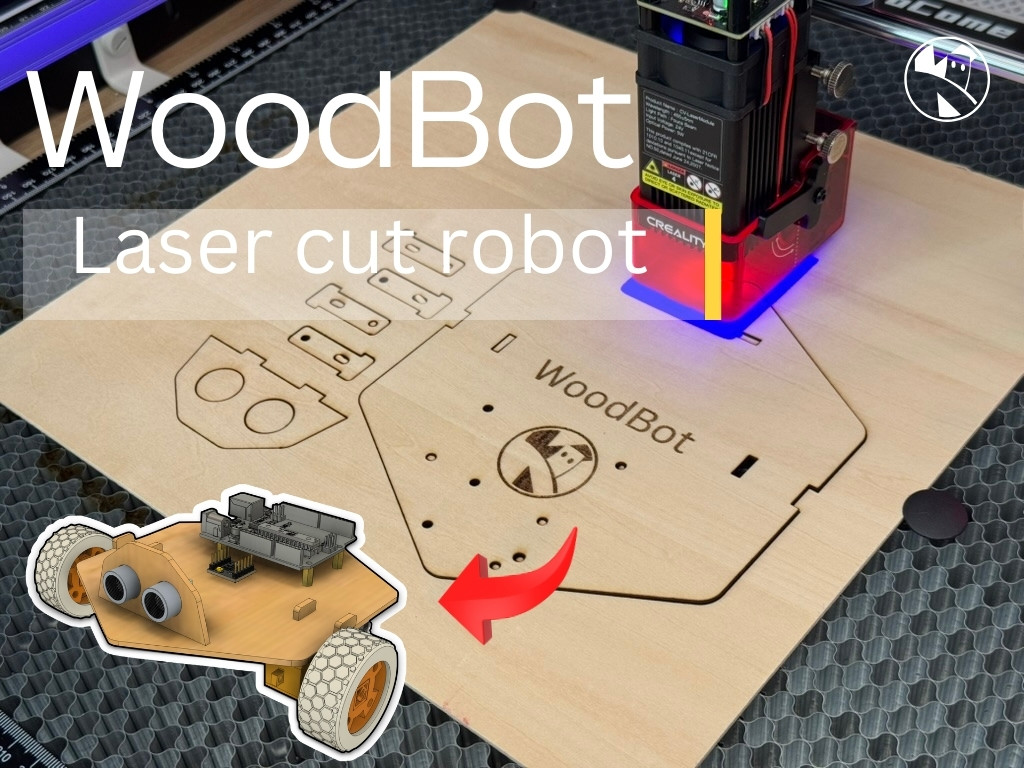
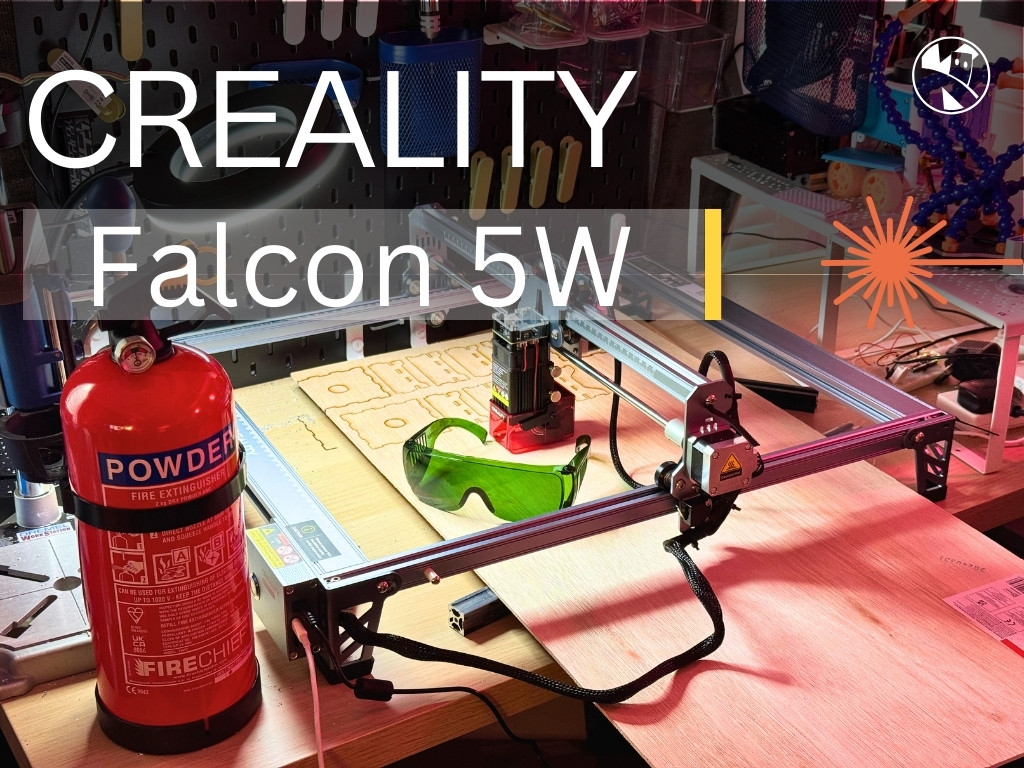
Kevin’s post Robots and Lasers covers getting started with the Creality Falcon 5W, including LightBurn setup and cut settings. A great first build is WoodBot — a complete laser-cut robot chassis made from 2 mm plywood and driven by an Arduino. It’s a perfect project for learning how flat parts assemble into a three-dimensional robot.
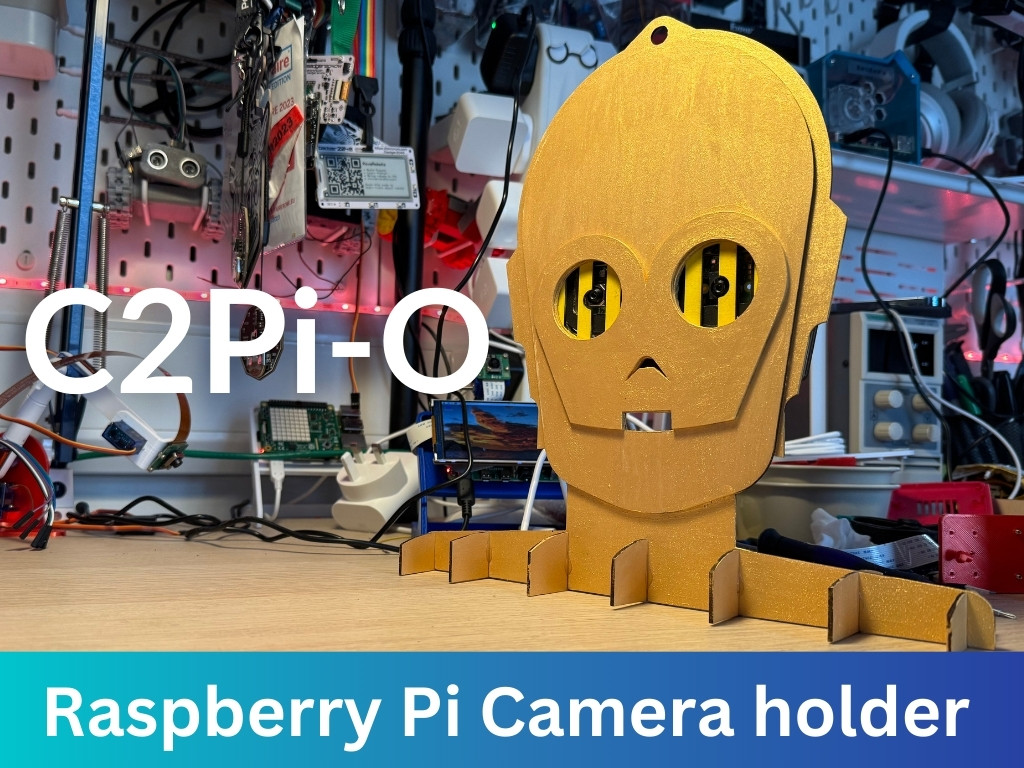
Once you’re comfortable with the basics, try a more ambitious project like the C2Pi-O camera holder — a Star Wars–inspired laser-cut rig for two Raspberry Pi cameras.
Start simple: cut a flat test square, then a finger-jointed box. Once the kerf compensation clicks, you’ll wonder why you ever reached for a hacksaw.
Reacts well with
More Making & Design
- GrGears
- WhWheels
- Pr3D Printing
- CdCAD
- FuFusion 360
- FcFreeCAD
- ChChassis Design
- TkTank Tracks
- LeLEGO Robotics
- WeWearables
Learn more on KevsRobots
Articles to read

Share this element
This page is awesome? Show some love!Did you find this content useful?
If you found this high quality content useful please consider supporting my work, so I can continue to create more content for you.
I give away all my content for free: Weekly video content on YouTube, 3d Printable designs, Programs and Code, Reviews and Project write-ups, but 98% of visitors don't give back, they simply read/watch, download and go. If everyone who reads or watches my content, who likes it, helps fund it just a little, my future would be more secure for years to come. A price of a cup of coffee is all I ask.
There are a couple of ways you can support my work financially:
If you can't afford to provide any financial support, you can also help me grow my influence by doing the following:
Thank you again for your support and helping me grow my hobby into a business I can sustain.
- Kevin McAleer
Comments