Cut the cables. Bluetooth is one of the most satisfying upgrades you can make to a robot — suddenly you can drive it from across the room, stream sensor readings to your laptop, or build a proper handheld controller without a single trailing wire.
What is Bluetooth?
Bluetooth is a short-range radio standard that operates in the 2.4 GHz band, typically covering 10–100 metres depending on the hardware. The version you’ll encounter most in robotics is Bluetooth Low Energy (BLE), introduced with Bluetooth 4.0. BLE sips power compared to classic Bluetooth, making it ideal for battery-powered robots.
There are two common ways BLE devices communicate:
- Central / Peripheral — your phone or Raspberry Pi acts as the central, connecting to a robot that acts as the peripheral.
- UART over BLE — many modules emulate a serial port, so your code treats Bluetooth just like a wired UART connection. Simple and familiar.
The Raspberry Pi Pico W has onboard BLE support via the CYW43439 chip, and MicroPython’s bluetooth module makes it straightforward to use without any external modules.
Central and peripheral
In a BLE link the peripheral advertises that it’s available, and the central scans, finds it, and connects. For a robot, the robot is usually the peripheral and your phone or Pi is the central. With UART-over-BLE the link then behaves just like a wired serial cable:
flowchart LR
    PHONE["Phone / Pi<br/>(Central)"] -->|"scans &<br/>connects"| ROBOT["Robot Pico W<br/>(Peripheral)"]
    ROBOT -.->|"advertises<br/>UART service"| PHONE
    PHONE -->|"commands<br/>(fwd / left…)"| ROBOT
    ROBOT -->|"telemetry<br/>(battery, speed)"| PHONE
Once connected, data flows both ways over a virtual serial port — which is why so much wired-UART example code works almost unchanged over Bluetooth.
Why robot builders care
Bluetooth solves one of the most common beginner frustrations: needing a USB cable dangling from your robot every time you want to test it. With Bluetooth you can:
- Drive and steer a wheeled robot from your phone or a custom gamepad.
- Log sensor data (speed, heading, battery voltage) in real time to a PC.
- Pair two Picos together so a handheld controller talks directly to the robot with no internet connection needed.
BLE’s low power draw means a small LiPo can run your Pico W’s radio for hours, not minutes.
Get started
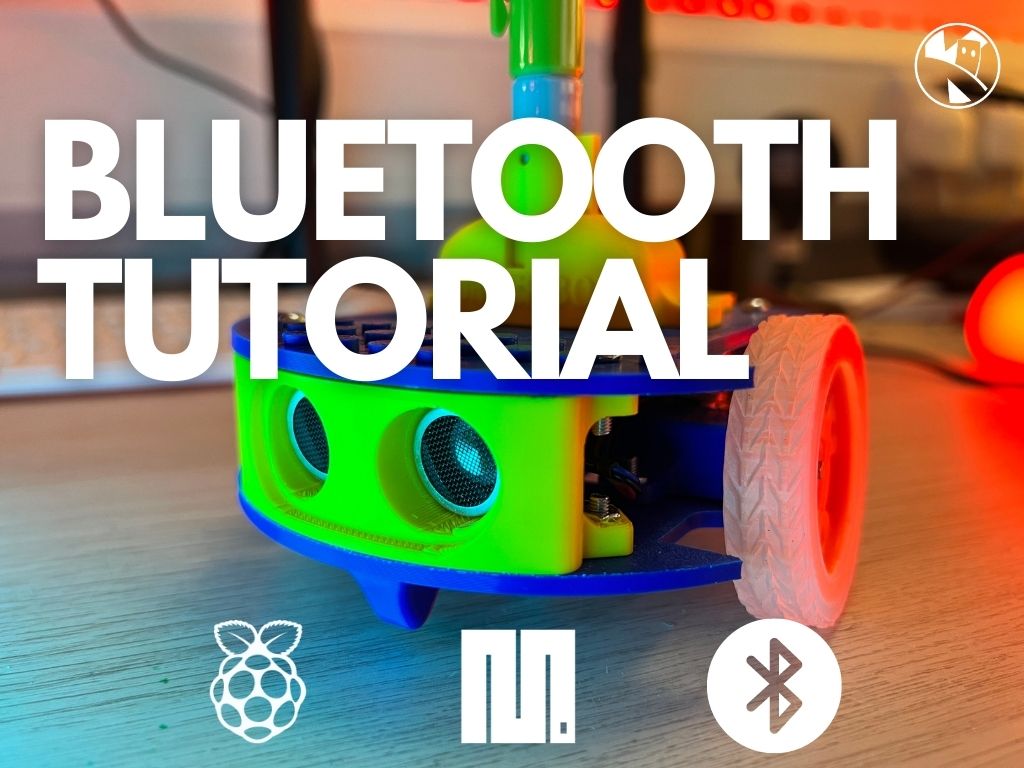
The quickest first project is a Bluetooth-controlled buggy. Flash MicroPython onto a Pico W, use the built-in bluetooth module to advertise a UART service, and write a tiny phone app (or use a generic BLE terminal app) to send forward/back/left/right commands.
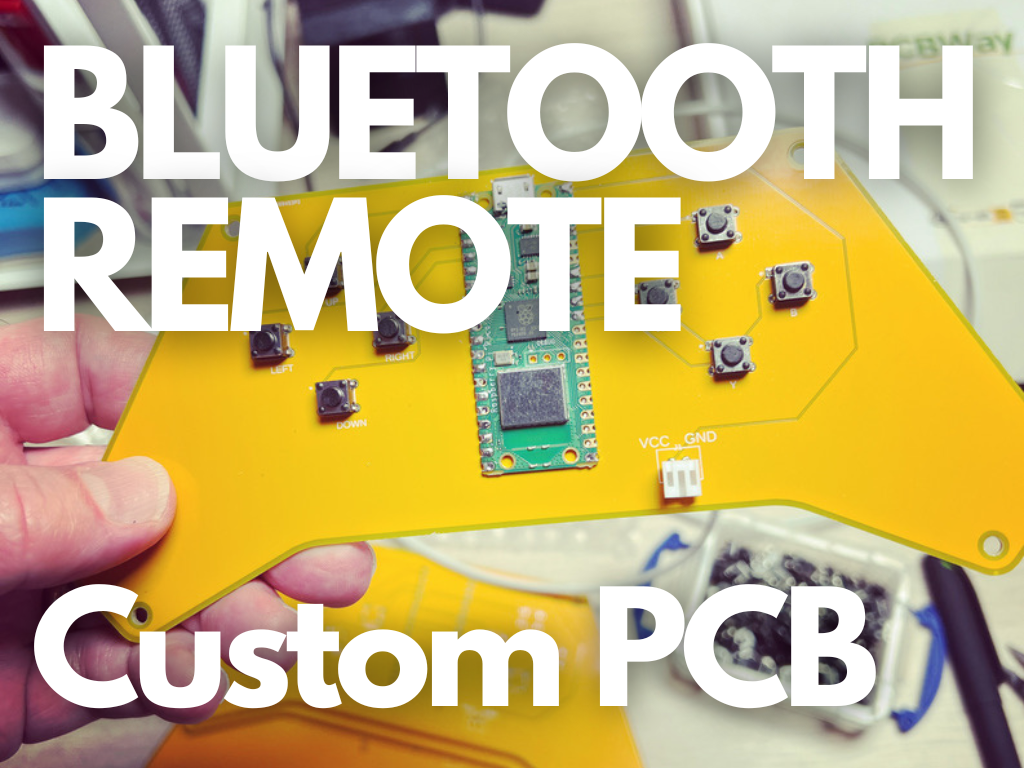
Kevin has walked through exactly this on the site — start with Bluetooth remote controlled robot, which shows the full MicroPython code for a Pico W-powered bot. When you’re ready to level up the hardware, Bluetooth Remote Control Custom PCB covers designing a dedicated controller board with a proper PCB layout.
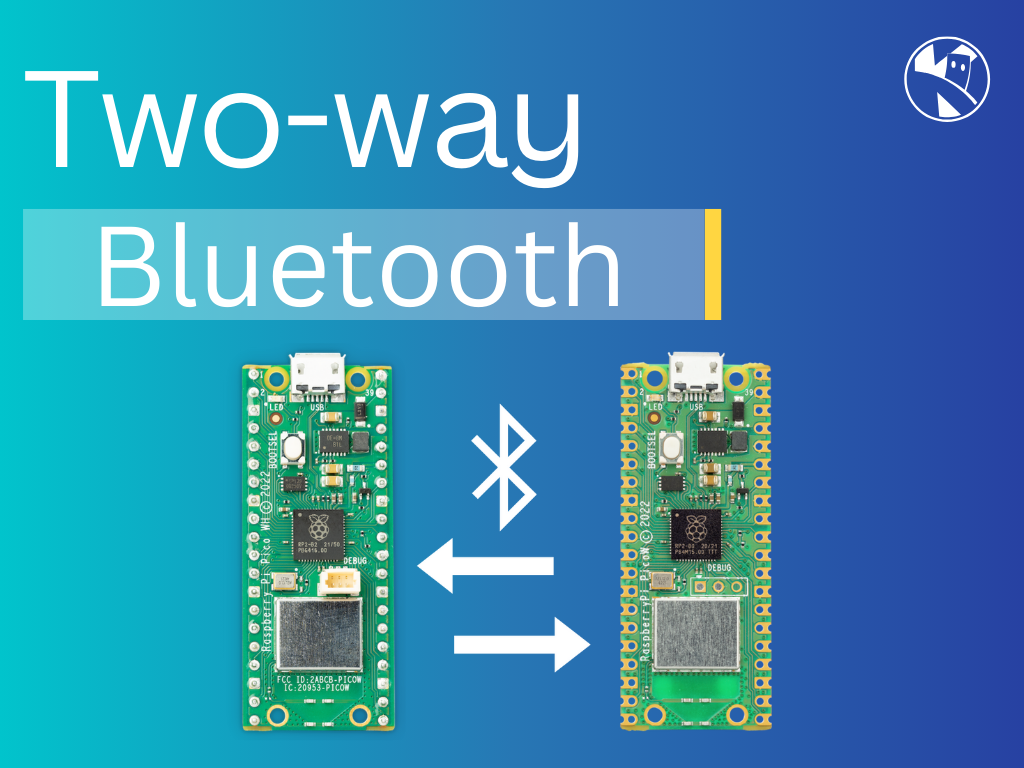
Once you’re comfortable with one-way control, the next challenge is bidirectional comms — sending telemetry back to the controller as well as receiving commands. Two-Way Bluetooth Communication Between Raspberry Pi Picos covers that pattern clearly, and Pi to Pico W Bluetooth Communication shows how to link a full Raspberry Pi to a Pico for richer onboard processing.
A good beginner checklist:
- Get a BLE terminal app on your phone (e.g. nRF Connect or LightBlue).
- Run a Pico W BLE UART example and confirm you can see it advertising.
- Send a single character and blink an LED in response.
- Build up to motor control from there.
That first blink-on-command moment is genuinely exciting — wireless control you built yourself, no cloud, no wires.
Reacts well with
More Signals & Comms
Learn more on KevsRobots
Articles to read

Share this element
This page is awesome? Show some love!Did you find this content useful?
If you found this high quality content useful please consider supporting my work, so I can continue to create more content for you.
I give away all my content for free: Weekly video content on YouTube, 3d Printable designs, Programs and Code, Reviews and Project write-ups, but 98% of visitors don't give back, they simply read/watch, download and go. If everyone who reads or watches my content, who likes it, helps fund it just a little, my future would be more secure for years to come. A price of a cup of coffee is all I ask.
There are a couple of ways you can support my work financially:
If you can't afford to provide any financial support, you can also help me grow my influence by doing the following:
Thank you again for your support and helping me grow my hobby into a business I can sustain.
- Kevin McAleer
Comments