Render a Movie
Turn your robot animation into a video or GIF with the Render movie tool in Snakie, ready to share
By Kevin McAleer, 5 Minutes
Page last updated November 21, 2026

Show it off
You’ve built a robot and taught it to move. Before any plastic is printed, you can already show people what it will do.
Render movie plays your motion and records it as a video file. It all happens on your own computer.
Make your first movie
- Open your desk arm project and switch to Build, then Animate
- Open the Timeline tab and check the motion from lesson 8 is there. Press play once to be sure
- Turn the view to an angle you like
- Click Render movie
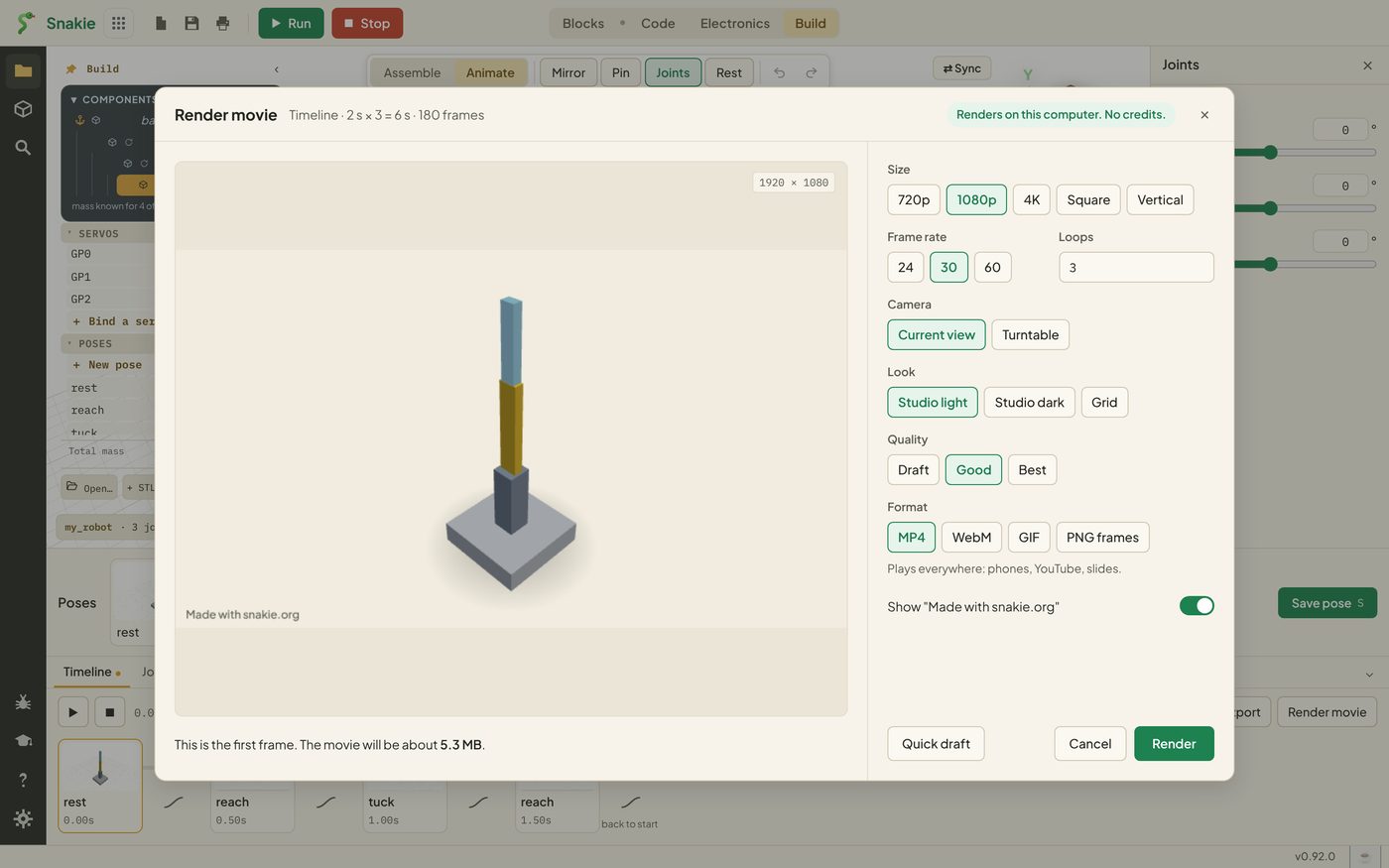
- Leave the settings alone for now and click Quick draft
A draft is small and fast. Use it to check the framing and the timing before you spend time on a good one.
The settings
| Setting | Choices | Use it for |
|---|---|---|
| Size | 720p, 1080p, 4K, Square, Vertical | Where the movie will be watched |
| Frame rate | 24, 30, 60 | How smooth it looks |
| Loops | A number | Playing the motion more than once |
| Camera | Current view, Turntable | A still camera, or one that circles the robot |
| Look | Studio light, Studio dark, Grid | The background |
| Quality | Draft, Good, Best | Speed against polish |
| Format | MP4, WebM, GIF, PNG frames | The kind of file you get |
There’s also a switch for a small “Made with snakie.org” mark. The top of the window shows how long the movie will be, and the bottom shows roughly how big the file will be.
Some good starting points:
| You want | Try |
|---|---|
| A clip for a video edit | 1080p, 30, MP4, Good |
| A short for a phone | Vertical, 30, MP4 |
| Something for a forum post or a README | 720p or Square, GIF, 2 loops |
| Frames to edit yourself | PNG frames |
Current view or Turntable
Current view keeps the camera exactly where you left it. It’s the best choice when the motion itself is the star, such as a wave or a walk.
Turntable slowly circles the robot while the motion plays. It’s the best choice for showing the design from every side.
Loops sets how many times the motion repeats. It starts at 3, which gives a turntable time to travel round.
Tips for a better movie
- Frame it first. With Current view, what you see is what you get. Leave room for the arm at full reach
- Start and end on the same pose. Turn on Loop in the Timeline so the motion returns to the start. A looping GIF then plays without a jump
- Draft, then render. Quality Best at 4K takes a while. Get everything right in a draft first
- Keep GIFs short and small. GIF files grow quickly. A few seconds at 720p is plenty
Try it Yourself
- Render a Quick draft of your motion from the current view
- Render it again with Turntable and 2 loops
- Make a square GIF with the Studio dark look
- Open the BetterCad desk arm from the last lesson, give it a two-pose motion and render that
Common Issues
Problem: The movie shows the arm standing still. Solution: Check the motion plays in the Timeline before you render. Why: Render movie records the motion you’ve built. With nothing to play, there’s nothing to move.
Problem: Part of the arm goes out of frame. Solution: Zoom out a little, or use Turntable, and render a draft to check. Why: Current view records exactly what the camera sees, and the arm at full reach is bigger than the arm at rest.
Problem: The render is slow. Solution: Lower the size or the quality, or use Quick draft while you’re still making changes. Why: Every frame is drawn on your computer. 4K has nine times as many pixels as 720p.
Check your understanding
Quick quiz 1 of 3
Where is the movie rendered?
Quick quiz 2 of 3
Which camera setting circles the robot while the motion plays?
Quick quiz 3 of 3
What makes a GIF loop without a visible jump?
You can use the arrows ← → on your keyboard to navigate between lessons.
Comments