Your First Block
Add a box to the robot in Snakie, then size, colour, name and place it with the properties panel
By Kevin McAleer, 5 Minutes
Page last updated November 21, 2026

Three shapes
In Assemble mode the toolbar has three shape buttons: Add a box, Add a tube and Add a ball. Every robot in this workspace starts as a pile of those. They’re stand-ins. You can swap one for a real 3-D printed shape later, and everything you’ve set up keeps working.
Our arm needs a tower for the rest of the arm to stand on.
Add a box
Click Add a box. A 40 mm cube appears in the middle of the base, and a properties panel opens beside it.
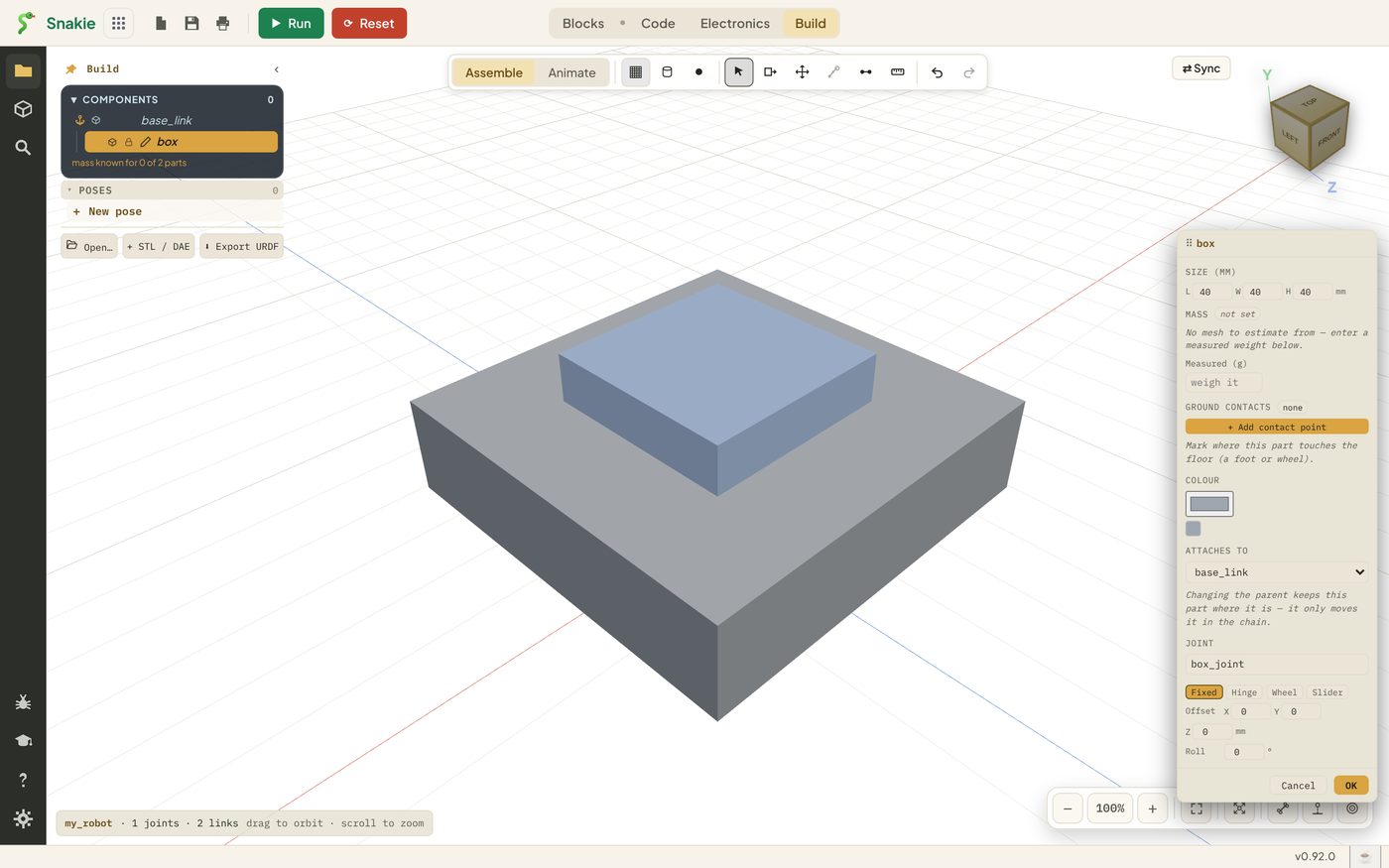
New blocks always appear at the centre of the part they’re attached to, so this one is half buried in the base. That’s fine. We’ll move it with numbers.
Size, colour and place it
Work down the panel. Press Enter after each number so Snakie takes it.
- Under Size (mm) set L
20, W20, H60 - Under Colour pick a dark grey
- Under Joint type the name
waistin place ofbox_joint - Click Hinge, then pick axis Z
- Set Offset Z to
40 - Click OK
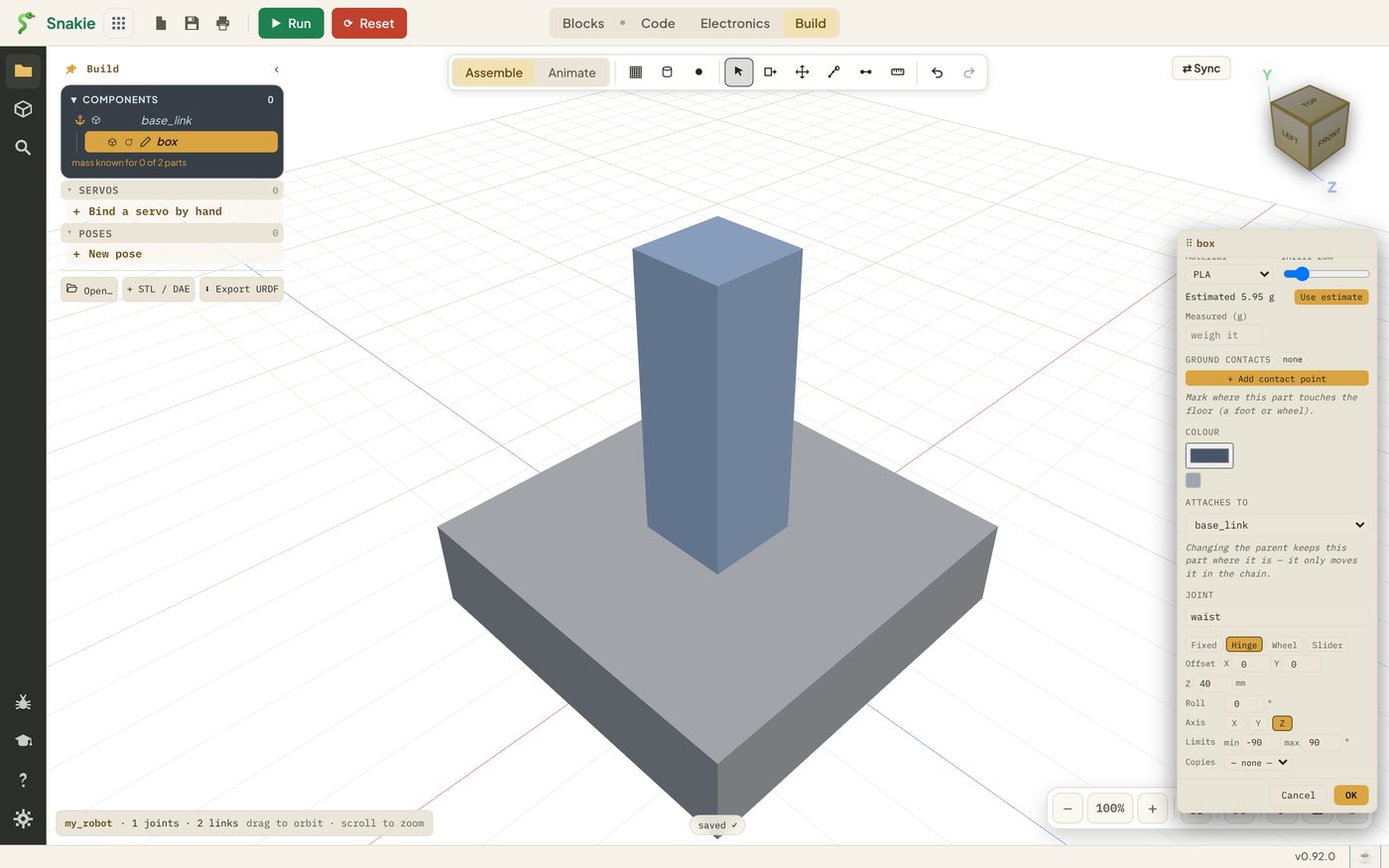
Why 40? The offset is measured from the centre of the base to the centre of the new block. The base is 20 mm thick, so its top is 10 mm up. The tower is 60 mm tall, so its centre is 30 mm above its foot. 10 + 30 = 40.
We’ll look at joints properly in lesson 4. For now, a Hinge on the Z axis means the tower can turn on the spot like a lazy Susan.
Give it a proper name
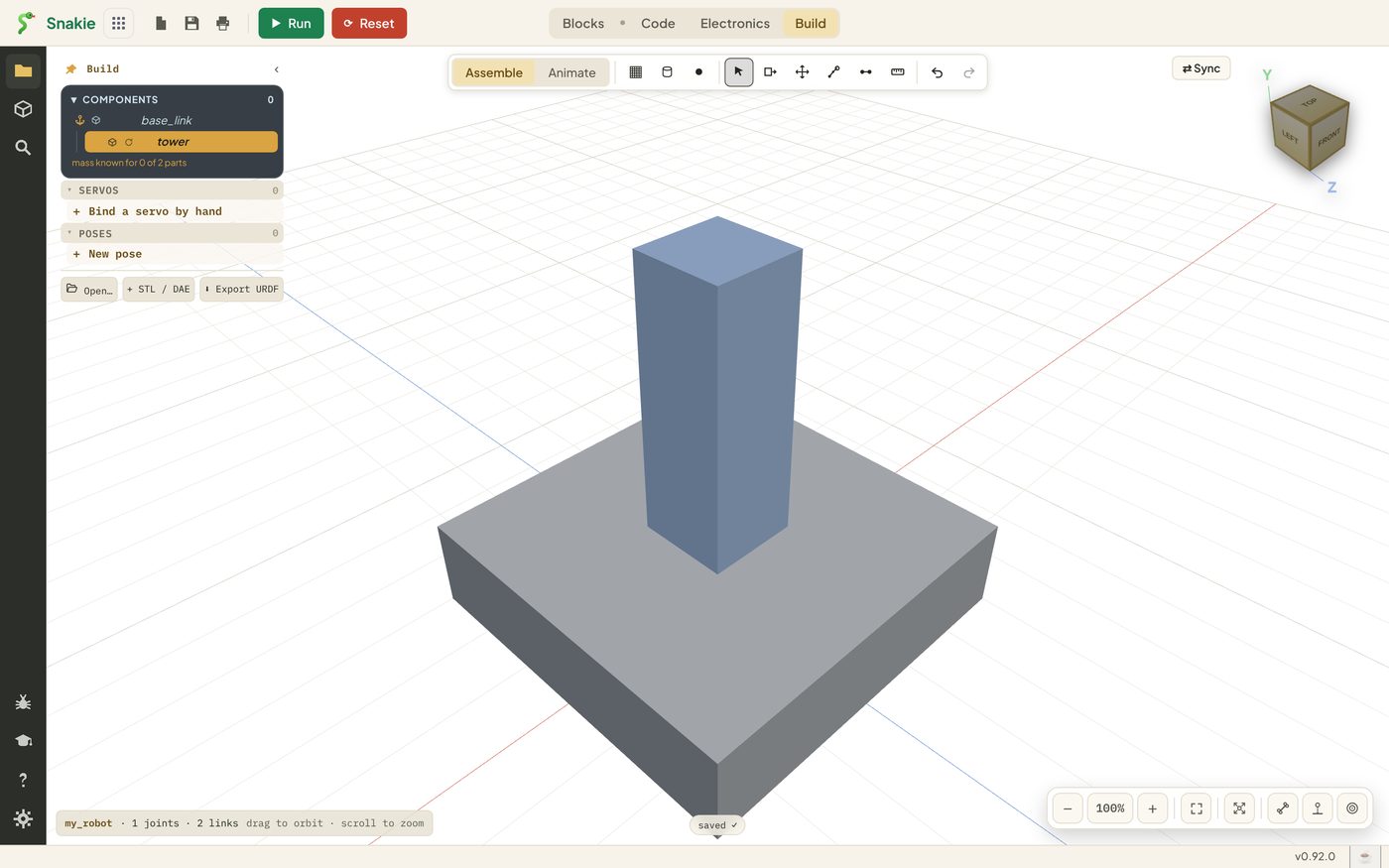
The block is still called box. Right-click it in the Components list and choose Rename…, then type tower.
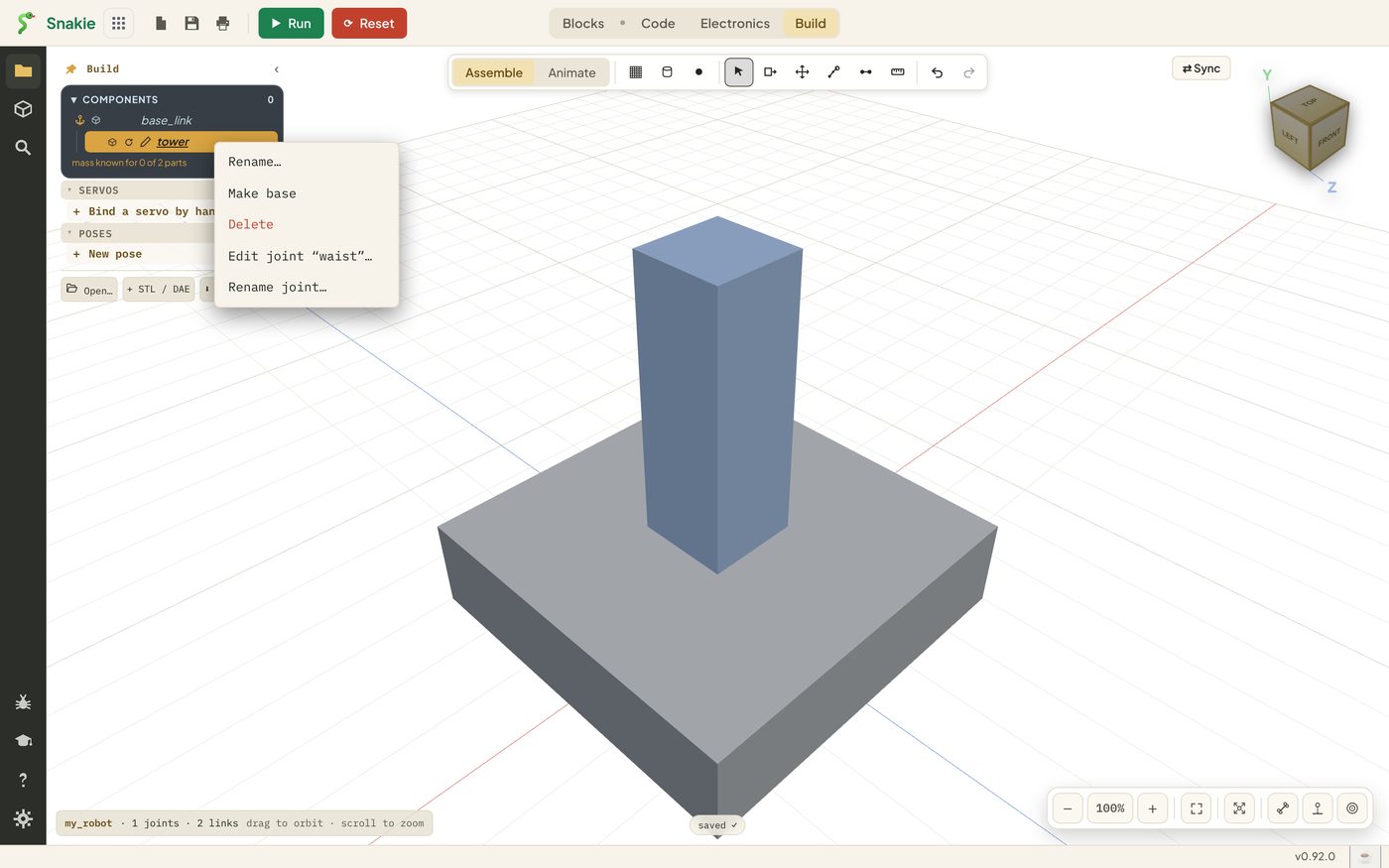
The same menu lets you delete the block, rename its joint or make it the base of the whole robot.
Good names matter here more than usual. Joint names turn into variable names in your code later, so waist is far nicer to meet than box_joint.
Resizing and moving by hand
Numbers are the accurate way. There are two hands-on tools as well.
- Push & pull to resize: drag a face of a block to stretch it. The opposite face stays where it is, and sizes snap to 5 mm
- Move a block: drag a block to a new spot
They’re handy for roughing out a shape. To open the properties panel again at any time, click the small Edit properties icon beside the block’s name.
Try it Yourself
- Build the tower as above
- Open its properties again and change H to
80. Notice it grows from the middle, so it sinks into the base. Change it back to60 - Press Ctrl+Z (Cmd+Z on a Mac) a few times to watch your steps undo, then redo them
- Add a ball, look at its properties, then delete it from the right-click menu
Common Issues
Problem: I typed a size and it jumped back. Solution: Press Enter after each number and give it a moment before the next one. Why: The panel saves each field as you finish it and then reloads itself.
Problem: Two of my joints have the same name.
Solution: Give each joint its own name as soon as you add the block.
Why: Every new box starts with a joint called box_joint. If two joints share a name, renaming one renames both, and your code can’t tell them apart.
Problem: My block is buried inside the base. Solution: Set its Offset Z. Why: New blocks start at the centre of their parent.
Check your understanding
Quick quiz 1 of 3
Where does a new block appear?
Quick quiz 2 of 3
Why name the joint straight away?
Quick quiz 3 of 3
The base is 20 mm thick and a new block is 30 mm tall. What Offset Z sits it on top?
You can use the arrows ← → on your keyboard to navigate between lessons.
Comments