Playing Chess on a Real Board with the Arduino UNO Q
Use an Arduino UNO Q and a USB webcam to play chess on a real board. It reads your moves, plays back with Stockfish and gives you coaching tips.
4 October 202610 minute read
By Kevin McAleer
Share this article on
Table of Contents
Playing Chess on a Real Board with the Arduino UNO Q
Use an Arduino UNO Q and a USB webcam to play chess on a real board. It reads your moves, plays back with Stockfish and gives you coaching tips.
Video
For every project I create, I often make a corresponding YouTube video. Sometimes, there might be more than one video for a single project. You can find these videos in this section.
Explore more through this this dedicated video.
Ahoy there makers!
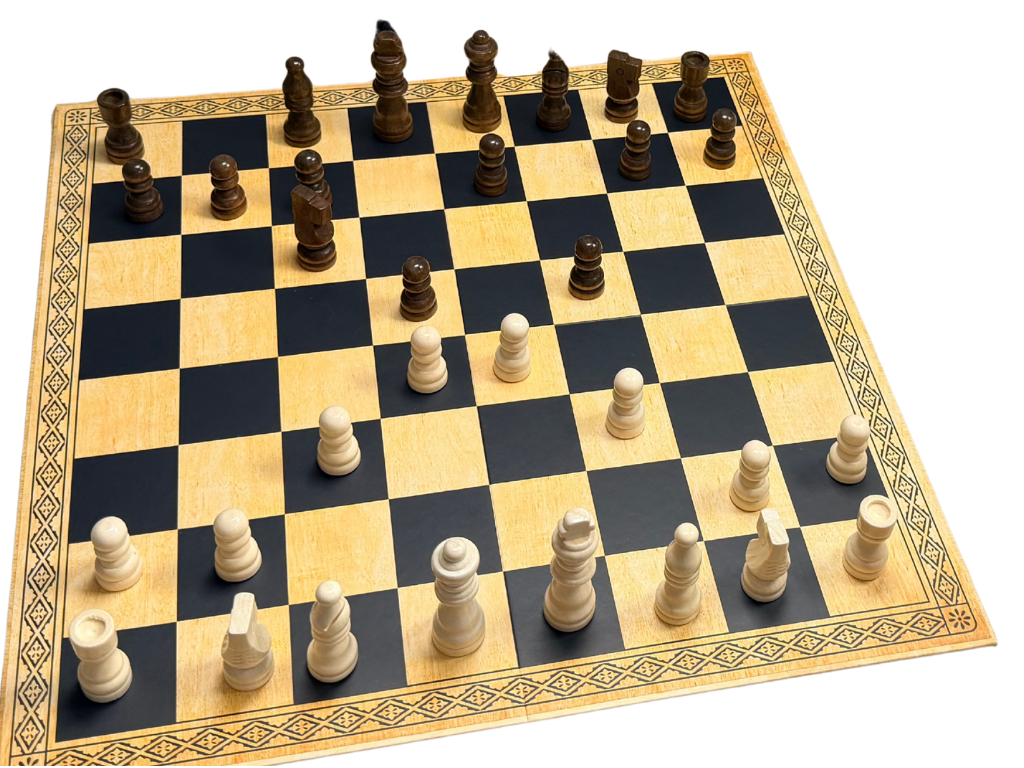
I wanted to play chess against a computer without having to stare at a screen, so I wanted a real board with real pieces that I could move around, and something that could play back.
So I pointed a webcam at a chess board and plugged it into an Arduino UNO Q. The UNO Q watches the board, works out each move I make, keeps track of the game, picks its own reply using Stockfish and then tells me which piece to move for it. It can also tell me when my last move was a mistake, and why.
In this post I’ll cover what it does, the parts you’ll need, how it reads a move without having to recognise the pieces, and how to set it up yourself. If you’d rather watch it in action, watch the video.
What it does
- A USB webcam looks down on the board. You move a piece, take your hand away and the app reads the move.
- It keeps track of the game, including the position, the move list, whose turn it is, check, checkmate, castling, en passant and promotion.
- Stockfish picks the computer’s move, and you can choose how strong it plays, from skill 0 (just learnt the rules) up to skill 20 (please stop).
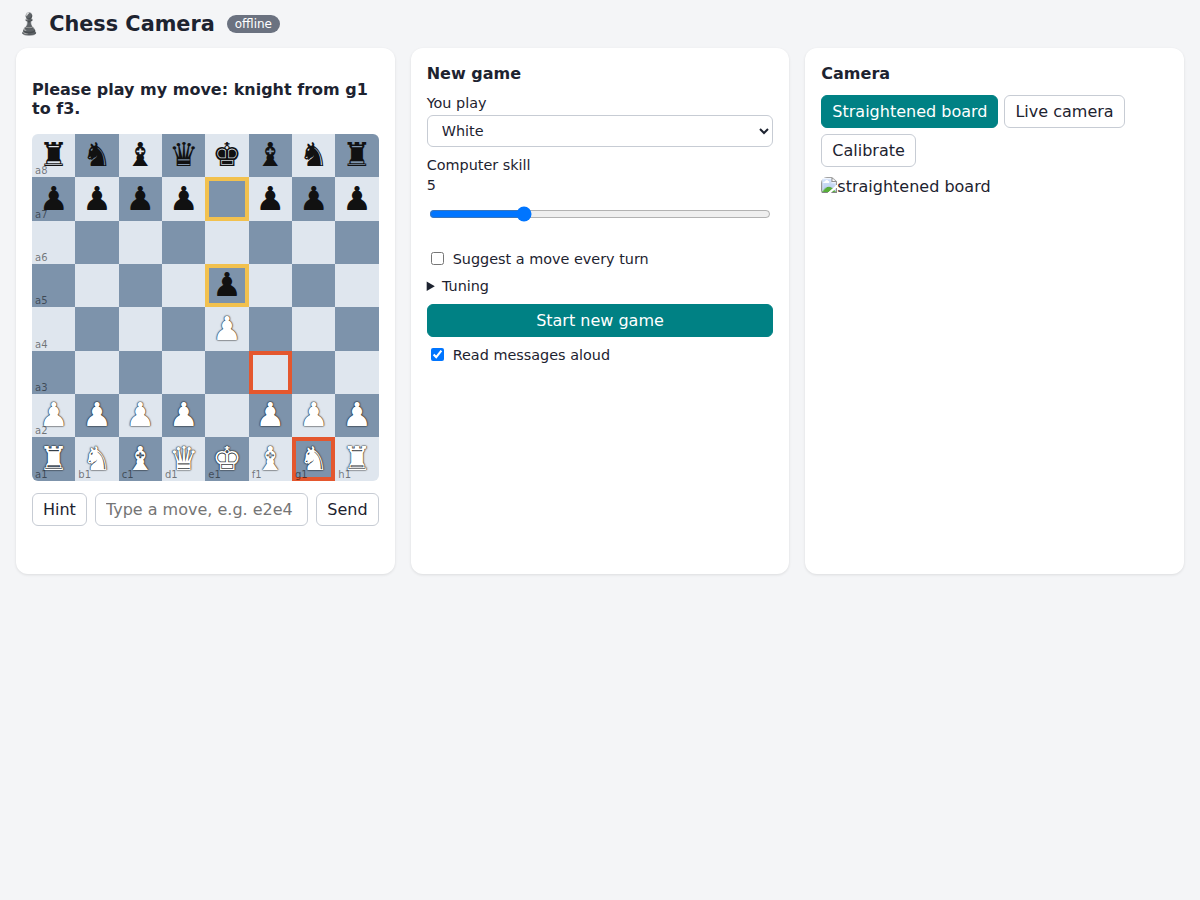
- The computer’s move is shown on the web page, as an arrow on the camera view, and on the UNO Q’s LED matrix (the from-square is dim and the to-square is bright). You move the computer’s piece for it, and it checks that you moved the right one.
- It can speak to you through a Bluetooth speaker paired to the board, or through your browser.
- With Coach me turned on, it checks each of your moves and speaks up when it matters. For example, “That lets me checkmate with queen takes on f7. Better was pawn to g6”, or “Great move, forking the king and rook”.
- You can ask it for a hint whenever you get stuck.
Everything is controlled from a web page served by the UNO Q, so you can prop a phone next to the board and use that.
Why the UNO Q?
The UNO Q is two computers on one Arduino-shaped board: a Qualcomm processor running Debian Linux, and an STM32 microcontroller running a normal Arduino sketch. That split works really well for this project:
- The Linux side does most of the work. It runs OpenCV on the camera frames, python-chess for the rules, Stockfish for the thinking and a little web server for the page.
- The microcontroller side drives the built-in LED matrix, so the computer’s move shows up on the board itself.
It’s built as an Arduino App Lab app, so it’s a folder with an app.yaml, a python/ folder, an assets/ web page and a sketch/. Open it in App Lab and press the Run button.
Bill of materials
| Part | Notes |
|---|---|
| Arduino UNO Q | The main computer. The Linux side runs the app and the MCU side drives the LED matrix |
| USB-C hub with power delivery | The UNO Q has a single USB-C port, so the hub carries power and the webcam |
| 5V USB-C power supply | Into the hub’s PD input |
| USB webcam | Any UVC webcam; it runs at 1280x720, 15 fps |
| Camera stand or arm | Something that holds the camera as directly above the board as you can manage |
| Chess board | A printed one (PDFs in the repo) or any board with clear contrast between squares |
| Chess pieces | Any set will work, but the 3D printable low pieces or coins are more reliable |
| Bluetooth speaker (optional) | For spoken moves and coaching. The UNO Q has no HDMI audio |
| 3D printer (optional) | For the pieces or coins. I used a Prusa Core One with an MMU3 |
Software: Arduino App Lab, plus the app from the repo. Stockfish downloads itself on the first game.
The board
The repo has printable boards in board/ for A4 and Letter paper, with 50 mm squares tiled across six sheets. Just trim and tape them together. make_board.py regenerates them if you want different colours or sizes.
The pieces
One thing I learnt pretty quickly is that tall Staunton pieces are a problem for the camera. Unless the camera is directly overhead, a tall king appears to lean into the squares next to it in the image. So I designed two printable sets:
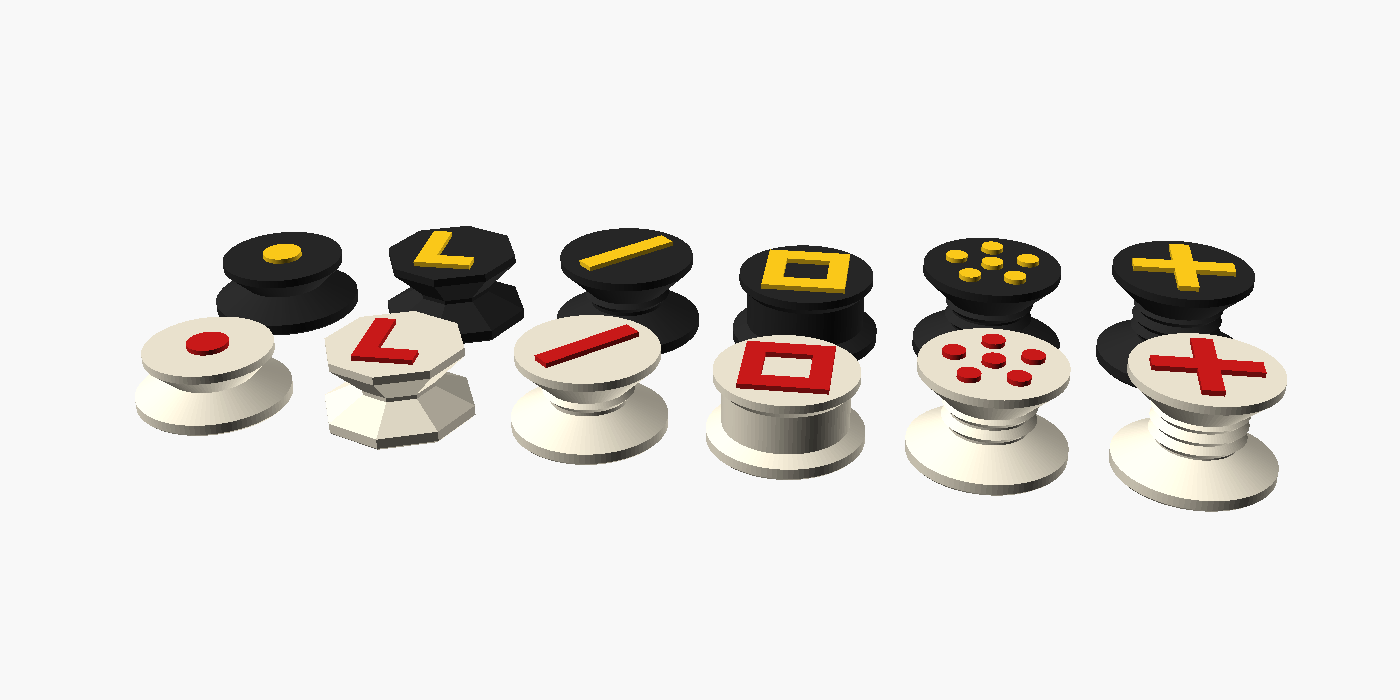
- Low, wide pieces (14 to 25 mm tall) for 50 mm squares. From above, the camera sees a big disc with a clear symbol on top. A pawn has a dot, a knight an L, a bishop a slash, a rook a square, the queen a crown of dots and the king a cross.
- Flat coins (15 mm across, 4 mm thick) for small boards with squares under 20 mm. The symbol is inlaid flush in a second colour, and the PrusaSlicer project files come with the MMU slots already assigned.
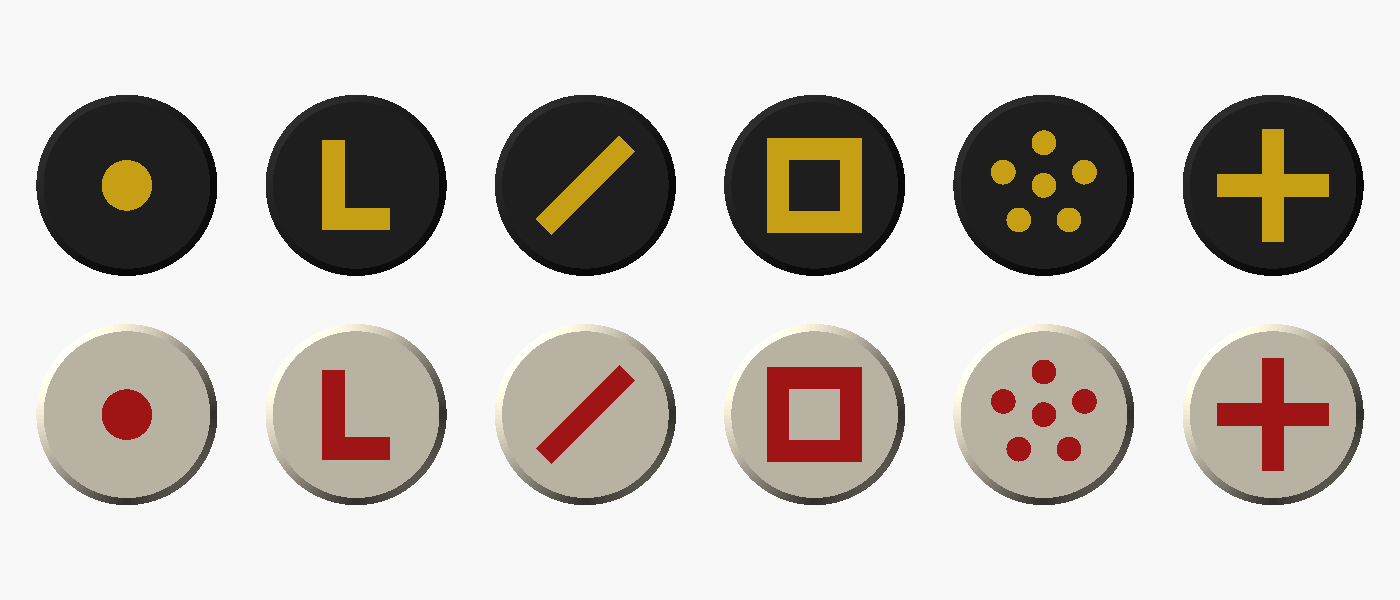
Pick colours that stand out from both the light and dark squares. I found cream pieces with red symbols and black pieces with yellow symbols worked well. Plain white pieces on light squares are the hardest for the camera to see.
How it reads a move
This is the part I like best, because the app never needs to work out what kind of piece is on a square. Here’s how it works:
- Straighten the board. You calibrate once by marking the four corners (or let it find the chequerboard itself). From then on every frame is warped into a flat, top-down 8x8 grid, so the app knows exactly which pixels belong to which square.
- Wait for stillness. Nothing gets read while your hand is over the board. The app compares each square’s average colour between frames and waits until they stop changing. It ignores brightness changes the whole board shares, so the webcam’s auto-exposure doesn’t count as movement.
- Score every square. It compares the settled board with the last settled board and scores how much each of the 64 squares changed.
- Ask the rules. The app always knows the current position, so it asks python-chess for every legal move and picks the one whose squares changed while the rest of the board stayed quiet. It also checks the starting square now looks empty.
This works because there are only about 30 legal moves in a typical position, and only one of them will change the right squares. Castling changes four squares and en passant three, and they are handled in the same way.
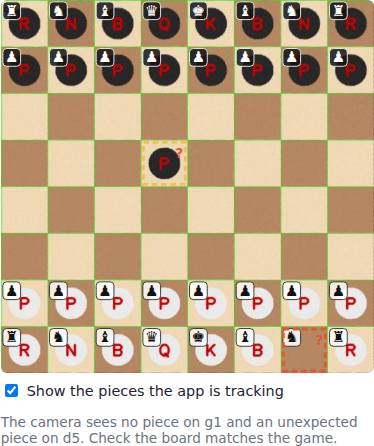
The real world is a bit messy, so I added a few extra checks:
- If you brush a neighbouring piece as you move, it will still read the right move and then ask you to centre the piece you nudged.
- If the whole board slides, almost every square changes at once. The app spots this, finds the board again, moves the grid back onto it and saves the new calibration.
- Once a second, while nothing is moving, it checks which squares look occupied. A missing piece is outlined in red and an unexpected one in yellow, so you can see when the board and the game have got out of sync.
The repo has offline tests for all of this, including 604 simulated moves from angled, noisy, fake camera images, so you can try the detector on a laptop before buying any hardware.
The coach
Once the moves were being read reliably, I wondered if it could teach me something too. With Coach me ticked, every move you make gets two checks:
- Stockfish grades the move by comparing it with its own best move at full strength. The grades are best, good, inaccuracy, mistake and blunder.
- python-chess then explains it using some simple rules, such as whether you left a piece hanging, allowed a checkmate, missed a free capture, made a fork or a pin, castled or developed a piece.
Ordinary moves get no comment, so it doesn’t nag you all game. It only speaks up when there is something worth mentioning, and when the computer makes a move it tells you why it played it as well.
Set it up yourself
1. Get the app onto the UNO Q
Clone the repo into App Lab’s apps folder on the board:
git clone https://github.com/kevinmcaleer/uno_q_chess ~/ArduinoApps/chess-camera
Or create a new app in App Lab and copy the folders in.
2. Plug in and point the camera
Plug the webcam into the hub, and the hub into the UNO Q. Mount the camera as directly above the board as you can, with even light and no strong shadows.
3. Run it
Open the app in App Lab and press Run. The first game needs an internet connection, because the app downloads Stockfish (about 30 MB) into its data/ folder. App Lab runs apps in a container without root, so it can’t use apt install. Instead, the app fetches Debian’s Stockfish package itself using plain Python.
4. Open the page
Browse to http://<UNO-Q-IP>:7000 on your phone or computer.
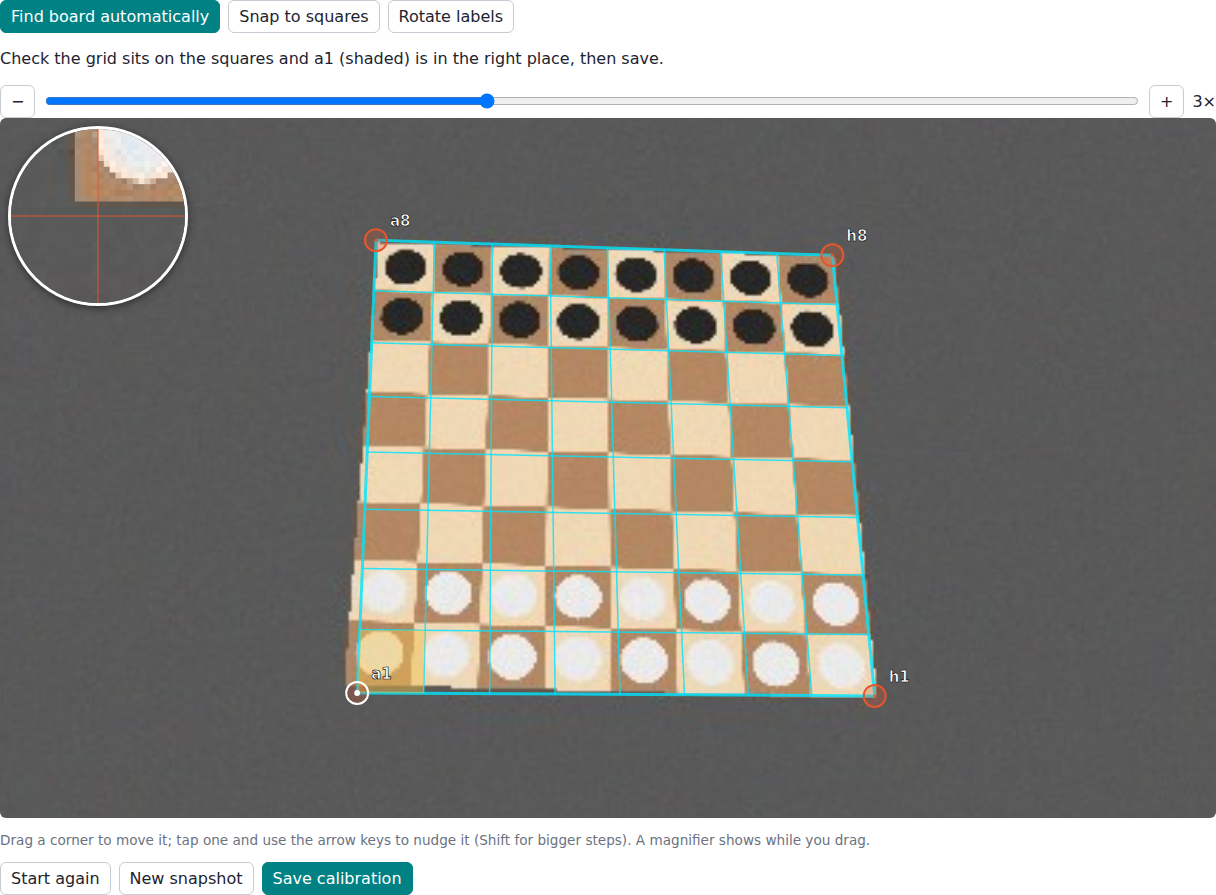
5. Calibrate
In the Camera panel choose Calibrate, then either:
- press Find board automatically (works best on an empty board), or
- click roughly on the outer corners of a8, h8, h1 and a1 and press Snap to squares.
Zoom in and drag the corners to fine-tune. Check that the cyan grid sits on the squares and that a1 is shaded in the right corner (if not, Rotate labels will fix it), then press Save calibration. You only need to do this again if the camera moves.
6. Play
Set up the pieces, pick your colour and the computer’s skill, and press Start new game. Make your move, take your hand away, and wait for it to answer.
7. Optional: a speaker on the board
The UNO Q doesn’t play sound over HDMI, but a Bluetooth speaker works. The app makes the speech itself with espeak-ng and streams it to the board’s sound server on TCP port 4712, which needs turning on once. The full steps, including pairing, PipeWire and the config file that keeps the port open after a reboot, are in the repo’s README.
Tips
- Light it evenly. A lamp off to one side throws shadows that the camera can mistake for moves. Two lights, or a ring light around the camera, work best.
- Mount the camera directly overhead. A camera at an angle makes the pieces lean into their neighbours, which is more of a problem than being a bit further away.
- Use good contrast. Pieces that look different from both square colours are read much more reliably.
- Moves missed? Raise the light or lower the change threshold under Tuning. Wrong move read? Raise the minimum fit.
- Stuck on “Waiting for the board to settle”? Something keeps changing part of the board, often a flickering light or a moving shadow.
- Can’t read a move? Type it (
e2e4orNf3) and make it on the board.
What’s next
The app already coaches you during a game, but I’d like it to teach you as well. I’m working on a lessons tab that starts with how the pieces move, then covers some basic strategy and common openings like the Queen’s Gambit, all played out on the real board.
Further out, I’d like to try printed ArUco markers on top of each piece, so it can recognise every piece directly and pick up a game from any position. I also want to add under-promotion choices and the ability to save games as PGN files.
If you build one, I’d really like to see it. Let me know in the comments what you’d like me to teach it next.
Hope you enjoyed this, and I shall see you next time. Bye for now.
This page is awesome - Show some love!


Comments