Saving Poses
Save named poses for your robot in Snakie, then rename, update and reuse them
By Kevin McAleer, 4 Minutes
Page last updated November 21, 2026
A pose is a snapshot
A pose is the angle of every joint at one moment, saved under a name. Poses are the building blocks of everything that follows: motions are made from them, and so is the code Snakie writes for you.
We’ll save three.
| Pose | Waist | Shoulder | Elbow |
|---|---|---|---|
rest |
0 | 0 | 0 |
reach |
-40 | 60 | 30 |
tuck |
-40 | -30 | -80 |
Save a pose
- Click Rest so every joint is at zero
- Click Save pose at the right of the Poses shelf, or press S
A card appears on the shelf with a little picture of the robot and the name Pose 1. Double-click the name, type rest and press Enter.
Now set the joints for reach with the number boxes, save, and rename. Do the same for tuck.
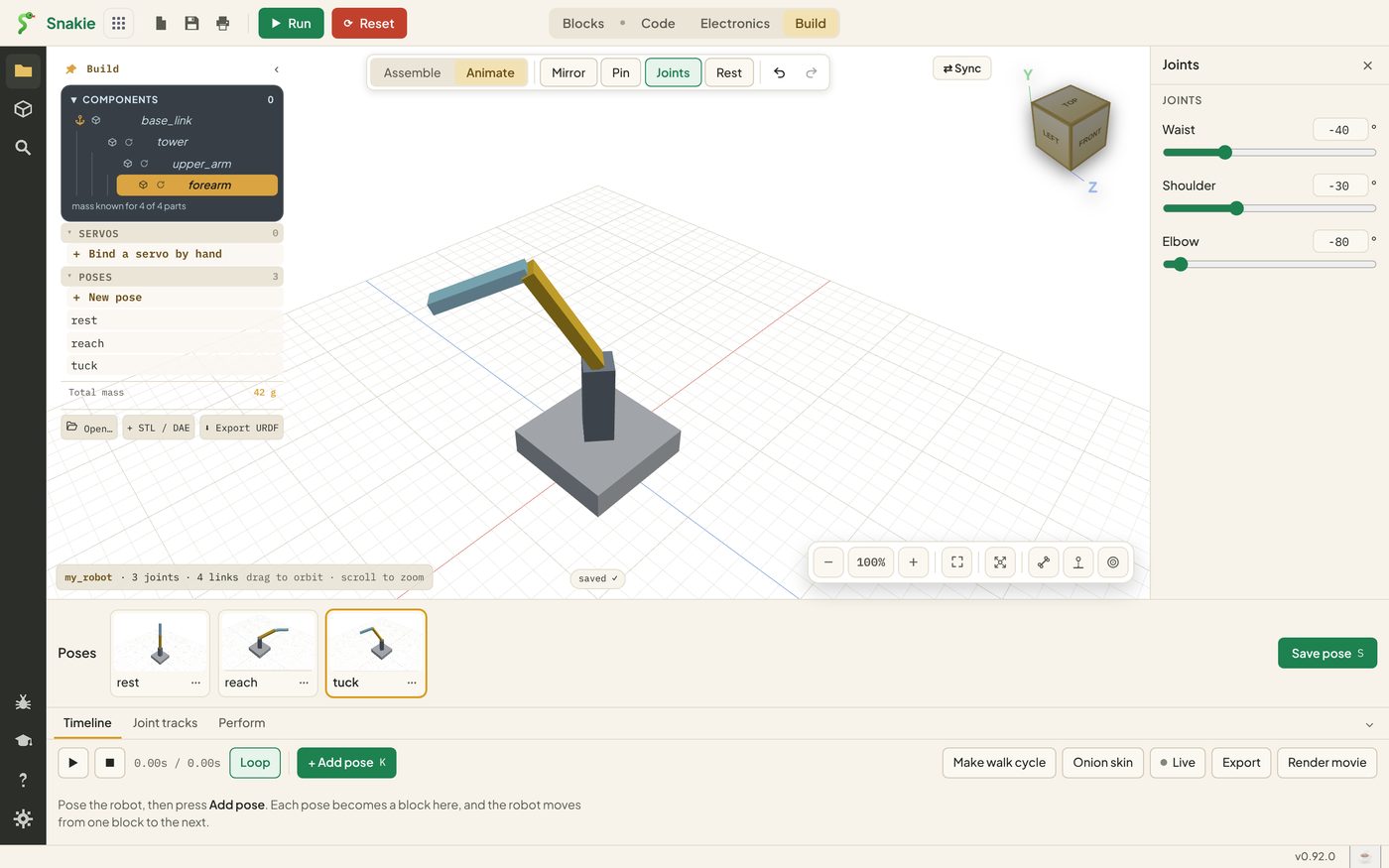
Click any card’s picture and the robot glides to that pose. The poses are also listed under Poses in the Build panel on the left.
Changing a pose
Each card has a ⋯ button with a small menu.
| Choice | What it does |
|---|---|
| Duplicate | Makes a copy to adjust |
| Update from current | Replaces the saved angles with what’s on screen now |
| Add to timeline at playhead | Drops the pose into a motion. That’s the next lesson |
| Delete | Removes the pose |
| Mirror to a new pose | Makes a left-right flipped copy, on robots with left and right joints |
Update from current is the one you’ll use most. Click a pose, nudge a joint until it looks right, then update.
Poses for part of a robot
+ New pose in the Build panel opens a different panel, with a tick box beside each joint.
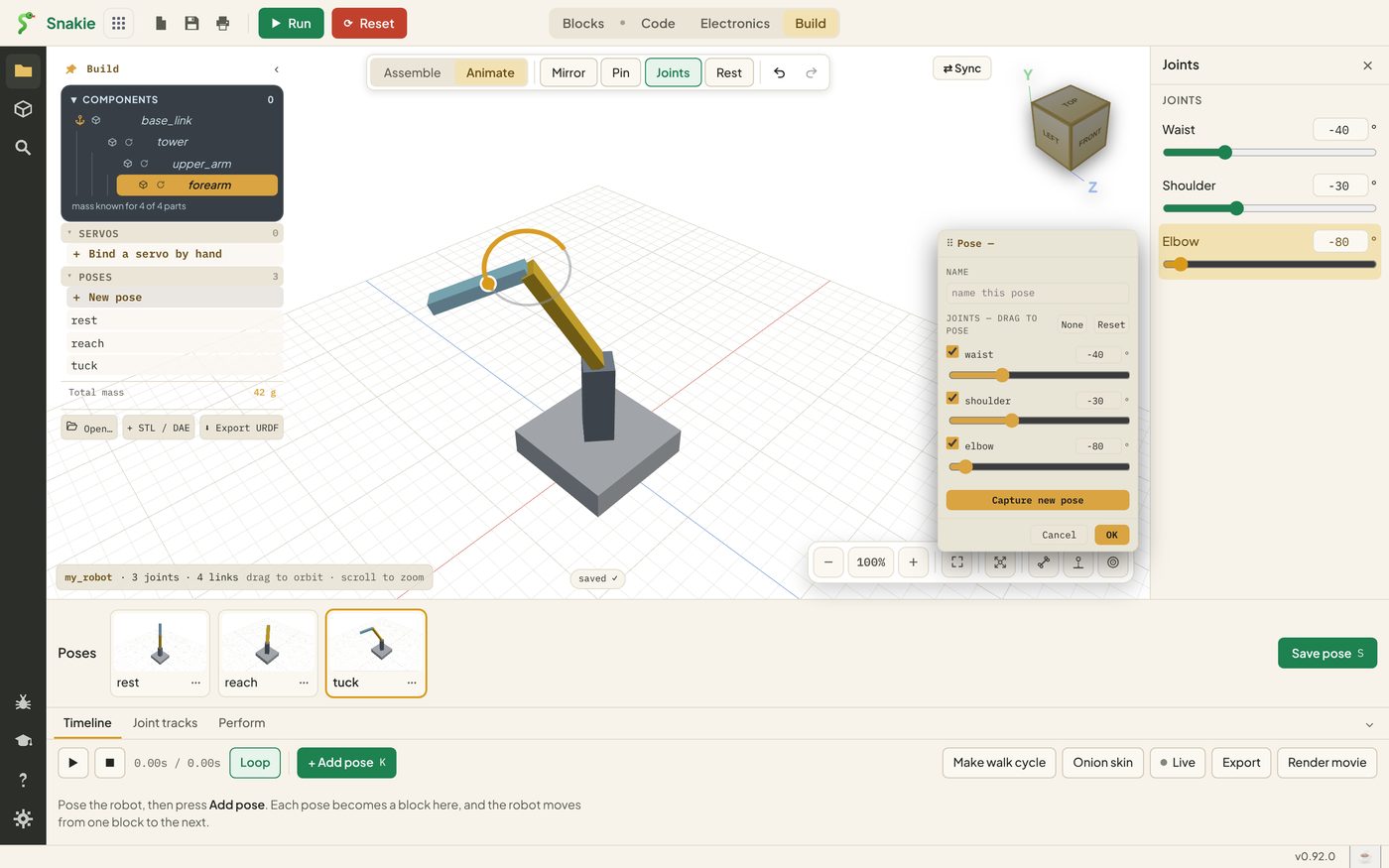
Untick a joint and the pose leaves it alone. That’s how you make a pose that only opens a gripper, or only turns a head, whatever the rest of the robot is doing. For our three-joint arm, keep them all ticked.
Where poses live
Open robot.yml in the Code workspace and you’ll find them, in plain text:
  poses:
    - name: rest
      values:
        waist: 0
        shoulder: 0
        elbow: 0
    - name: reach
      values:
        waist: -40
        shoulder: 60
        elbow: 30
The values are joint angles in degrees. Because it’s a text file, poses travel with your project and work nicely with Git.
Try it Yourself
- Save
rest,reachandtuck - Click between the three cards and watch the arm glide
- Click
reach, change the elbow to 45, and use Update from current. Then change it back to 30 and update again - Make a fourth pose of your own and call it
wave
Common Issues
Problem: The picture on a card doesn’t match the pose. Solution: Click the card, wait for the arm to stop, then choose Update from current. Why: The picture is taken at the moment you save. If the arm was still gliding, it caught it mid-move.
Problem: Clicking the name doesn’t move the robot. Solution: Click the picture on the card. Why: Double-clicking the name is for renaming.
Problem: My poses have gone after reopening the project.
Solution: Check robot.yml is still in the project folder.
Why: Poses are stored in that file, not inside Snakie.
Check your understanding
Quick quiz 1 of 3
What does a pose store?
Quick quiz 2 of 3
You’ve improved a pose on screen. How do you keep the change?
Quick quiz 3 of 3
Which file holds your poses?
You can use the arrows ← → on your keyboard to navigate between lessons.
Comments