URDF In and Out
Export your Snakie robot as a URDF file, read what is inside it, and open a robot designed in BetterCad
By Kevin McAleer, 6 Minutes
Page last updated November 21, 2026

What a URDF is
Everything you’ve built in this course lives in one small text file. It’s called a URDF, short for Unified Robot Description Format, and it’s the standard way to describe a robot: its parts (links), how they connect (joints), and how each joint can move.
Snakie isn’t the only program that reads it. ROS, simulators such as Gazebo and PyBullet, and BetterCad all speak URDF. That makes it the bridge between tools.
Export your arm
- In Build, look at the bottom of the panel on the left, under Total mass, and click Export URDF
- Look in the file list. There’s a new folder called
urdfwithmy_robot.urdfinside
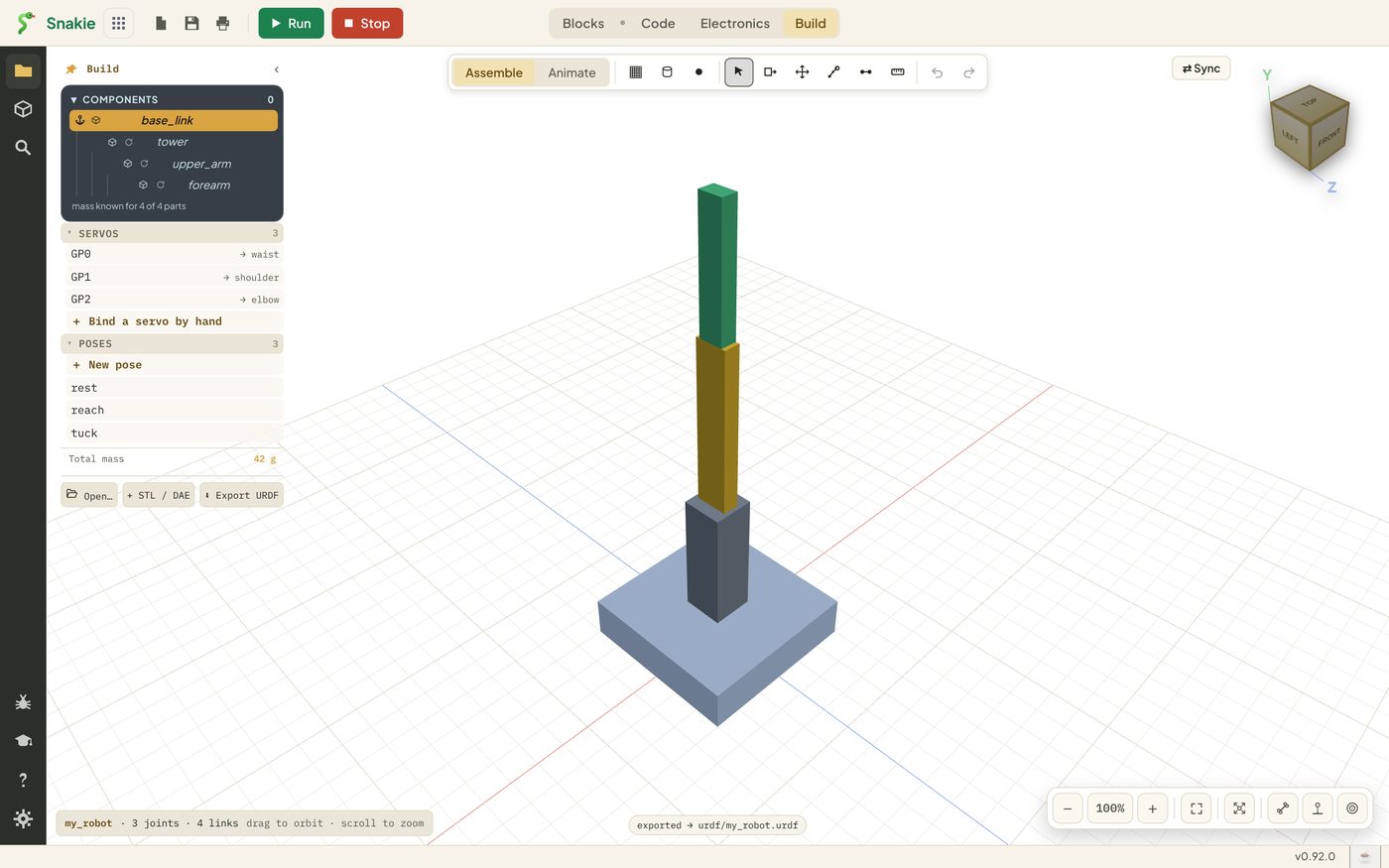
Snakie keeps its own working copy of the robot in the project too. The exported file is a tidy copy for sharing, with the masses from lesson 5 written in.
Read it
Open my_robot.urdf. It’s long, but it only uses two ideas over and over. Here’s one link and one joint.
<link name="tower">
  <inertial>
    <mass value="0.006"/>
  </inertial>
  <visual>
    <geometry>
      <box size="0.02 0.02 0.06"/>
    </geometry>
  </visual>
</link>

<joint name="waist" type="revolute">
  <parent link="base_link"/>
  <child link="tower"/>
  <origin xyz="0 0 0.04" rpy="0 0 0"/>
  <axis xyz="0 0 1"/>
</joint>
You can read your own work in it:
| In the file | What you did in Snakie |
|---|---|
box size="0.02 0.02 0.06" |
Made the tower 20 x 20 x 60 mm |
mass value="0.006" |
The 6 g estimate from the Mass section |
type="revolute" |
Chose Hinge |
origin xyz="0 0 0.04" |
Set Offset Z to 40 |
axis xyz="0 0 1" |
Chose Axis Z |
Two things to notice. URDF works in metres, so 40 mm is written 0.04. And it has its own words for joints:
| Snakie | URDF |
|---|---|
| Fixed | fixed |
| Hinge | revolute |
| Wheel | continuous |
| Slider | prismatic |
Open a robot from BetterCad
Blocks are great for working out a mechanism. For parts you’ll print, you’ll want real shapes, and that’s what BetterCad is for. A robot designed there exports as a URDF with a meshes folder of STL files, one per part.
Here’s one to try. It’s the two-joint desk arm from the Make It Move with BetterCad course.
- Unzip it. You get a folder called
Desk_armholdingDesk_arm.urdf, ameshesfolder and a tiny file calledrobot.yml - In Snakie, open that folder as your project
- Switch to Build
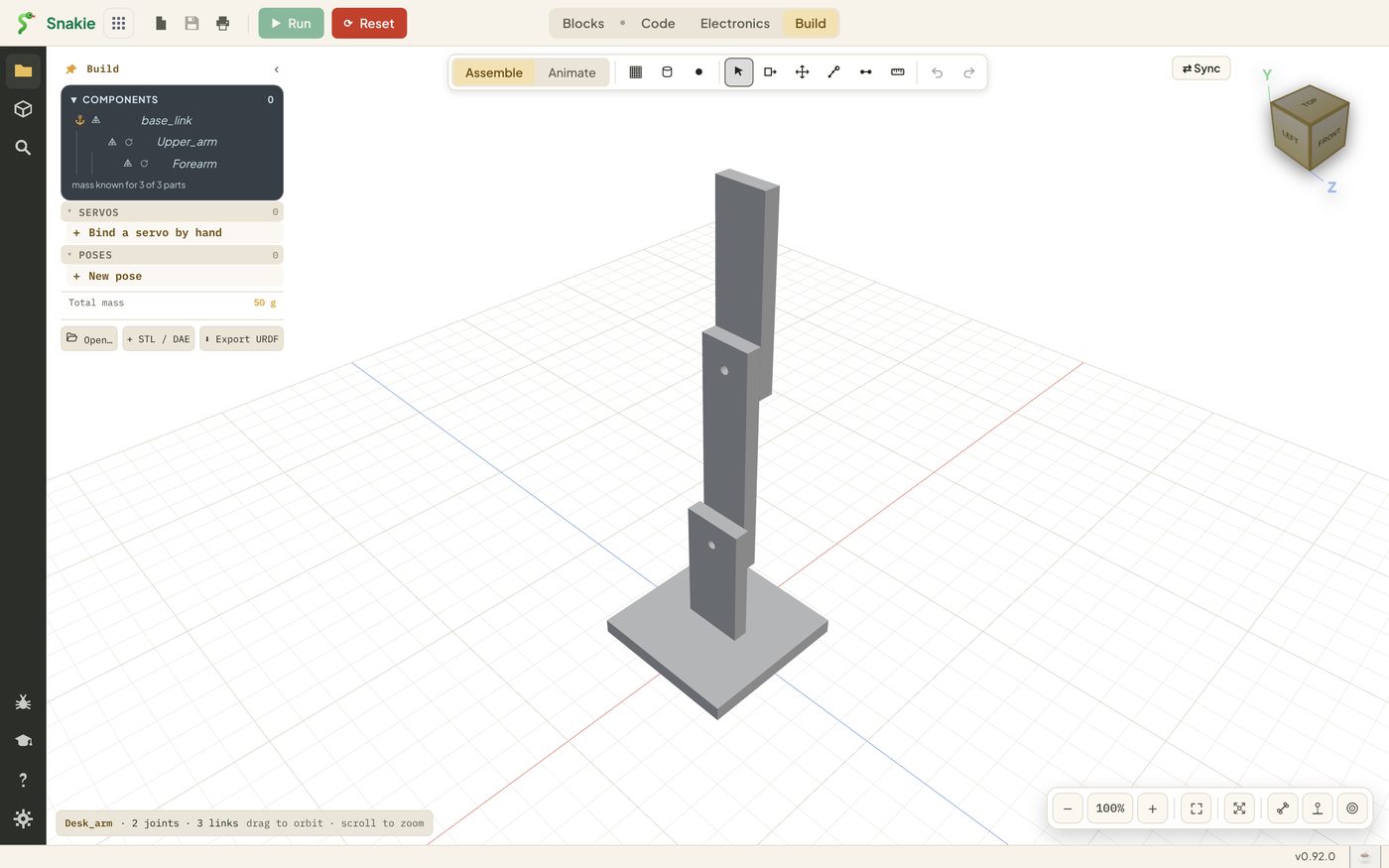
The real shapes appear, with the joints Shoulder and Elbow listed and the mass already filled in from BetterCad. Switch to Animate and drag a slider.
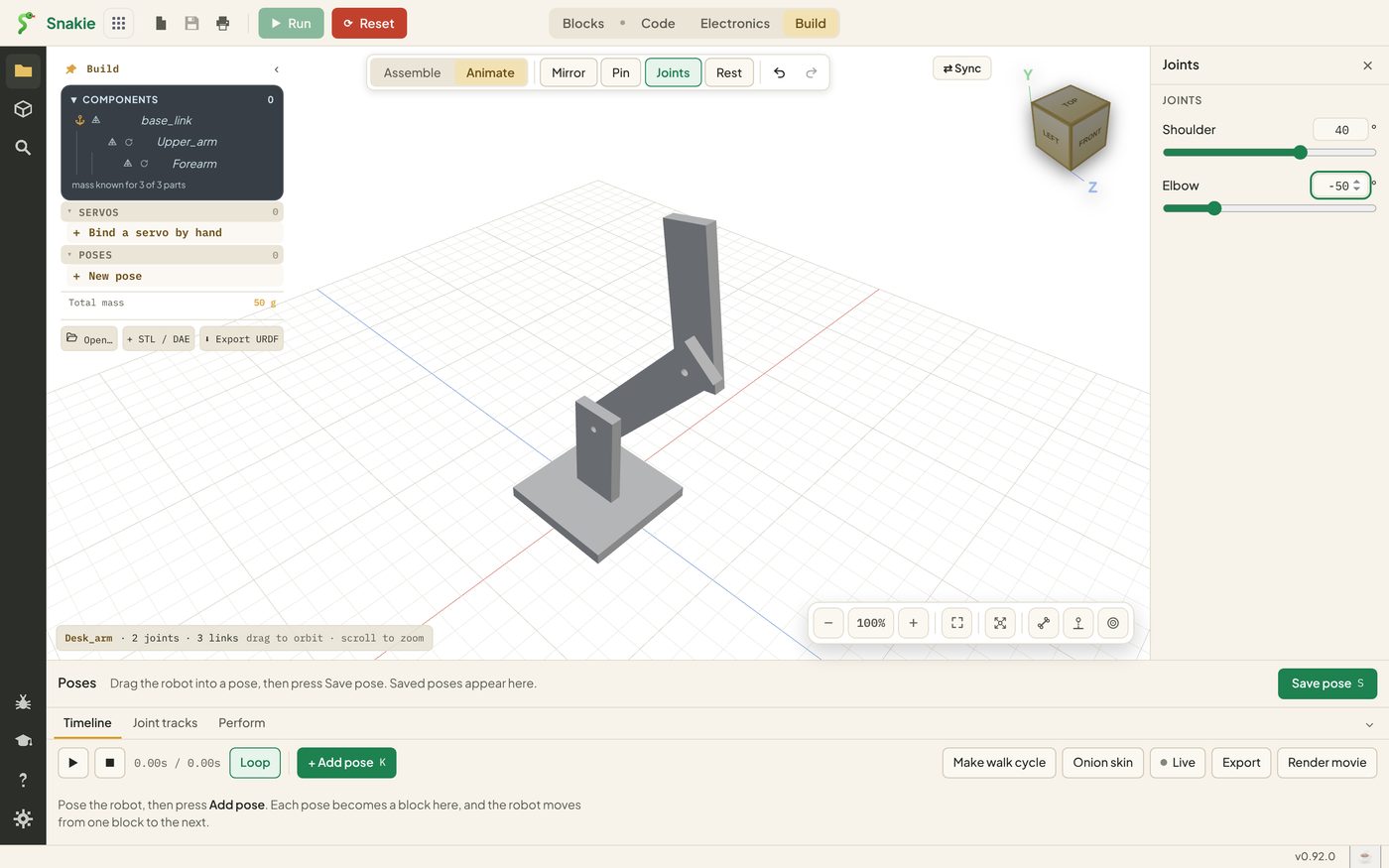
Everything from the last eight lessons now works on this arm: poses, the Timeline, joint tracks, servo bindings and code.
How Snakie knows which URDF to use
That robot.yml file is the link. It has one job here, which is to name the URDF.
robot:
  urdf: Desk_arm.urdf
  version: 1
parts: []
connections: []
When you export your own design from BetterCad, put a robot.yml like this next to the URDF, change the file name on the second line, and open the folder.
In the Snakie desktop app there’s also an Open URDF… button on the Build start card that does the linking for you.
Add a single mesh
You don’t need a whole URDF to use a printed part. Next to Export URDF, + STL / DAE brings in one mesh file as a new, loose link.
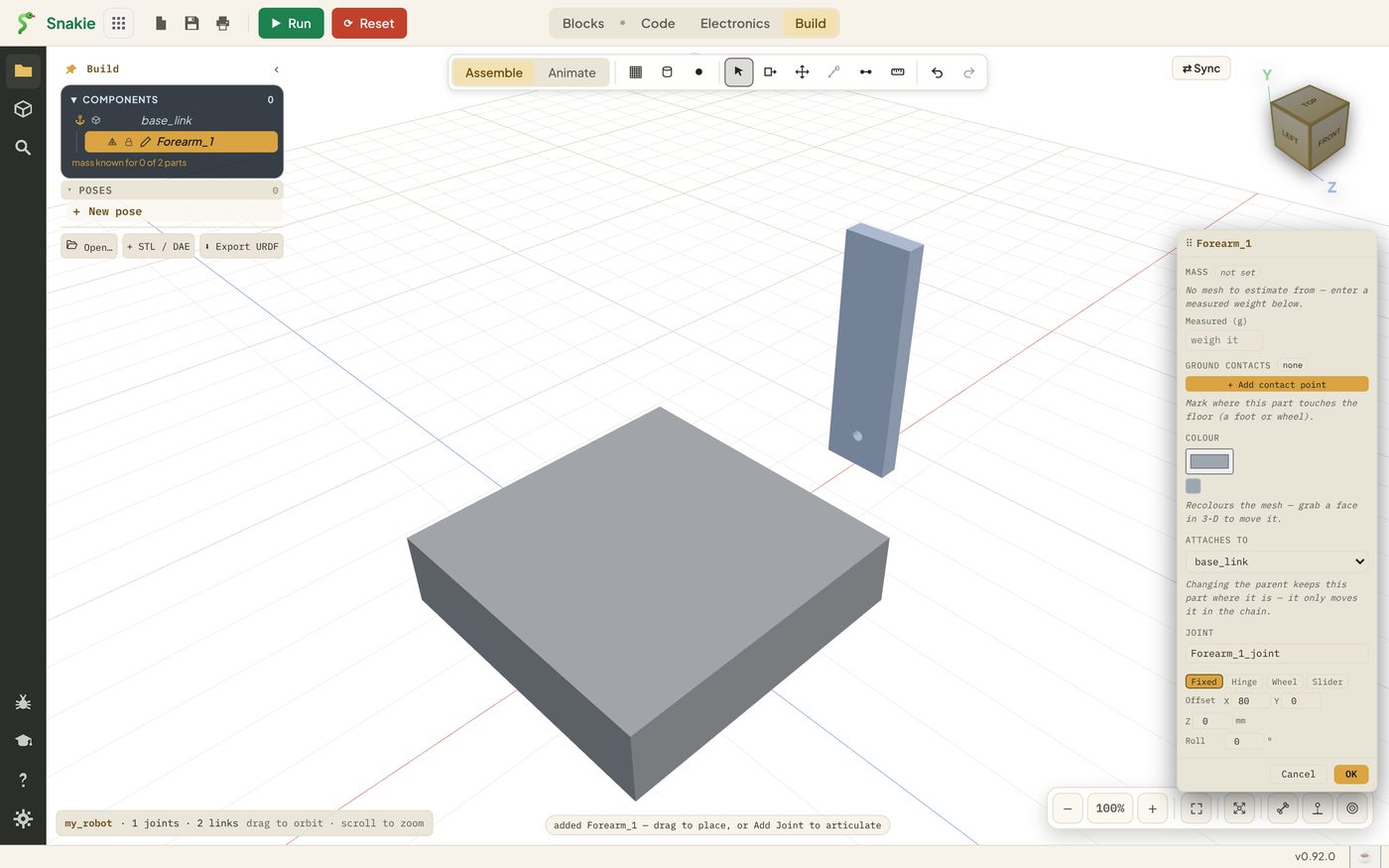
It arrives without a joint, so connect it with Add a joint as you did in lesson 3. Two differences from a block:
- Snakie can’t estimate the weight of an imported mesh, so type a Measured weight
- The colour box recolours the whole mesh
Try it Yourself
- Export your arm and find the
shoulderjoint in the file. What is its axis? - Change the waist to a Wheel, export again, and find what changed in the file. Change it back afterwards
- Open the BetterCad desk arm and save two poses for it
- Bind servos to
ShoulderandElbowand run a short program that moves both
Common Issues
Problem: The Build workspace is empty after opening the BetterCad folder.
Solution: Check robot.yml is in the same folder as the URDF and the name on the urdf: line matches the file exactly, capitals included.
Why: Snakie loads the URDF that robot.yml names. If the name doesn’t match, there’s nothing to show.
Problem: The joints are listed but the parts are invisible.
Solution: Keep the meshes folder next to the URDF, with the STL files inside.
Why: The URDF only stores the path to each shape. Move the file without its meshes and the shapes can’t be found.
Problem: The numbers in the URDF look far too small. Solution: Multiply by 1000. Why: URDF uses metres and kilograms. Snakie shows millimetres and grams.
Check your understanding
Quick quiz 1 of 4
What does a URDF file describe?
Quick quiz 2 of 4
A joint origin of 0.04 in a URDF is how far in Snakie’s units?
Quick quiz 3 of 4
What is a Snakie Hinge called in URDF?
Quick quiz 4 of 4
What does robot.yml do for an imported robot?
You can use the arrows ← → on your keyboard to navigate between lessons.
Comments