Menus and Keyboard Shortcuts
Learn Snakie's menus and the keyboard shortcuts worth memorising, and where to find the built-in shortcut sheet
By Kevin McAleer, 5 Minutes
Page last updated November 21, 2026

The mouse is fine for exploring. Once you know where things are, the keyboard is quicker. This lesson is a map of the menus and a short list of shortcuts worth learning.
The shortcut sheet
Snakie will show you its own shortcuts. In the desktop app, choose Help ▸ Keyboard Shortcuts, or press Ctrl+Shift+/.
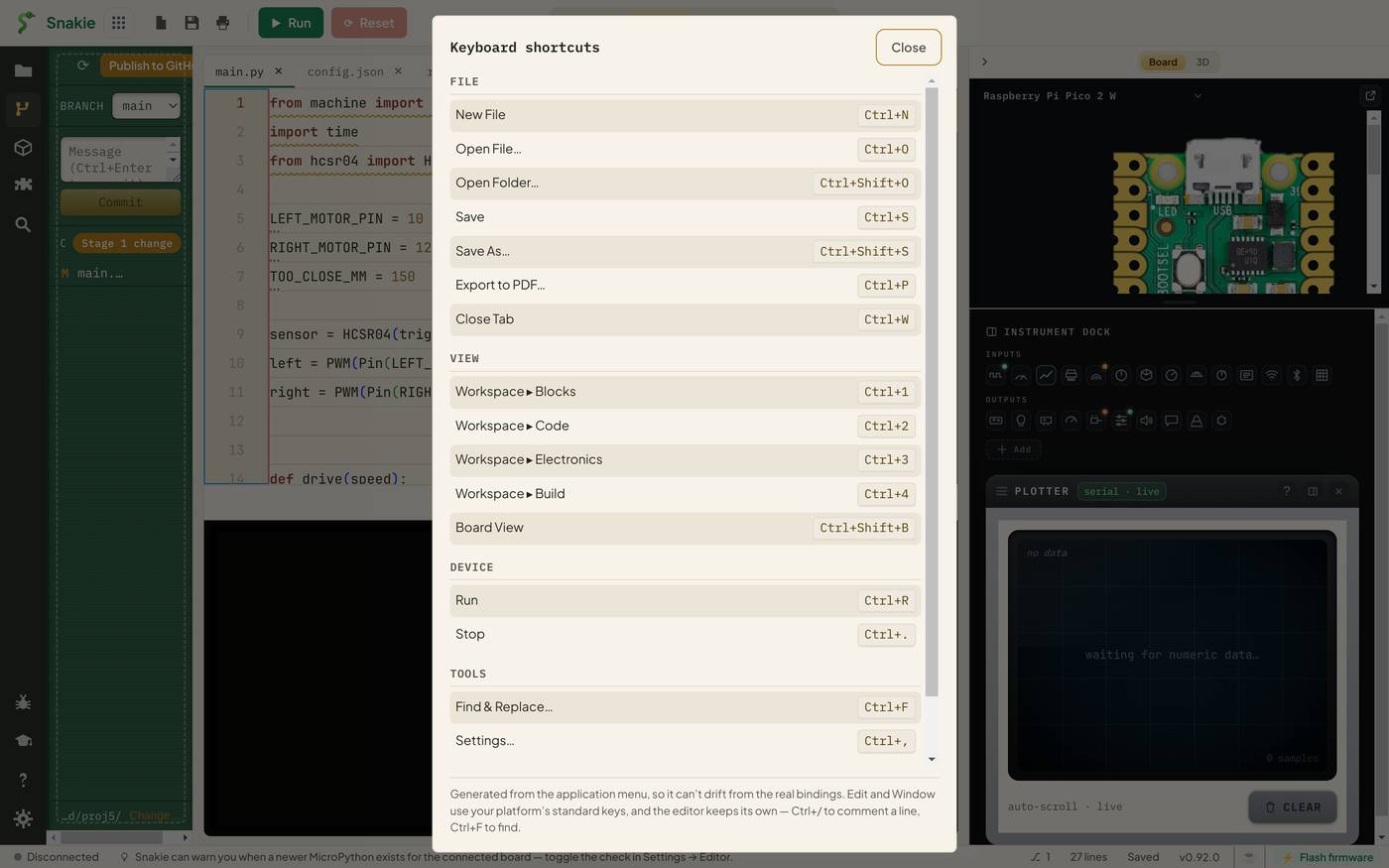
The note at the bottom is worth reading: the sheet is generated from the application menu, so it can’t drift from the real bindings. If it’s on the sheet, it works.
On a Mac, every Ctrl below is Cmd.
Files
| Shortcut | Does |
|---|---|
| Ctrl+N | New file |
| Ctrl+O | Open a file |
| Ctrl+Shift+O | Open a folder |
| Ctrl+S | Save |
| Ctrl+Shift+S | Save as |
| Ctrl+P | Export to PDF |
| Ctrl+W | Close the tab |
The File menu also has Open Recent, a list of the folders you’ve worked in lately.
Getting around
| Shortcut | Does |
|---|---|
| Ctrl+1 | Blocks workspace |
| Ctrl+2 | Code workspace |
| Ctrl+3 | Electronics workspace |
| Ctrl+4 | Build workspace |
| Ctrl+Shift+B | Show or hide the Board View |
| Ctrl+, | Settings |
Flipping between Code and Electronics with Ctrl+2 and Ctrl+3 is the one that changes how you work: check a pin number, flip back, type it.
Running
| Shortcut | Does |
|---|---|
| Ctrl+R | Run |
| Ctrl+. | Stop |
The Device menu holds the rest: Connect, Disconnect, Soft Reset and Sync Now.
Careful with Ctrl+. It stops a running program from the menu, and it opens the lightbulb when your cursor is in the editor on a line with a fix.
In the editor
These belong to the editor itself, so they work in the browser version too.
| Shortcut | Does | Lesson |
|---|---|---|
| Ctrl+Space | Show suggestions | 1 |
| F12 | Go to definition | 2 |
| Ctrl+F | Find and Replace | 3 |
| Ctrl+F2 | Change all occurrences | 3 |
| Ctrl+. | Quick fix | 5 |
| Ctrl+Shift+R | Refactor | 5 |
| Ctrl+/ | Comment or uncomment the line | |
| Ctrl+Z | Undo |
Ctrl+/ deserves a mention. Select a block of lines and press it to comment them all out, then again to bring them back. It’s the fastest way to switch a piece of code off while you hunt for a bug.
The Tools menu
Tools is the way to parts of Snakie that don’t have a button on the main screen:
| Item | What it opens |
|---|---|
| Firmware Flasher… | Install or update MicroPython on a board |
| Board Finder… | Identify a board and find its details |
| Parts Catalog… | The full-screen parts library from the Electronics course |
| Sprite Editor… | Draw images and animations for small displays |
| Find & Replace… | Lesson 3 |
| Settings… | Themes, editor options and chat setup |
The status bar
The strip along the bottom of the window is easy to ignore and worth a glance:
- On the left, the connection status, then a rotating tip. The tips are real features, one line each. Many people find their favourite tool there
- On the right, the number of lines in the file, whether it’s Saved or Unsaved, the Snakie version (click it to check for updates) and Flash firmware
Make it yours
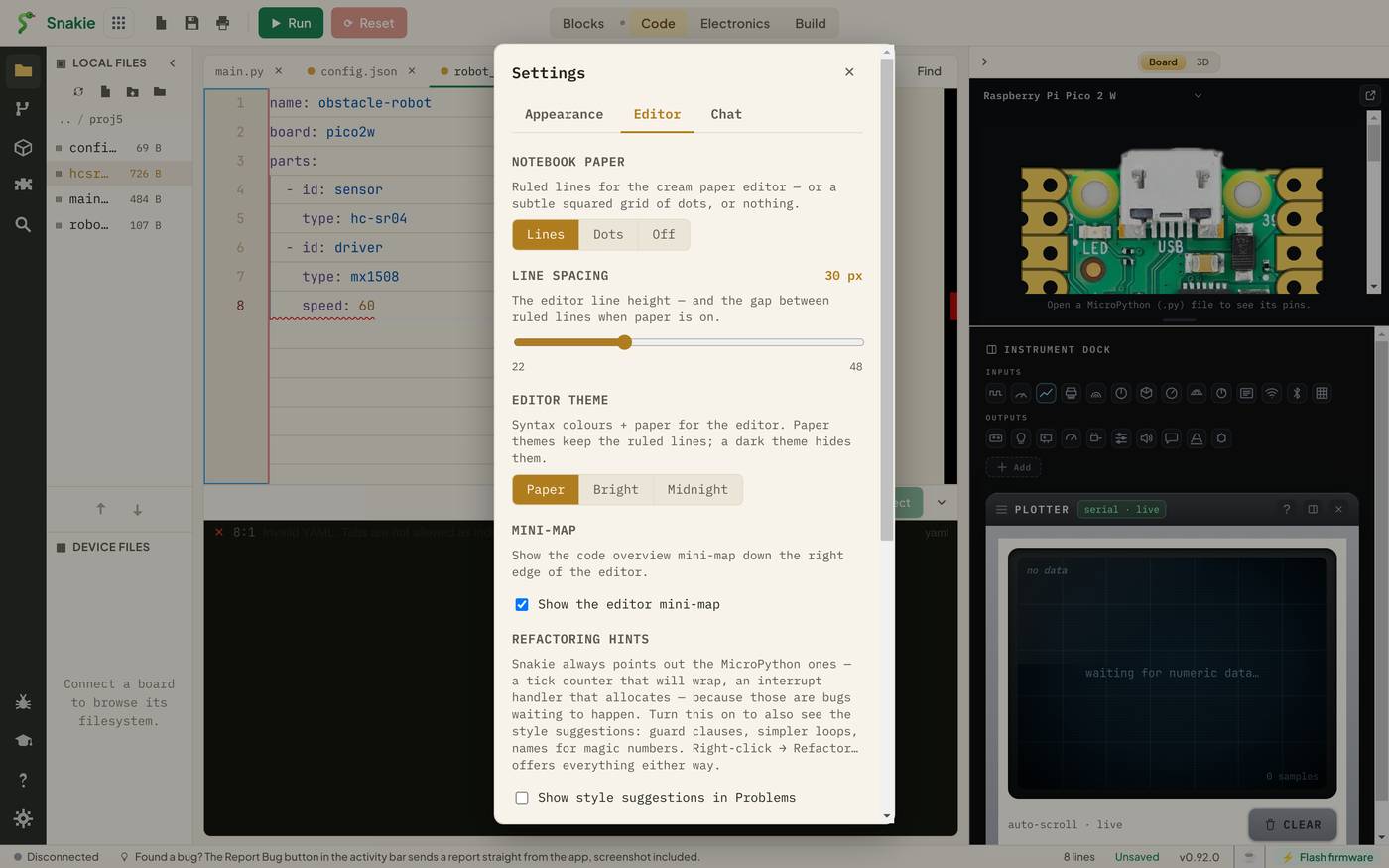
Open Settings and look at the Editor tab. You can change the ruled-paper background to dots or nothing, set the line spacing, pick an editor theme (Paper, Bright or Midnight) and hide the mini-map. None of it changes your code. All of it changes how long you’re comfortable looking at it.
Five to learn first
If you only memorise five:
- Ctrl+S Save
- Ctrl+R Run
- Ctrl+Space Suggestions
- Ctrl+/ Comment
- Ctrl+F Find
Try it Yourself
- Open the shortcut sheet and find one shortcut that isn’t in this lesson’s “five to learn first”.
- Write three lines, select them, and toggle them off and on with Ctrl+/.
- Run and stop a program without touching the mouse.
Common Issues
Problem: A shortcut does nothing. Solution: Click in the Snakie window first. In the browser, some shortcuts such as Ctrl+N and Ctrl+W belong to the browser itself, so use the buttons. Why: A browser keeps certain keys for its own tabs and windows.
Problem: Ctrl+. opened a menu instead of stopping my program. Solution: Click the Stop button, or click outside the editor first. Why: With the cursor in the editor, that key belongs to the quick-fix lightbulb.
Problem: I can’t find the menus. Solution: In the desktop app they’re at the top of the window, or the top of the screen on a Mac. In the browser, use the toolbar and the activity bar. Why: The full menu bar is part of the desktop app.
Check your understanding
Quick quiz 1 of 3
How do you open Snakie’s shortcut sheet?
Quick quiz 2 of 3
What does Ctrl+/ do in the editor?
Quick quiz 3 of 3
Which shortcut switches to the Electronics workspace?
You can use the arrows ← → on your keyboard to navigate between lessons.
Comments