AI Chat and Suggestions
Set up Snakie's AI chat pane and optional ghost-text suggestions with your own API key, and learn how to check what an AI writes
By Kevin McAleer, 6 Minutes
Page last updated November 21, 2026

Desktop app: the chat pane is in the Snakie desktop app. It’s optional, and it needs your own API key from an AI provider, which is usually a paid service.
Snakie can put an AI assistant beside your code. Used well, it’s like a patient colleague who has read every datasheet. Used carelessly, it’s a fast way to get code you don’t understand. This lesson covers both the setup and the habits.
Opening the pane
Click Chat at the top right of the editor. A panel opens on the right.
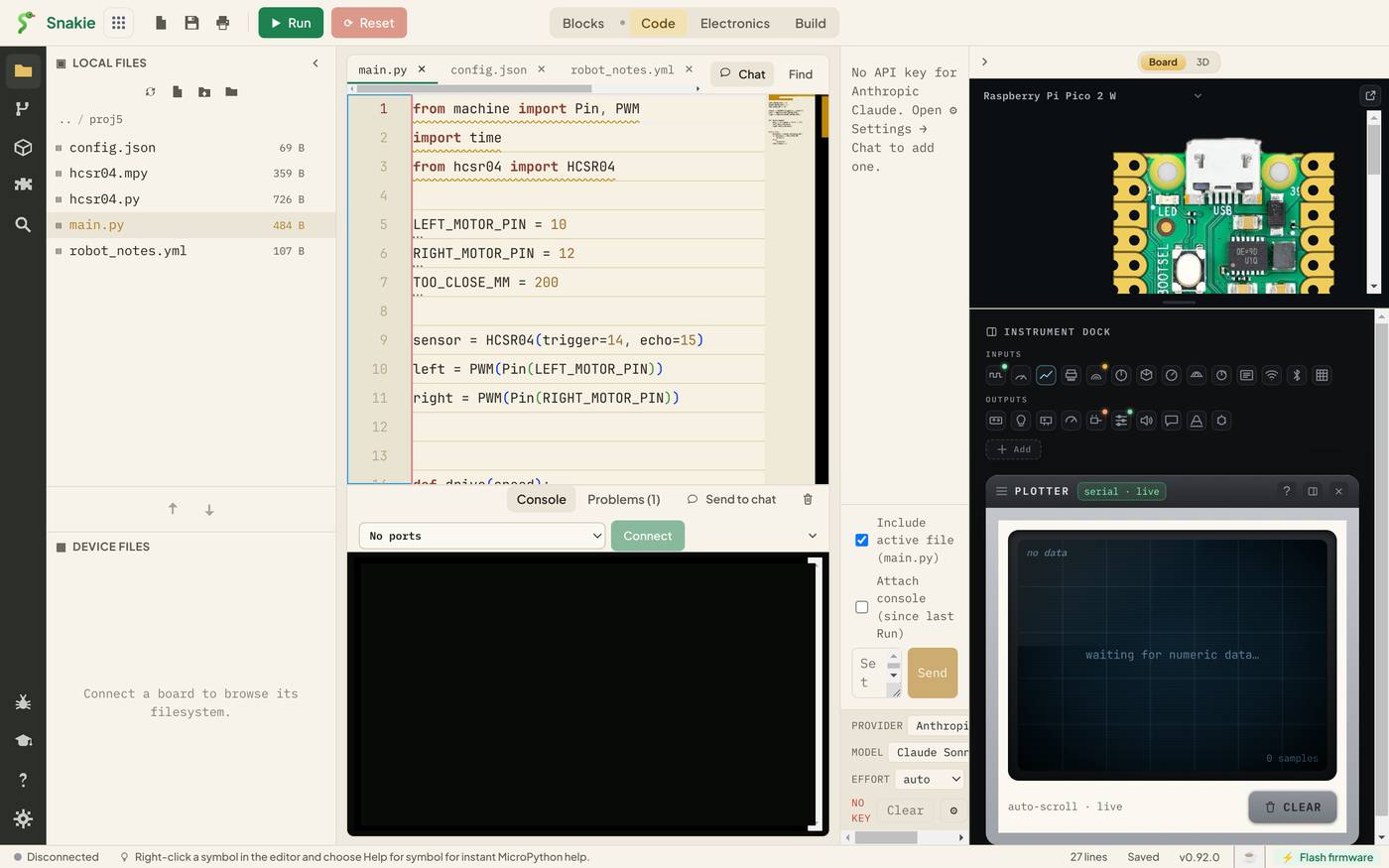
Until it’s set up, it says No API key and points you to Settings.
Setting it up
Open Settings (the cog at the bottom of the activity bar), then the Chat tab.
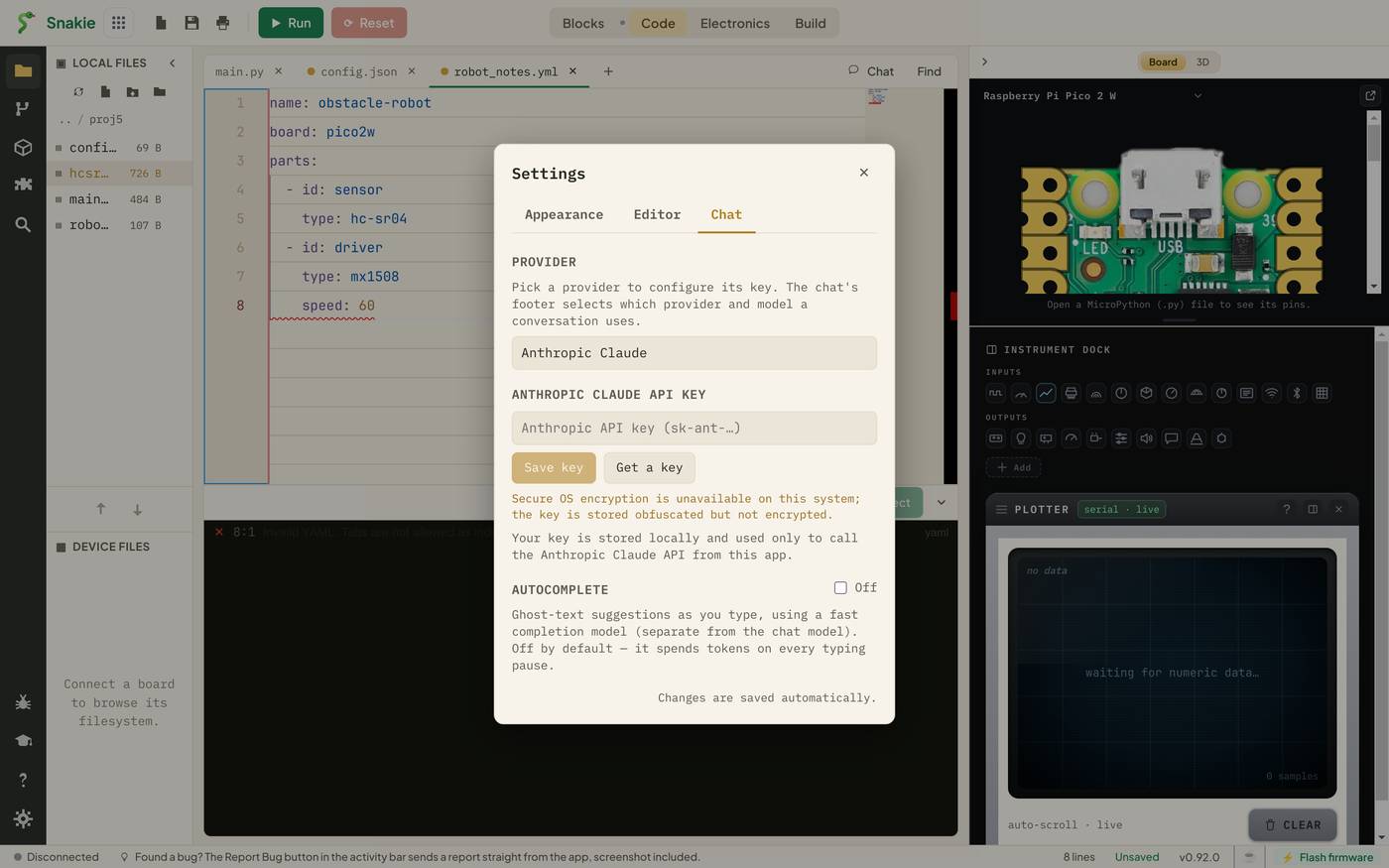
- Pick a provider. The choices are Anthropic Claude, OpenAI, Google Gemini, Grok (xAI) and GitHub Copilot, which is marked experimental and signs in differently
- Use Get a key to create an API key on the provider’s website
- Paste it in and click Save key
The key is stored on your computer and only used to talk to the provider you chose.
Teachers and parents: an API key is tied to a payment account, and anything typed in the chat is sent to that provider. Decide who holds the key before switching this on for a class.
Asking good questions
At the bottom of the pane are the controls that matter:
| Control | What it does |
|---|---|
| Include active file | Sends the file you have open along with your question |
| Attach console (since last Run) | Sends the console output from your last run |
| Provider, Model, Effort | Which AI answers, and how hard it thinks |
| Send | Sends the message |
| Clear | Starts a fresh conversation |
Those two tick boxes are what make this better than a chat window in a browser. With the file included, “find the bug in this” works. With the console attached, “why did this crash?” comes with the actual traceback. The console also has a Send to chat button that does it in one click.
Questions that work well:
- Explain what line 14 does, as if I’m new to PWM.
- Why does this traceback happen? (with the console attached)
- Write a function that turns a 0 to 100 speed into a duty value. MicroPython on a Pico.
- What would break if I changed this sleep to 1 ms?
Always say MicroPython and name your board. An AI’s default is desktop Python, and it will happily use modules your Pico doesn’t have.
Ghost text
The same providers can suggest code as you type. In Settings, Chat, find Autocomplete. It’s Off by default, for a reason the setting states honestly: it spends tokens on every typing pause.
Switch it on and a faint grey suggestion appears ahead of your cursor when you stop typing. Tab accepts it. Keep typing to ignore it.
This is separate from the autocomplete in lesson 1. That one is built in, free, and only offers names that really exist. Ghost text is a guess about what you might write next.
Check its work
An AI can be confidently wrong. The good news is that you’ve spent this course learning the tools that catch it:
| Check | Tool |
|---|---|
| Does that method exist? | Hover, and autocomplete. If pwm. doesn’t list it, be suspicious |
| Is that module on my board? | The Modules tab |
| Any undefined names or unused imports? | The Problems panel |
| Is it written well for a microcontroller? | Refactoring hints |
| What exactly did it change? | The diff in Source Control |
| Does it work? | Run it, on the simulator first |
Commit before you paste in anything large. Then the diff shows you precisely what arrived, and Discard changes takes it away again.
And the oldest rule: don’t run code you can’t explain. Ask the chat to explain it. That’s what it’s best at.
Try it Yourself
- With the active file included, ask the chat to describe what your program does. Is it right?
- Run a program with a deliberate error, attach the console, and ask why it failed.
- Ask for a function, paste it in, and put it through the six checks above. Did it pass all of them?
Common Issues
Problem: There’s no Chat button. Solution: Use the Snakie desktop app. Why: The chat pane isn’t part of the browser version.
Problem: The pane says No API key. Solution: Add a key in Settings, Chat, for the provider selected at the bottom of the pane. Why: Each provider needs its own key, and the pane uses whichever provider is selected.
Problem: The code it wrote uses a module my board doesn’t have. Solution: Tell it your board and that you’re using MicroPython, and check the Modules tab. Why: Without that, an AI assumes desktop Python.
Check your understanding
Quick quiz 1 of 3
What does “Include active file” do?
Quick quiz 2 of 3
Why is ghost-text autocomplete off by default?
Quick quiz 3 of 3
An AI suggests led.set_brightness(50). What’s the quickest check?
You can use the arrows ← → on your keyboard to navigate between lessons.
Comments