Drive Links
Link two BetterCad joints through gears, a belt, a rack or a typed ratio so that turning one turns the other
By Kevin McAleer, 7 Minutes
Page last updated November 21, 2026

Every joint so far has had its own motor, in spirit at least. Plenty of mechanisms don’t work that way. One servo turns a gear, the gear turns another, and that one moves the part you care about. Two joints, one motor.
A drive link tells BetterCad that one joint drives another, and by how much.
The servo deck
This lesson uses the geared servo deck from Design Robot Parts with BetterCad. It has a 24-tooth gear on an SG90 and a 48-tooth gear on a post beside it. They mesh, but they don’t turn.
- Save your arm, then open your servo deck. If you don’t have one, download servo-deck.bcad and open that.
- Click the Assemble tab.
Move the gears aside
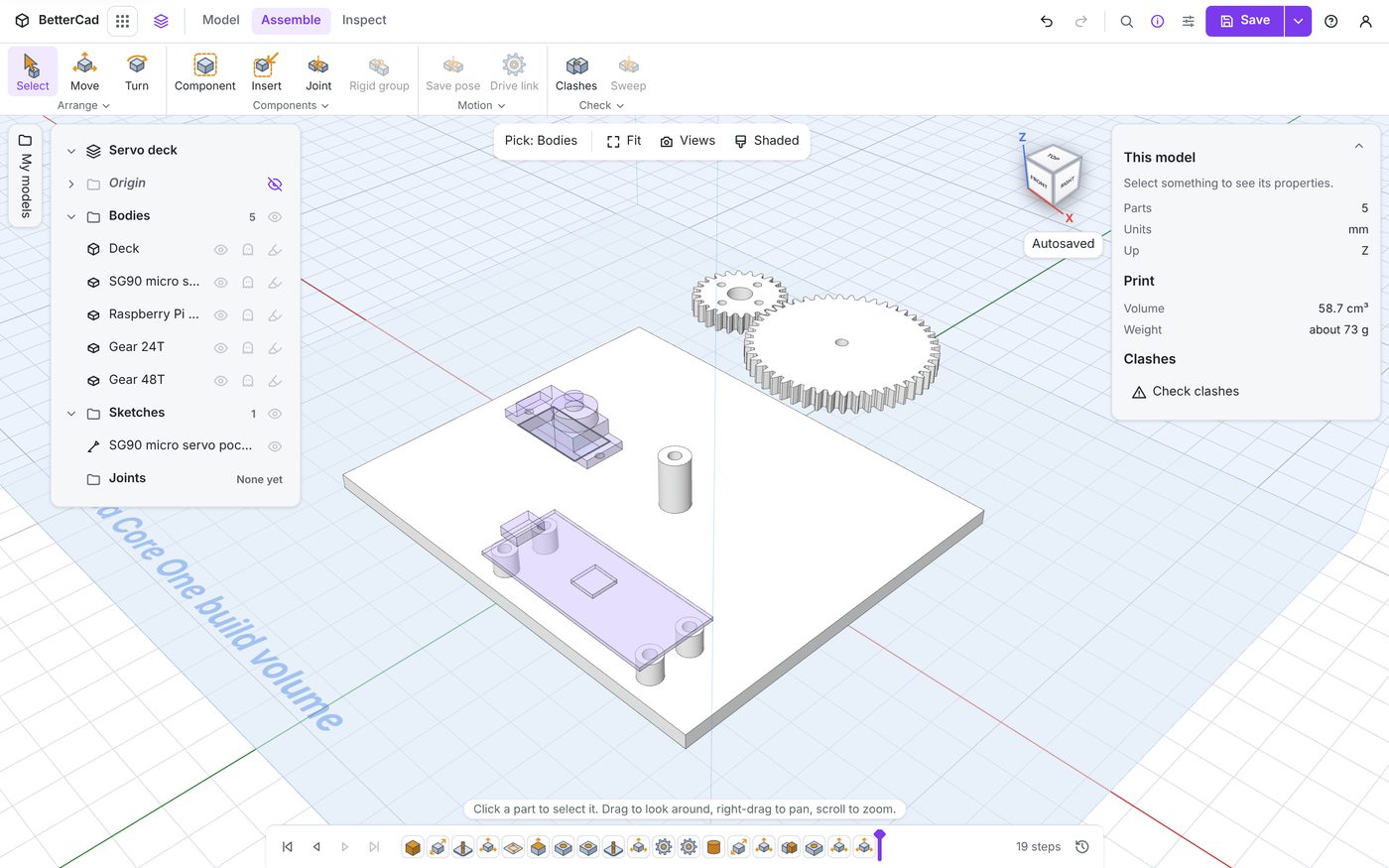
Each gear needs a wheel joint. The snap you want on the deck is the top of the servo shaft, or the top of the post, and at the moment the gear is sitting on it. So lift the gears out of the way first. The joints will put them back.
- Click Gear 24T and set Position Y to
60in Properties. - Do the same for Gear 48T.
Joint the small gear
- Click Joint.
- Click the hole in the middle of Gear 24T.
Check the Snap under Moves reads -30, 60, 23. This gear has a servo horn recess with several snap points close together, so if you got a different one, press Esc once and click again nearer the centre.
- Click the top of the servo’s shaft.
The Hangs from snap should read -30, 0, 18.
- Change Kind to Wheel (continuous), so the gear can turn all the way round.
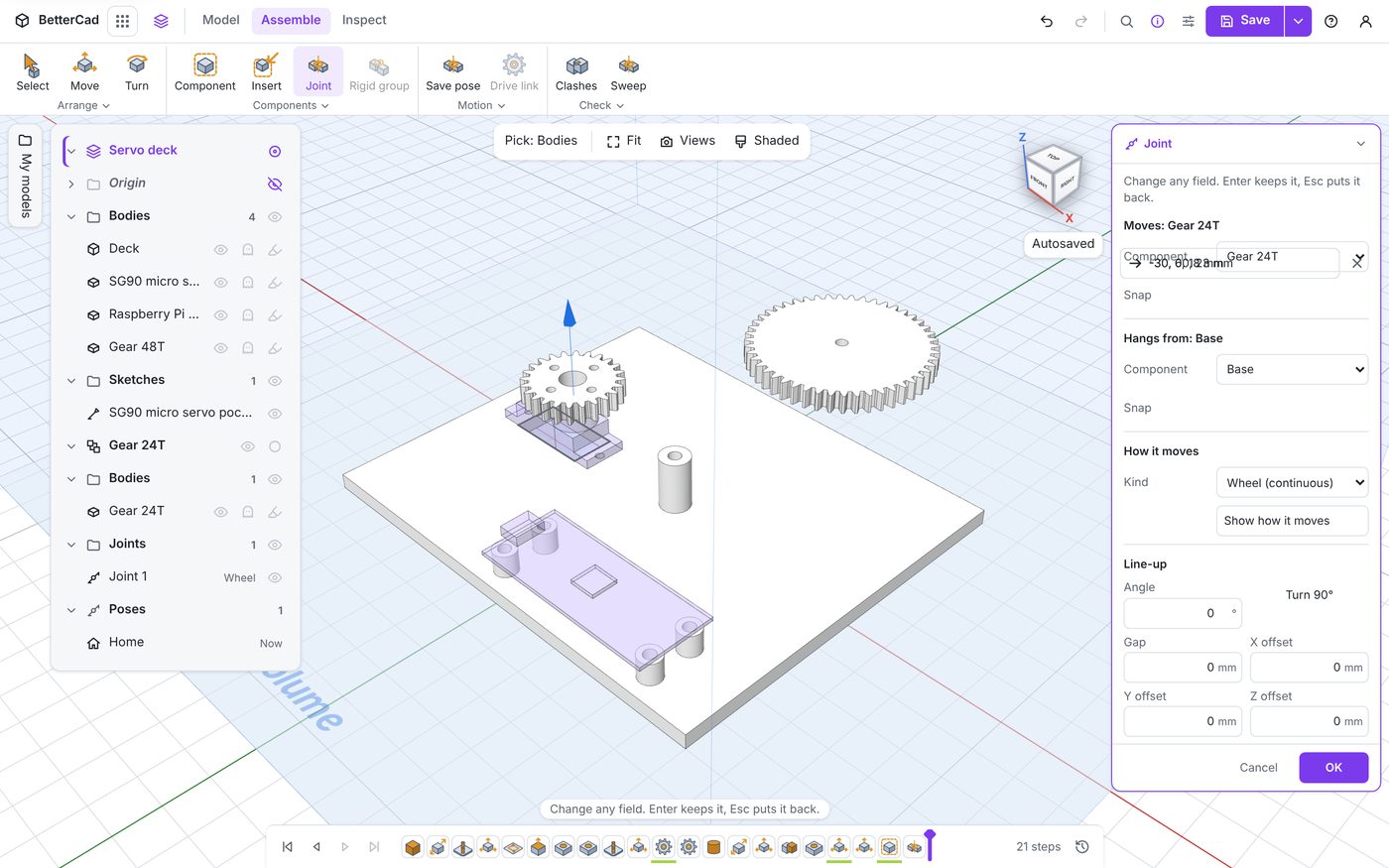
- Click OK, then rename the joint
Servo.
The gear lands on the shaft upside down. Parts join face to face, and you clicked its top face. A spur gear works the same either way up. If yours has a hub that must face up, turn the view to look from underneath and click the gear’s bottom face.
Joint the big gear
- Click Joint, then click the hole in the middle of Gear 48T. The snap should read
6, 60, 23. - Click the top of the post, near its hole. The snap should read
6, 0, 18. - Change Kind to Wheel (continuous) and click OK.
- Rename the joint
Output.
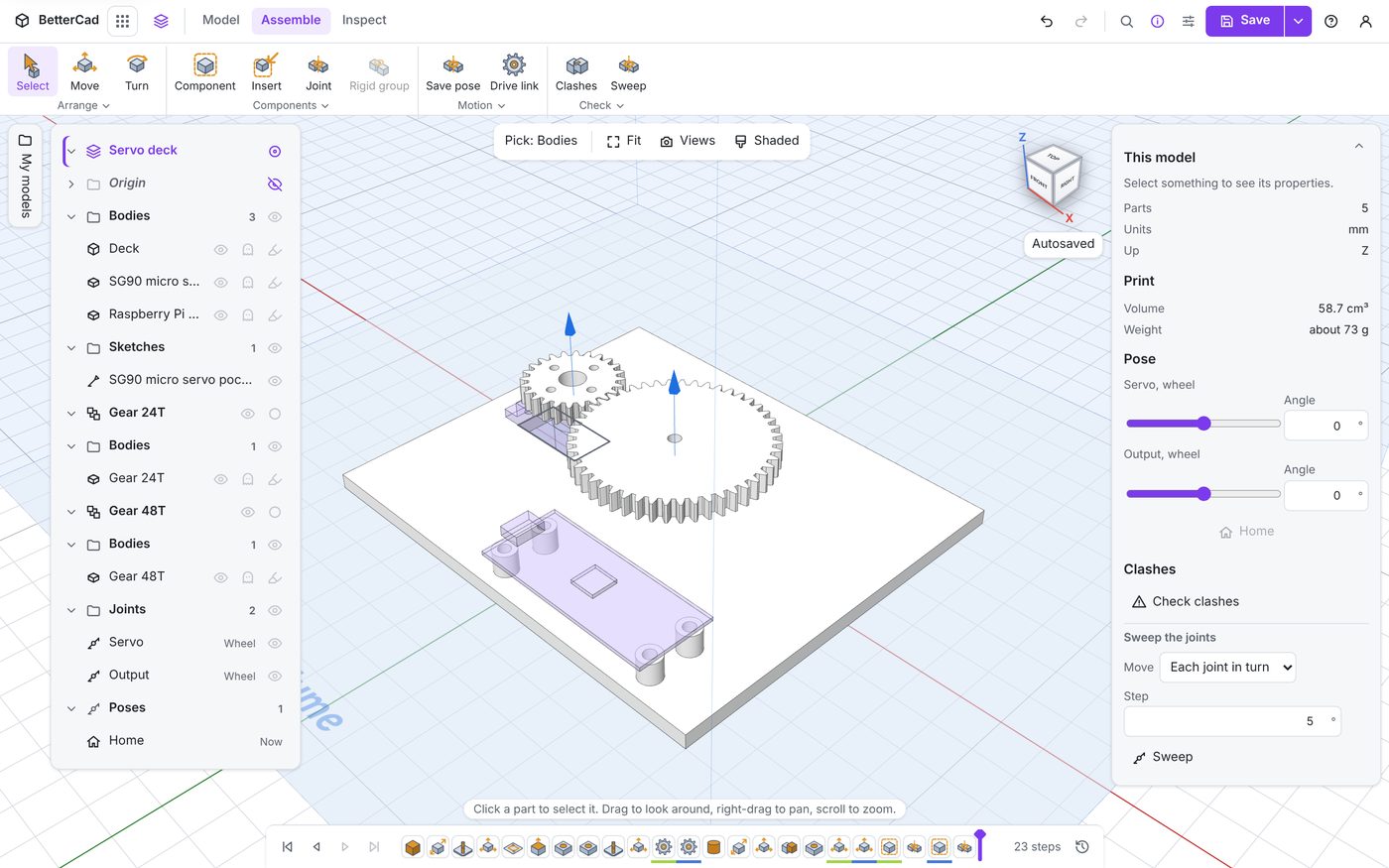
Try the two Pose sliders. Each gear spins by itself, straight through the other’s teeth. Click Home.
Add the drive
- Click Drive link in the Motion group.
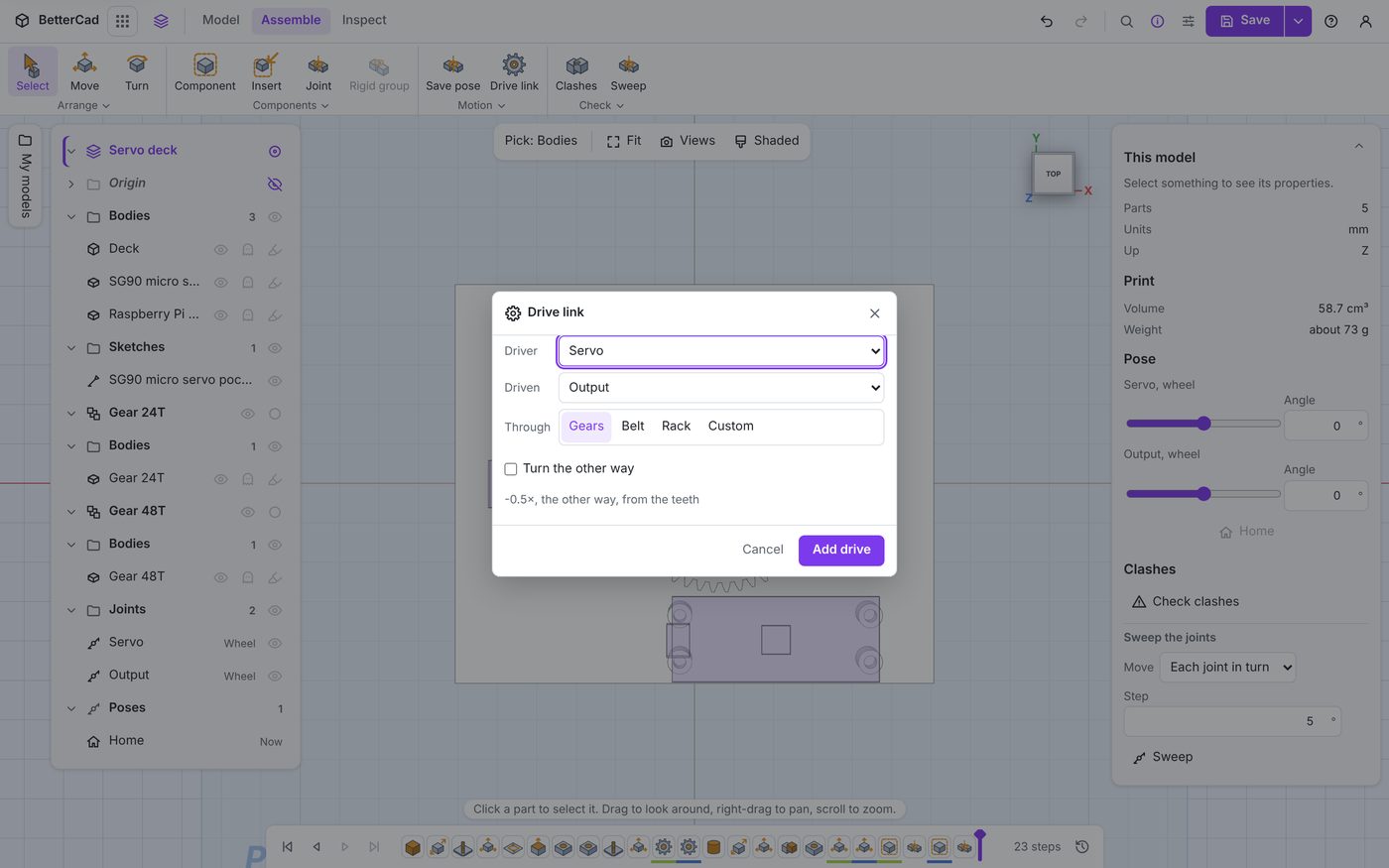
- Set Driver to Servo and Driven to Output.
- Leave Through on Gears.
At the bottom, BetterCad has already done the sum: “-0.5×, the other way, from the teeth”. It counted 24 teeth driving 48, so the output turns half as far, and meshed gears turn in opposite directions.
- Click Add drive.
The bar says “Added Drive 1. Move either joint and the other follows.”
Watch it turn
In the Pose section, Output now says “Driven by Servo”, and Servo has a Play button.
- Type
90in the Servo’s Angle box.
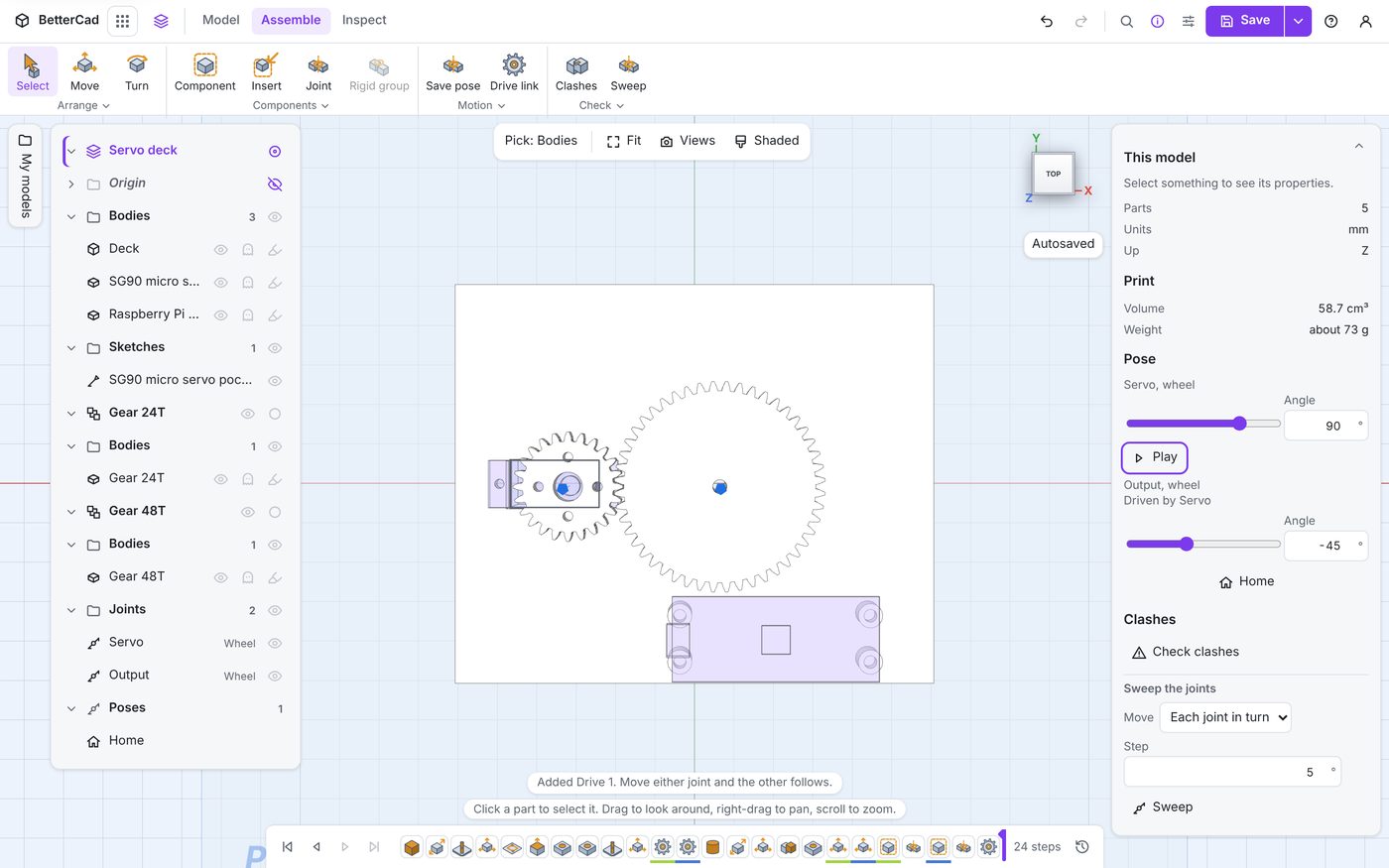
Output reads -45. Half as far, the other way.
- Click Play.
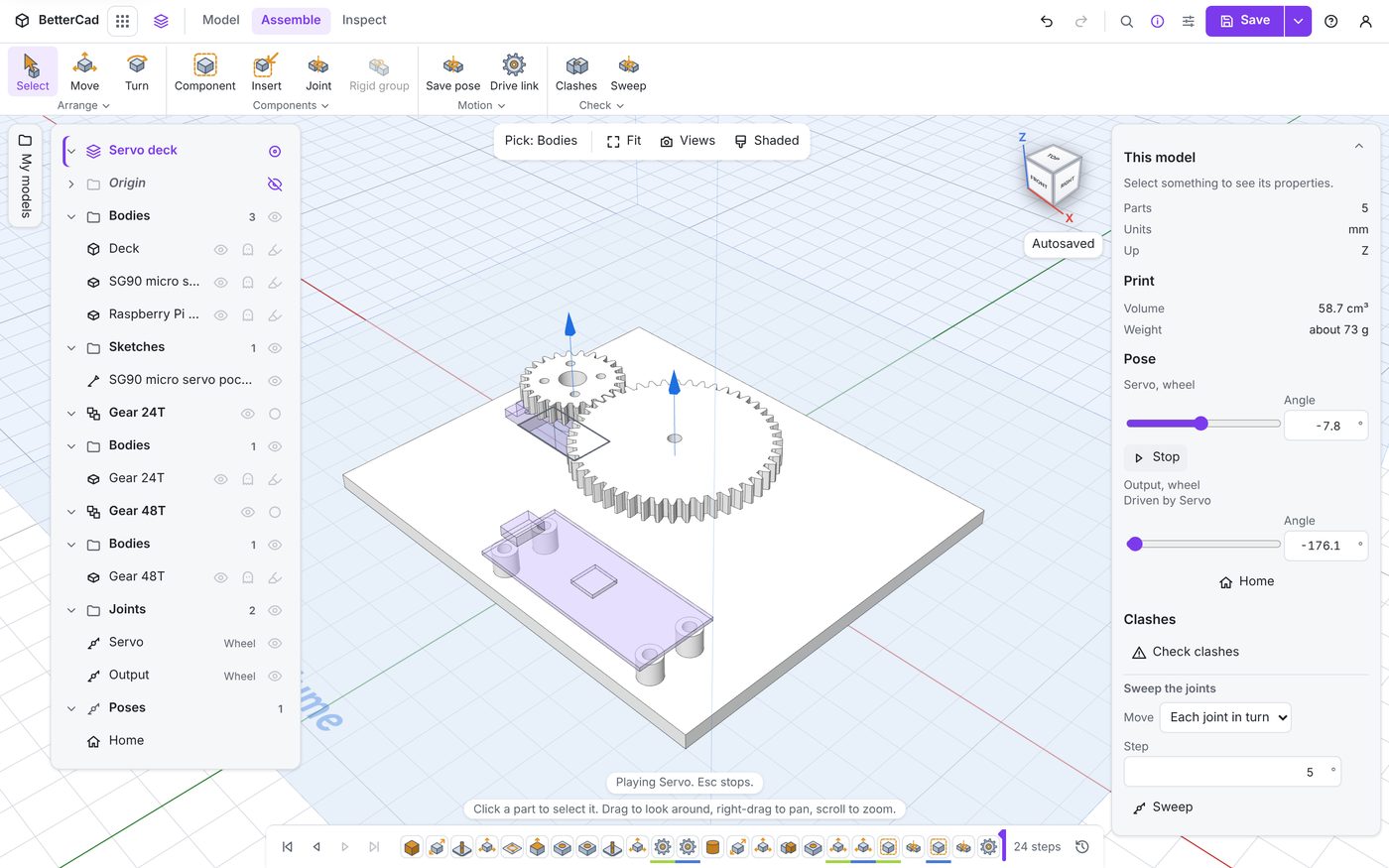
Both gears turn together, teeth in step. The bar says “Playing Servo. Esc stops.” Press Esc or click Stop when you’ve seen enough.
Four kinds of drive
| Through | What it models | How the ratio is found |
|---|---|---|
| Gears | Meshed gears. The driven one turns the other way | From the tooth counts |
| Belt | Pulleys on a belt. The driven one turns the same way | From the tooth counts |
| Rack | A gear on a rack. Each turn slides the rack one pitch circle round | From the gear |
| Custom | Anything else | You type it |
If the two parts aren’t gears BetterCad made, a Ratio box appears and a note says “The links don’t both have the gears for this, so the ratio you type is used.” That covers linkages, bought gearboxes and anything else where you know the ratio.
Turn the other way reverses the direction if BetterCad’s guess doesn’t match your mechanism.
Joints that move together
There’s a second kind of link for a simpler job: joints that should all do the same thing. The four wheels of a rover. Two gripper fingers. A pair of servos lifting one arm.
Open the small arrow under the Motion group and choose Link joints. Pick a Lead joint, tick the joints that move with it, and tick Other way for any that should turn against it. From then on, moving the lead moves them all.
Why this matters
Poses are honest. With the drive in place you can’t accidentally pose the gears in a way the real mechanism couldn’t reach.
Sweeps follow the drive. A sweep of the Servo joint takes the Output with it, so it tests what the real machine does.
The export knows. The drive is written into the URDF file, so a simulator turns the output gear when it turns the servo.
Try it Yourself
- Type 180 for the Servo. Where does the Output end up? Does that match the 2 : 1 ratio?
- Add the drive link the other way round in a fresh copy: Output driving Servo. What ratio does BetterCad report?
- Go back to your desk arm and use Link joints to make the Elbow follow the Shoulder. Drag the shoulder and watch the arm curl. Undo it afterwards.
Common Issues
- Problem: A Ratio box appears though both parts are gears
- Solution: Check Driver and Driven are the two gears’ joints, and that the gears were made with the Gear tool
-
Why: BetterCad reads the tooth counts from gear steps. An imported gear is only a shape to it
- Problem: The gears turn but the teeth pass through each other
- Solution: Edit one gear’s joint and change Angle under Line-up by a few degrees until the teeth sit in the gaps at home
-
Why: The drive keeps the gears in step from wherever they start. It doesn’t line the teeth up for you
- Problem: The gear joined on at an odd place
- Solution: Edit the joint and check the two Snap readings against the numbers above
- Why: A gear face has many snap points, and one tooth over is a different axle
Check your understanding
Quick quiz 1 of 3
A 24-tooth gear drives a 48-tooth gear. The driver turns 90 degrees. What does the driven gear do?
Quick quiz 2 of 3
When does the Drive link box ask you to type a ratio?
Quick quiz 3 of 3
Which tool makes a rover’s four wheel joints turn together?
You can use the arrows ← → on your keyboard to navigate between lessons.
Comments