Drag the Arm by Its Tip
Set a tool point in BetterCad and drag a robot arm by its tip so the joints work out their own angles, with locks and reach limits
By Kevin McAleer, 5 Minutes
Page last updated November 21, 2026

So far you’ve moved the arm one joint at a time: this much shoulder, that much elbow, and see where the tip ends up. Real jobs go the other way round. You know where the tip should be, and you want the joint angles that put it there.
Working joints out from the tip is called inverse kinematics. BetterCad does it for you when you drag.
Set a tool point
A tool point is the spot on the arm that does the work: the pen tip, the centre of the gripper, the end of the probe. On our arm it’s the end of the forearm.
- Click Home.
- Open the small arrow under the Motion group and choose Set tool point.
The bar says “Click a point on a link to drag the arm by. Esc cancels.”
- Click near the top end of the Forearm.
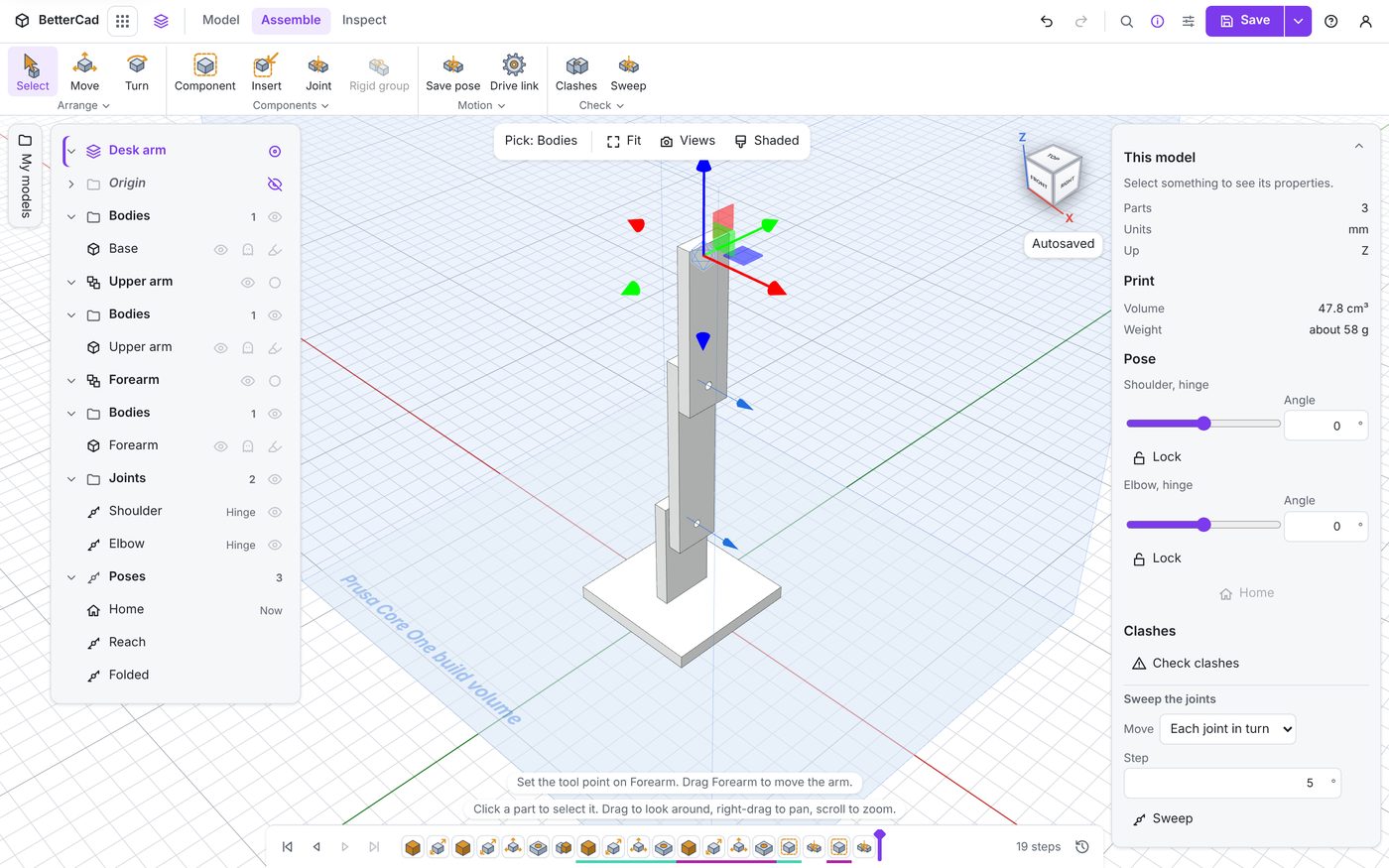
The bar says “Set the tool point on Forearm. Drag Forearm to move the arm.” A move handle with coloured arrows sits on the point, and each joint in the Pose section has gained a Lock button.
Drag it
- Press on the forearm and drag it down and towards you.
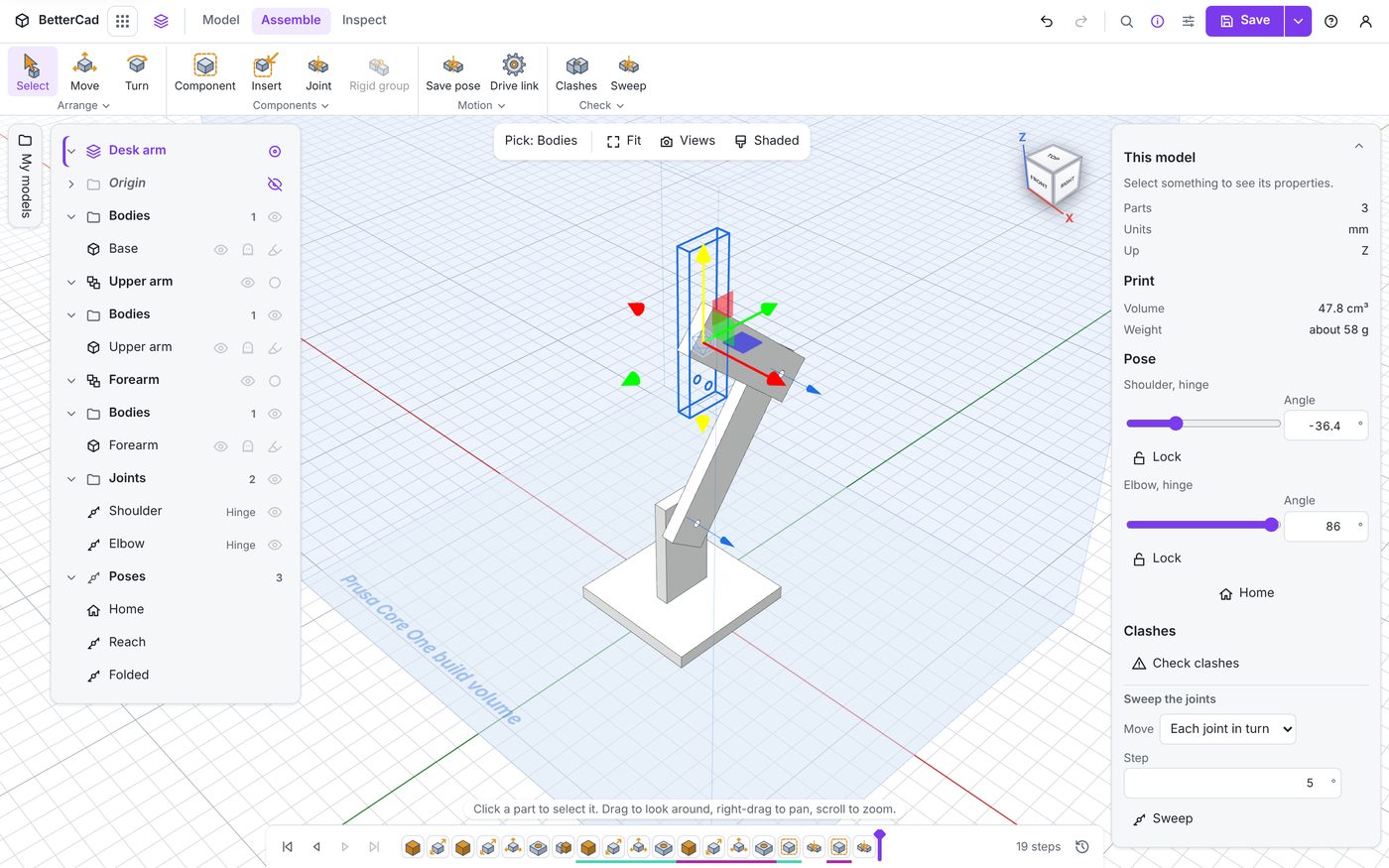
Both joints move at once. The shoulder leans, the elbow bends, and the tip follows the pointer. Watch the two Angle boxes while you drag: BetterCad is solving the angles many times a second.
Before the tool point, dragging the forearm only turned the elbow. Now it moves every joint between the forearm and the base.
Press Esc while you’re dragging and the arm goes back to where it was.
Out of reach
- Click Home, then drag the forearm far out to one side and let go.
The arm goes as far as its joints allow and stops. The bar says something like “Out of reach by 74 mm”.
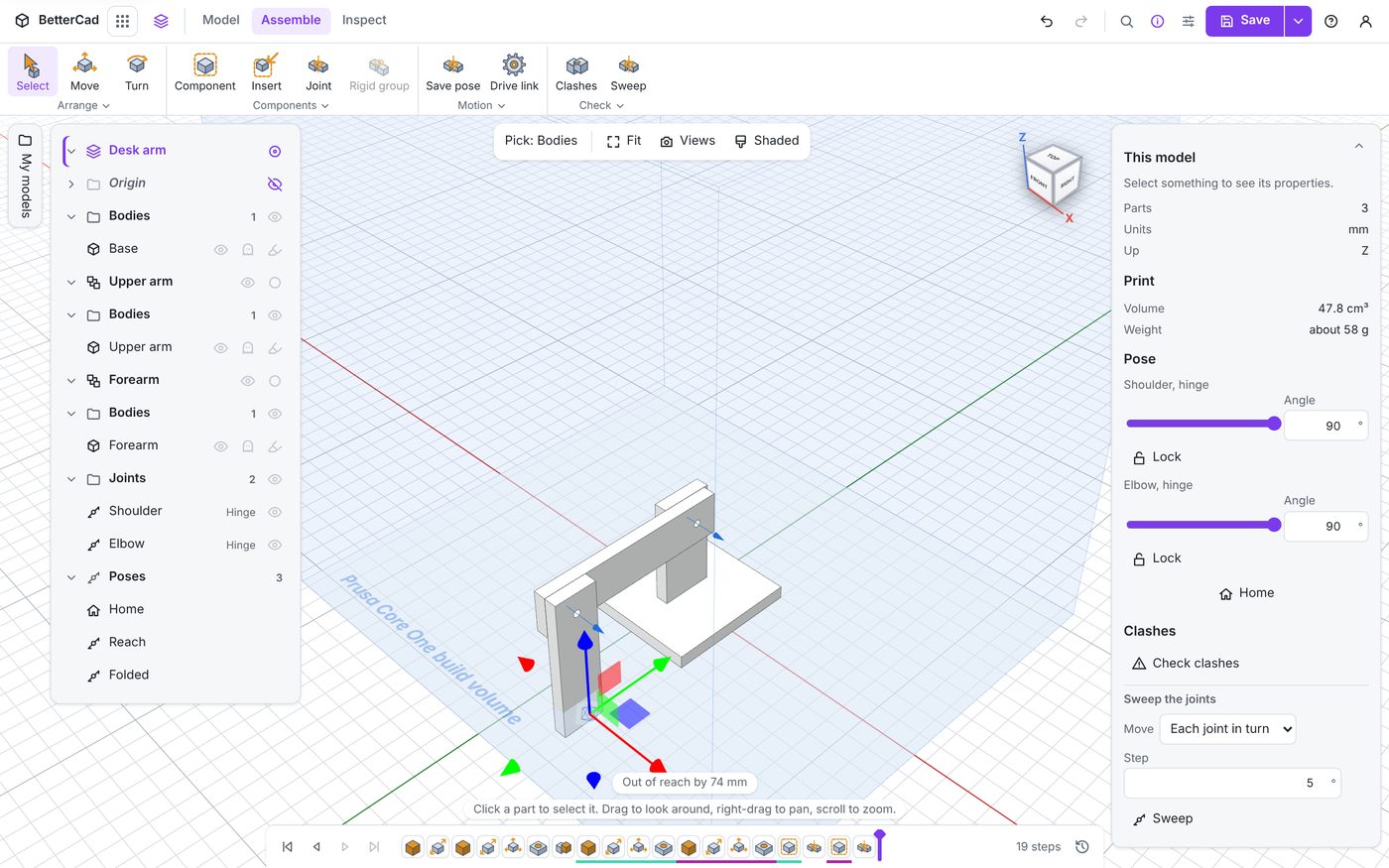
An arm can fall short for two reasons:
- It’s too short. The upper arm and forearm together only reach so far from the shoulder
- A joint hit its limit. The arm is long enough, but the elbow would have to bend past 90 degrees to get there
Both are worth knowing before you print. If the pen pot is out of reach, make the forearm longer, move the base, or widen a limit.
Lock a joint
- Click Lock under Shoulder.
The button now reads Locked.
- Drag the forearm again.
Only the elbow moves. The shoulder stays where it was.
Locks are for the times you want part of the answer fixed. Keep the shoulder still while you see what the elbow alone can reach, or hold a wrist level while the rest of the arm moves.
- Click Locked to free the shoulder again.
The move handle
The handle on the tool point has coloured arrows. Drag one of them and the tip keeps to that one direction: straight up, straight out or straight across. That’s how you find out whether the arm can follow a straight line, which matters for a plotter or a pick-and-place arm.
Removing a tool point
Press Ctrl+K to open the command search, type tool, and choose Remove the tool points. Dragging a part goes back to turning only its own joint.
Try it Yourself
- Go to your Reach pose. Drag the tip straight up using the handle’s up arrow. How far does it go before a joint hits a limit?
- Drag the tip to somewhere useful and save it as a pose called
Pick. - Lock the elbow at 90 and drag. What shape does the tip trace?
Common Issues
- Problem: Dragging the forearm still only moves the elbow
- Solution: Set a tool point from the Motion group’s menu
-
Why: Without one, a drag turns only the joint the part hangs from
- Problem: The arm won’t go where the pointer is, though it looks close enough
- Solution: Check the Angle boxes for a joint sitting at its limit, and look at the view from another side
-
Why: A joint at its limit can’t help, and this arm only moves in one flat plane. A pointer that looks close on screen may be in front of or behind that plane
- Problem: The Lock buttons aren’t there
- Solution: Set a tool point
- Why: Locks only apply to dragging the arm by its tool point
Check your understanding
Quick quiz 1 of 3
What does inverse kinematics work out?
Quick quiz 2 of 3
The bar says “Out of reach by 30 mm”. What could fix it?
Quick quiz 3 of 3
What does locking the shoulder do?
You can use the arrows ← → on your keyboard to navigate between lessons.
Comments