A Second Joint
Chain a second hinge onto the first in BetterCad to build a two-joint arm, then rename, edit and reorder joints
By Kevin McAleer, 5 Minutes
Page last updated November 21, 2026

One joint is a lever. Two joints is an arm. The second joint works exactly like the first, with one difference: the forearm hangs from the upper arm, not from the base. When the shoulder turns, the elbow and everything past it goes along for the ride.
Make the elbow
- Click Home if the shoulder isn’t at zero. Joints are easiest to make at home.
- Click Joint.
- Click the hole in the Forearm, which is still lying on the bed.
The bar says “Made Forearm a component, so the joint can move it”.
- Move the pointer to the hole at the top of the Upper arm and click it.
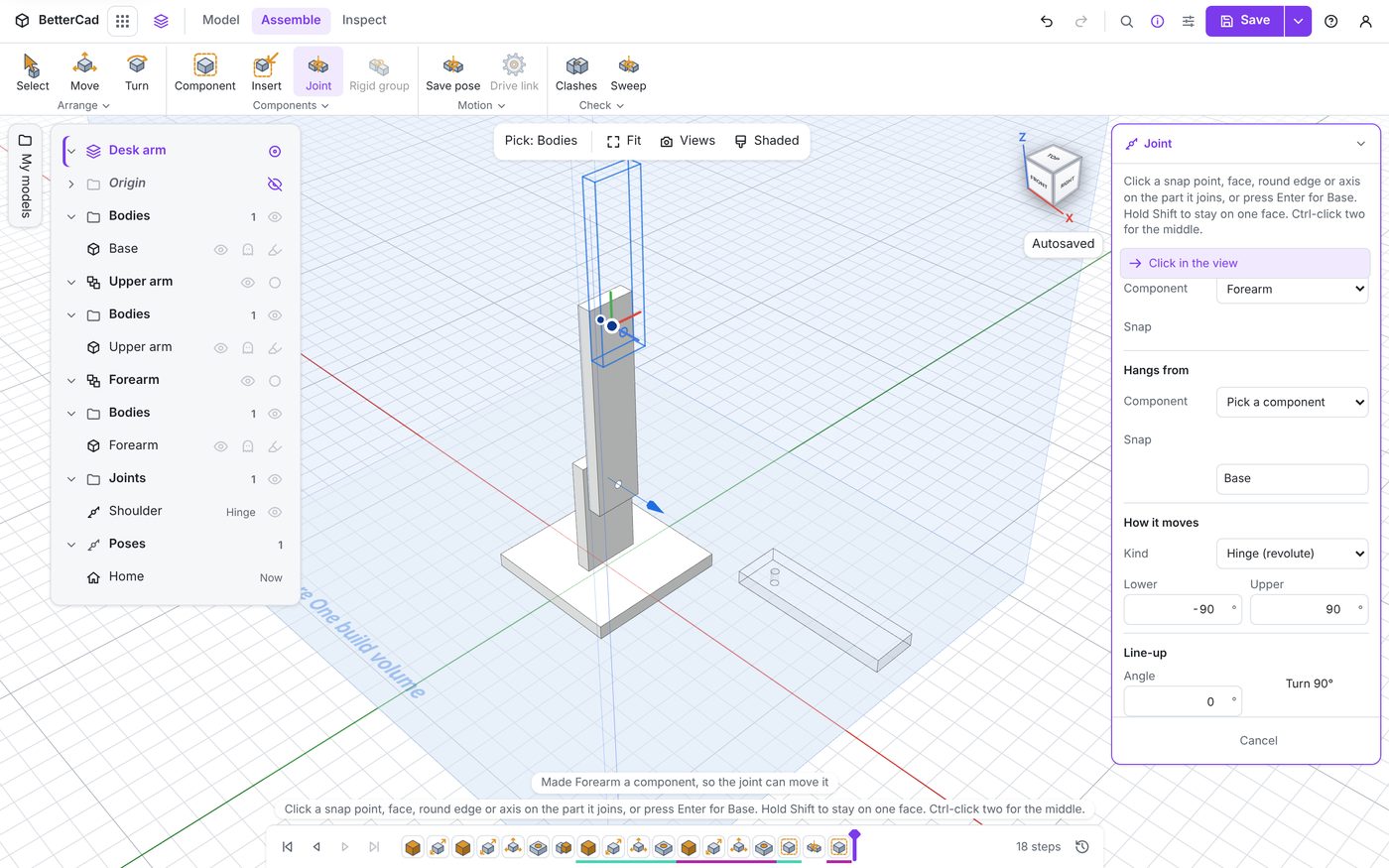
The forearm jumps up onto the upper arm and swings once.
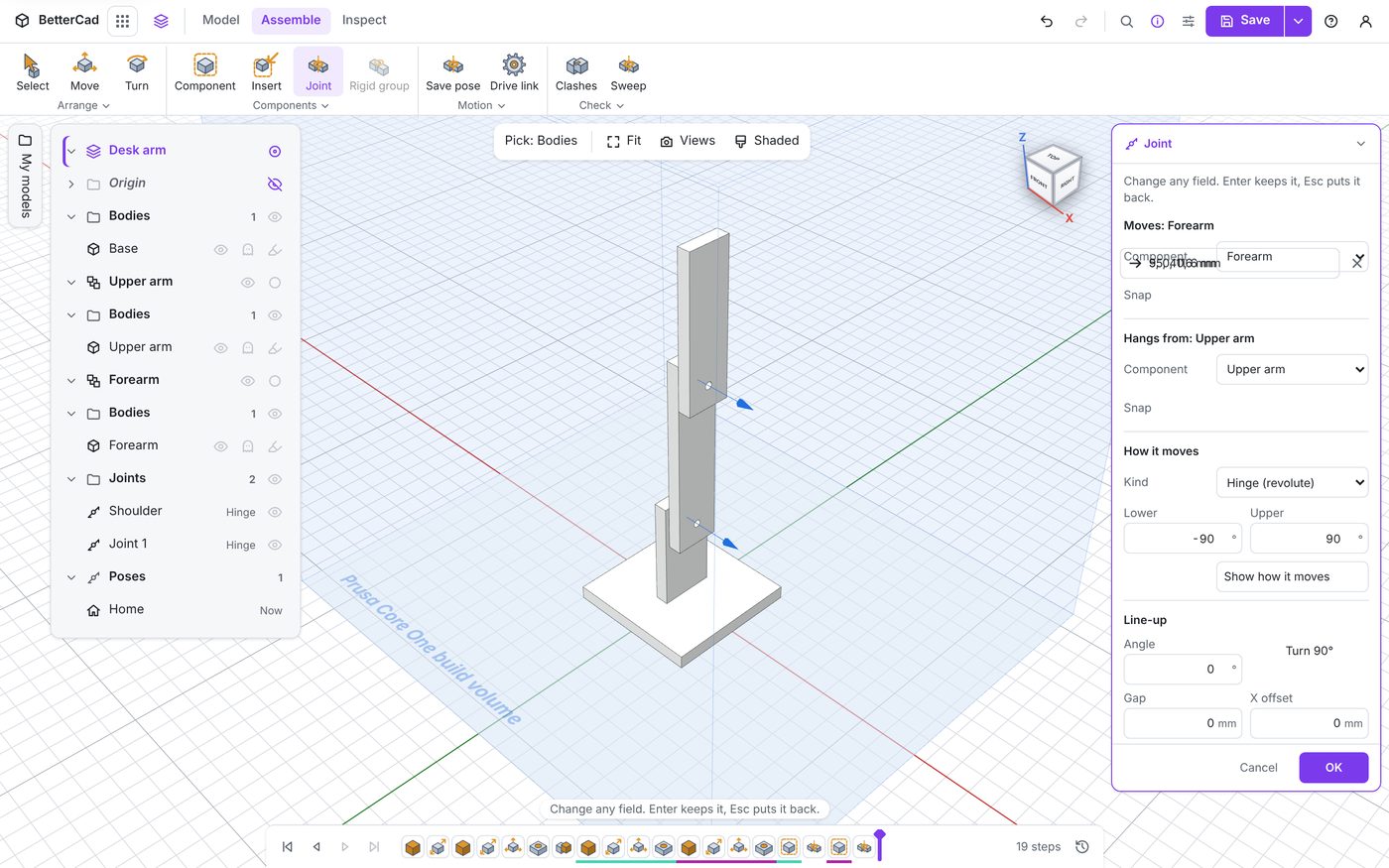
Look at the panel. Hangs from now reads Upper arm. BetterCad took that from the part you clicked.
- Click OK.
Name it
- Click the new joint in the Browser, press F2, type
Elbowand press Enter.
The new joint is probably called Joint 1 as well. BetterCad numbers a new joint from the names in use, and you renamed the first one. Renaming each joint as soon as you make it avoids two with the same name.
A chain
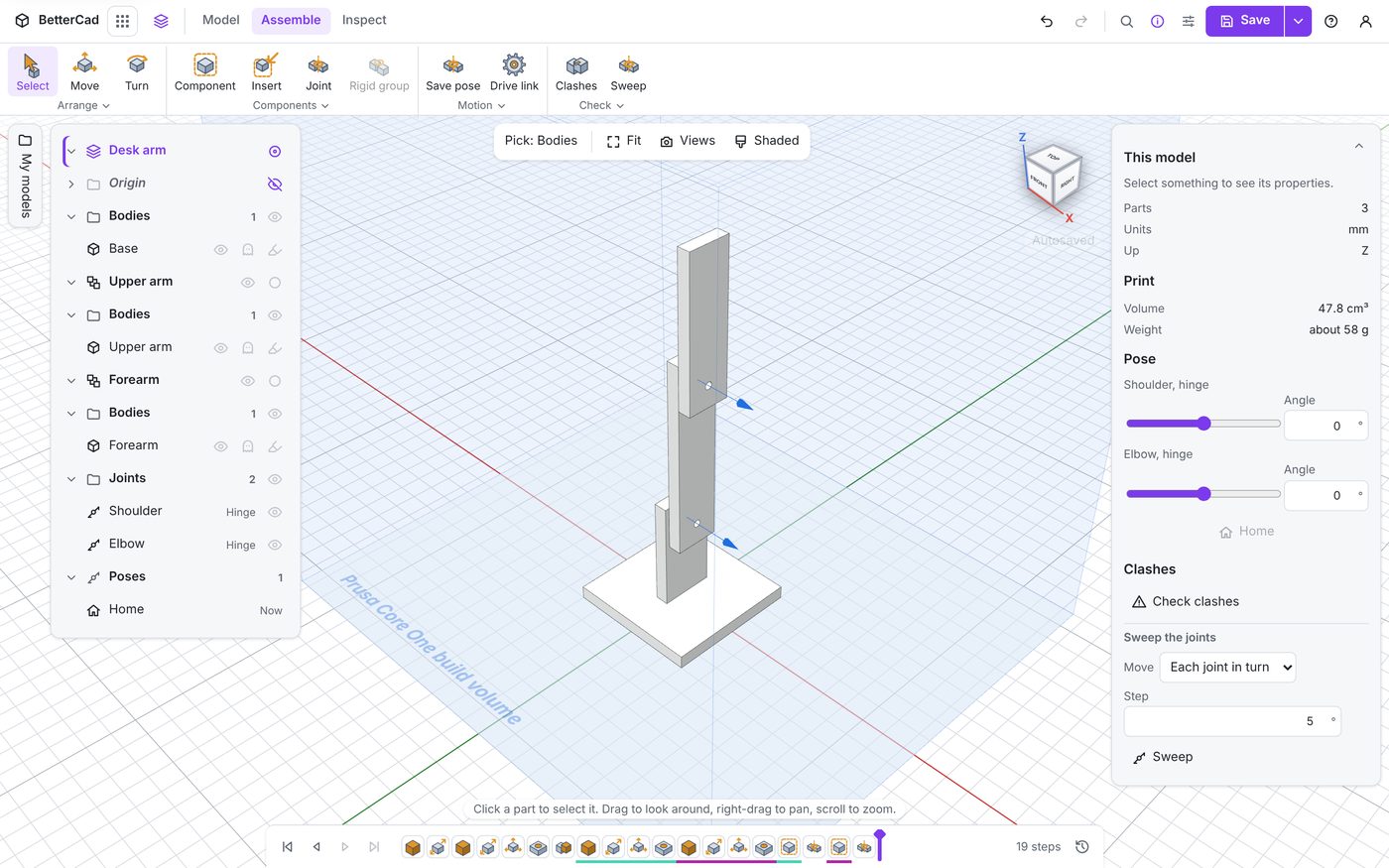
The Pose section now has two sliders.
- Drag the Shoulder slider.
The upper arm swings, and the forearm goes with it, holding its own angle.
- Drag the Elbow slider.
Only the forearm moves.
This is a chain: Base, then Upper arm, then Forearm. Each part’s position depends on every joint between it and the base. Robot people call the parts links, and you’ll meet that word again in the URDF file.
A chain can branch. A robot with two arms has two chains hanging from one body. What it can’t do is loop back on itself: each component hangs from exactly one joint. If you try to give a part a second one, BetterCad says “Forearm already hangs from a joint”.
The Browser’s joint menu
Right-click a joint in the Browser:
| Item | What it does |
|---|---|
| Hide | Hides the joint’s blue arrow in the view. The eye on its row does the same |
| Edit joint | Opens the Joint panel again with everything as you left it |
| Move earlier, Move later | Reorders the joint among the steps |
| Roll to here | Winds the timeline back to just after this joint was made |
| Rename | The same as F2 |
| Suppress | Switches the joint off without deleting it |
| Delete | Removes it |
Edit joint is the one you’ll use most. Changing a joint’s kind, limits or line-up never means starting again.
Components in the Browser
Each component has its own row, with its own Bodies folder inside. Click the eye on a component’s row and everything in it hides at once.
Right-click a body and you’ll find Move into for each component. That’s how a second body joins a moving part: model the sensor bracket, then move it into Forearm, and it swings with the forearm from then on.
Try it Yourself
- Pose the shoulder at 40 and the elbow at 60. Then swap the numbers. Do the two poses put the tip in the same place?
- Add a small Library box, then right-click it and move it into Forearm. Pose the elbow and watch it go. Delete the box when you’re done.
- Right-click Elbow, choose Suppress, and try the sliders. Then switch it back on the same way.
Common Issues
- Problem: The forearm joined on but hangs from Base, not the upper arm
- Solution: Right-click the joint, choose Edit joint, and pick Upper arm under Hangs from
-
Why: The second click decides what the part hangs from. If it landed on the upright, that’s Base
- Problem: The forearm sits behind the upper arm, not in front
- Solution: You clicked the hole on the other face. Edit the joint and tick Flip, or pick the snap again
-
Why: Parts join face to face, so the face you click decides the side
- Problem: Two joints have the same name
- Solution: Rename one with F2
- Why: A new joint’s number comes from the names already in use
Check your understanding
Quick quiz 1 of 3
The elbow joint hangs the forearm from the upper arm. What happens to the forearm when the shoulder turns?
Quick quiz 2 of 3
How many joints can one component hang from?
Quick quiz 3 of 3
How do you change a joint’s limits after it’s made?
You can use the arrows ← → on your keyboard to navigate between lessons.
Comments