Components and the Assemble Tab
Learn the difference between a body and a component in BetterCad and lay out the three parts of the desk arm
By Kevin McAleer, 5 Minutes
Page last updated November 21, 2026

Before anything can move, BetterCad needs to know which bits move together. A forearm might be one printed part, or a printed part with a sensor screwed to it and a cable clip on the side. Either way it swings as one lump.
BetterCad calls that lump a component.
Bodies and components
| Word | What it is |
|---|---|
| Body | One solid shape. Everything you’ve made so far is a body |
| Component | A named group of bodies that move as one. A joint always moves a component |
| Base | Everything that isn’t in a component. It stays still, and the rest of the robot hangs from it |
You rarely have to make a component by hand. Pick a plain body as the part that moves and the Joint tool makes it a component for you. You’ll see that happen in the next lesson.
Get the arm’s parts
The desk arm has three parts. Download desk-arm-parts.bcad, then:
- Open BetterCad.
- Click the arrow beside Save and choose Open….
- Pick the file you downloaded.
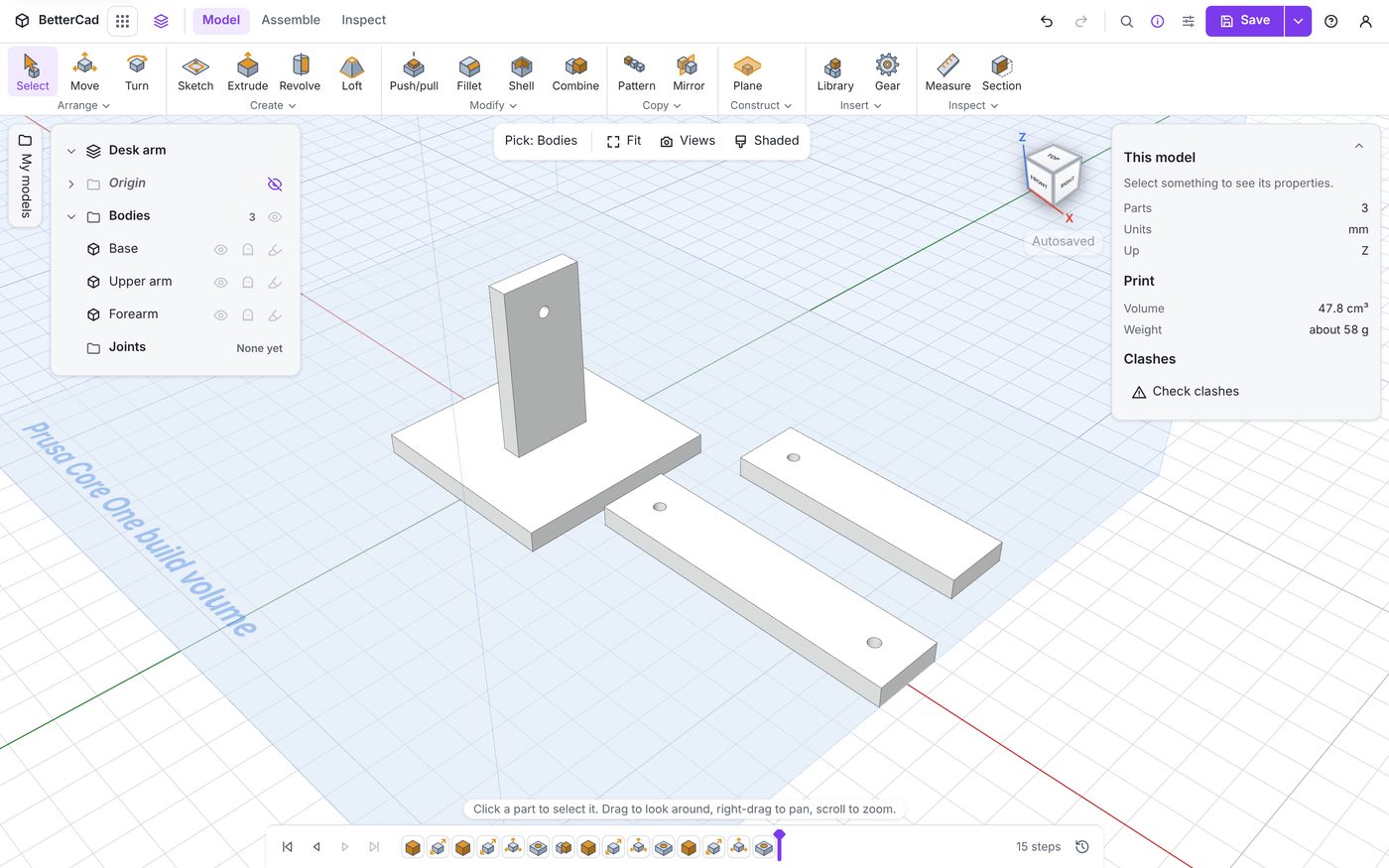
The Browser lists three bodies:
| Body | Size | Holes |
|---|---|---|
| Base | A 60 x 60 x 6 mm plate with a 6 x 24 x 50 mm upright grouped onto it | One M3 hole in the upright, near the top |
| Upper arm | 90 x 20 x 6 mm | An M3 hole near each end |
| Forearm | 70 x 20 x 6 mm | An M3 hole near one end |
The arms are lying flat beside the base, the way you’d print them. That’s fine. A joint will pick each one up and put it where it belongs.
Would you rather build the parts? They are Library boxes with the sizes above, plus holes from the Hole tool (H). Put the holes about 10 mm from the ends. The exact spot doesn’t matter, but some of your numbers later in the course will differ a little from mine.
Why the holes matter
Every joint needs two things: a point to turn about, and a direction for the axle. A round hole gives both. Its centre is the point, and the direction it was drilled is the axle.
So the usual way to design a moving part is the way you’d build it. Put a hole where the bolt or the servo shaft goes, then make the joint on the hole.
The Assemble tab
Click Assemble at the top.
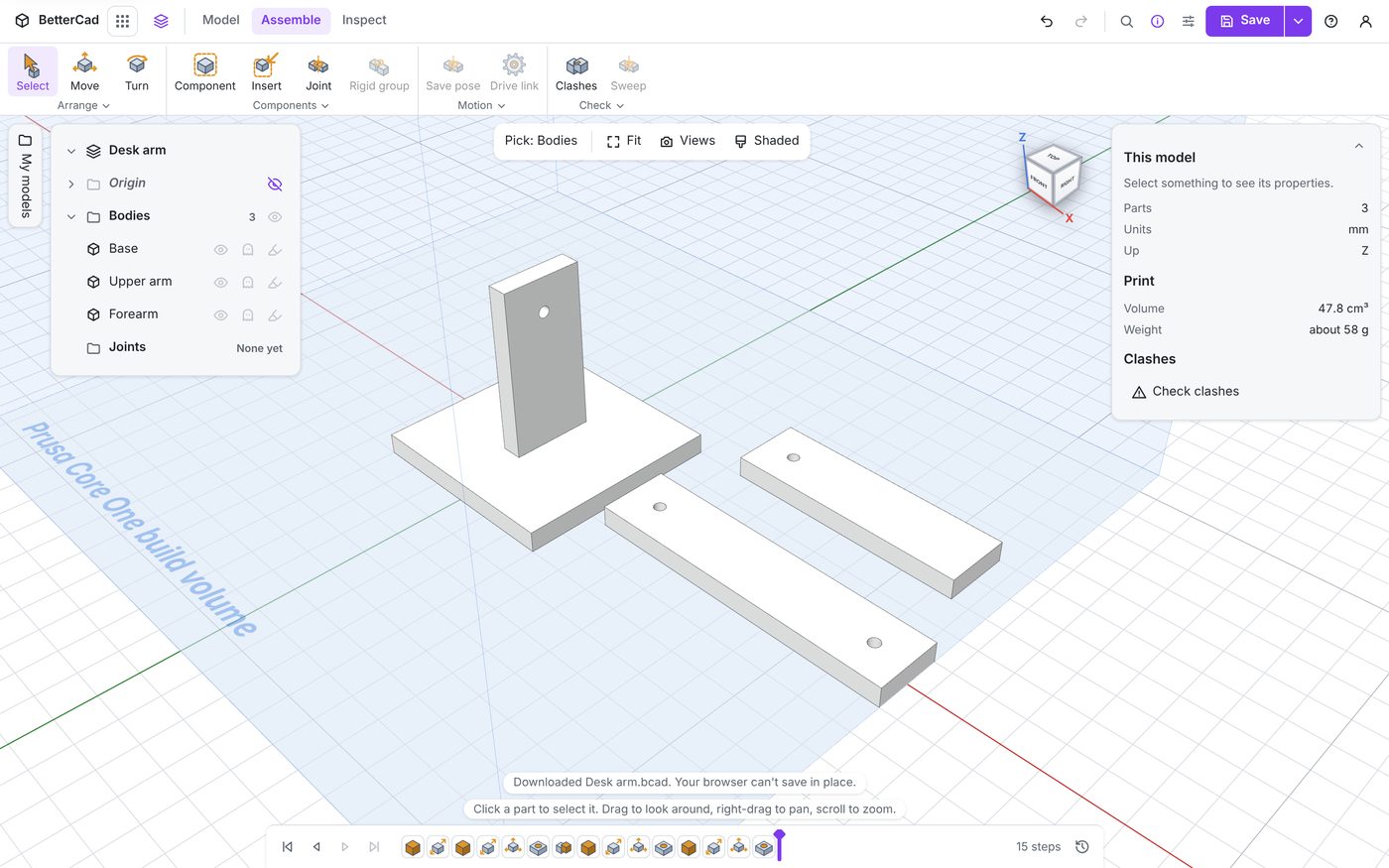
The model hasn’t changed, but the toolbar has:
| Group | Buttons | What they are for |
|---|---|---|
| Arrange | Select, Move, Turn | The same tools as the Model tab |
| Components | Component, Insert, Joint, Rigid group | Making moving parts and joining them |
| Motion | Save pose, Drive link | Poses, and joints that drive other joints. The small arrow under the group has more |
| Check | Clashes, Sweep | Finding where parts collide |
Some buttons are greyed out. Save pose, Drive link and Sweep have nothing to work on until there’s a joint.
The Browser has gained a Joints folder that says “None yet”. Let’s fix that.
Try it Yourself
- Click each of the three bodies and read its size in Properties.
- Hover over each button in the Components, Motion and Check groups and read its tip.
- Open the small arrow under the Motion group. It lists Save pose, Set tool point, Drive link and Link joints. You’ll use all four before the course is done.
Common Issues
- Problem: Open… isn’t in the menu
- Solution: Click the small arrow to the right of the Save button, not the button itself
- Why: The button saves. The arrow opens the menu with Open, Save as and Export
Check your understanding
Quick quiz 1 of 3
What does a joint move?
Quick quiz 2 of 3
What is Base?
Quick quiz 3 of 3
Why put a hole where a joint will go?
You can use the arrows ← → on your keyboard to navigate between lessons.
Comments