Export Your First Print
Export a part from BetterCad as STL, 3MF or STEP, and learn which format to use and what resolution means
By Kevin McAleer, 5 Minutes
Page last updated November 20, 2026

A model in BetterCad isn’t a print yet. Your slicer, the program that prepares files for your printer, needs it as a file it understands.
Export an STL
Press Ctrl+E, or Export from the arrow beside Save, and save the STL.
- With your block from the last lesson open, press Ctrl+E.
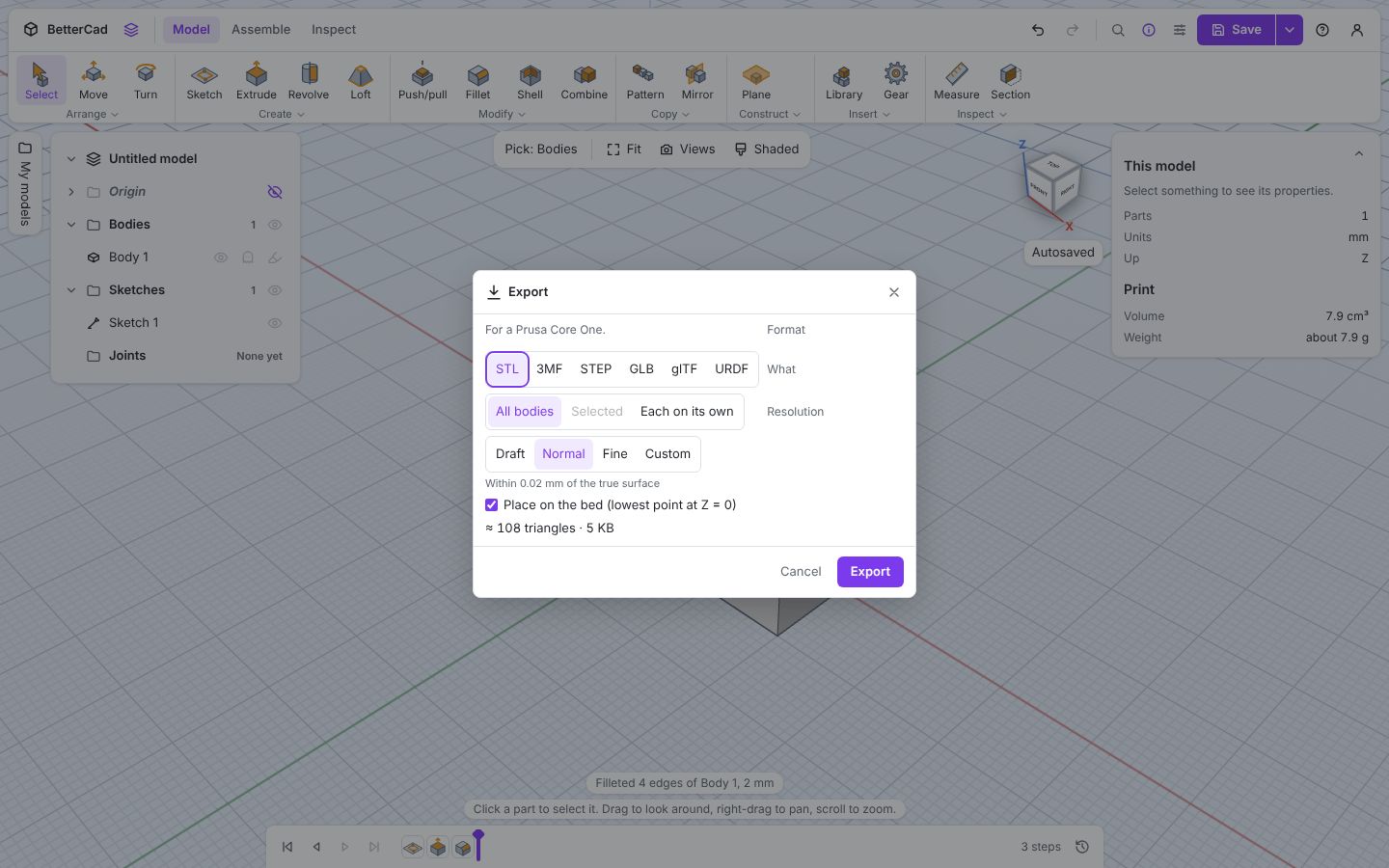
- Leave the format on STL and the resolution on Normal.
- Click Export and choose where to save it.
That’s a printable part. Open the file in your slicer and it will be sitting on the bed, the right size, ready to slice.
Which format?
The Export dialog offers several formats. Three matter for printing and sharing:
| Format | Use it for | What’s in it |
|---|---|---|
| STL | Any slicer, old or new | Triangles, and nothing else |
| 3MF | Modern slicers such as PrusaSlicer, Bambu Studio and Cura | Triangles, real units, the model’s name, and each body as its own named object |
| STEP | Other CAD programs such as Fusion, FreeCAD and Onshape, or a CNC shop | The exact shapes, with true curves |
A quick rule: 3MF for your own printer, STL if something won’t open 3MF, STEP if someone needs to edit it.
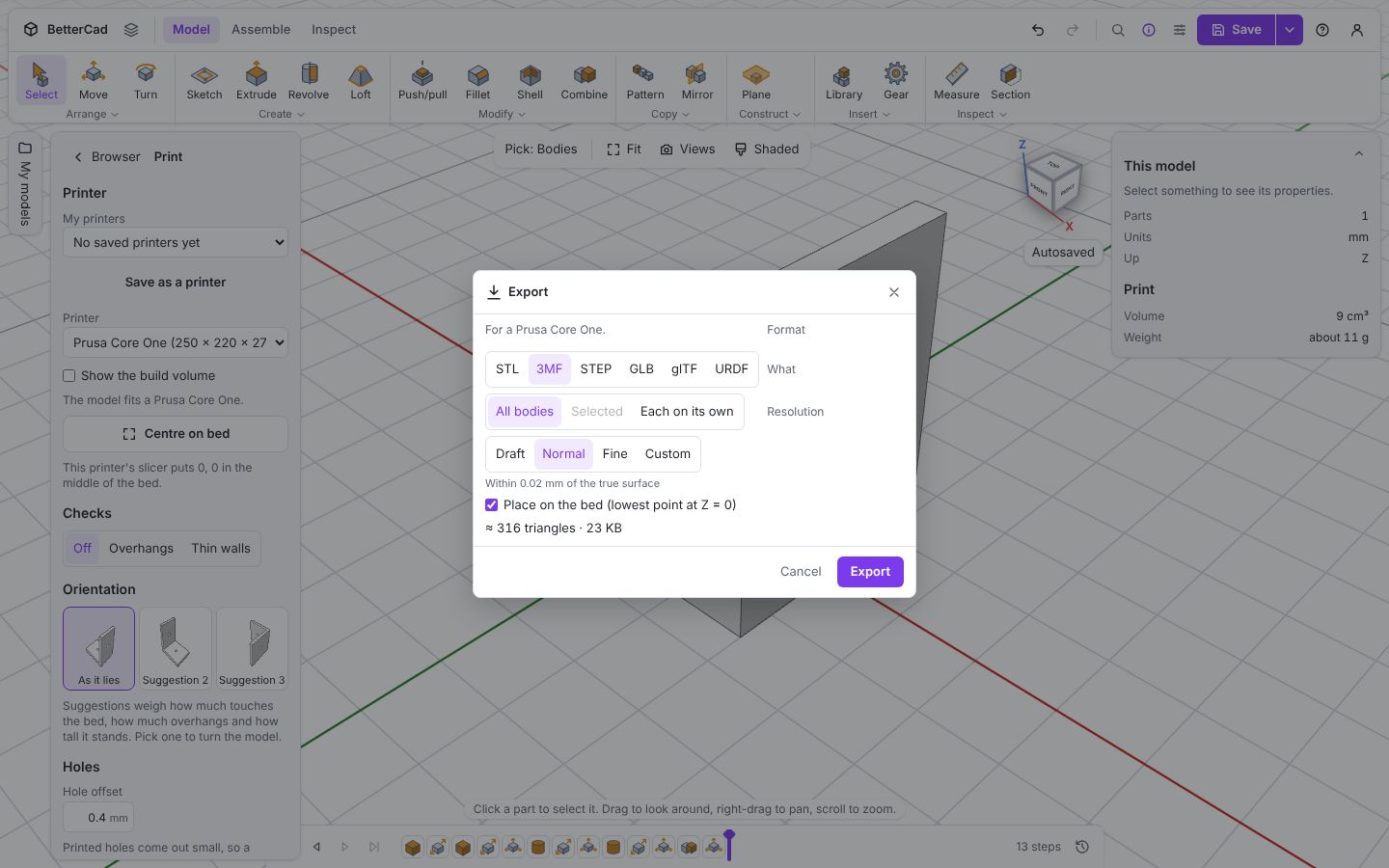
The other formats, GLB, glTF and URDF, are for showing a model on a web page and for describing robots. They come up in the BetterCad for Robot Builders courses.
Resolution
STL and 3MF files are made of flat triangles, so a curve is really lots of short straight bits. Resolution sets how far those triangles may stray from the true surface:
| Setting | Triangles stay within | Good for |
|---|---|---|
| Draft | 0.1 mm | Quick test prints |
| Normal | 0.02 mm | Nearly everything |
| Fine | 0.005 mm | Large smooth curves you’ll see up close |
Normal is already finer than most printers can show. The dialog tells you how many triangles and how big the file will be before you export, so you can see what a setting costs.
STEP has no resolution. It stores the exact curve, which is why it’s the one to send to another CAD program.
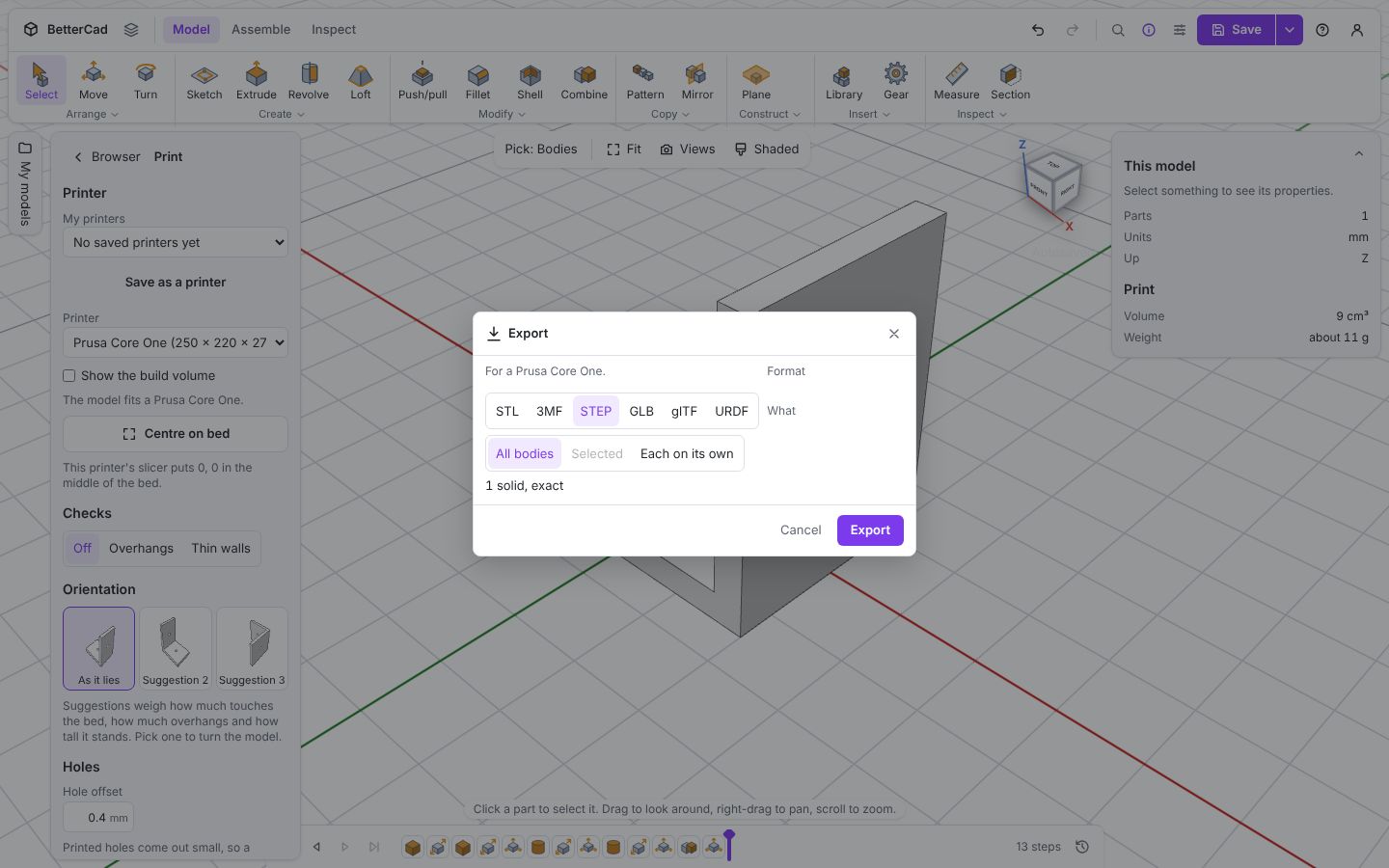
The other options
- Place on the bed moves the model so its lowest point sits at Z = 0. Leave it on for printing
- All bodies / Selected / Each on its own chooses what goes in the file. A box and its lid can go in one file, or one file each
- The line at the top, For a Prusa Core One or whichever printer you’ve chosen, is a reminder of the bed BetterCad checks your model against. You’ll set your own printer in lesson 10
Export is not Save
Exporting makes a file for printing. It doesn’t keep your sketches, steps or parameters. To keep the model so you can change it later, Save it as a .bcad file. That’s covered in lesson 10. BetterCad also autosaves in your browser as you work, so you won’t lose anything in the meantime.
Try it Yourself
- Export your block as 3MF and open it in your slicer.
- Export it again as STL at Draft and at Fine. Compare the triangle counts the dialog shows.
- If you have a printer, print the block. Measure it with a ruler or calipers. Is it 40 × 20 × 10 mm?
Common Issues
Problem: Ctrl+E opens something in my browser instead. Solution: Click the 3D view first, or use Export in the menu beside Save. Why: Some browsers keep Ctrl+E for the address bar when the page isn’t focused.
Problem: The file downloads without asking where to put it. Solution: Look in your Downloads folder. Why: Chrome and Edge let you pick a place. Safari and Firefox download it.
Problem: My slicer shows the part tiny or enormous. Solution: Use 3MF, or set your slicer’s STL units to millimetres. Why: An STL has no units in it. BetterCad always writes millimetres.
Check your understanding
Quick quiz 1 of 3
Which format would you send to a friend who wants to edit your part in Fusion?
Quick quiz 2 of 3
What does a finer resolution change?
Quick quiz 3 of 3
Does exporting an STL save your sketches and steps?
You can use the arrows ← → on your keyboard to navigate between lessons.
Comments