Learn BetterCad
Design your own 3D printable parts in BetterCad, the free CAD tool that runs in your browser
By Kevin McAleer, 5 Minutes
Page last updated November 20, 2026

Overview
BetterCad is a free CAD tool for 3D printing that runs in your browser. There’s nothing to install and you don’t need an account. It borrows the best of two worlds: precise, constrained sketches like Fusion, and friendly push, pull and combine like Tinkercad.
In this course you’ll go from an empty screen to a phone stand you designed yourself, ready to print. Along the way you’ll make a filleted block, a plate with a screw hole placed to the millimetre, and a small electronics enclosure with screw posts.
Course Content
- Looking around, sketching a rectangle and extruding it into a solid
- Rounding edges and exporting a file your slicer can print
- Constraints and dimensions, and what “fully constrained” means
- Shapes from the Library, push/pull, move and turn
- Screw holes that fit, and cutting one shape out of another
- Fillets, chamfers and hollowing a part with Shell
- The timeline and parameters, so a model can change size without being redrawn
- Saving, sharing and the built-in print checks
- Project: a phone stand that prints with no supports
Key Results
After this course you will be able to:
- Design a printable part from a sketch or from ready-made shapes
- Add holes that a real screw slides through on a real printer
- Change a design by editing a number, not by starting again
- Check a model for overhangs and thin walls before you print it
- Export STL, 3MF and STEP files
What you’ll need
- A computer with a recent browser. Chrome and Edge save straight back to your files. Safari and Firefox work too
- A mouse with a scroll wheel makes life easier, but a trackpad is fine
- A 3D printer and slicer if you want to print what you make. You can do the whole course without one
BetterCad works offline once it has loaded, and everything you make is saved in your browser as you go.
A tour of the screen
Open BetterCad. The first time, you’ll see a start card and the first step of a short tour.
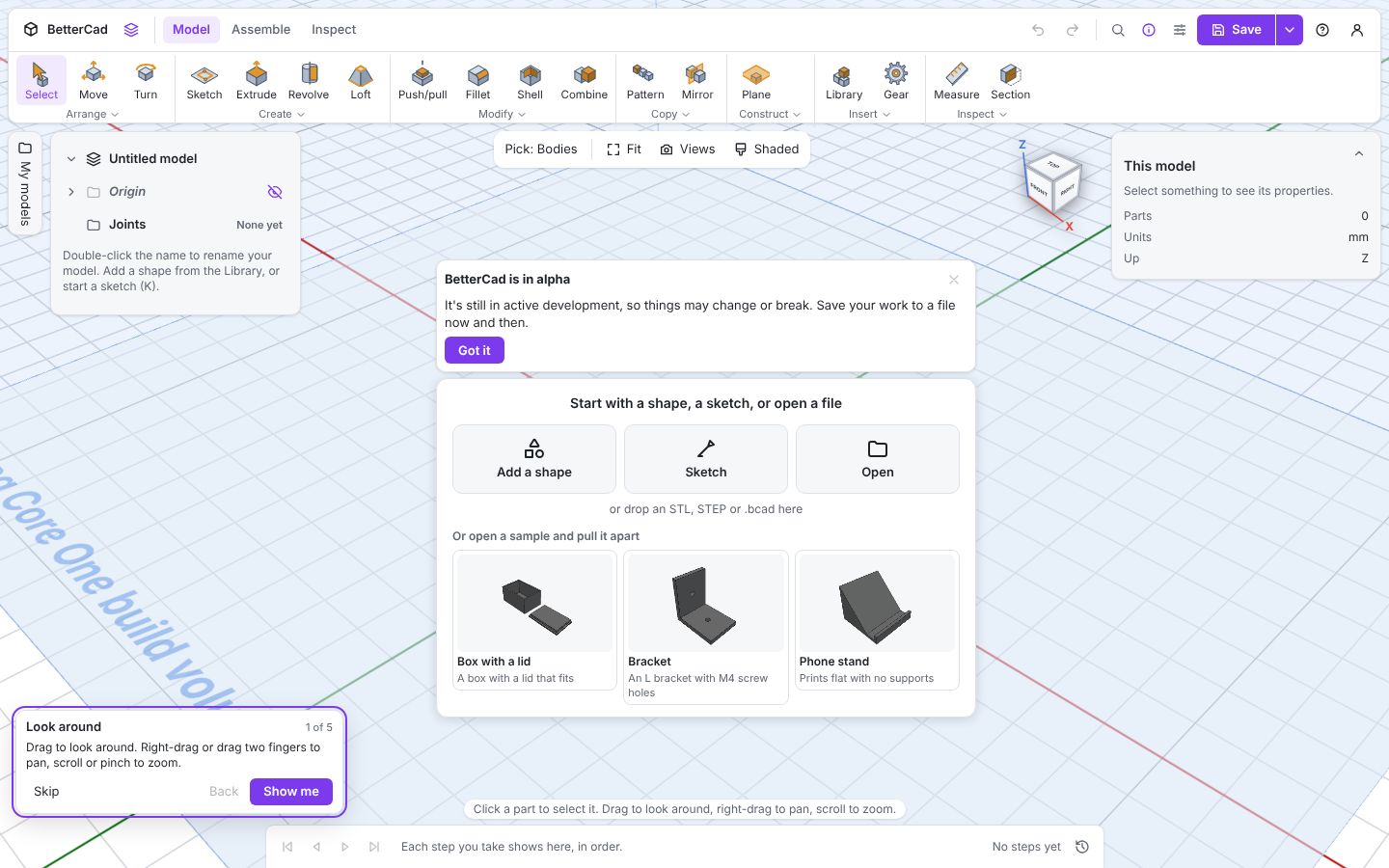
The 3D view fills the whole window. Everything else floats over it:
| Where | What it is |
|---|---|
| Top | The toolbar. Tabs for Model, Assemble and Inspect, with the tools grouped underneath |
| Top right | Undo and redo, Find a command, Save, Help and your account |
| Left | The Browser: every body and sketch in your model |
| Right | Properties: details of whatever you have selected |
| Bottom | The timeline: every step you’ve taken, in order |
| Top right of the view | The view cube. Click a face to look from that side |
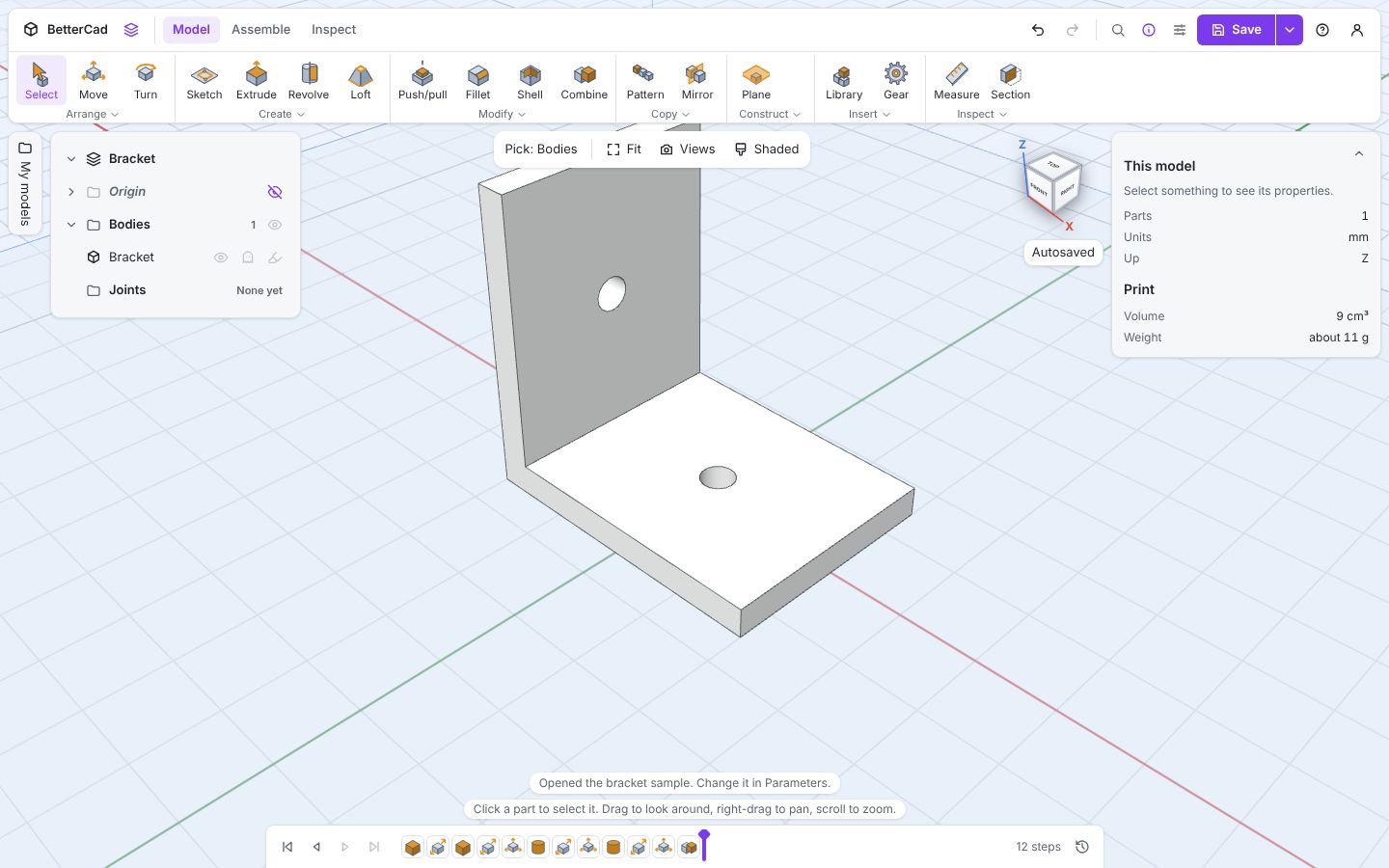
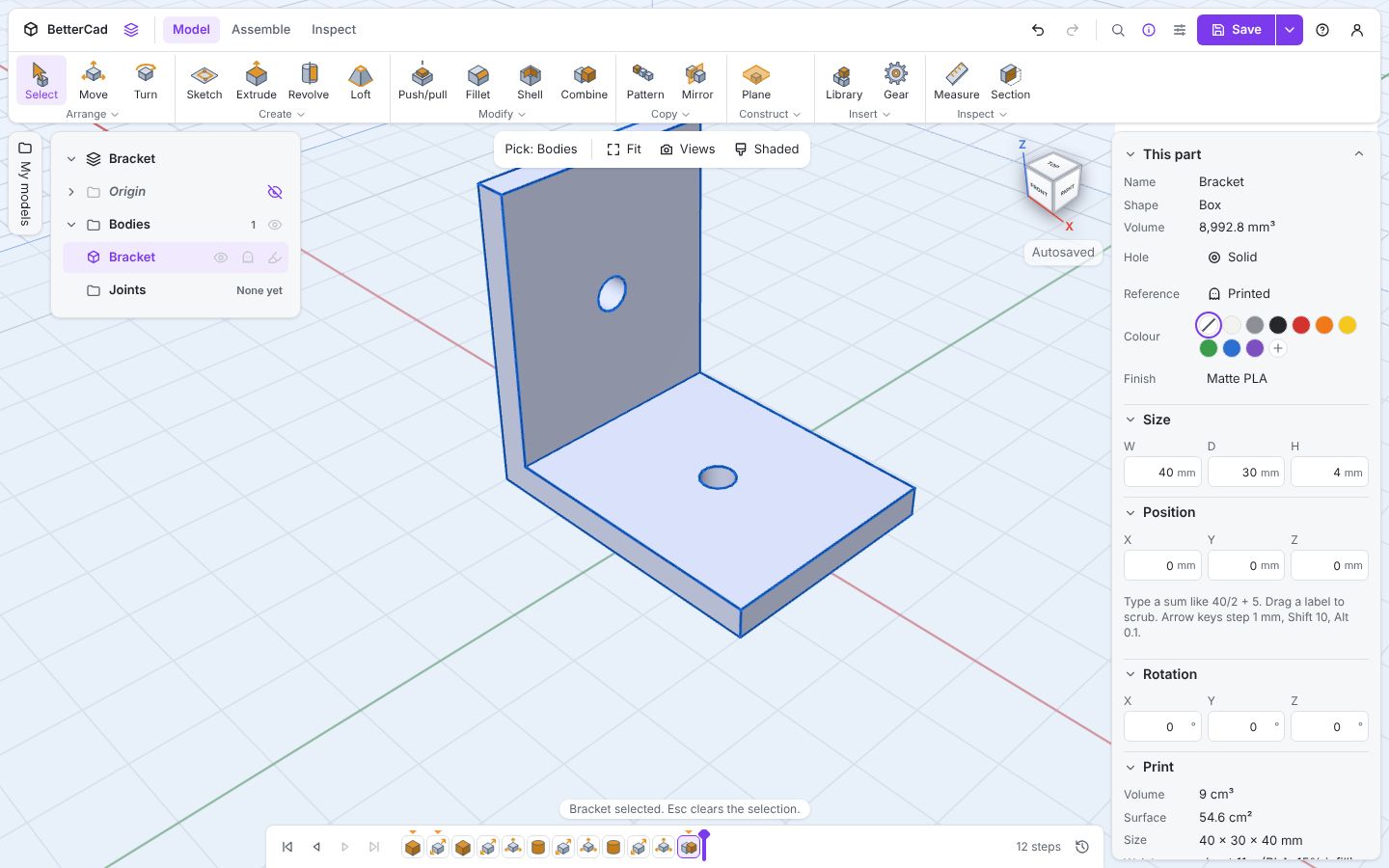
Click Bracket on the start card to open a sample. Then click the bracket itself. Its size, volume and estimated print weight appear in Properties.
Two things worth knowing from day one:
- Every tool has a key. Hover a tool and its tooltip shows it, like “Sketch (K)”
- Esc always backs out one step. If you’re ever lost, press it until you’re back at Select
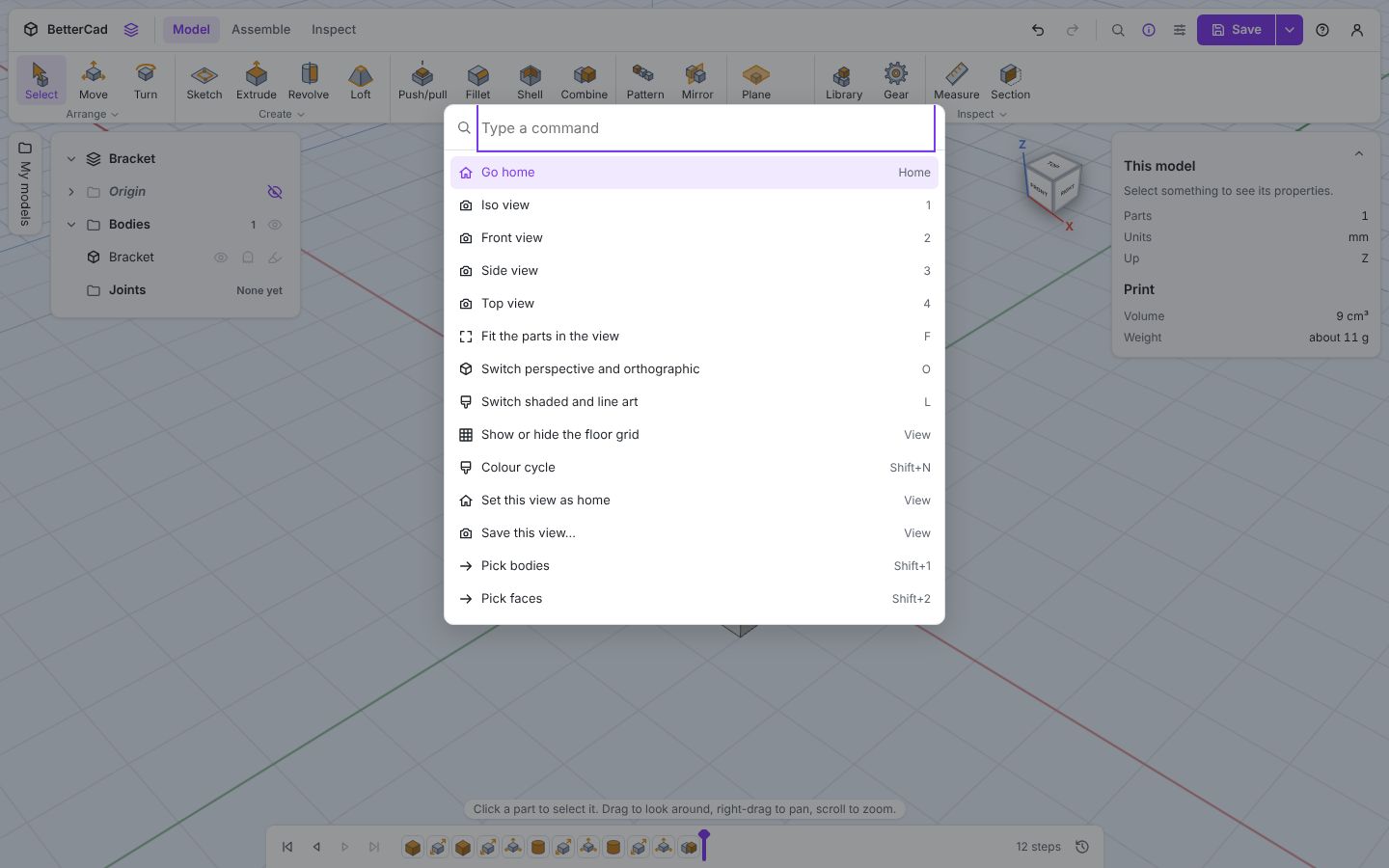
Can’t find a tool? Press / or Ctrl+K and type what you want.
How the course works
Each lesson is five to ten minutes and builds one thing. Steps you should do are numbered. Keys to press look like K. Names of buttons and panels are in bold.
BetterCad’s own first-run tour covers the same ground as lessons 1 to 3, in the same words, so you can follow either. To see it again, open Help and choose Take the tour.
Every lesson ends with an exercise, some common problems and a short quiz.
BetterCad is in alpha. It’s being worked on all the time, so a button may have moved since these screenshots were taken. Save your work to a file now and then.
Prerequisites
None. If you’ve used Tinkercad or Fusion, some of this will feel familiar, and the course points out where BetterCad does things differently. If you’ve never used CAD, you’re in the right place.
Try it Yourself
- Open the Bracket sample and click the bracket. How much does BetterCad think it will weigh?
- Click the faces of the view cube to look from the top, the front and the right.
- Press / and type
top. Press Enter.
Check your understanding
Quick quiz 1 of 3
Where does BetterCad run?
Quick quiz 2 of 3
What does the timeline at the bottom show?
Quick quiz 3 of 3
You’re lost in a tool. Which key backs out one step at a time?
You can use the arrows ← → on your keyboard to navigate between lessons.
Comments