Exporting and Sharing
Export a Snakie wiring project as a picture, a bill of materials, a pinout table or a complete PDF build guide, and send it to a kevsrobots project
By Kevin McAleer, 5 Minutes
Page last updated November 20, 2026

A circuit that only lives on your screen isn’t much use at the workbench, or to anyone else. Snakie can turn it into pictures, parts lists and a build guide you can print.
Name it first
Whatever you export carries the project’s name, so check the Browser panel. Ours is called Obstacle Robot, with the description A 2WD robot that turns away from walls.
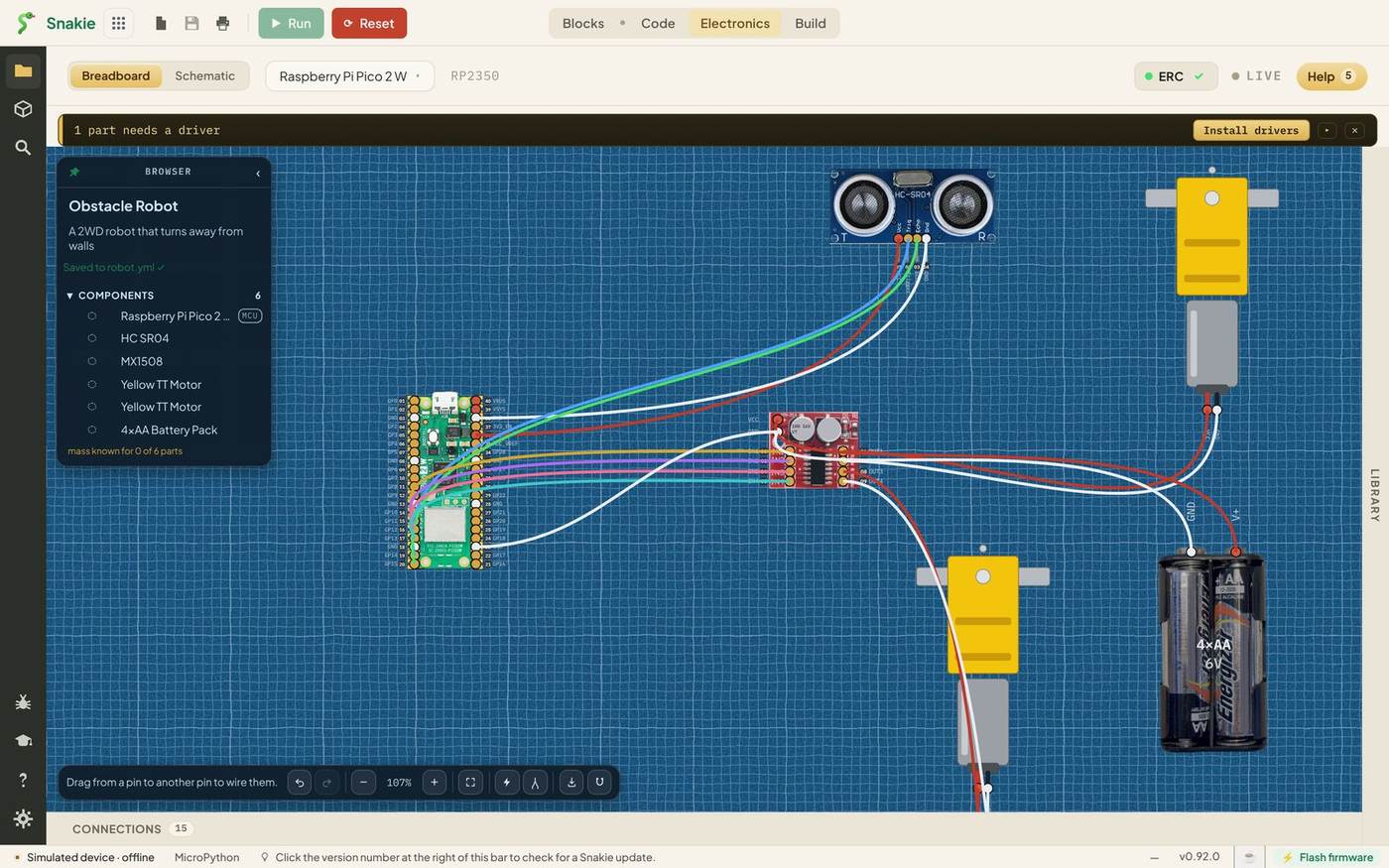
The export menu
Click Export image in the toolbar, the button with the downward arrow.
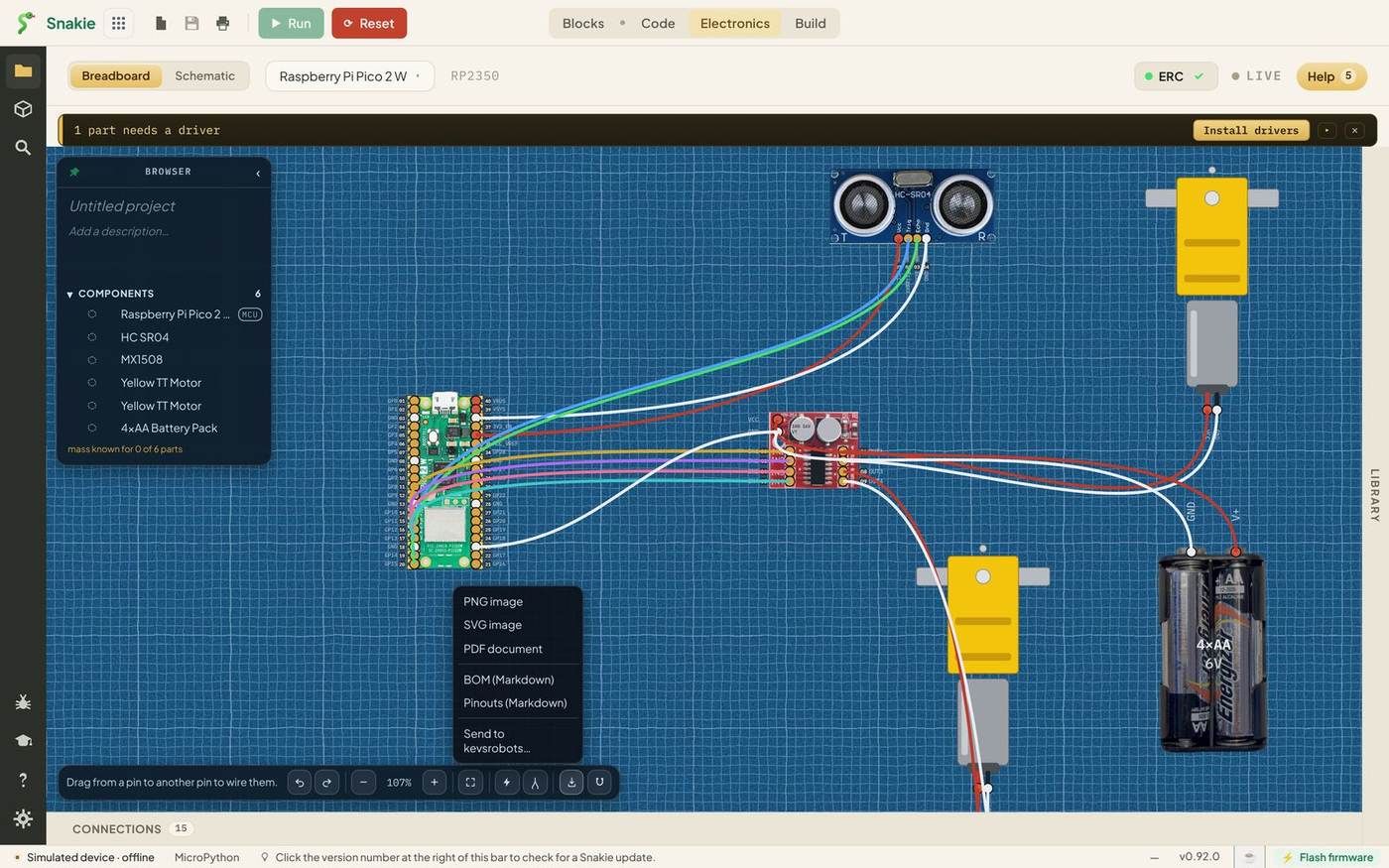
| Choice | What you get | Good for |
|---|---|---|
| PNG image | A picture of the wiring | Blog posts, chat, slides |
| SVG image | The same picture as a vector drawing | Printing large, or editing in a drawing app |
| PDF document | The picture as a single PDF page | Printing the diagram on its own |
| BOM (Markdown) | The parts list as a table | A README or a shopping list |
| Pinouts (Markdown) | Every connection as a table | Documentation beside your code |
| Send to kevsrobots… | Puts the diagram in one of your kevsrobots projects | Sharing a whole project |
A picture
PNG image saves the diagram cropped to the parts, with none of Snakie’s panels in the way.
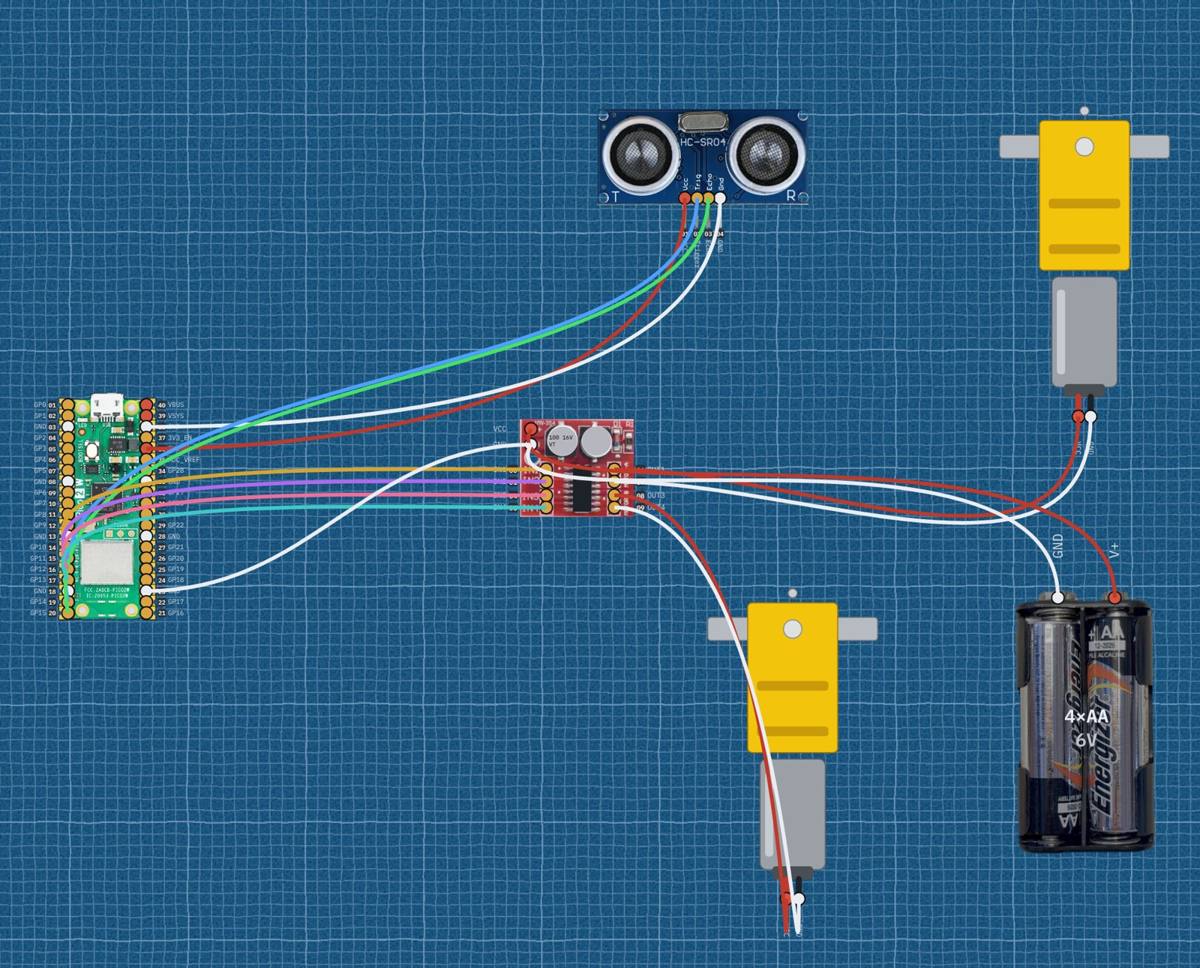
Whichever view you’re in is the one that’s exported, so switch to Schematic first if you want the circuit diagram.
A bill of materials
A bill of materials, or BOM, is the list of everything you need to buy or gather. Choose BOM (Markdown) and Snakie writes it for you:
| Qty | Part | Manufacturer | Family |
|---|---|---|---|
| 1 | Raspberry Pi Pico 2 W | Raspberry Pi | Microcontroller |
| 1 | 4×AA Battery Pack | Generic | Power |
| 1 | HC SR04 | Generic | Sensor |
| 1 | MX1508 | Breakout | |
| 2 | Yellow TT Motor | Generic | Motor |
Notice it counted the two motors as one line with a quantity of 2.
Pinouts (Markdown) does the same for the wiring: a table of which board pin goes to which part pin. Both are Markdown, so they paste straight into a GitHub README.
The build guide
Now the best one, and it isn’t in the export menu. Click the printer button in the toolbar at the very top of Snakie, beside New and Save. Its tooltip reads Export the project as a PDF.
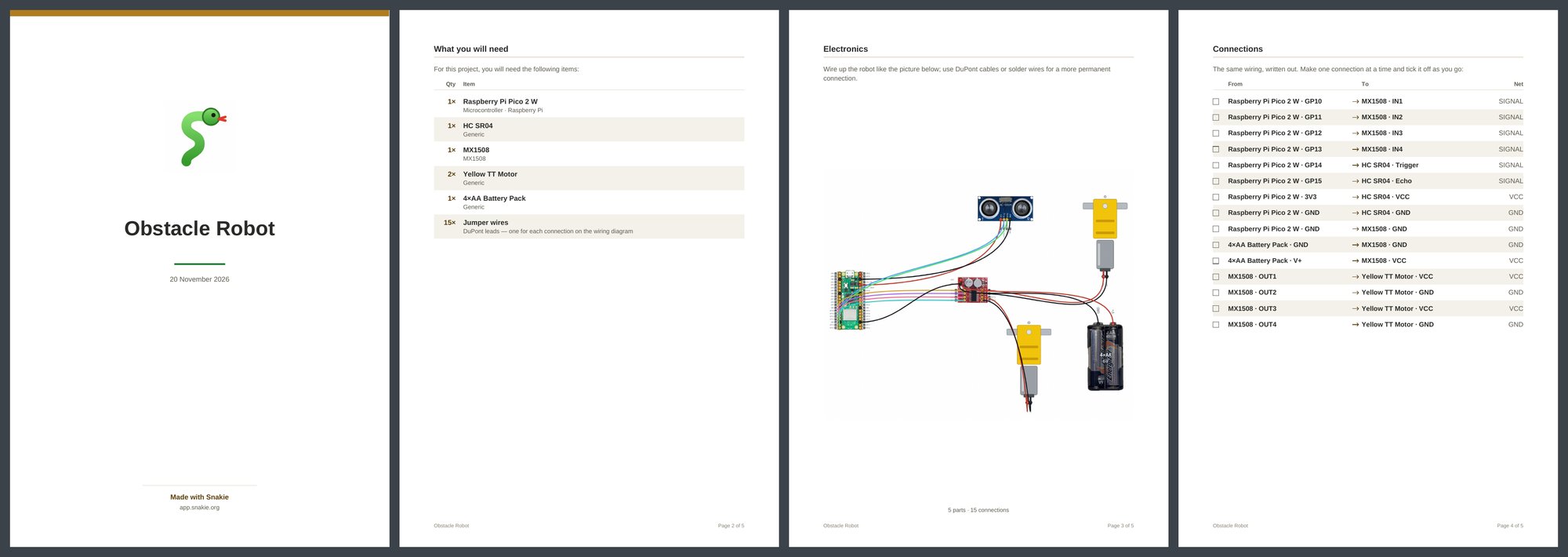
Snakie writes a five-page build guide:
- A cover with the project’s name and the date
- What you will need: the parts list, including 15 jumper wires, one for each connection
- Electronics: the wiring diagram
- Connections: every wire as a row with a tick-box, to mark off as you build
- A closing page with a link back to Snakie
Page 4 is the one that earns its keep. Building from a list with tick-boxes is much more reliable than building from a picture, especially in a classroom where thirty robots are being wired at once.
Send to kevsrobots
If you have a kevsrobots.com account, Send to kevsrobots… puts the wiring diagram and its parts list straight into one of your projects on the site.
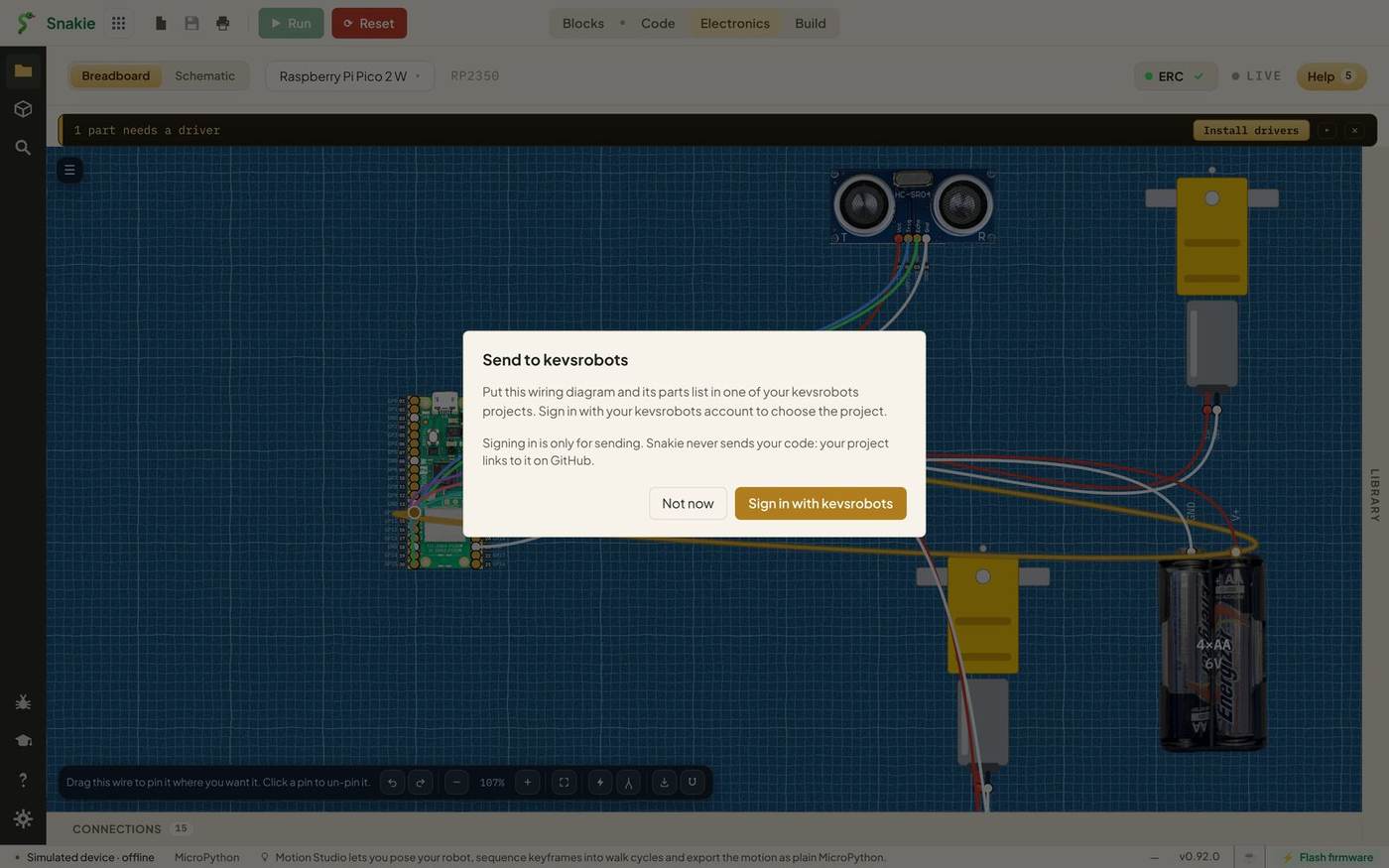
You sign in once, pick the project, and it’s there for others to build from. As the dialog says, signing in is only for sending, and Snakie never sends your code. Your project links to that on GitHub.
Try it Yourself
- Export the Schematic view as a PNG and compare it with the breadboard one.
- Export the BOM and work out roughly what the robot would cost to build.
- Make the PDF and read the Connections page. Is every wire from lesson 4 there?
Common Issues
Problem: The PDF is titled “Untitled project”. Solution: Type a name at the top of the Browser panel and export again. Why: The cover and the file name come from the project name.
Problem: The picture shows the wrong view. Solution: Switch to the view you want, Breadboard or Schematic, then export. Why: Snakie exports what’s on the canvas.
Problem: The jumper wire count looks too high. Solution: Nothing to fix. It’s one lead per connection. Why: Fifteen connections need fifteen leads, even when several meet at the same ground pin.
Check your understanding
Quick quiz 1 of 3
What is a bill of materials?
Quick quiz 2 of 3
Which export is best for building a circuit step by step?
Quick quiz 3 of 3
What does Send to kevsrobots send?
You can use the arrows ← → on your keyboard to navigate between lessons.
Comments