The Parts Library
Browse and search Snakie's library of boards, sensors, motors and batteries, read a part's pinout, and open the full-screen parts catalog
By Kevin McAleer, 5 Minutes
Page last updated November 20, 2026

A wiring tool is only as good as its parts. Snakie comes with a Standard Parts library of 80 real components, and each one knows its own pins.
Browse by family
The Library panel on the right lists every part, grouped into families:
| Family | What’s in it |
|---|---|
| Microcontroller | The Pico family, ESP32 boards, Adafruit Feathers, Seeed XIAO and more |
| Sensor | Distance, temperature, motion and light sensors |
| Input | Buttons, switches, a potentiometer and a joystick |
| Output | LEDs, buzzers and pixels |
| Motor | TT and N20 motors, an SG90 servo and bus servos |
| Power | Battery packs, coin cells, LiPos and a bench power supply |
| Breakout | Driver boards such as the MX1508 and PCA9685 |
| Connector | Dupont and JST plugs |
Scroll the list to see what’s there. It’s a good way to discover parts you didn’t know you could use.
Search
Scrolling 80 parts gets old quickly. Click the search box and type ultrasonic.
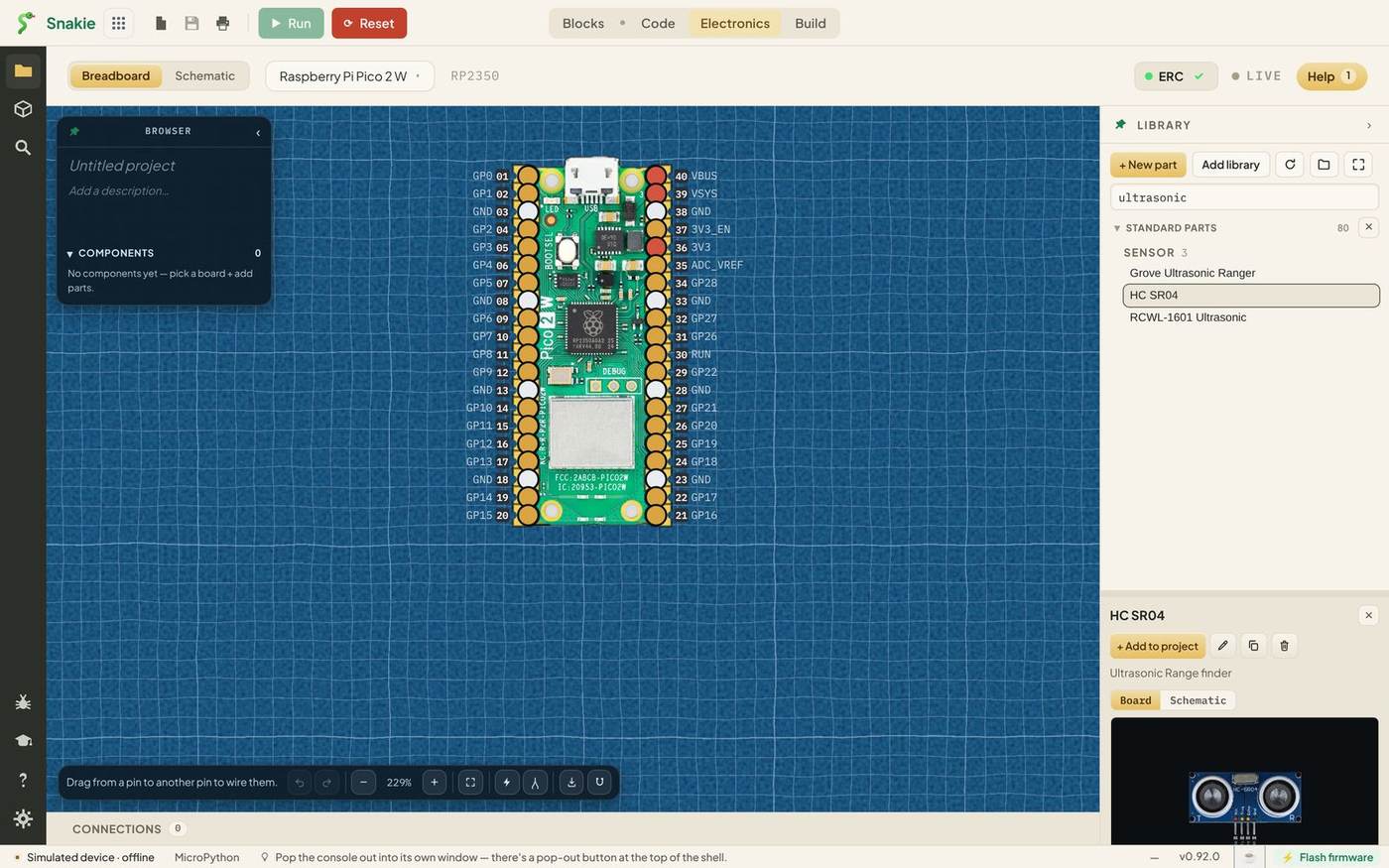
The list shrinks to the parts that match. Search looks at names, families and tags, so ultrasonic finds the HC SR04 even though the word isn’t in its name. Try battery, servo or motor.
Read a part before you use it
Click HC SR04 in the results. A card opens at the bottom of the Library with everything Snakie knows about the part:
- A picture, with Board and Schematic tabs to see it both ways
- The maker, family, package and supply voltage
- Its real size in millimetres
- A Pinout table listing every pin, its name and its type
The pinout is the important bit. The HC SR04 has four pins:
| Pin | Name | Type | What it’s for |
|---|---|---|---|
| 1 | VCC | Power | The sensor’s supply |
| 2 | Trigger | Signal | Your code pulses this to send a ping |
| 3 | Echo | Signal | The sensor answers on this one |
| 4 | GND | Ground | The return path |
Nearly every part you’ll ever wire has this shape: a power pin, a ground pin, and one or more signal pins. Power and ground make it work. Signals are how it talks to your code.
Check the voltage. The card lists this HC SR04 as a 3.3V part. Many HC-SR04 modules on sale are 5 V parts instead, and those need extra care. We’ll come back to this in lesson 3.
The full catalog
The small square button at the top right of the Library opens the Parts Catalog, a full-screen view with a picture of every part.
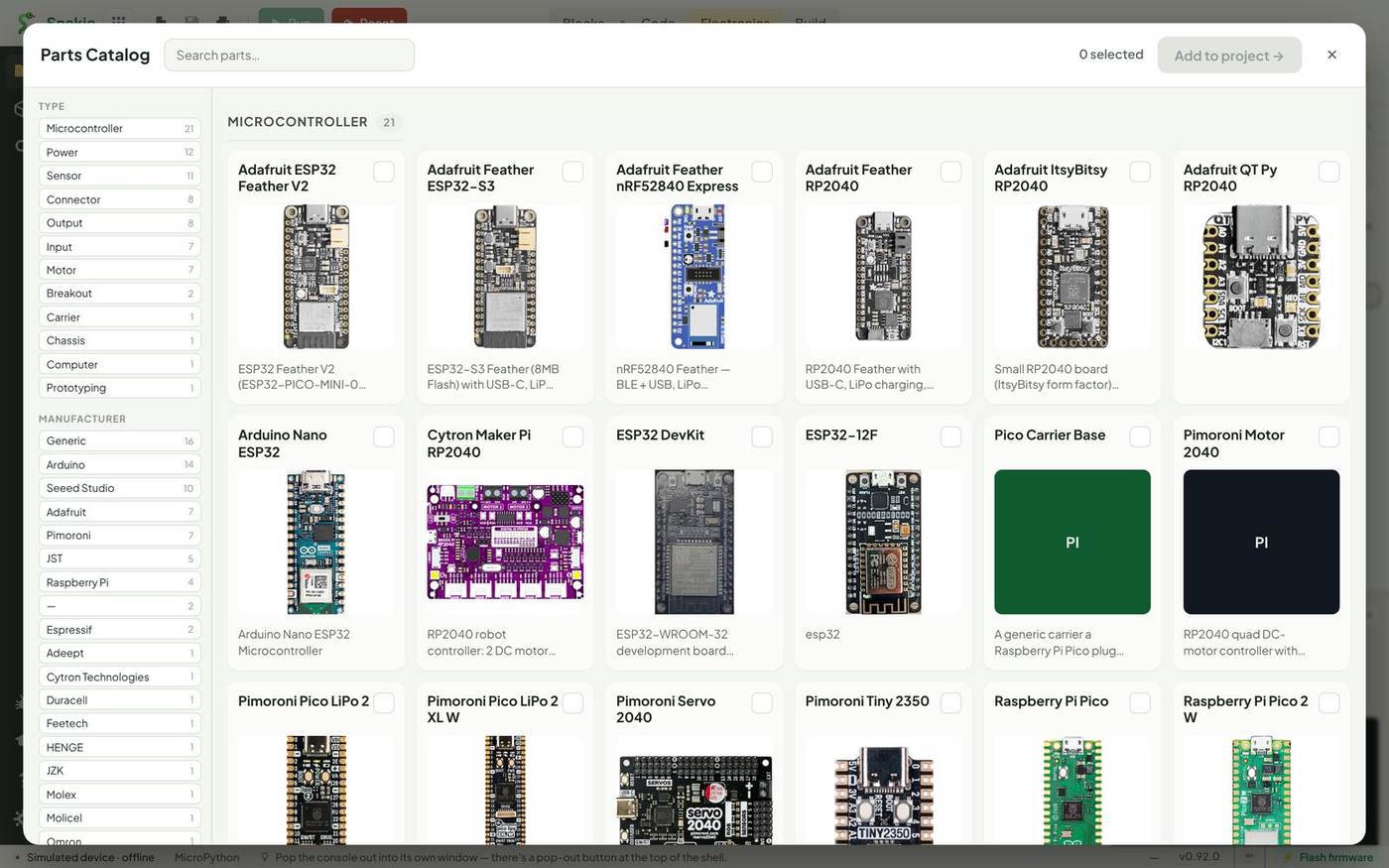
Down the left you can filter by type and by manufacturer. Tick the box on as many parts as you like and click Add to project to place them all in one go. When you’re gathering parts for a new build, this is the quickest way to do it.
More libraries
Two more buttons are worth knowing about:
- Add library lists community libraries you can install, so a maker or a shop can publish their own parts
- + New part opens the Part Editor, where you can draw a part that isn’t in any library. That has a course of its own later in the Snakie series
Try it Yourself
- Search for
motor. How many different motors and motor drivers can you find? - Open the card for the MX1508. How many pins does it have, and which are inputs?
- Open the Parts Catalog and filter by the Power type. How many kinds of battery can you count?
Common Issues
Problem: Search finds nothing.
Solution: Try a shorter word, or the kind of part, such as sensor or motor.
Why: Search matches names, families and tags, not long descriptions.
Problem: The part I need isn’t in the library. Solution: Check Add library for a community library, or make it with + New part. Why: The Standard library covers common robot parts, not everything.
Problem: The part card covers the list. Solution: Click the ✕ at the top right of the card. Why: The card stays open until you close it or pick another part.
Check your understanding
Quick quiz 1 of 3
Which three kinds of pin does almost every part have?
Quick quiz 2 of 3
Why does searching for “ultrasonic” find the HC SR04?
Quick quiz 3 of 3
What’s the quickest way to add several parts at once?
You can use the arrows ← → on your keyboard to navigate between lessons.
Comments