Snakie Instruments - Oscilloscope, Multimeter and Plotter
Learn to use Snakie's built-in plotter, multimeter, oscilloscope and data logger to see what a MicroPython program and its hardware are really doing
By Kevin McAleer, 4 Minutes
Page last updated November 20, 2026

Overview
When a robot misbehaves, the hard part is rarely fixing it. The hard part is seeing what it’s doing. Is the sensor reading what you think? Is that pin really pulsing? Did the value jump, or drift?
print() gets you so far. A column of numbers scrolling up a console is hard to read, and a signal that changes a thousand times a second can’t be printed at all.
Engineers use instruments for this: a multimeter for a steady value, an oscilloscope for a fast signal, a chart recorder for a slow trend. Snakie has all three built in, plus a data logger, sitting beside your code. One extra line in your program and a reading appears on a dial or a trace.
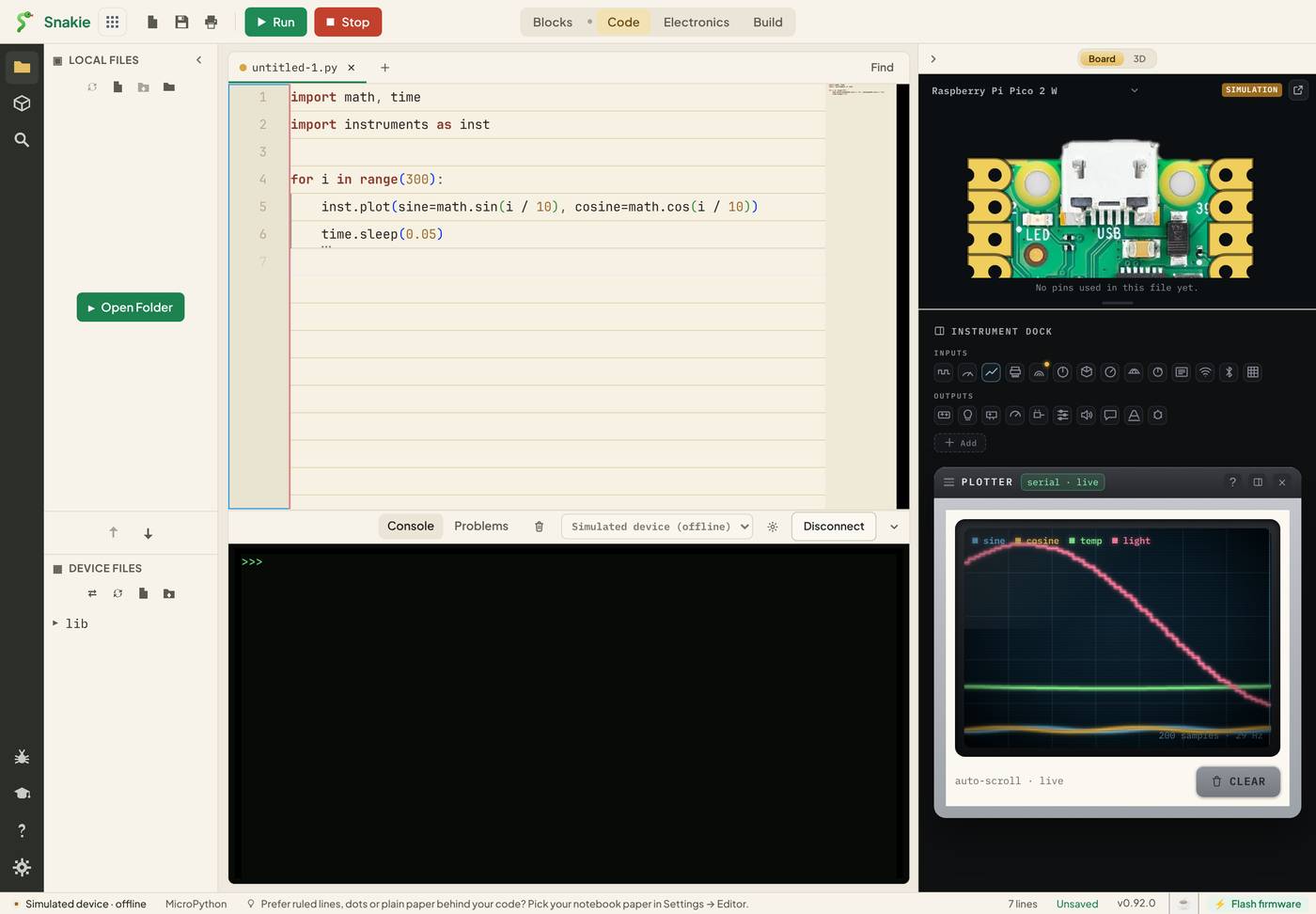
Here’s the idea in six lines. Press Run.
The box above is a mini Snakie with no instruments, so it shows the raw lines your program sends. Click Open in Snakie to load the same program into the full app, press Run, and watch two waves draw themselves on the Plotter in the instrument dock on the right.
Course Content
- The instrument dock: opening, closing and arranging instruments
- Two ways to get a reading: telemetry and LIVE
- The instruments library and its one-line helpers
- The Plotter, for values that change over time
- The Multimeter, for a voltage with min, max and average
- The Oscilloscope, for PWM and fast signals
watch()andupdate(): point an instrument at an object- Instruments from Blocks
- The Data Logger, and saving readings to a file on the board
- Project: a servo and light sensor scanner that finds the brightest direction
Key Results
After this course you will be able to:
- Plot any value from a running program with one line of code
- Read a sensor’s voltage on a multimeter while your loop keeps running
- Look at a PWM signal and read its frequency and duty cycle
- Choose the right instrument for a problem
- Record a run and save it as a CSV file
- Use measurements to debug hardware, not guesses
What you’ll need
- Snakie, in your browser or the desktop app
- Nothing else. Every lesson runs on Snakie’s simulated device
To try the project on real hardware you’ll want a Raspberry Pi Pico, an SG90 servo, and a light sensor such as a photoresistor with a 10 kΩ resistor.
How the course works
Each lesson introduces one instrument with a short program. The programs are in live Snakie boxes. Run them on the page to check they work, then use Open in Snakie to see the instruments move.
A note about the simulator. Snakie’s simulated device streams a little demo data of its own, so the instruments have something to show before you’ve written a line. You’ll see series called
tempandlighton the plotter, and channels calledch1,pwmandadc0elsewhere. In this course we give our own readings different names so you can tell them apart. On a real board, only your program’s readings appear.
Every lesson ends with things to try, fixes for common problems and a short quiz.
Prerequisites
You should be comfortable running a short MicroPython program in Snakie.
- Getting Started with Snakie shows you around the app
- Wire It Up - Electronics in Snakie comes before this course in the Start with Snakie pathway. It isn’t required, but its robot makes a great thing to measure
Let’s switch something on.
You can use the arrows ← → on your keyboard to navigate between lessons.
Comments