The Instrument Dock
Find Snakie's instrument dock, open and close instruments, read their help pages and float one in its own window
By Kevin McAleer, 4 Minutes
Page last updated November 20, 2026

Every instrument in Snakie lives in one place. Let’s find it and learn the controls they all share.
Where the dock is
Open Snakie and stay in the Code workspace. On the right, under the picture of your board, is a panel titled INSTRUMENT DOCK.
It holds two rows of small icons:
- INPUTS are instruments that show you something: Oscilloscope, Multimeter, Plotter, Data Logger, Range, Potentiometer, IMU, Barometer, Button, Encoder, Display, Wi-Fi scan, Bluetooth, I²C detect and Gamepad
- OUTPUTS are panels that drive something: LED, Bench PSU, Servo, Motor, Poses, Buzzer and more
Hover over an icon and Snakie names it, for example Show Plotter. Click it and the instrument opens underneath. Click again to hide it.
You can open several at once. They stack down the panel, and the panel scrolls.
Finding one by name
Icons are quick once you know them. Until then, click + Add under the icons. A searchable list opens with a line about what each instrument is for.
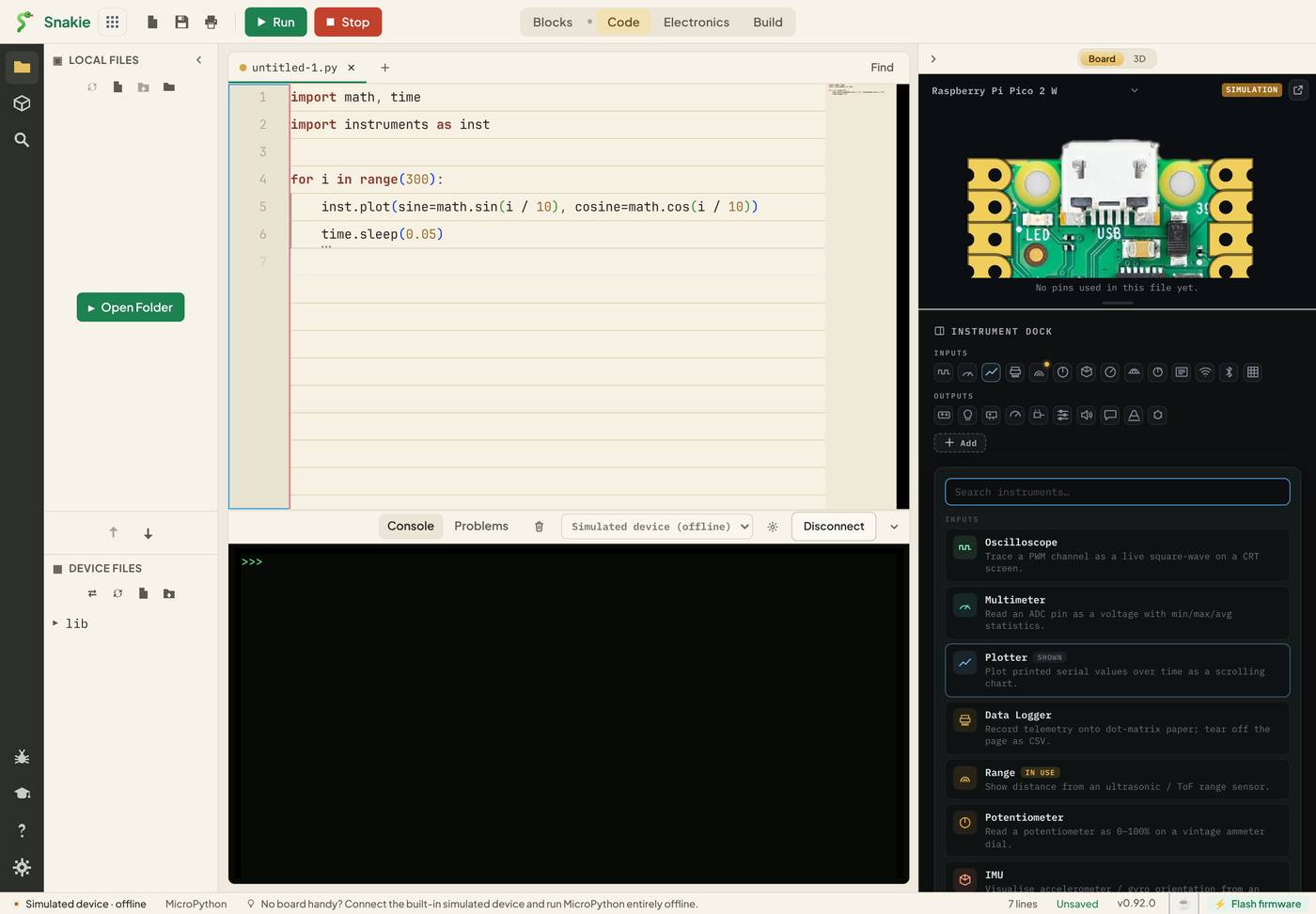
Type plot in the search box, click Plotter, and it opens.
The dock knows what your code uses
Paste a program that creates a PWM or an ADC object and look at the icons again. The matching instruments gain a small dot, and their hover text adds (used by this file). In the Add list they carry an IN USE badge.
It’s Snakie’s way of saying: this file has something an oscilloscope could show you.
The buttons every instrument has
Each instrument has a title bar with the same small buttons:
| Button | What it does |
|---|---|
| ? | Opens that instrument’s help page in the Help panel |
| LIVE | Oscilloscope and Multimeter only. Lets Snakie read the board itself. Lesson 2 |
| Float as overlay | Lifts the instrument out into its own window |
| Close | Hides it again |
The ? button is worth a click on every instrument you meet. The help page says what the instrument shows, how to feed it, and gives a snippet to copy.
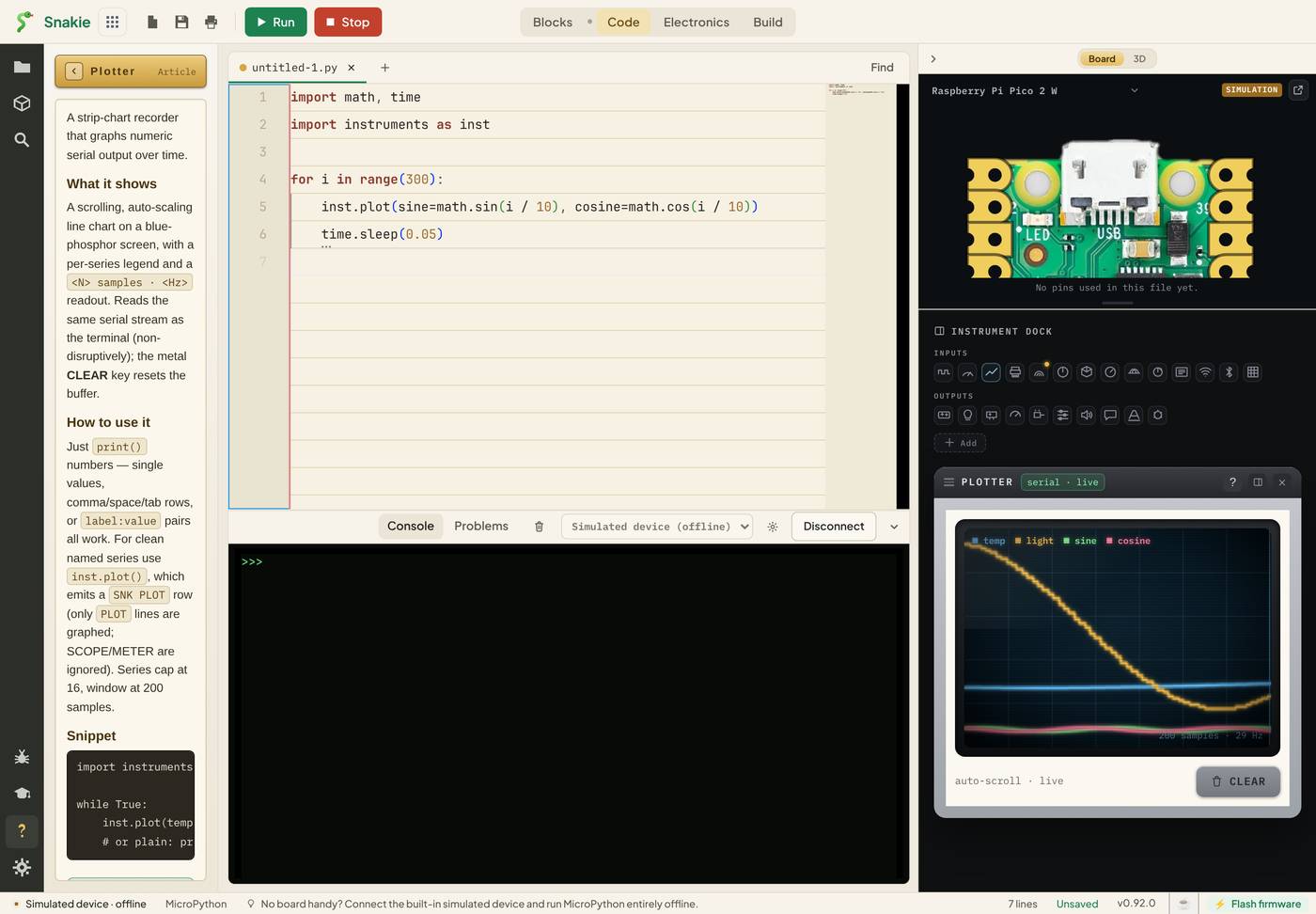
Float as overlay is the one to remember when you’re short of room. A floating oscilloscope can sit over the console, or on a second screen, while the dock shows something else.
Try it Yourself
- Open the Plotter, the Multimeter and the Oscilloscope together, then close them one at a time.
- Use + Add to find the instrument that scans the I²C bus. What does its description say?
- Open the Multimeter’s ? page and find the snippet. Which function does it call?
Common Issues
Problem: I can’t see the Instrument Dock. Solution: Make sure you’re in the Code workspace, and open the right-hand panel with the small arrow at its top edge. Why: The dock is part of the Code workspace’s side panel, which can be collapsed.
Problem: The plotter is already drawing lines and I haven’t run anything. Solution: Nothing is wrong. That’s the simulated device’s demo data. Why: The simulator streams sample readings so the instruments aren’t blank. A real board only shows what your program sends.
Problem: An instrument has gone missing after I floated it. Solution: Look for its separate window, close that, and open the instrument from the dock again. Why: A floated instrument lives in its own window, which can hide behind the main one.
Check your understanding
Quick quiz 1 of 3
Where is the Instrument Dock?
Quick quiz 2 of 3
What does a dot on an instrument’s icon tell you?
Quick quiz 3 of 3
Which button opens an instrument’s help page?
You can use the arrows ← → on your keyboard to navigate between lessons.
Comments