Instruments from Blocks
Feed Snakie's Plotter, Multimeter and Oscilloscope from a Blocks program using the Instruments drawer, and read the Python it writes
By Kevin McAleer, 4 Minutes
Page last updated November 20, 2026
You don’t need to type Python to use an instrument. Everything in this course has a block.
The Instruments drawer
Click Blocks in the workspace switcher. In the toolbox on the left, click Instruments.
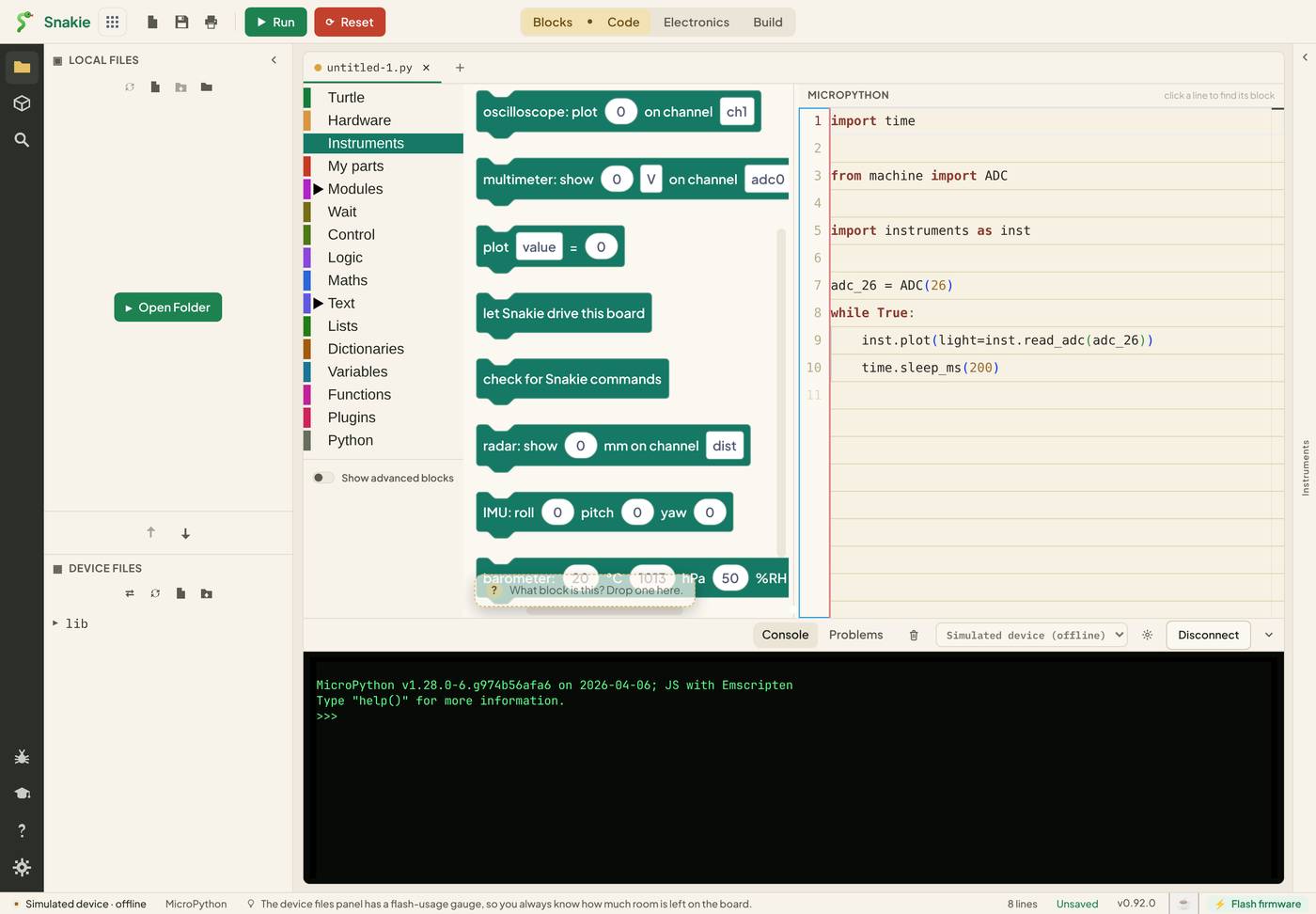
The blocks read like sentences. Here are the ones that match what you’ve learned:
| Block | Python it writes | Lesson |
|---|---|---|
| plot value = 0 | inst.plot(value=0) |
3 |
| multimeter: show 0 V on channel adc0 | inst.meter(...) |
4 |
| read volts on GP26 and show on the multimeter | inst.read_adc(...) |
4 |
| oscilloscope: plot 0 on channel ch1 | inst.scope(...) |
5 |
| read the PWM on GP15 and show on the oscilloscope | inst.read_pwm(...) |
5 |
Further down the drawer are blocks for the other instruments in the dock: radar: show a distance, IMU: roll pitch yaw, barometer, scan the I²C bus, scan for Wi-Fi networks and more.
A light meter in four blocks
Build this:
- From Control, drag out a forever block
- From Instruments, drop a plot value = block inside it and change the name to
light - Drop read volts on GP26 and show on the multimeter into the plot block’s value slot
- From Wait, add wait 400 milliseconds under the plot block and change it to 200
The read volts block is round, which means it gives back a value. It fits anywhere a number fits. So one block feeds the Multimeter and hands the Plotter its number.
Read the Python
The code pane beside your blocks shows what Snakie wrote:
Every line should look familiar. import instruments as inst appeared on its own when you used the first Instruments block, and the ADC on GP26 was set up for you.
Switch to Code to see the Instrument Dock, open the Plotter and Multimeter, and press Run.
Two blocks for later
Two blocks near the top of the drawer do something different:
- let Snakie drive this board
- check for Snakie commands
These work the other way round. They let panels in the dock, such as the Servo and Motor outputs, send commands to your running program. We won’t need them in this course, but now you know what they’re for.
Try it Yourself
- Add a second plot block that plots the same reading multiplied by 100 (use a block from Maths). Which line fills the chart?
- Swap the read volts block for read the PWM on GP15 and show on the oscilloscope. Run it and check the scope.
- Edit a number in the Python and switch back to Blocks. What does Snakie do?
Common Issues
Problem: I can’t see the Instrument Dock in Blocks. Solution: Switch to the Code workspace. Your program comes with you. Why: The dock is part of the Code workspace’s side panel.
Problem: The read volts block won’t snap into the loop. Solution: Drop it into a value slot, such as the one on a plot block. Why: Round blocks are values. They fit into slots, not between other blocks.
Problem: The plot is called value.
Solution: Click the name on the plot block and type a better one.
Why: value is just the block’s starting name.
Check your understanding
Quick quiz 1 of 3
Which Python does the “plot value = 0” block write?
Quick quiz 2 of 3
Why can the “read volts” block sit inside the plot block?
Quick quiz 3 of 3
Who adds “import instruments as inst” to a Blocks program?
You can use the arrows ← → on your keyboard to navigate between lessons.
Comments