Sprite Files on the Board
Load .spr sprite files straight from the board, and use Snakie desktop features that link sprites and code
By Kevin McAleer, 7 Minutes
Page last updated November 21, 2026

Two ways to ship a sprite
So far you’ve used the exported module, eye.py. There’s a second way: put the .spr file itself on the board and read it when the program runs.
Module (eye.py) |
File (eye.spr) |
|
|---|---|---|
| Size on the board | About 1.7 KB | 176 bytes |
| Memory while running | All frames at once | One frame at a time |
| Changing the art | Export again, upload again | Upload the new .spr |
| Code needed | import eye |
A small reader |
For five small frames it makes no difference. For a 40-frame full-screen animation, the file wins easily: 40 KB of frames would crowd a Pico’s memory as a module, but streams comfortably one frame at a time.
What’s inside a .spr file
The format is simple on purpose. It’s a 16-byte header followed by the frames, each in the same MONO_HLSB layout you decoded in lesson 6.
| Bytes | Holds |
|---|---|
| 0 to 3 | The letters SNKS, so a program can check it’s a Snakie sprite |
| 4 | Version, currently 1 |
| 5 | Flags |
| 6 | Pixel format, 0 for 1-bit |
| 7 | Unused |
| 8 and 9 | Width |
| 10 and 11 | Height |
| 12 and 13 | Number of frames |
| 14 and 15 | Milliseconds per frame |
Do the sum for your eye: 16 bytes of header plus 5 frames of 32 bytes is 176. That’s exactly the size Snakie shows next to the file.
A reader
Make a new file, spr.py:
"""Read Snakie .spr sprite files on the board."""

import struct
import framebuf


class Spr:
    """A .spr animation, read one frame at a time from the board's files."""

    def __init__(self, path):
        self.f = open(path, "rb")
        header = struct.unpack("<4sBBBBHHHH", self.f.read(16))
        magic, version, flags, fmt, _, w, h, count, ms = header
        if magic != b"SNKS":
            raise ValueError("not a Snakie sprite")
        self.width, self.height, self.count, self.ms = w, h, count, ms
        self.size = (w + 7) // 8 * h
        self.buf = bytearray(self.size)
        self.fb = framebuf.FrameBuffer(self.buf, w, h, framebuf.MONO_HLSB)

    def frame(self, i):
        self.f.seek(16 + i * self.size)
        self.f.readinto(self.buf)
        return self.fb
struct.unpack reads the header table above in one line. The odd-looking "<4sBBBBHHHH" is a recipe: four characters, four single bytes, then four two-byte numbers.
frame(i) jumps to the right place in the file and reads one frame into a buffer that’s reused every time. However long the animation, it only ever holds one frame in memory.
Play it
Make player.py:
import time
from simscreen import SimScreen
from spr import Spr

screen = SimScreen()
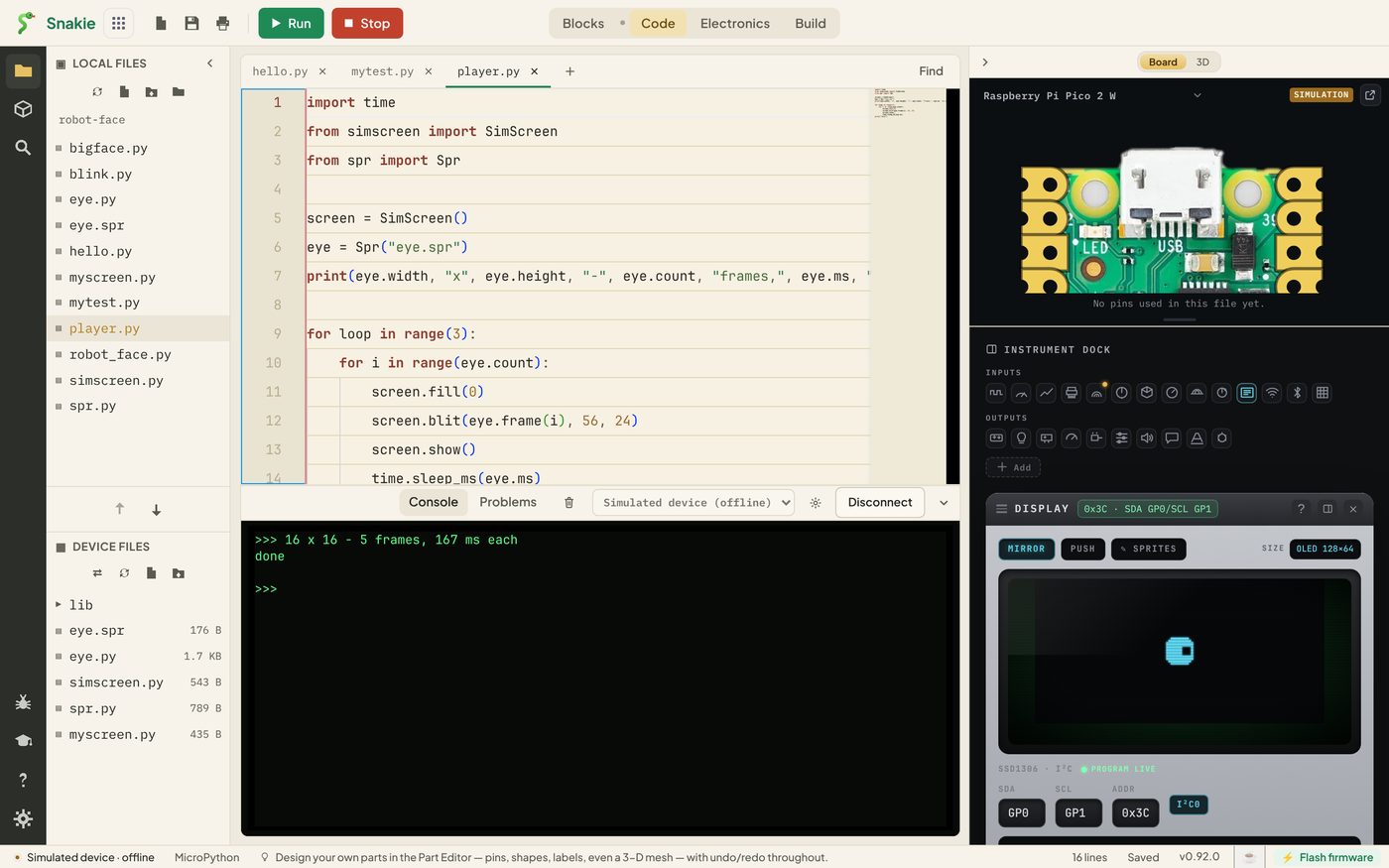
eye = Spr("eye.spr")
print(eye.width, "x", eye.height, "-", eye.count, "frames,", eye.ms, "ms each")

for loop in range(3):
    for i in range(eye.count):
        screen.fill(0)
        screen.blit(eye.frame(i), 56, 24)
        screen.show()
        time.sleep_ms(eye.ms)
print("done")
Now upload three files with right-click, Upload to board: eye.spr, spr.py and, if it isn’t there already, simscreen.py.
Then run player.py. The console reports what it found:
16 x 16 - 5 frames, 167 ms each
and the eye plays through its frames three times on the Display. The 167 ms comes from the 6 FPS you set in the editor: 1000 divided by 6.
Upload sprite files with right-click
There are two upload controls in the Files panel, and for .spr files it matters which you use.
- Right-click, Upload to board copies the file exactly, byte for byte. Use this one
- The upload arrow under the Local Files list sends whatever is in the open editor tab as text. That’s fine for Python, but a sprite isn’t text, and it arrives damaged
If you click eye.spr in the file list, Snakie opens it in a tab as a jumble of characters. Close that tab without saving. To edit a sprite, use Import in the Sprite editor.
Extras in the desktop app
The Snakie desktop app knows about sprite files in your project and joins them up with your code.
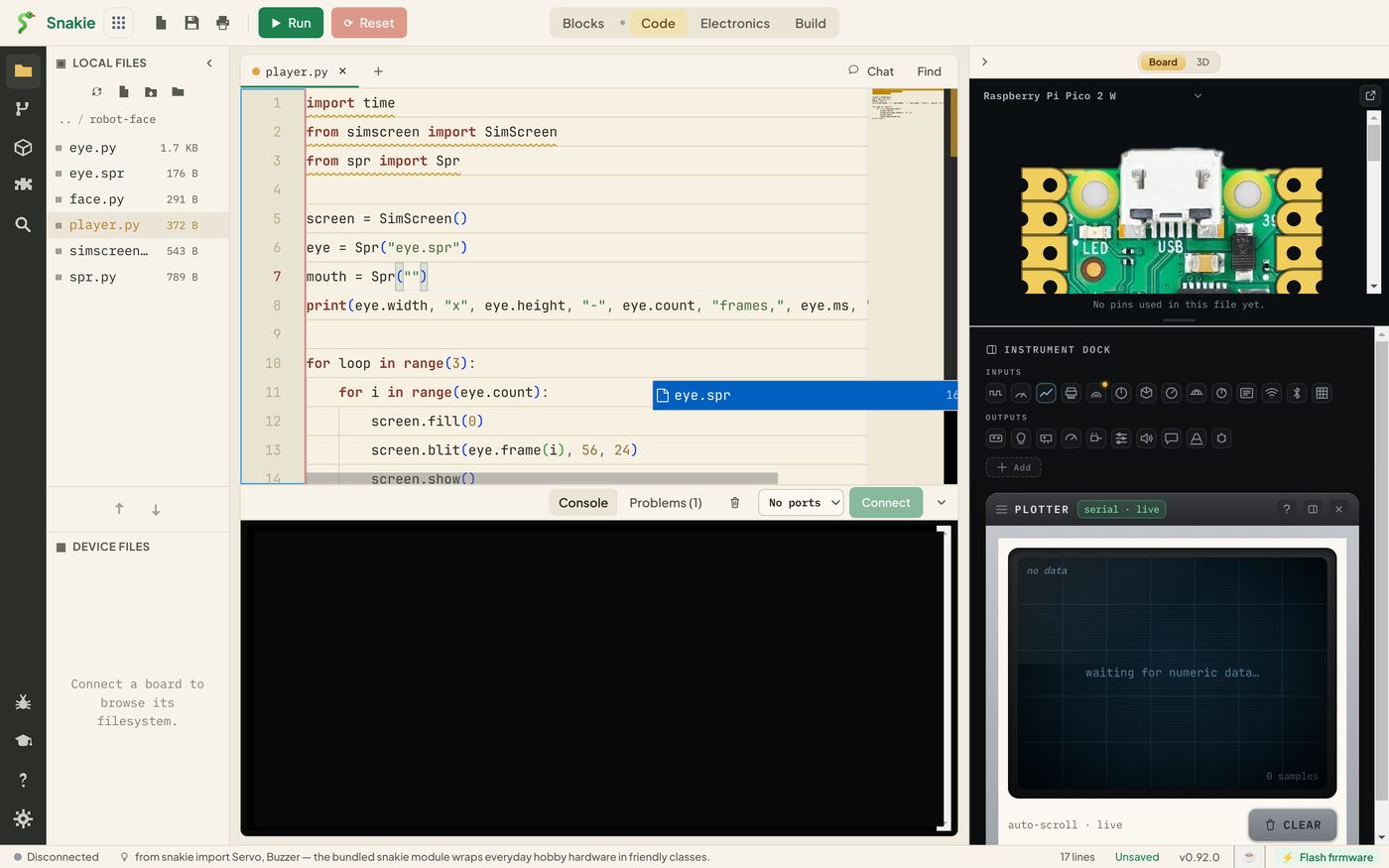
Sprite names complete as you type. Inside a string, Snakie offers the project’s .spr files, so a typing mistake can’t sneak through to the board.
The Sprite editor tells you where a sprite is used. Under the top bar, a line lists the Python files that name the sprite you have open. Click one to jump to it.
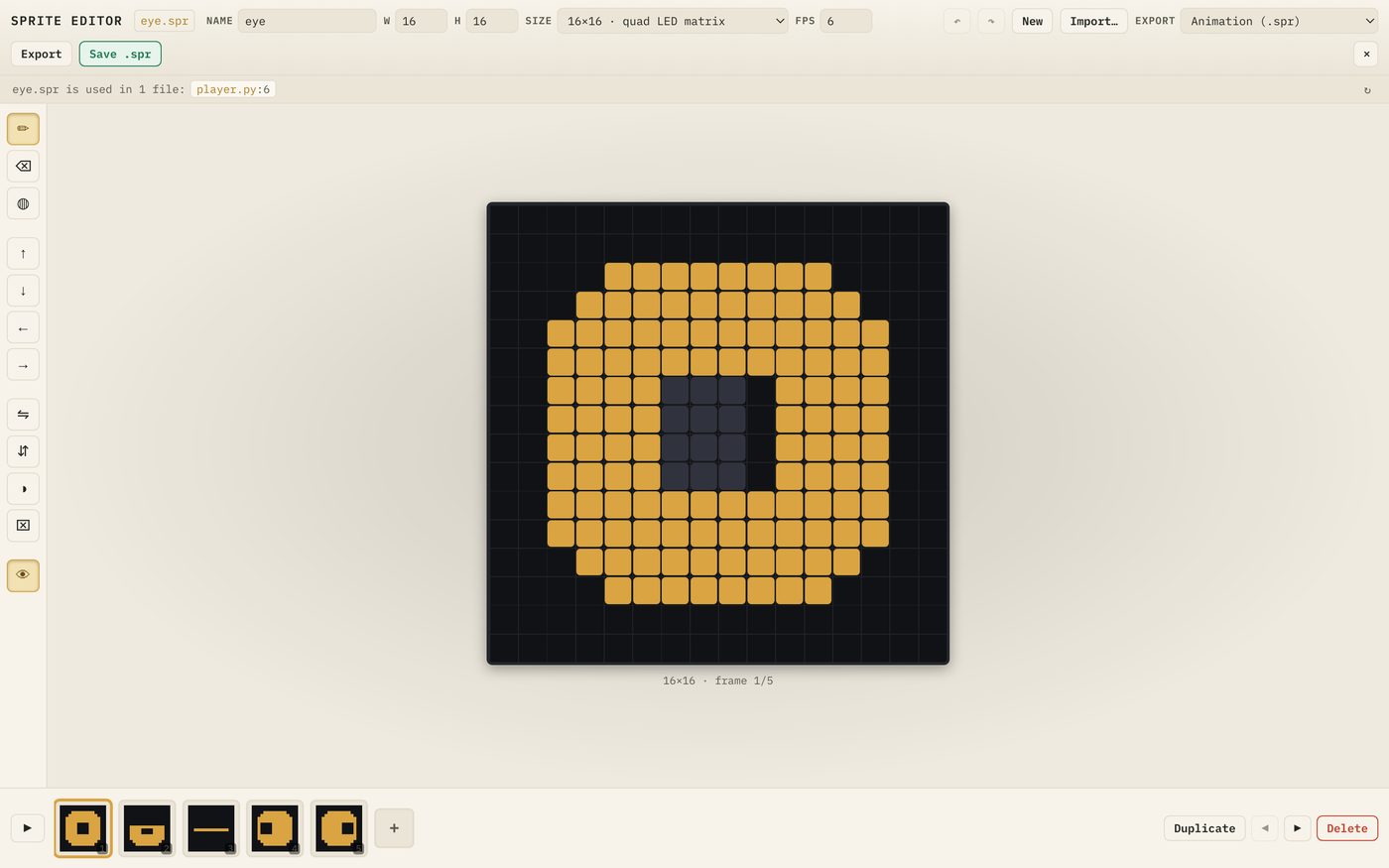
If it says nothing references the sprite, it’s safe to delete.
In the browser version these two don’t apply. A sprite saved from the browser isn’t tied to your project folder, so the editor reports that nothing references it even when your code does.
Both of these look for names written out in full, such as "eye.spr". A name built while the program runs, such as name + ".spr", can’t be found this way.
Try it Yourself
- Change
range(3)towhile True:so the sprite loops until you press Stop - Draw a second sprite, a 16×16 heart that beats over two frames, save it as
heart.spr, upload it and play it - Play both at once: make two
Sprobjects and blit them side by side - Print
eye.count * eye.size + 16and compare it with the file size shown in Device Files
Common Issues
Problem: OSError: [Errno 2] ENOENT.
Solution: Upload eye.spr to the board and check the name in your code matches exactly.
Why: The program opens the file on the device, and that error means there’s no file by that name.
Problem: ValueError: not a Snakie sprite, or the animation plays with very long pauses.
Solution: Delete the file from the board and upload it again with right-click, Upload to board.
Why: The file was sent as text and its bytes were changed on the way. A damaged header gives nonsense for the size or the frame time.
Problem: The picture is scrambled.
Solution: Check self.size is (w + 7) // 8 * h.
Why: If the frame size is wrong, every frame after the first is read from the wrong place.
Check your understanding
Quick quiz 1 of 3
Why does reading a .spr file use less memory than importing a module?
Quick quiz 2 of 3
What are the first four bytes of a .spr file for?
Quick quiz 3 of 3
How should you copy a .spr file to the board?
You can use the arrows ← → on your keyboard to navigate between lessons.
Comments