Drawing Your First Sprite
Draw a 16 by 16 robot eye in the Snakie Sprite editor using the draw, fill and erase tools
By Kevin McAleer, 5 Minutes
Page last updated November 21, 2026
The plan
You’re going to draw one robot eye: a rounded square with a square pupil in the middle. It’s 16 pixels wide and 16 tall, with a 2-pixel empty border so two eyes can sit side by side without touching.
Here’s the finished frame, so you know where you’re heading:
................
................
....########....
...##########...
..############..
..############..
..####....####..
..####....####..
..####....####..
..####....####..
..############..
..############..
...##########...
....########....
................
................
Start a blank sprite
- Open the Sprite editor (Display instrument, SPRITES key)
- Press New. Snakie asks whether to clear the current drawing. Press OK
- In the SIZE menu choose 16×16
- Click in the NAME box and type
eye
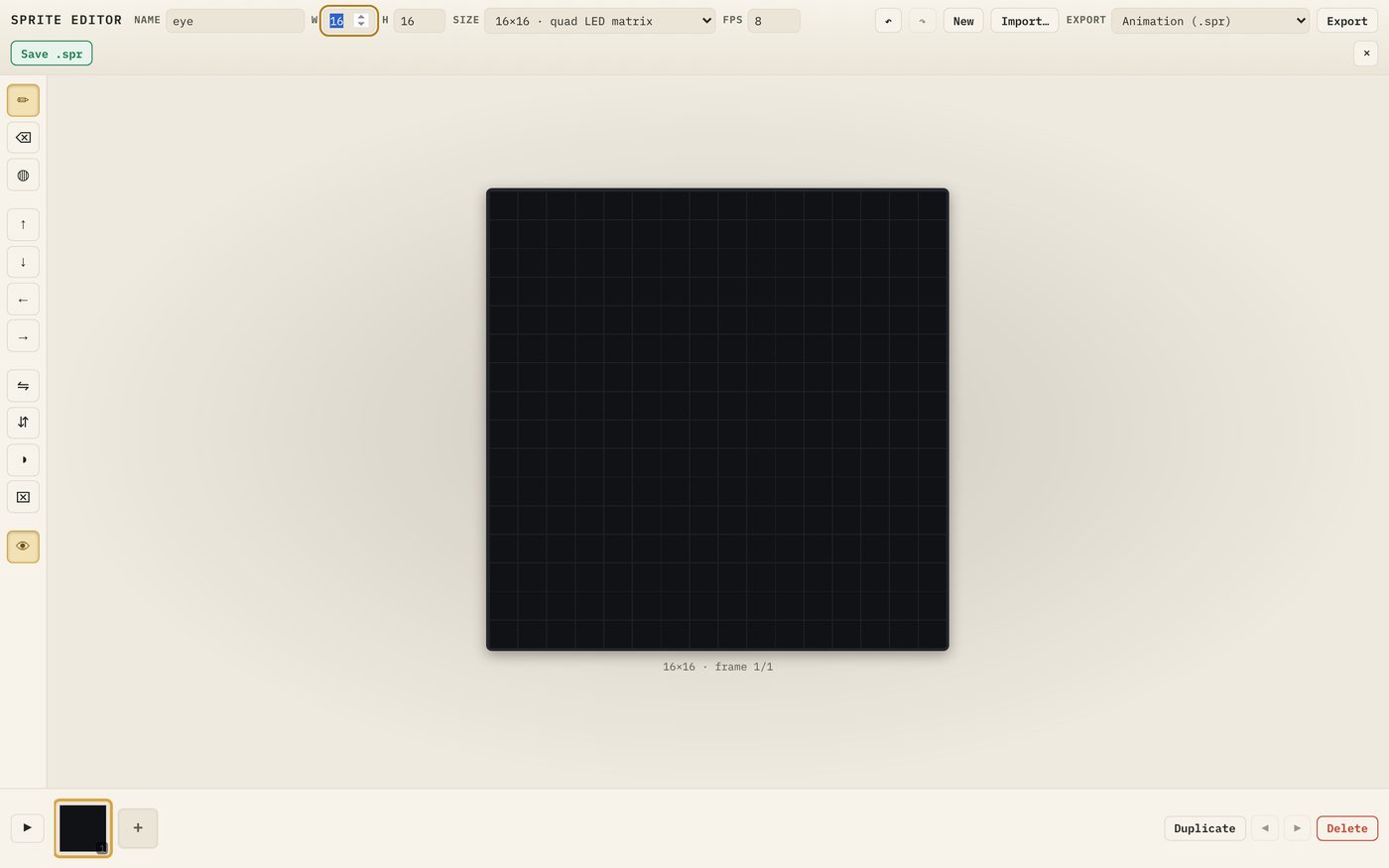
The name matters. Later it becomes eye.spr and eye.py, and you’ll type import eye in your code. Keep it short, lower case and free of spaces.
Draw the outline
Pick the Draw tool (the pencil at the top of the toolbar). Now trace the outside edge of the eye:
- Count two rows down from the top and four pixels in from the left. Drag right for eight pixels. That’s the top edge
- Step down and out one pixel on each side to round the corners
- Carry on down both sides, round the bottom corners the same way, and close the shape along the bottom
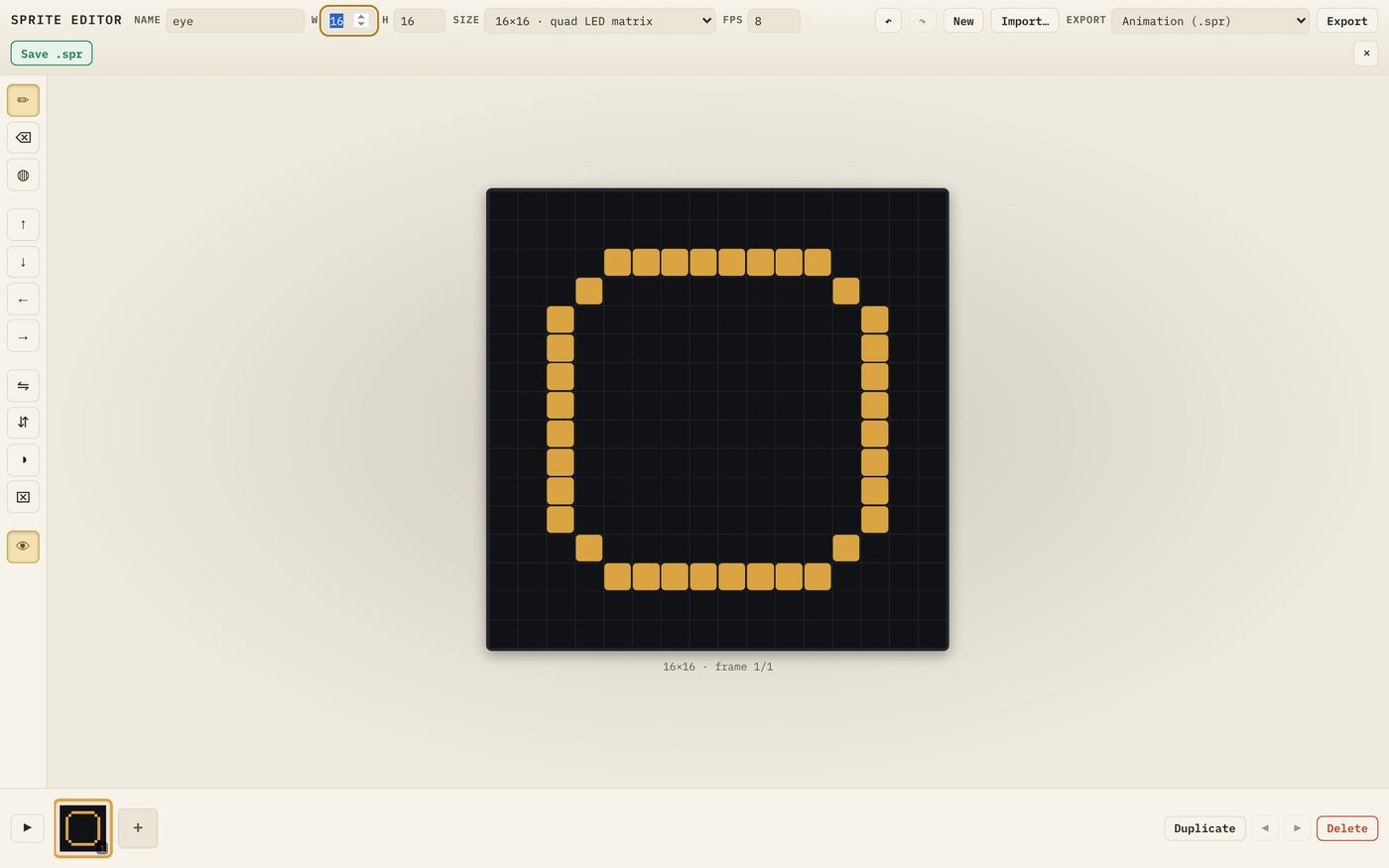
Make sure the outline has no gaps. The next step depends on it.
If a pixel lands in the wrong place, click it again to turn it off, or use Undo.
Fill it in
Pick the Fill tool (third in the toolbar) and click anywhere inside the outline.
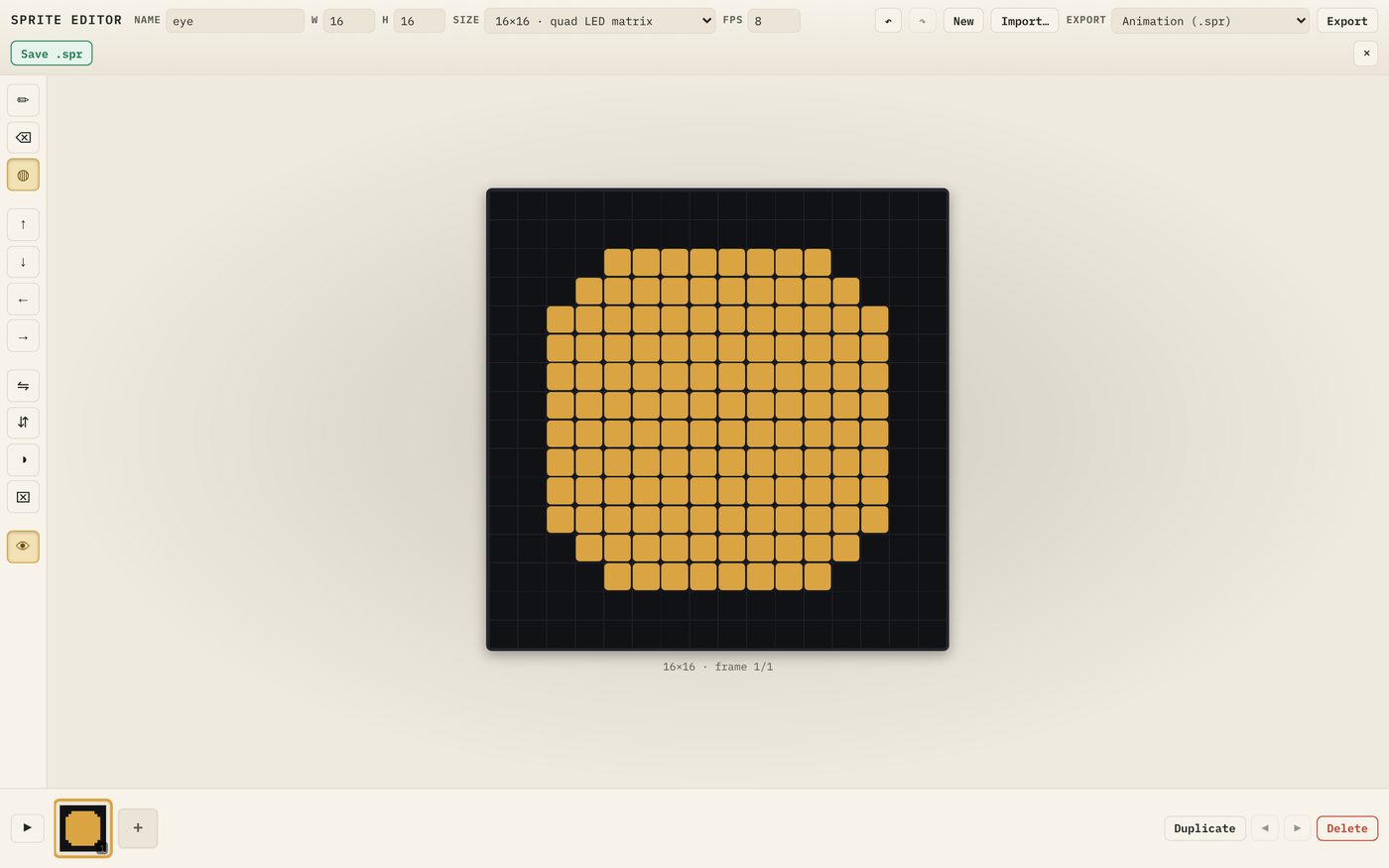
Fill spreads out from the pixel you click until it reaches a lit pixel or the edge of the sprite. If your whole canvas lights up, there was a gap in the outline. Press Undo, close the gap and try again.
Cut out the pupil
Pick the Erase tool (second in the toolbar). Turn off a 4×4 block right in the centre: columns 6 to 9, rows 6 to 9, counting from 0.
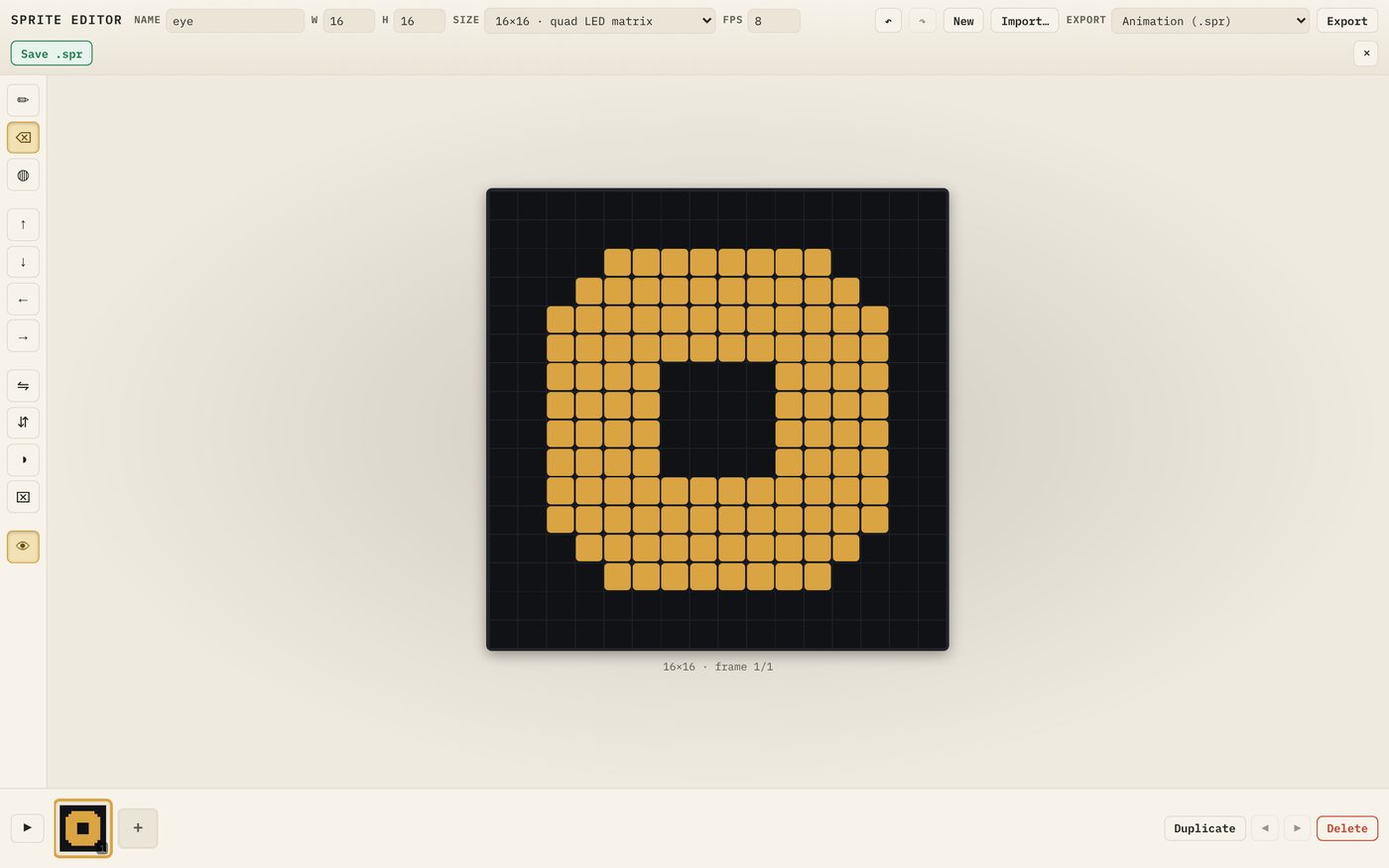
That’s frame 1 done. Switch back to the Draw tool so you don’t erase anything by accident.
A quick experiment
Press Invert. Every pixel swaps.
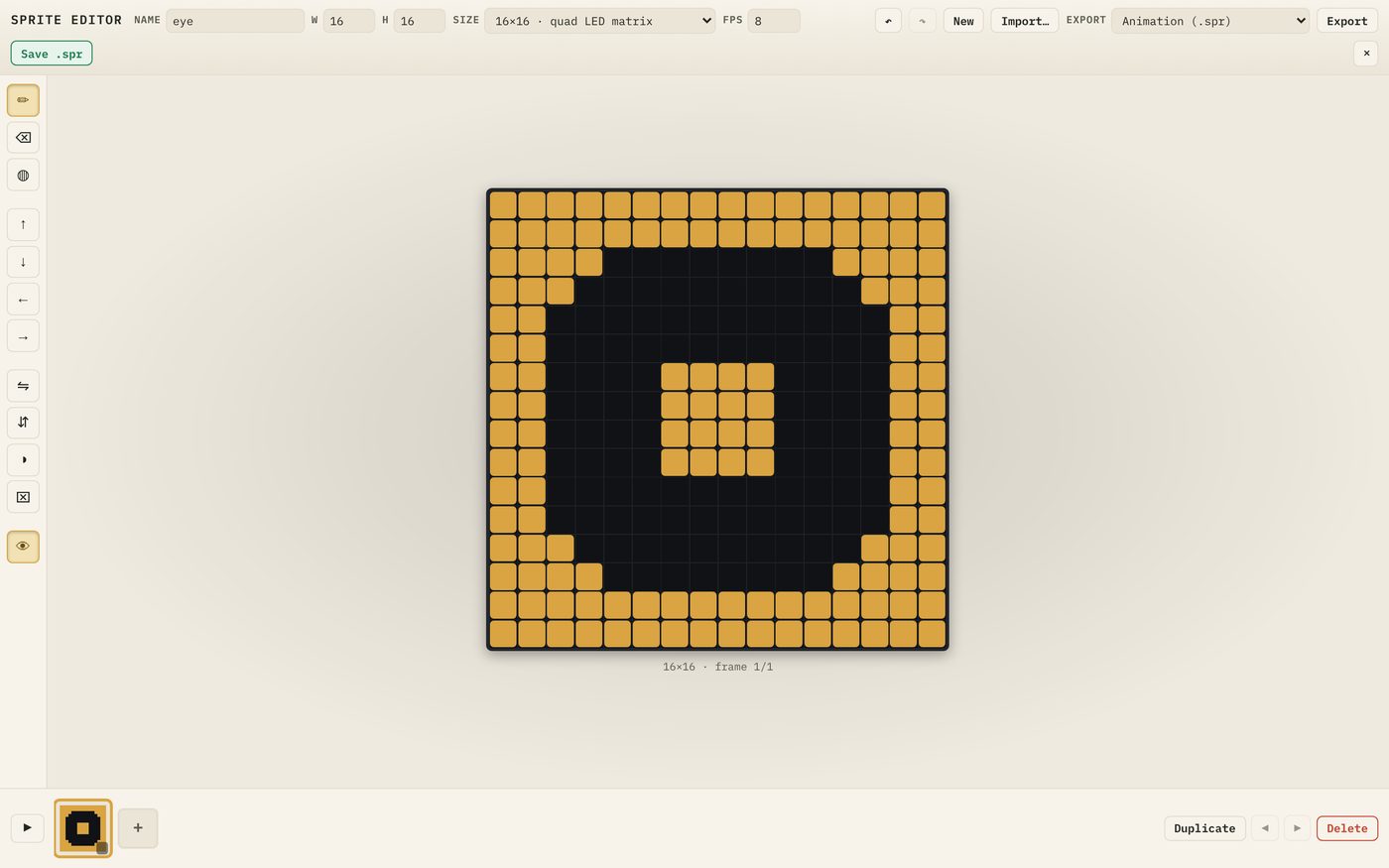
Inverting is handy when a sprite will sit on a lit background. For this course we want the original, so press Undo.
Why leave a border?
You could draw right up to the edges. A border is useful for two reasons:
- Two sprites placed edge to edge still have a gap between them
- There’s room for the eye to shift a pixel or two in later frames without being cut off
If you ever need to move a whole drawing, the four Nudge arrows slide it one pixel at a time.
Try it Yourself
- Nudge the eye one pixel left, then back
- Flip the eye left to right. Nothing seems to happen. Why not?
- Give the pupil a one-pixel highlight in its top-left corner with the Draw tool. Decide whether you like it. Undo it if you don’t
- Start a second sprite later, once this one is saved, and try a round eye or a heart
Common Issues
Problem: Fill lights up the whole canvas. Solution: Undo, find the gap in the outline and close it. Why: Fill spreads through every connected unlit pixel. Pixels that only touch at a corner still count as a closed line, but a missing pixel lets the fill escape.
Problem: I keep turning pixels off when I mean to paint. Solution: Drag instead of clicking, or check you haven’t left the Erase tool selected. Why: A single click with Draw flips a pixel, so clicking a lit pixel turns it off.
Problem: My eye is off-centre. Solution: Use the Nudge arrows until there are two empty columns on each side and two empty rows top and bottom. Why: Later lessons place two eyes using their 16×16 boxes, so a centred drawing keeps the face symmetrical.
Check your understanding
Quick quiz 1 of 3
Why must the outline have no gaps before you use Fill?
Quick quiz 2 of 3
What is the sprite’s name used for?
Quick quiz 3 of 3
What does a single click with the Draw tool do to a lit pixel?
You can use the arrows ← → on your keyboard to navigate between lessons.
Comments