Putting a Sprite on Screen
Import your exported sprite module and blit it onto the simulated display to make a pair of robot eyes
By Kevin McAleer, 5 Minutes
Page last updated November 21, 2026

What the module gives you
Open the eye.py you exported in lesson 5. Besides the frame data, it has three helpers:
| Name | Gives you |
|---|---|
eye.WIDTH, eye.HEIGHT, eye.FPS |
The sprite’s size and speed |
eye.FRAMES |
The raw bytes of every frame |
eye.frame(i) |
Frame i as a small frame buffer, ready to blit |
eye.pixel(i, x, y) |
True if that pixel of frame i is lit |
eye.play(display, x, y, loops) |
Plays the whole animation on a display |
Frames are numbered from 0, so your five are 0 to 4.
Blit
Blit means “copy this small picture onto that big one”. It’s the heart of sprite graphics:
screen.blit(eye.frame(0), 40, 24)
That copies frame 0 so its top-left corner lands at x = 40, y = 24.
See it in miniature. This box makes a tiny 7×5 sprite and blits it twice onto a 32×8 buffer:
One drawing, two eyes. Change the 18 to 12 and run it. What happens when the sprites overlap? Try 40, which is off the right-hand edge.
Get the sprite onto the board
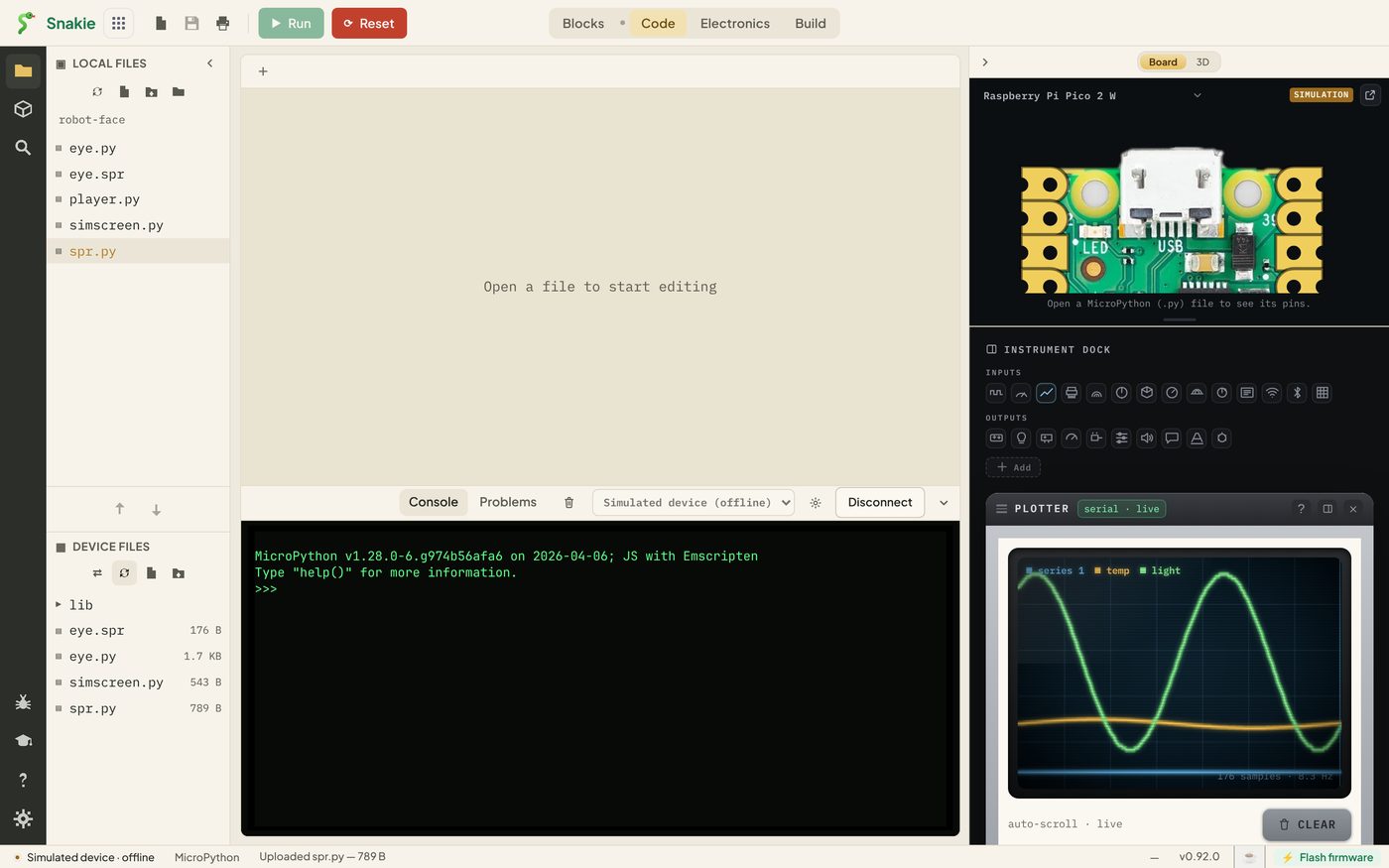
Right-click eye.py in Local Files and choose Upload to board, the same way you uploaded simscreen.py.
Refresh Device Files to check it has arrived.
A face
Make a new file, face.py:
from simscreen import SimScreen
import eye

screen = SimScreen()


def face(i):
    screen.fill(0)
    screen.blit(eye.frame(i), 40, 24)
    screen.blit(eye.frame(i), 72, 24)
    screen.show()


face(0)
Press Run.
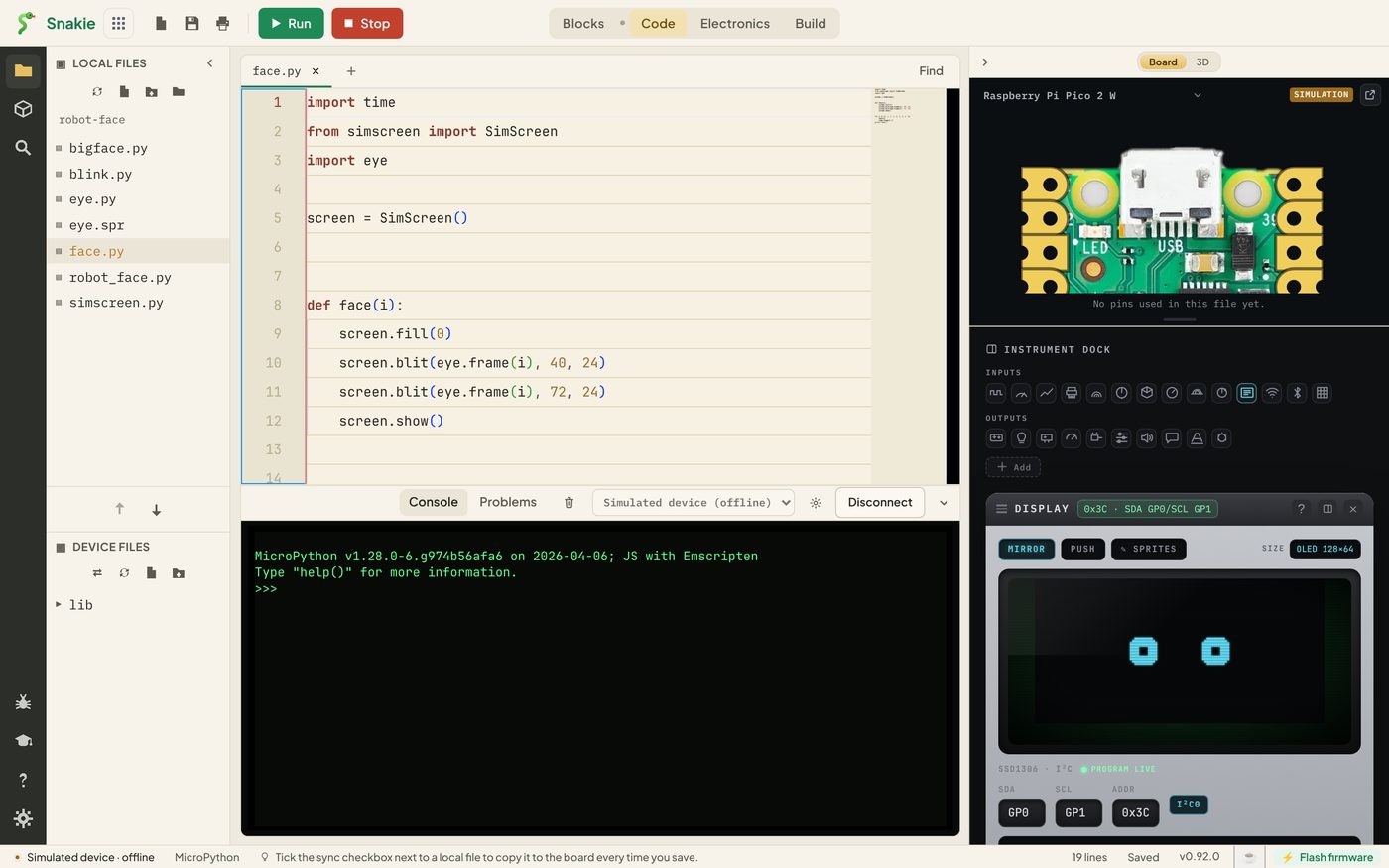
Two eyes, looking back at you.
Where do 40, 72 and 24 come from?
Placing things on a screen is mostly small sums. The screen is 128 wide and 64 tall, and each eye is 16 square.
- Down: to centre a 16-pixel sprite in 64 rows, leave (64 - 16) // 2 = 24 above it
- Across: the middle of the screen is x = 64. Put one eye 24 pixels left of the middle and one 8 pixels right of it, at 40 and 72, and there’s a 16-pixel gap between them
You could write those sums into the code:
GAP = 16
left = 64 - GAP // 2 - eye.WIDTH
right = 64 + GAP // 2
top = (64 - eye.HEIGHT) // 2
Now changing GAP moves both eyes and keeps the face centred.
Try the other frames
Change the last line to face(2) and run it. Then face(3) and face(4).
Numbers like those are hard to remember. Give them names at the top of the file:
OPEN, HALF, CLOSED, LEFT, RIGHT = 0, 1, 2, 3, 4
Now face(CLOSED) says what it means.
Try it Yourself
- Use the
GAPsums, then try a gap of 4 and a gap of 40 - Make the robot go cross-eyed: show
RIGHTin the left eye andLEFTin the right eye. You’ll needfaceto take two frame numbers - Add a mouth with
screen.hline, 8 pixels below the eyes - Add a caption under the face with
screen.text
Common Issues
Problem: ImportError: no module named 'eye'.
Solution: Upload eye.py to the board.
Why: Like simscreen.py, it has to be on the device.
Problem: IndexError when I ask for a frame.
Solution: Use 0 to 4. eye.frame(5) doesn’t exist.
Why: Five frames are numbered 0, 1, 2, 3 and 4.
Problem: Old eyes are left behind when I draw new ones.
Solution: Call screen.fill(0) before you blit.
Why: The buffer keeps whatever was drawn until you clear it.
Problem: The frames are in the wrong order, so CLOSED shows a different picture.
Solution: Either reorder the frames in the Sprite editor and export again, or change the numbers after OPEN, HALF, CLOSED, LEFT, RIGHT = to match your sprite.
Why: The names are only labels for positions in your filmstrip.
Check your understanding
Quick quiz 1 of 3
What does screen.blit(eye.frame(0), 40, 24) do?
Quick quiz 2 of 3
You drew five frames. What number is the last one?
Quick quiz 3 of 3
Why give the frame numbers names such as CLOSED?
You can use the arrows ← → on your keyboard to navigate between lessons.
Comments