Saving and Exporting
Save a sprite as a .spr file and export it as a MicroPython module, an animated GIF, a PNG or a PBM
By Kevin McAleer, 5 Minutes
Page last updated November 21, 2026

Open a project folder first
Sprites are files, so they need somewhere to live. If you haven’t already, close the Sprite editor for a moment and open a folder:
- In the Files panel on the left, press Open folder
- Make a new folder called
robot-faceand choose it. In the browser, Snakie will ask permission to read and write there
Don’t worry, closing the editor with ✕ doesn’t throw your drawing away. Press SPRITES again and it’s still there.
Save the sprite
Press Save .spr (the green button) and save eye.spr in your robot-face folder.
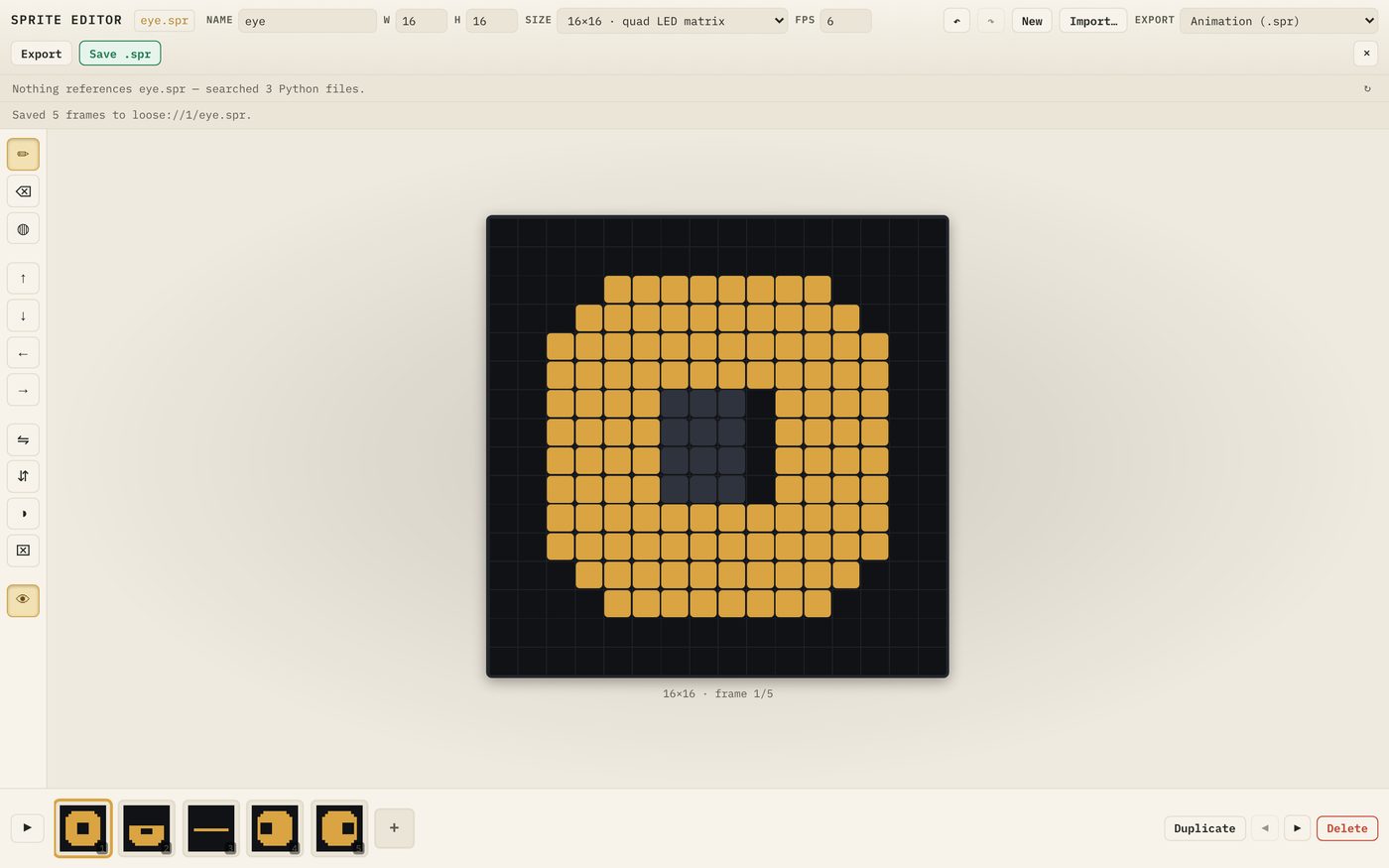
A message confirms how many frames were saved.
A .spr file is Snakie’s own sprite format. It holds every frame plus the size and speed, and it’s tiny: this one is 176 bytes. It’s the file to keep, because it’s the one you can open again and carry on editing.
To reopen a sprite later, press Import in the Sprite editor and choose the .spr file.
Export for your code
Saving keeps your work. Exporting makes a copy in a format something else can use.
- In the EXPORT menu choose MicroPython module (.py)
- Press Export
Snakie closes nothing and saves nothing yet. Instead it opens a new tab called eye.py in the code editor and tells you to save it. Close the Sprite editor to see it.
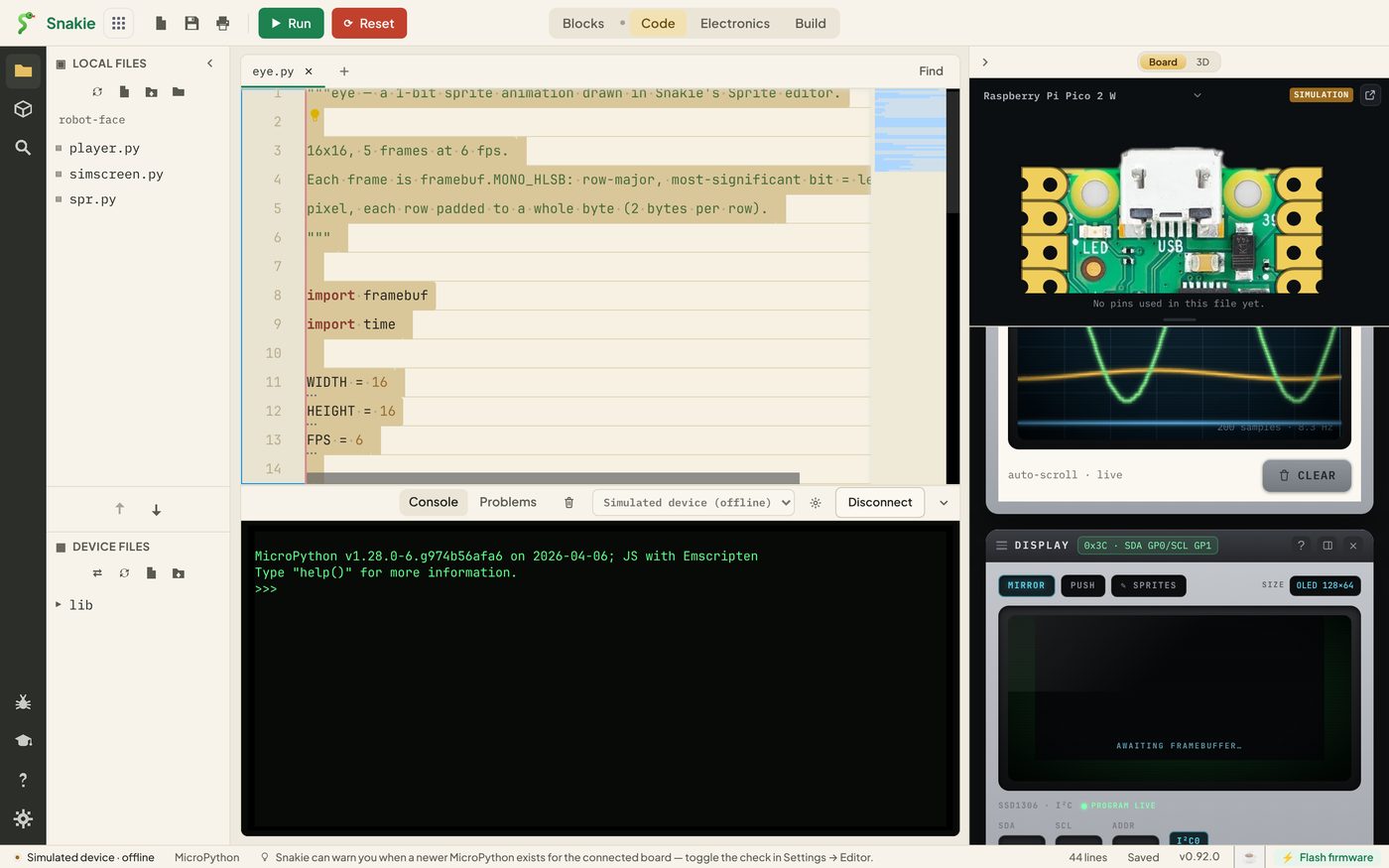
Press the Save button in the top toolbar and save it as eye.py in your robot-face folder.
Have a look through the file. Near the top you’ll find:
WIDTH = 16
HEIGHT = 16
FPS = 6

FRAMES = (
    b'\x00\x00\x00\x00\x0f\xf0\x1f\xf8...',
    ...
)
Those odd-looking lines are your five drawings, turned into bytes. The next lesson explains exactly how. Below them are three helper functions, frame, pixel and play, which you’ll use soon.
Export to share
The other formats are for showing your work to people, or for other tools:
| Format | Good for |
|---|---|
| Animated GIF | Sharing the animation in a chat or on a web page |
| PNG, this frame | One picture of the selected frame |
| PNG sprite sheet | All frames side by side in one picture |
| JPEG, this frame | A picture for places that don’t take PNG |
| PBM, this frame | A plain 1-bit picture that MicroPython can load directly |
| PBM, every frame | One PBM file per frame |
When you pick a picture format a SCALE menu appears, offering 1×, 4×, 8× and 16×.
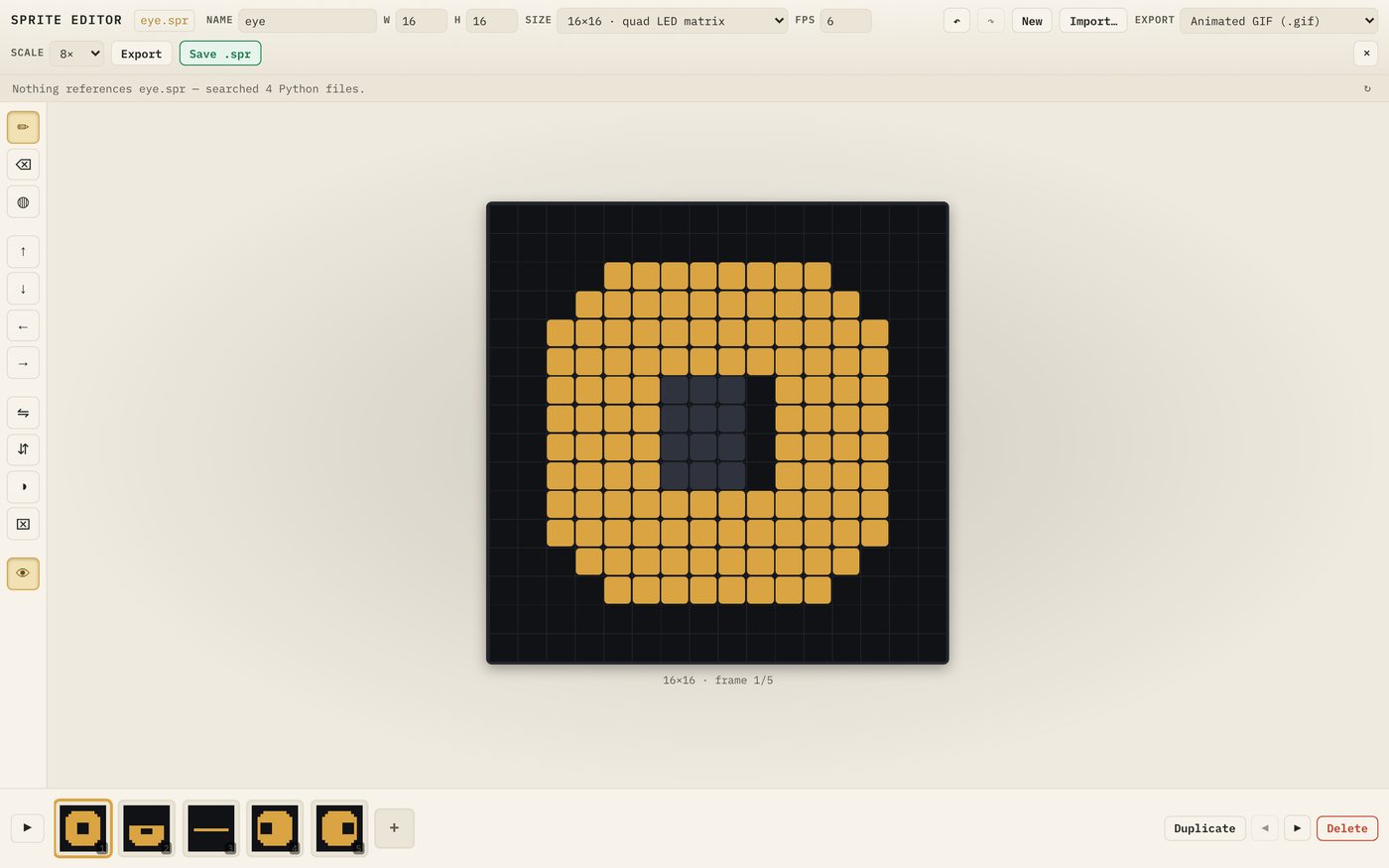
A 16×16 sprite at 1× is a speck. At 8× it becomes 128×128, with each pixel a neat 8×8 square. Here’s the sprite sheet at 8×:

Importing pictures
Import also opens PNG, JPEG, GIF and PBM files, and turns them into 1-bit frames. An animated GIF becomes several frames.
Start with small, simple, high-contrast pictures. A photo squeezed down to 1-bit rarely looks like anything, but a logo or an icon often comes out well and gives you something to tidy up by hand.
Try it Yourself
- Export the animation as a GIF at 8× and open it in your browser
- Export frame 3 as a PNG at 16×
- Change one pixel in the editor, press Save .spr again, and check the file’s time has changed in your folder
- Find a small black and white icon and import it. How well does it survive?
Common Issues
Problem: I exported the module but there’s no eye.py in my folder.
Solution: Find the eye.py tab in the code editor and save it into the folder.
Why: The module export opens the code in an editor tab. It doesn’t write a file until you save.
Problem: I changed the sprite but my program still shows the old one.
Solution: Export the module again, save it over the old eye.py, and upload it to the board again.
Why: eye.py is a copy made at the moment you exported. It doesn’t follow the .spr file.
Problem: My exported PNG is too small to see. Solution: Choose a bigger SCALE before you press Export. Why: At 1× each sprite pixel is one image pixel.
Check your understanding
Quick quiz 1 of 3
Which file should you keep so you can edit the sprite again later?
Quick quiz 2 of 3
What happens when you export a MicroPython module?
Quick quiz 3 of 3
Why choose a scale of 8× for a GIF?
You can use the arrows ← → on your keyboard to navigate between lessons.
Comments