The Sprite Editor
Find Snakie's Sprite editor and learn what its tools, size presets and filmstrip do
By Kevin McAleer, 5 Minutes
Page last updated November 21, 2026

Finding it
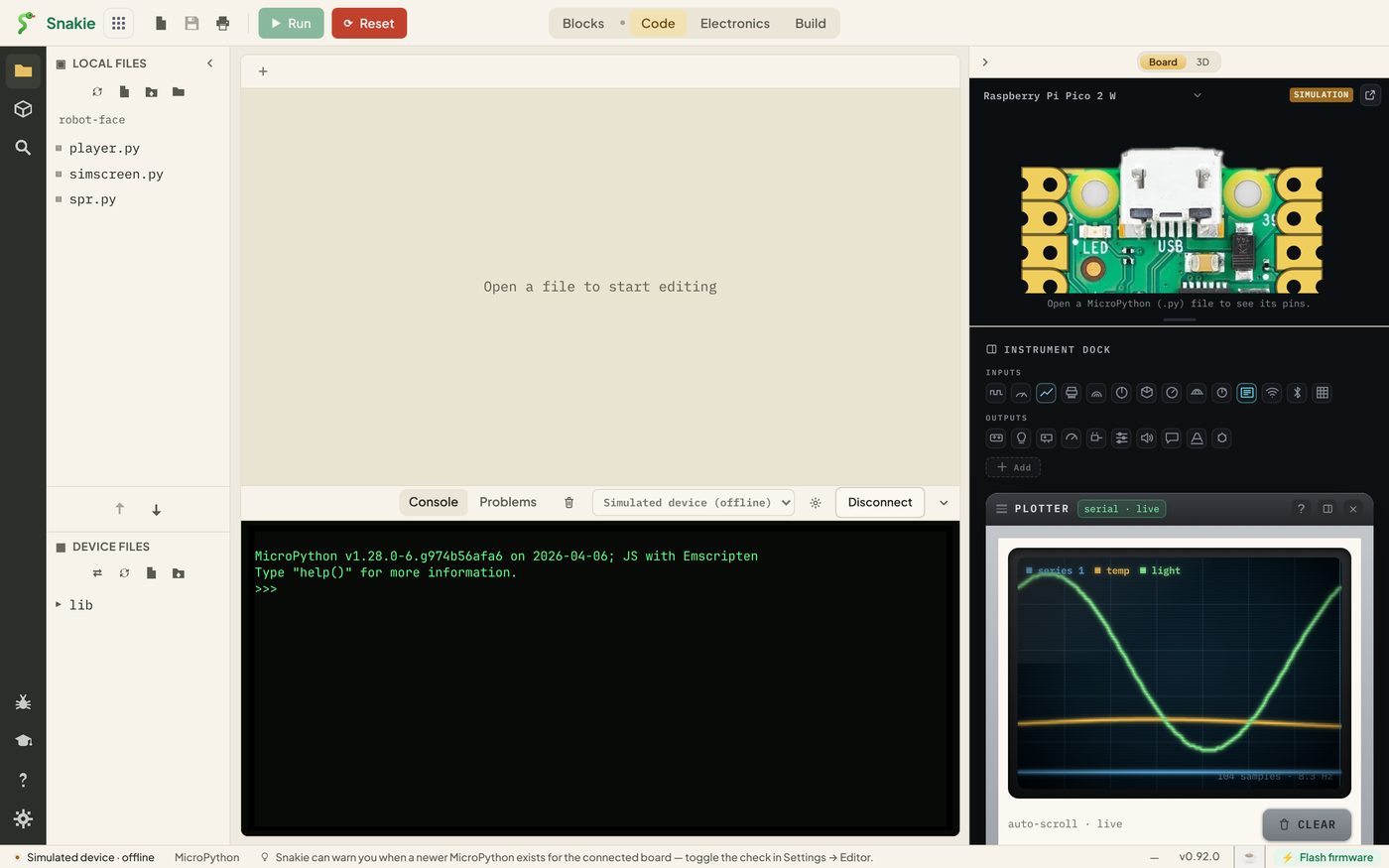
The Sprite editor lives inside the Display instrument.
- Open Snakie and go to the Code workspace
- In the Instrument Dock on the right, hover over the icons until you find Show Display, and click it
- A Display panel appears. Press the SPRITES key at the top of it
The editor opens over the whole window.
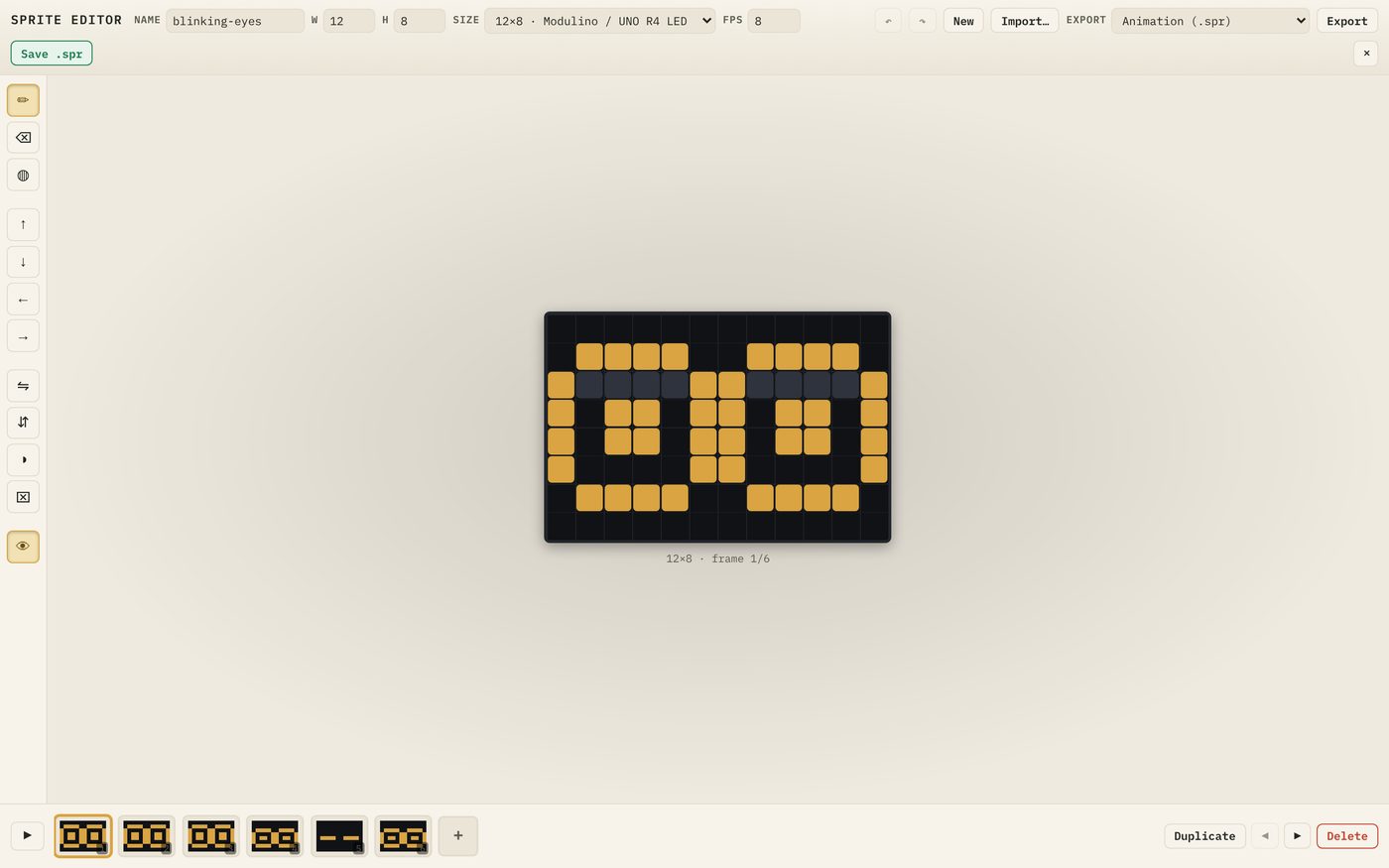
It starts with a ready-made sprite called blinking-eyes, sized for a 12×8 LED matrix. Press the play button at the bottom left to watch it blink. Press it again to stop. The space bar does the same job.
The four areas
The top bar is about the whole sprite:
| Control | Does |
|---|---|
| NAME | The sprite’s name. It becomes the file name when you save |
| W and H | Width and height in pixels, up to 128 each |
| SIZE | Ready-made sizes for common screens |
| FPS | Frames per second, from 1 to 50. Higher is faster |
| Undo and Redo | The two arrow buttons |
| New | Start a blank sprite |
| Import | Open a sprite or a picture |
| EXPORT and Export | Choose a format, then save a copy in it |
| Save .spr | Save the sprite in Snakie’s own format |
The toolbar down the left is for drawing:
| Tool | Does |
|---|---|
| Draw | Click a pixel to flip it. Drag to paint |
| Erase | Turn pixels off |
| Fill | Flood an enclosed area |
| Nudge (four arrows) | Slide the whole frame one pixel |
| Flip (two buttons) | Mirror the frame left to right, or top to bottom |
| Invert | Swap on and off across the frame |
| Clear | Empty the frame |
| Onion skin | Show a faint ghost of the previous frame |
The canvas in the middle is where you draw. Underneath it, a line such as 12×8 · frame 1/6 tells you the size and which frame you’re on.
The filmstrip along the bottom shows every frame. Click one to edit it. The buttons on the right Duplicate, move and Delete the selected frame, and the + adds a blank one.
Size presets
The SIZE menu saves you looking up dimensions:
| Preset | For |
|---|---|
| 12×8 | Arduino Modulino or UNO R4 LED matrix |
| 8×8 | Single LED matrix |
| 16×8 | Two 8×8 matrices side by side |
| 16×16 | Four 8×8 matrices in a square |
| 5×5 | BBC micro:bit |
| 32×16 | A small sprite for an OLED |
| 64×32 | Half an OLED screen |
| 128×64 | A full SSD1306 OLED screen |
You can also type any width and height you like.
Closing the editor
Press the ✕ at the top right, or the Esc key. You’re back in the Code workspace.
Your drawing isn’t saved to a file until you press Save .spr. We’ll do that in lesson 5, so don’t reload the page before then.
Try it Yourself
- Play the starter animation, then change FPS to 2 and to 20. Which feels like a natural blink?
- Click through the six frames in the filmstrip. Which frames are identical, and why might that be? (Think about how long an eye stays open compared with how long a blink lasts)
- Pick the Draw tool and give the starter eyes eyebrows. Then use Undo to take them off again
- Try Invert, then Flip, on one frame
Common Issues
Problem: I can’t find the Display icon. Solution: Make sure you’re in the Code workspace and the right-hand panel is open. Hover over each icon in the dock until you see “Show Display”. Why: The Instrument Dock only shows in Code, and the icons have no labels until you hover.
Problem: Clicking a pixel turns it off instead of on. Solution: That’s the Draw tool working as designed. A click flips the pixel. Drag to paint a run of pixels on. Why: Flipping means you rarely need to switch to the eraser for a single mistake.
Problem: I pressed New and my drawing has gone. Solution: Snakie asks before it clears the drawing, so read the question before you press OK. Save anything you want to keep first. Why: New replaces the whole sprite with one blank frame.
Check your understanding
Quick quiz 1 of 3
Where do you open the Sprite editor from?
Quick quiz 2 of 3
What does the onion skin tool do?
Quick quiz 3 of 3
What does FPS control?
You can use the arrows ← → on your keyboard to navigate between lessons.
Comments