Files on Your Computer and on the Board
Save MicroPython programs to your computer and to your board in Snakie, and make one run at power-up with main.py
By Kevin McAleer, 5 Minutes
Page last updated November 20, 2026

A robot that only works while it’s plugged into your laptop isn’t much of a robot. In this lesson you’ll save your program onto the board so it runs by itself.
Two sets of files
Open the Files panel with the folder icon in the side bar. It has two halves:
- Local files are on your computer. Click Open Folder and choose a folder to keep your project in
- Device files are on the board. A new board has very little there. You may see a
libfolder, which is where libraries live
Between them are two arrows. The down arrow uploads the file you’re editing to the board. The up arrow downloads a file from the board to your computer.
Keep the master copy of your code on your computer. A board can be wiped, lost or sat on.
Save to your computer
Press the Save button in the toolbar, or Ctrl+S. The first time, Snakie asks where to put the file and what to call it. Give it a name that says what it does, such as traffic_light.py.
The tab shows a dot when a file has changes you haven’t saved, and the status bar says Unsaved or Saved.
Upload to the board
With your program open:
- Click the down arrow between the two file lists.
- Snakie asks for the device path. Type
/main.pyand click OK.
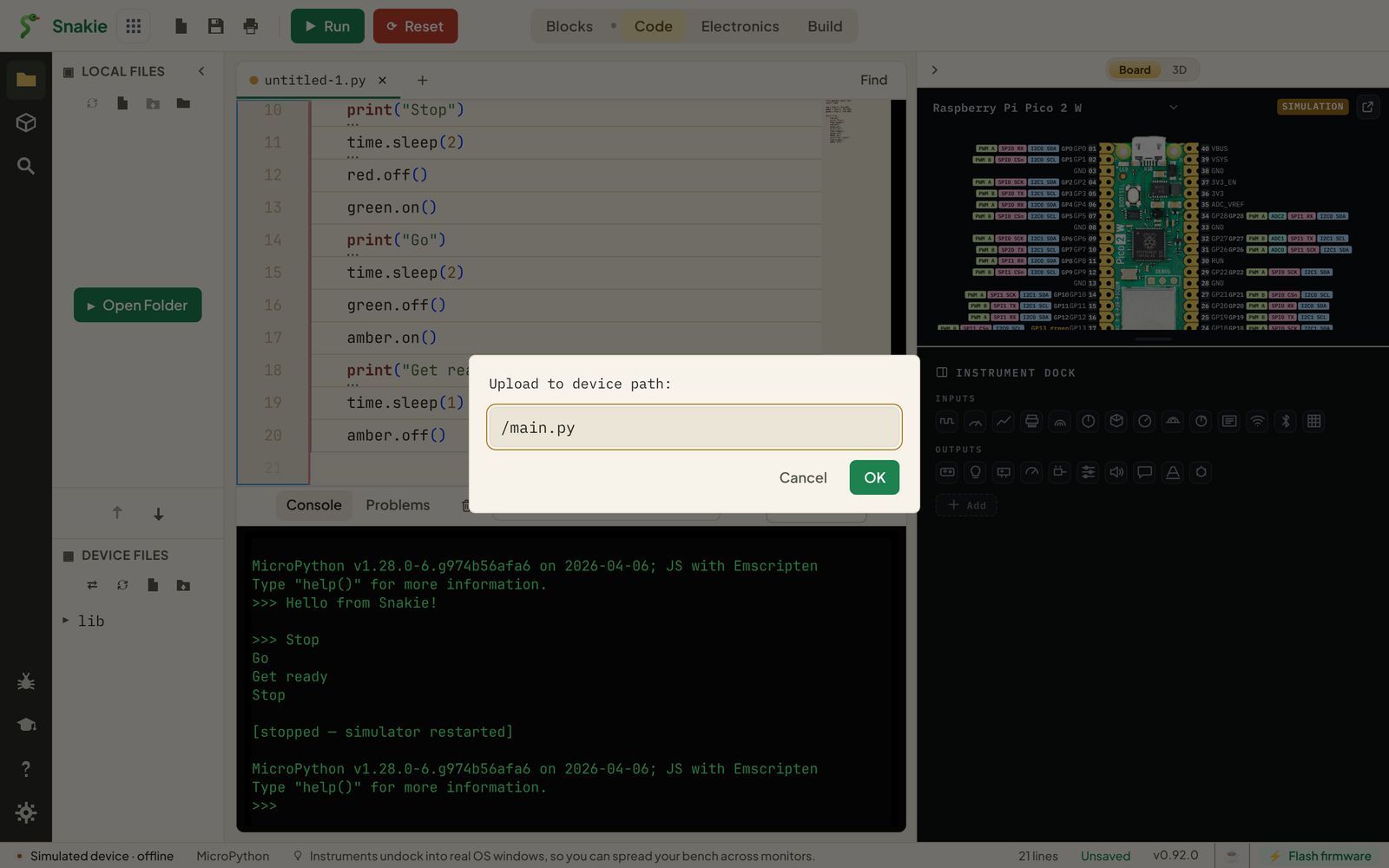
- Click Refresh in the Device files toolbar.
main.pyappears in the list, with its size and a runs at boot tag.
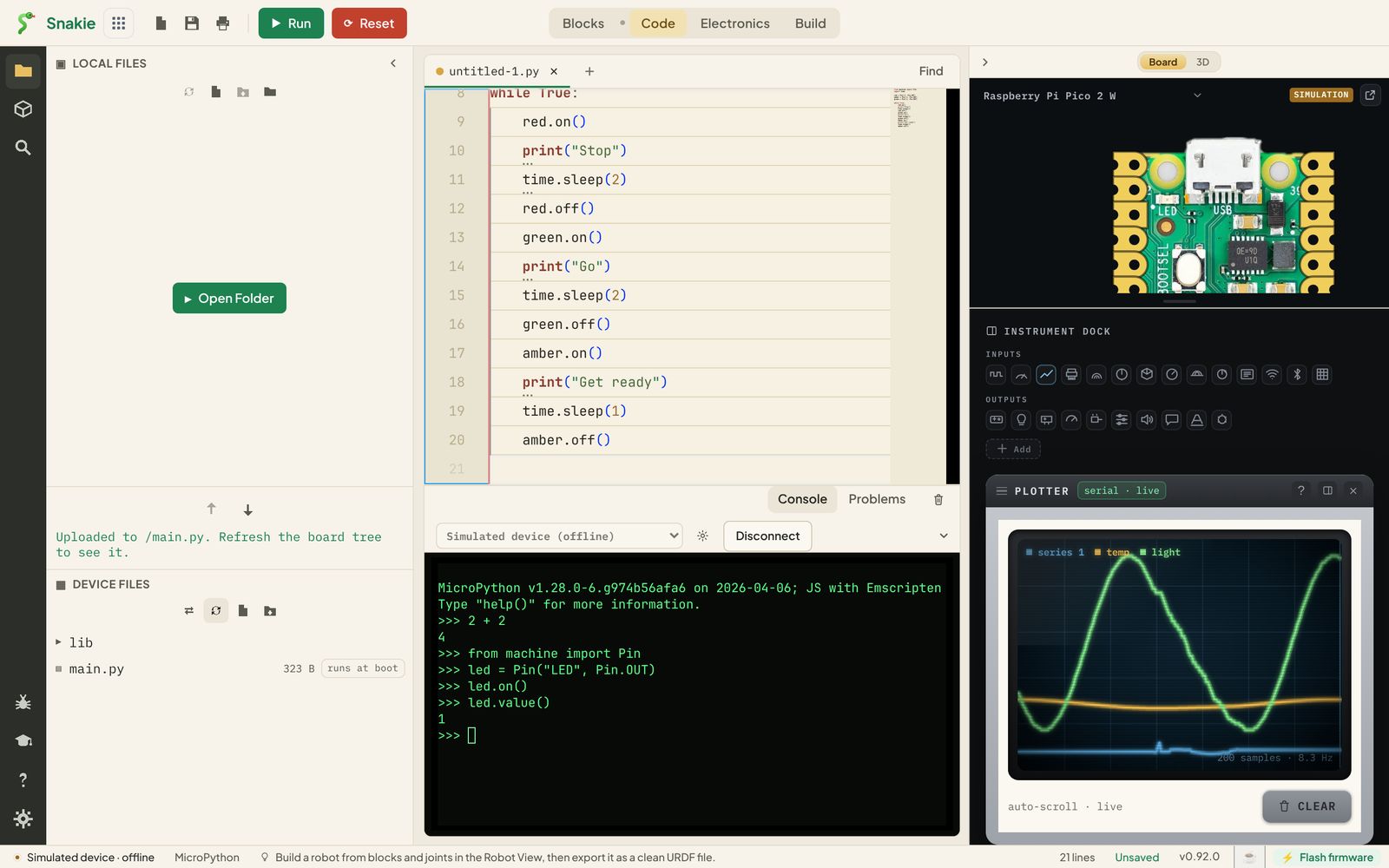
Why main.py?
When a MicroPython board starts, it looks for a file called main.py and runs it. That one filename is the difference between a program you run from Snakie and a program the board runs by itself.
Press Reset, or unplug the board and plug it into a USB power bank. Your program starts with no computer involved.
| File on the board | When it runs |
|---|---|
boot.py |
First, at every start. Used for setup; most projects don’t need one |
main.py |
Straight after, at every start. This is your program |
| Anything else | Only when your code imports it |
Working with device files
Click a file in Device files to open it. Its tab name appears in [brackets] so you can tell it from the copy on your computer. Right-click a device file to rename it, delete it or download it.
The gauge in the Device files toolbar shows how much of the board’s storage is used. An original Pico has roughly 1.4 MB for files once MicroPython is installed, which is plenty for code but not for big data files.
Keep files in sync
Uploading by hand after every change gets old quickly. Snakie can do it for you:
- Open a folder in Local files.
- Hover over a file and tick its checkbox. A green sync mark shows it’s tagged.
- Turn on the sync toggle in the Device files toolbar.
Now every tagged file is copied to the board each time you save it. Save, press Reset, and you’re running the new version.
Try it on the simulator
No board? Everything in this lesson works on the simulated device too. It has a real filesystem in memory, so uploads, downloads and sync behave the same way. It’s emptied when you disconnect.
Try it Yourself
- Upload the blink program from the last lesson as
/main.pyand press Reset. - Upload a second file called
/settings.pycontainingDELAY = 0.2. - Challenge: change
main.pyto start withfrom settings import DELAYand useDELAYintime.sleep(). You’ve just made your first module.
Common Issues
Problem: I uploaded the file but it isn’t in the list. Solution: Click Refresh in the Device files toolbar. Why: The list isn’t re-read after every upload.
Problem: My program doesn’t start at power-up.
Solution: Check the file is named exactly main.py, in lower case, at the top level of the board and not in a folder.
Why: MicroPython only looks for that exact name in that exact place.
Problem: I can’t connect because main.py is stuck in a loop.
Solution: Connect anyway and press Stop. Snakie interrupts the program so you can get back in.
Why: A running main.py keeps the board busy until it’s interrupted.
Check your understanding
Quick quiz 1 of 2
What must a file be called to run automatically when the board powers up?
main.py at every start.Quick quiz 2 of 2
Where should you keep the master copy of your code?
You can use the arrows ← → on your keyboard to navigate between lessons.
Comments