A Tour of the Workspaces
Find your way around Snakie - the toolbar, the side bar, and the Blocks, Code, Electronics and Build workspaces
By Kevin McAleer, 4 Minutes
Page last updated November 20, 2026
Snakie can look busy the first time you open it. It’s really four workspaces sharing one toolbar, and once you know what each is for, everything has an obvious home.
The toolbar
Across the top, from left to right:
- New file, Save and Export the project as a PDF
- Run (green) sends the file you’re editing to the board and starts it
- Reset (red) restarts the board. While a program is running this button becomes Stop
- The workspace switcher: Blocks, Code, Electronics and Build
The side bar
Down the left edge are the panels that sit beside your work:
| Icon | Panel | What it’s for |
|---|---|---|
| Folder | Files | Files on your computer and on the board |
| Cube | Packages | Install MicroPython libraries onto the board |
| Magnifier | Inspect | An outline of your file and the variables on the board |
| Bug | Report Bug | Tell Kev when something goes wrong |
| Mortarboard | Learn | Short guided tutorials that run inside the app |
| Question mark | Help | The built-in help library |
| Cog | Settings | Themes, editor options and more |
Code
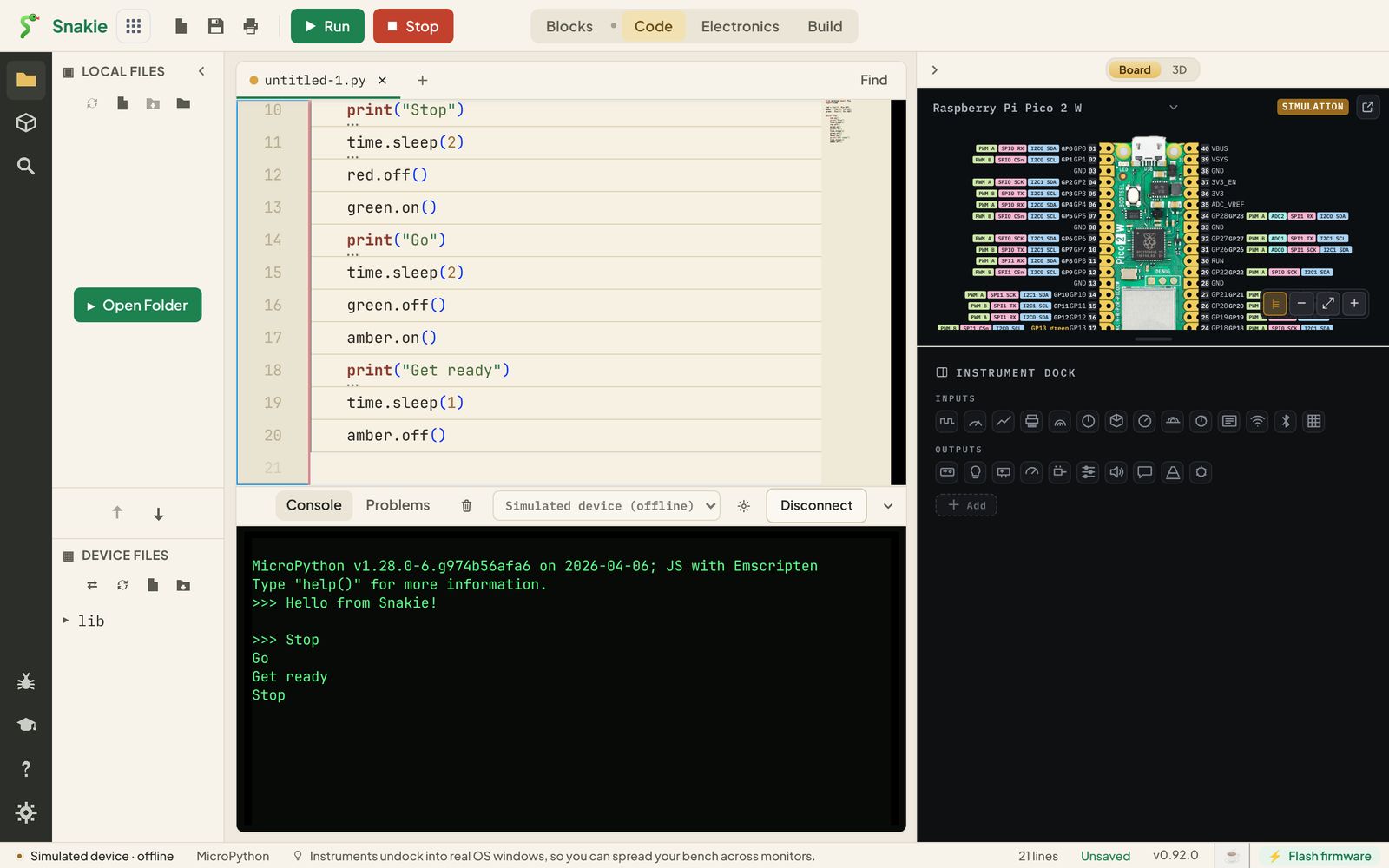
Code is the editor-first workspace: files on the left, the editor in the middle, the console underneath, and the board and instruments on the right. This is where you’ll spend most of this course.
Blocks
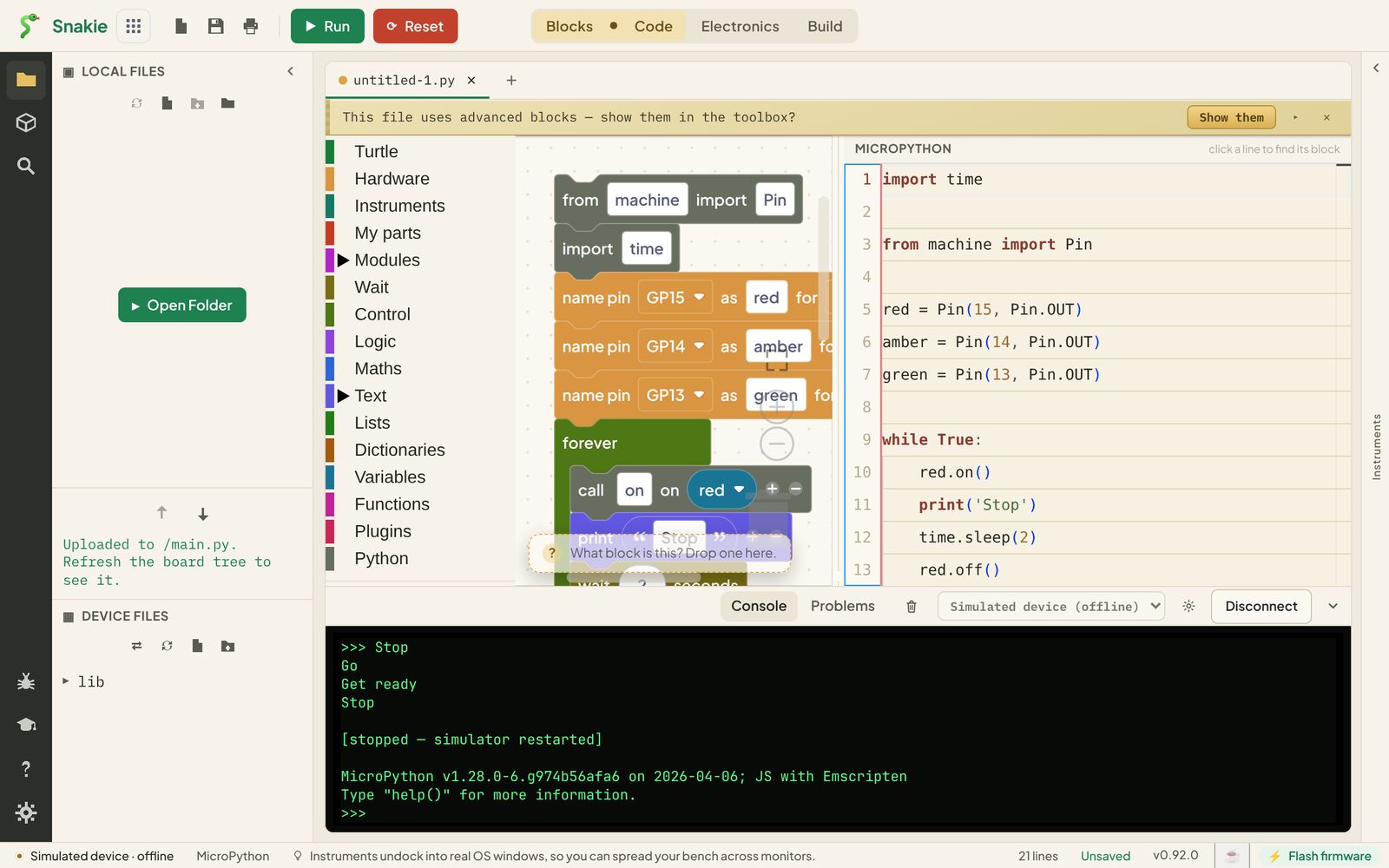
Blocks is drag-and-drop programming, the way Scratch works, for a real microcontroller. The clever part is that the blocks and the Python are the same program. Open a Python file in Blocks and Snakie draws it as blocks; drag blocks and Snakie writes the Python.
The small dot between Blocks and Code in the switcher is a third stop: blocks and Python side by side.
You’ll learn Blocks properly in Snakie Blocks: From Blocks to Python.
Electronics
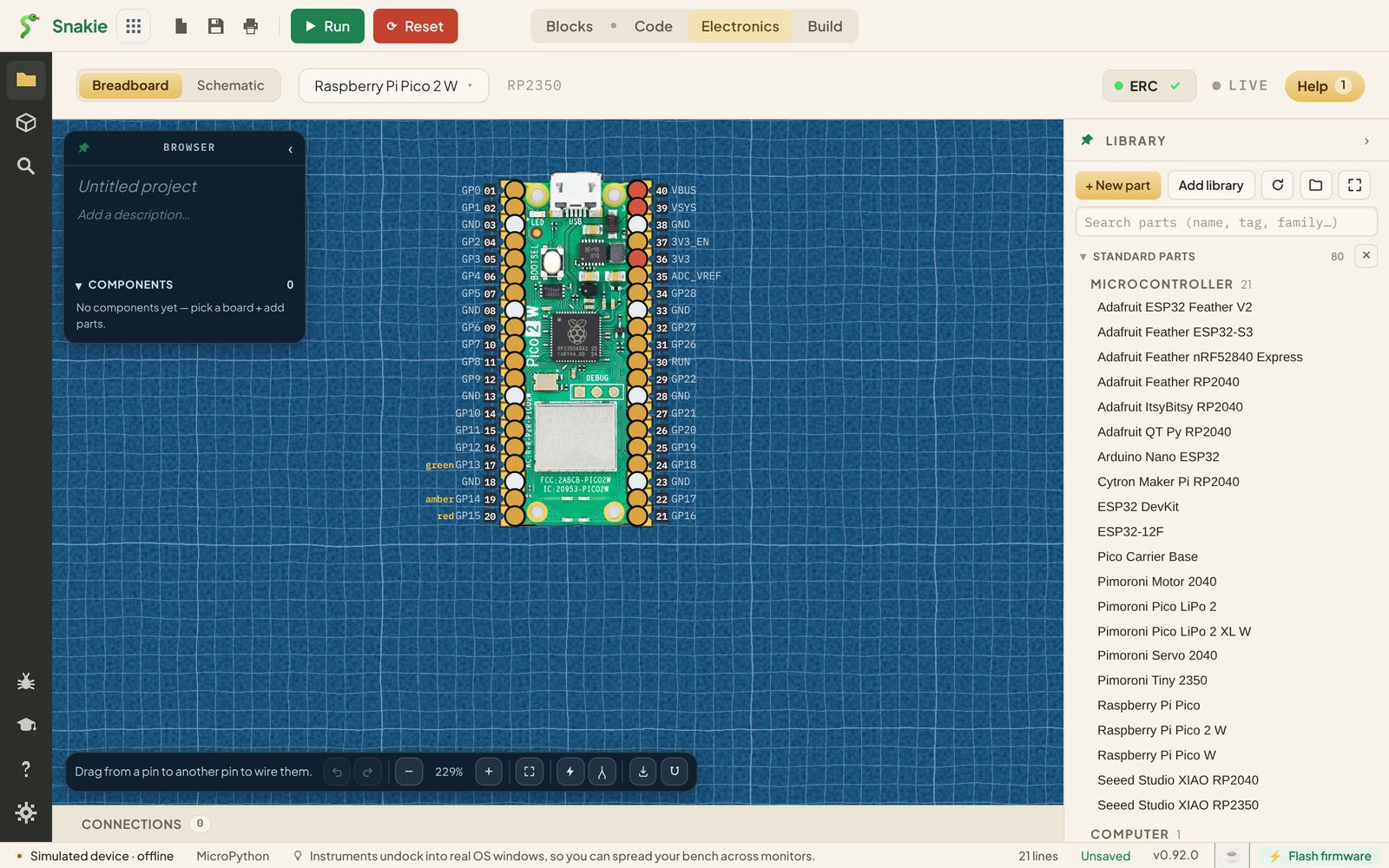
Electronics is where you wire things up on screen. Pick your board, drag parts from the Library on the right, and draw wires between pins. Switch between a life-like Breadboard and a Schematic with the tabs at the top left.
Build
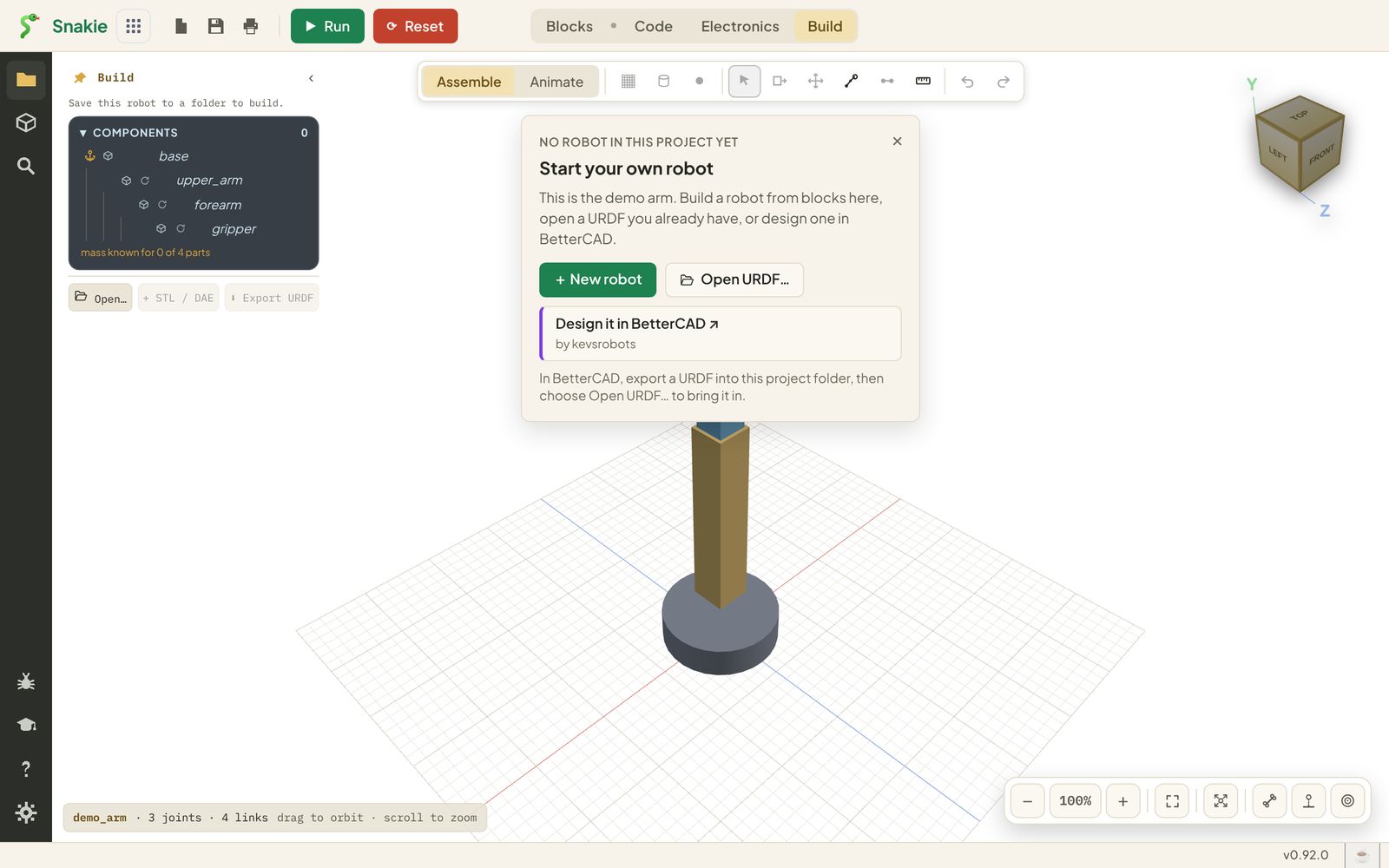
Build is the 3D workspace. Here you assemble a robot from parts, add joints, and pose it. A new project shows a demo arm until you start your own robot or open a URDF file, which is a standard way to describe a robot. You can design the parts in BetterCAD, Kev’s free CAD app.
The status bar
Along the bottom, Snakie tells you what it’s connected to, shows a rotating tip, the length of your file, whether it’s saved, and the version number. The Flash firmware button at the far right puts MicroPython onto a board. We’ll use it in a later lesson.
Learn and Help
Two panels are worth opening on day one.
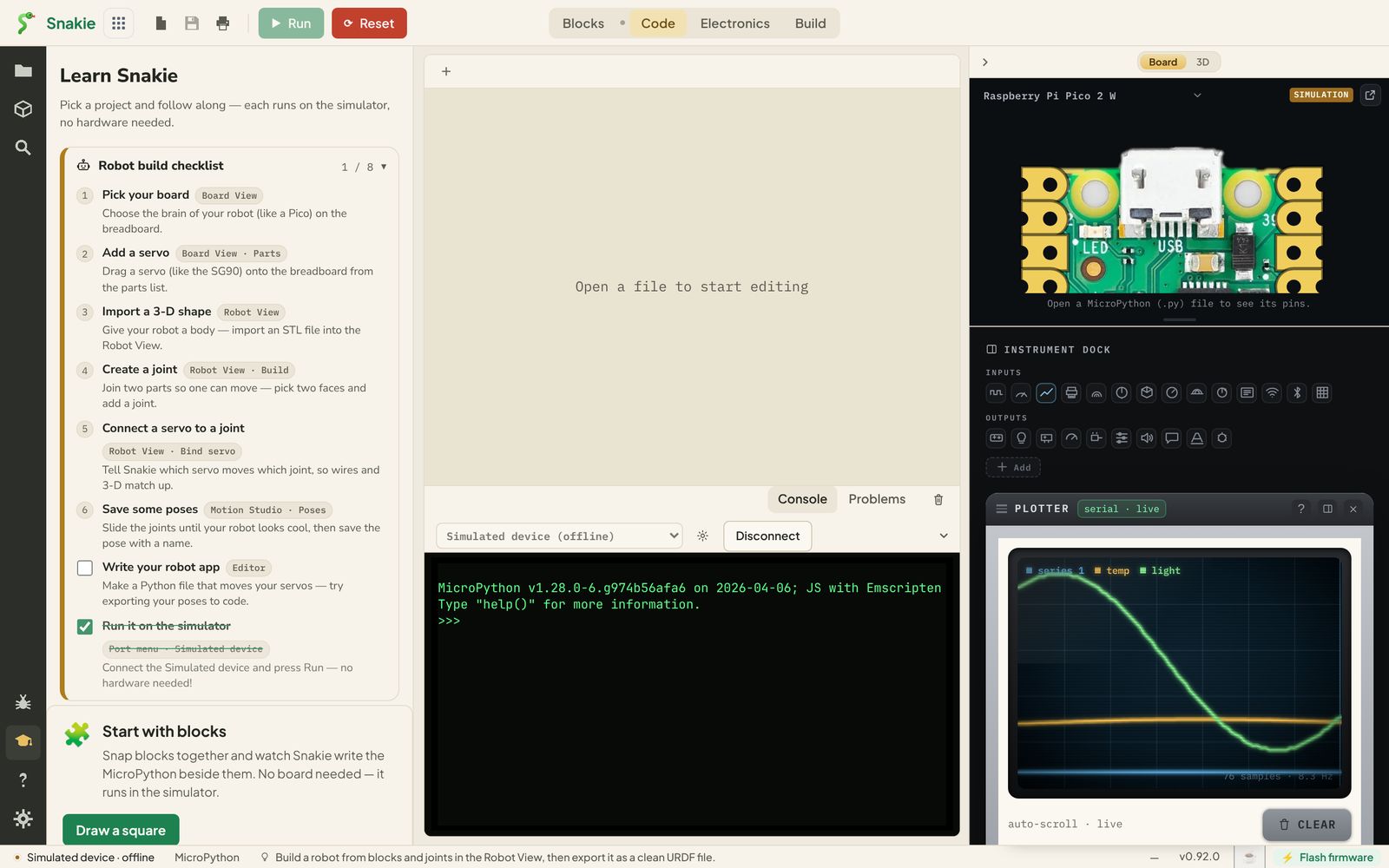
Learn has a robot build checklist and four short in-app courses that run on the simulator.
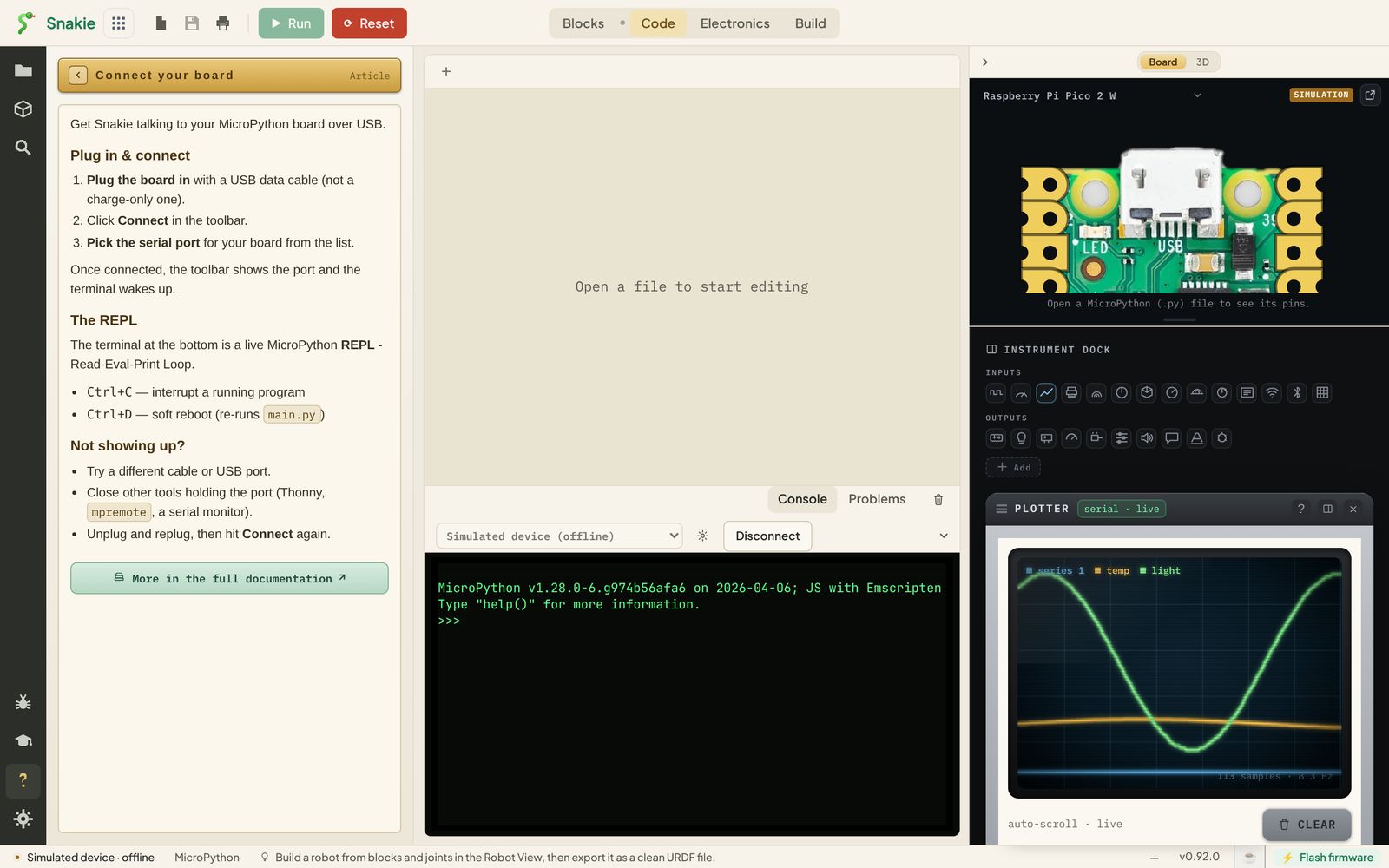
Help is a library of articles on Snakie, its instruments and the Python language. It follows the board you’re connected to, so a MicroPython board gets MicroPython help.
Try it Yourself
- Click each of the four workspaces in turn and name one thing you can only do there.
- Click the dot between Blocks and Code. What changes?
- Open Help and find the article called Connect your board.
Common Issues
Problem: A panel has disappeared. Solution: Click its icon in the side bar again, or look for a small arrow at the edge of the window to bring it back. Why: Every panel can be collapsed to make room, and Snakie remembers the layout for each workspace.
Check your understanding
Quick quiz 1 of 2
Which workspace would you use to draw the wires between a sensor and your Pico?
Quick quiz 2 of 2
What happens to the red Reset button while a program is running?
You can use the arrows ← → on your keyboard to navigate between lessons.
Comments