Finding Your Board
Use the Snakie Board Finder to identify your microcontroller, compare boards, and see every pin
By Kevin McAleer, 4 Minutes
Page last updated November 20, 2026

There are hundreds of boards that run MicroPython, and they don’t all take the same firmware. Before we put MicroPython on a real board, let’s find out exactly which board you have.
Open the Board Finder
- Click Flash firmware at the right of the status bar.
- In the dialog, click Board Finder.
In the desktop app it’s also under Tools ▸ Board Finder.
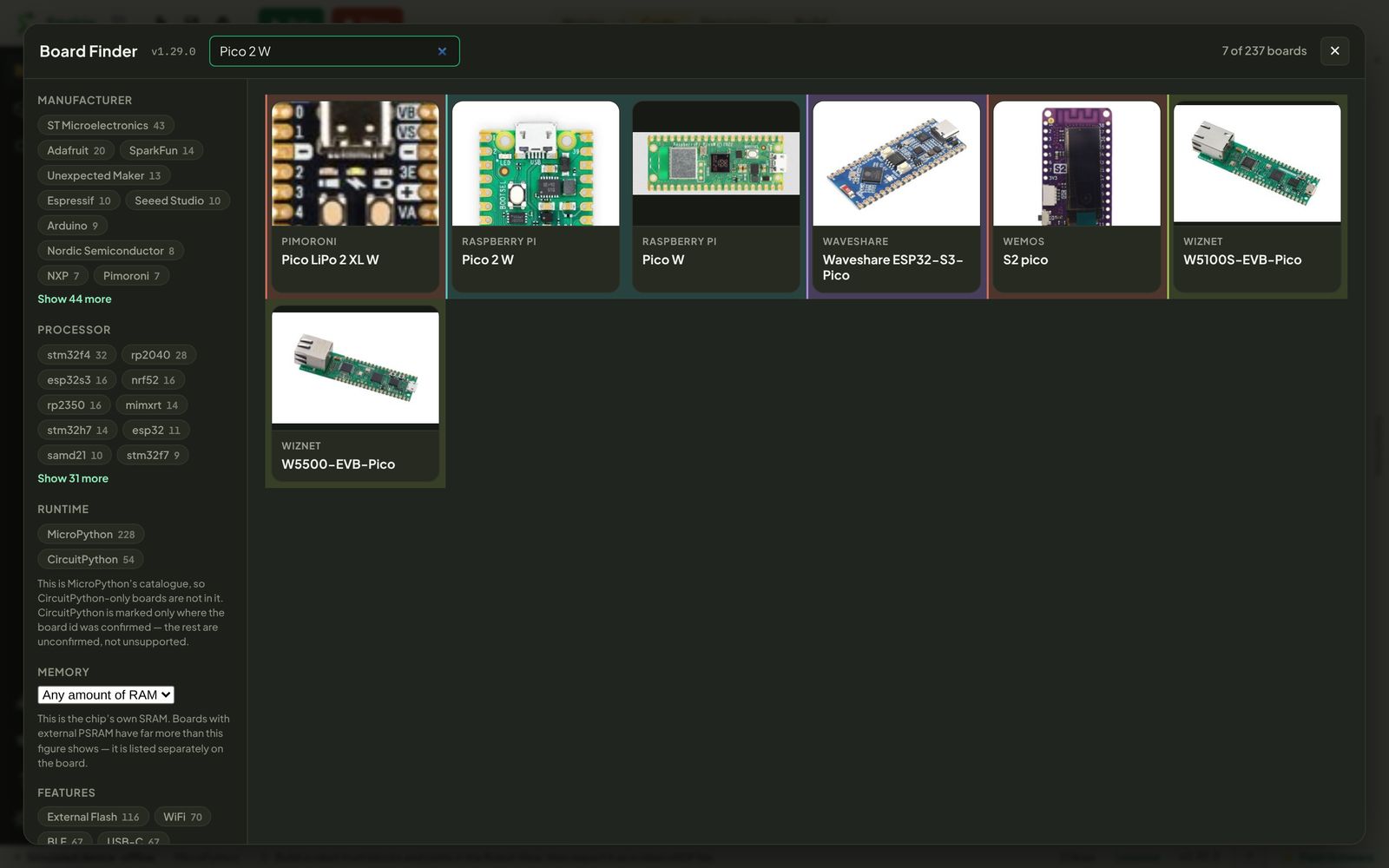
The Board Finder lists 237 boards: every board MicroPython publishes firmware for, plus a few popular ones it doesn’t build for directly, such as Pimoroni’s Tiny 2350 and the micro:bit v2.
Search and filter
Type in the search box at the top, or narrow the list with the filters on the left:
| Filter | Use it to find |
|---|---|
| Manufacturer | Boards from Raspberry Pi, Adafruit, Pimoroni, Seeed Studio and others |
| Processor | Boards built on a chip, such as rp2040, rp2350 or esp32s3 |
| Runtime | Boards that run MicroPython, CircuitPython or both |
| Memory | Boards with at least a given amount of RAM |
| Features | WiFi, BLE, USB-C, battery charging, an RGB LED and more |
Say you want a board with WiFi and Bluetooth that takes a battery. Tick WiFi, BLE and Battery Charging and the list shrinks to the boards that fit.
Read a board’s details
Search for Pico 2 W, hover over its card, and click Details.
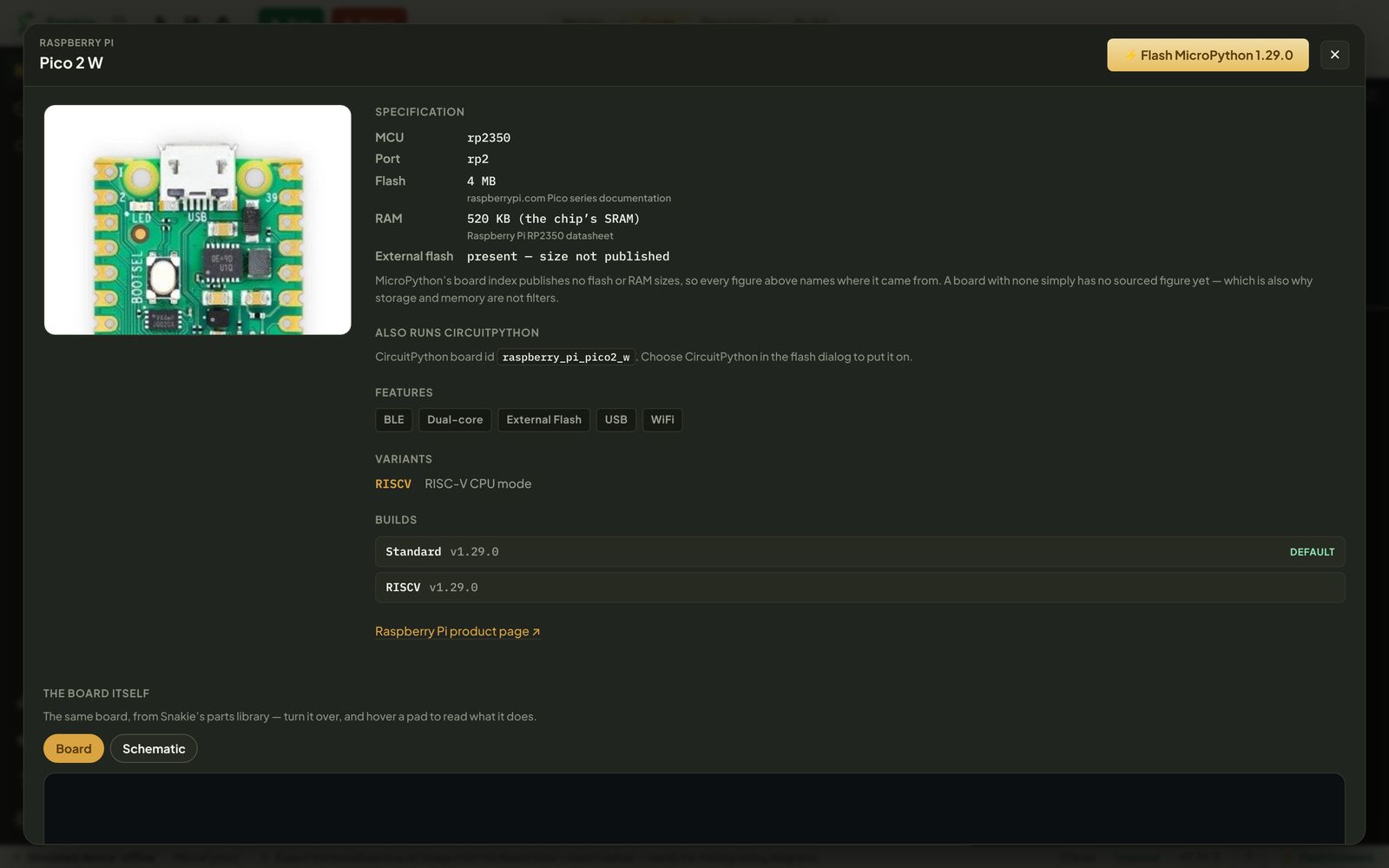
The details page tells you:
- Specification: the chip, the MicroPython port, flash and RAM. Each figure names the page it was read from, because MicroPython’s own index doesn’t publish sizes
- Features: what’s on the board
- Variants and builds: the firmware files available, with the default marked. Some boards have a variant that’s easy to miss. The Adafruit ESP32 Feather V2, for example, needs its SPIRAM build to see its extra memory
- The board itself: for the boards in Snakie’s parts library, a photo you can turn over, and every pad readable by name. Hover GP4 on a Pico and you get
GP4 · Pin 6 · I/O · I2C0 SDA · SPI0 RX · PWM 2A
At the top right is a Flash MicroPython button that takes you straight to the flasher with the right build chosen. We’ll press it in the next lesson.
How to tell which board you have
If you’re not sure what’s on your desk:
- Read the board. The name is nearly always printed on it. A Pico 2 W says
Pico 2 Wbeside the chip - Look at the chip. A Pico has
RP2040on the chip; a Pico 2 hasRP2350 - Look for a metal can. The silver rectangle on a Pico W or Pico 2 W is the WiFi and Bluetooth radio. A plain Pico doesn’t have one
The four Pico boards take four different firmware files, so this matters.
| Board | Chip | WiFi and Bluetooth |
|---|---|---|
| Raspberry Pi Pico | RP2040 | No |
| Raspberry Pi Pico W | RP2040 | Yes |
| Raspberry Pi Pico 2 | RP2350 | No |
| Raspberry Pi Pico 2 W | RP2350 | Yes |
Try it Yourself
- Find your own board in the Board Finder and open its details.
- How much RAM does it have, and where did that figure come from?
- Challenge: use the filters to find every board with an
rp2350chip and WiFi. How many are there?
Common Issues
Problem: My board isn’t in the list.
Solution: Search for its chip instead, such as esp32s3. In the flasher you can also choose Other / set up manually.
Why: MicroPython builds are per chip family, so a generic build often runs on a board that has no entry of its own.
Check your understanding
Quick quiz 1 of 2
Why does it matter whether you have a Pico or a Pico W?
Quick quiz 2 of 2
Where do you open the Board Finder from?
You can use the arrows ← → on your keyboard to navigate between lessons.
Comments