The REPL and the Console
Use the MicroPython REPL in Snakie to try out code one line at a time
By Kevin McAleer, 4 Minutes
Page last updated November 20, 2026

The black panel at the bottom of Snakie is more than a place for output. It’s a direct line to MicroPython, and it’s one of the best tools you have for learning and for debugging robots.
What is the REPL?
REPL stands for Read, Evaluate, Print, Loop. MicroPython reads a line you type, works it out, prints the answer, and waits for the next line. The >>> prompt means it’s ready.
Nothing you type here is saved. That makes it the perfect place to ask quick questions: does this pin work? What does this function return?
Try it
Click in the console and type each line, pressing Enter after each one:
>>> 2 + 2
4
>>> from machine import Pin
>>> led = Pin("LED", Pin.OUT)
>>> led.on()
>>> led.value()
1
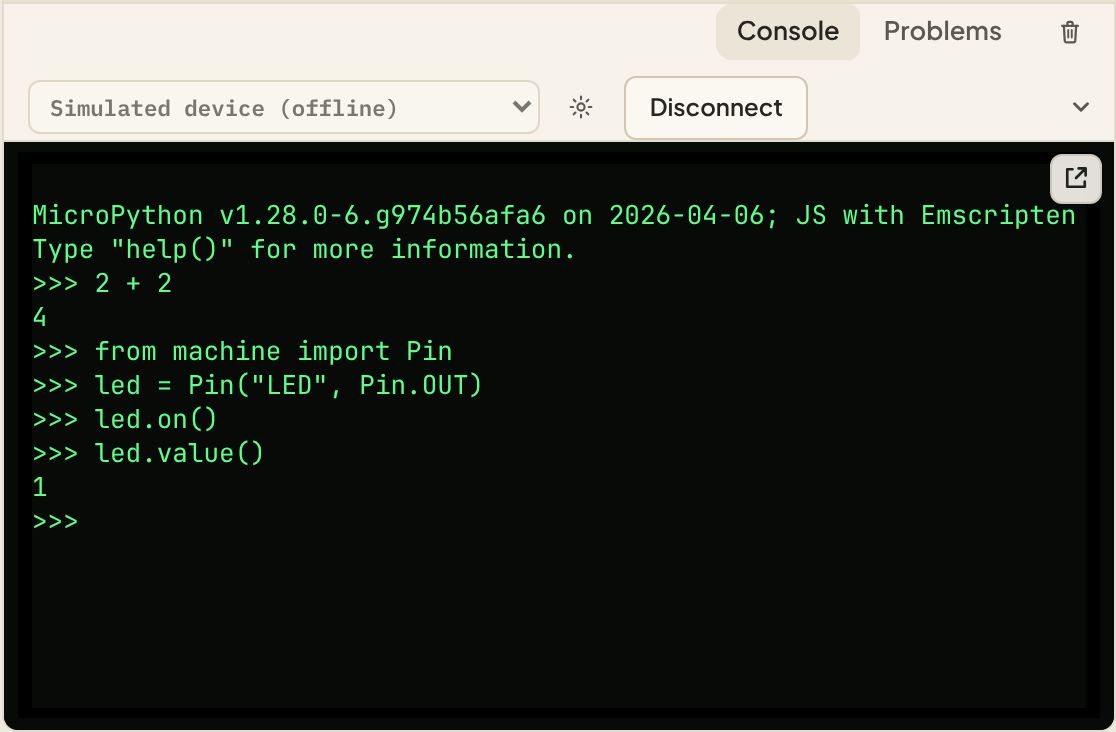
You just switched on the board’s built-in LED by hand, then asked the pin for its value. 1 means on. Type led.off() and ask again.
This is a great way to test wiring on a real robot. Before you write a whole program, poke each motor and sensor from the REPL and see it respond.
Useful keys
| Keys | What they do |
|---|---|
| Ctrl+C | Interrupt a running program |
| Ctrl+D | Soft reboot the board, which runs main.py again |
| Up | Bring back the last line you typed |
| Tab | Complete a name, or list the options |
Try the last one: type led. and press Tab. MicroPython lists everything a pin can do.
Ask MicroPython for help
The REPL has help built in:
>>> help()
>>> import machine
>>> help(machine)
help(machine) lists everything in the machine module, which is where Pin, PWM, I2C and friends live.
Around the console
The strip above the console has a few controls worth knowing:
- Console and Problems switch between the REPL and a list of problems found in your code
- The bin clears the console
- The device list shows what you’re connected to, with Connect or Disconnect beside it
- The pop-out button at the top right of the console moves it into its own window, which is handy on a second screen
The REPL and your programs
When you press Run, the names your program made are still there afterwards. Run a program that contains speed = 50, and then type speed at the prompt. You’ll get 50 back. You can inspect what your program left behind, which is very useful when something isn’t behaving.
The Inspect panel in the side bar shows the same thing as a list of the variables currently on the board.
Try it Yourself
- At the prompt, work out how many seconds there are in a day.
- Make a variable called
nameholding your name, then typeprint("Hello", name). - Challenge: use
help()ontimeafter importing it. Which function waits in milliseconds?
Common Issues
Problem: Typing does nothing. Solution: Click inside the console first so it has the cursor. Why: The editor above keeps the keyboard until you click elsewhere.
Problem: The prompt shows ... instead of >>>.
Solution: Press Enter on an empty line, or Ctrl+C to cancel.
Why: MicroPython thinks you’re in the middle of a block, such as a loop, and is waiting for more.
Check your understanding
Quick quiz 1 of 2
What does the >>> prompt mean?
Quick quiz 2 of 2
Which keys interrupt a program that is running?
You can use the arrows ← → on your keyboard to navigate between lessons.
Comments