Seeing Your Pins
Use the Board view in Snakie to see which pins your MicroPython code uses, live as you type
By Kevin McAleer, 4 Minutes
Page last updated November 20, 2026

Code says Pin(15). Your board has forty gold pads. Which one is pin 15? Snakie answers that for you by drawing the board and marking the pins your code uses.
The Board view
In the Code workspace, the top right panel shows a picture of your board. With no file open it says Open a MicroPython (.py) file to see its pins.
Snakie reads your code as you type, looking for the things that claim a pin: Pin, PWM, I2C, SPI and a few others. Each one it finds is marked on the board.
Light up a pin
Make a new file and type this:
Now look at the Board view and click the Show pin labels button on its little toolbar. Every pad gets its name, and next to pad 17 you’ll see GP13 with the word green beside it. That’s the name you gave the pin in your code.
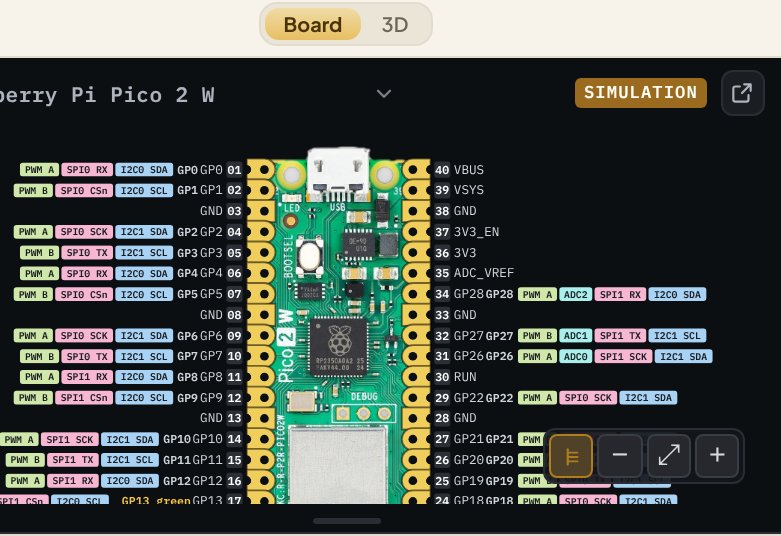
Change 13 to 15 and watch the label jump to a different pad. You haven’t run anything; the picture follows your typing.
Pad numbers and GP numbers
Each pad has two names, and mixing them up is the most common wiring mistake on a Pico.
- The pad number counts round the board: 1 to 20 down the left, 21 to 40 up the right
- The GP number is what you use in code:
Pin(13)means GP13
GP13 is pad 17. The Board view shows both, so you never have to count.
The coloured tags beside each pad show what else it can do: PWM for dimming and servos, I2C and SPI for talking to sensors and displays, and ADC for reading analogue voltages.
Choosing your board
The name at the top of the panel, such as Raspberry Pi Pico 2 W, is a list. Click it to pick the board you actually have. Snakie knows the pinout of the Pico family, ESP32 and ESP32-S3 Feathers, XIAO boards, several Pimoroni boards and more.
When you connect a real board, Snakie tells you which one it found.
Board and 3D
The two buttons above the panel switch between Board, the flat drawing, and 3D, a model of the board you can turn round.
The toolbar on the drawing zooms in and out, fits it to the panel, and toggles the labels. The button in the top right corner pops the board out into its own window.
The same pins in Electronics
Click Electronics in the workspace switcher. The same board appears, large, with your named pins marked on it. This is where you’d add an LED and a resistor and draw the wires, which is what the Wire It Up course, coming next in this series, covers.
Try it Yourself
- Add a second pin called
redon GP15 and find it on the board. - Which pad number is GP15?
- Challenge: find a pad that can do
ADC. What are the GP numbers of all the ADC pins?
Common Issues
Problem: The Board view says no pins are used.
Solution: Make sure the file is saved as, or named, a .py file and contains a line such as Pin(13, Pin.OUT).
Why: Snakie only reads Python files, and it looks for pins being created.
Problem: The pins are on the wrong pads. Solution: Check the board name at the top of the panel matches your board. Why: GP13 is in a different place on a Pico than on a Feather or a XIAO.
Check your understanding
Quick quiz 1 of 2
In Pin(13, Pin.OUT), what does 13 refer to?
Quick quiz 2 of 2
When does the Board view update?
You can use the arrows ← → on your keyboard to navigate between lessons.
Comments