Project - Reaction Timer
Build a reaction timer game from blocks in Snakie with an LED, a button and a buzzer, then read every line of its Python
By Kevin McAleer, 7 Minutes
Page last updated November 20, 2026

Time to put it all together. You’re going to build a game: an LED lights up after a random wait, and you hit the button as fast as you can. The Pico times you in milliseconds and beeps when you beat your best.
What you’ll use
Everything in this project has appeared earlier in the course:
| Idea | Lesson |
|---|---|
| Variables and maths | Variables, Maths and Loops |
| if and comparisons | Making Decisions |
| LED and button blocks | LEDs and Buttons |
| Buzzer blocks | PWM, Servos and Buzzers |
There are two new blocks, both to do with time. You’ll meet them in step 3.
The circuit
You can build the program and check it runs on the simulator, but to play you need a real button to press. Wire up a Pico like this:
| Part | Connect to |
|---|---|
| LED long leg, through a 330Ω resistor | GP15 |
| LED short leg | GND |
| Button, one side | GP14 |
| Button, other side | GND |
| Buzzer + | GP16 |
| Buzzer - | GND |
Step 1: get ready
Start a new file in the Blocks workspace and open the split view.
- Create three variables:
best,startandreaction. - Drag out set best to and type
9999. That’s a time anyone can beat. - Add a forever block underneath. Everything else goes inside it.
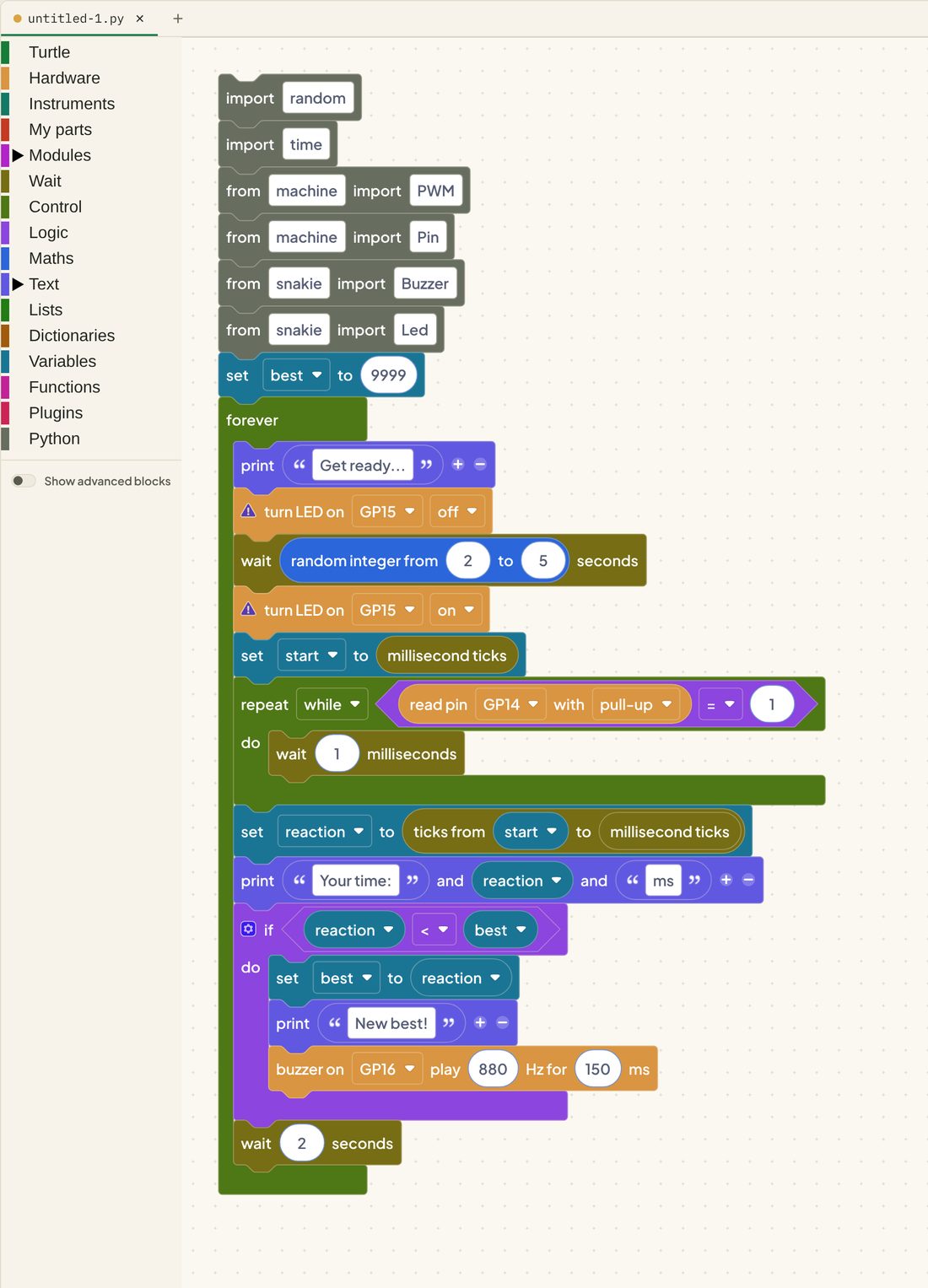
- Inside, add a print block that says
Get ready... - Add turn LED on GP15 off.
Step 2: the random wait
If the wait were always the same, you’d learn the rhythm and cheat.
- Add a wait 1 seconds block.
- From Maths, drop random integer from 2 to 5 into its socket.
- Add turn LED on GP15 on. Go!
Step 3: time the press
- Add set start to, and drop in millisecond ticks from the Wait drawer. This is a stopwatch reading: the number of milliseconds since the Pico switched on.
- Add a repeat while block from Control.
- For its question, build read pin GP14 with pull-up = 1. Remember, 1 means not pressed. So this loop spins for as long as you haven’t pressed the button.
- Inside the loop, add wait 1 milliseconds.
- After the loop, add set reaction to, and drop in ticks from start to millisecond ticks. That’s the stopwatch now, minus the stopwatch then.
Step 4: show the score
- Add a print block with three parts:
Your time:, thereactionvariable, andms. - Add an if block with the question
reaction < best. - Inside the if: set best to reaction, print
New best!, and buzzer on GP16 play 880 Hz for 150 ms. - Last, outside the if but inside forever, add wait 2 seconds before the next round.
Your finished stack should look like this:
Play it
Connect to your Pico, press Run and watch the console. When the LED lights, hit the button.
On the simulator: the program runs, but there’s no button to press. A simulated input pin always reads 0, so every round scores
Your time: 0 ms. That’s a handy way to check your blocks are in the right order before you wire anything up.
Here’s the complete program, with its blocks.
Read every line
You built this from blocks. Now read it as Python, top to bottom.
Imports and setup
- The
importlines at the top bring in the tools: random numbers, time, pins and Snakie’s helpers - The next three are the setup lines, one for each part, in the order your blocks first used them
best = 9999is your first block
The round
while True:is forevertime.sleep(random.randint(2, 5))is one block inside another, and in Python it’s one call inside another. The inside one runs firststart = time.ticks_ms()takes the first stopwatch reading
Waiting for you
    while pin_14.value() == 1:
        time.sleep_ms(1)
This is a loop that does almost nothing, on purpose. It keeps checking the button, a thousand times a second, and falls through the moment the pin reads 0.
The score
time.ticks_diff(time.ticks_ms(), start)is the time now minus the time at the start. MicroPython has a special function for this because the tick counter eventually wraps round to zero, andticks_diffcopes with thatif reaction < best:only runs its three lines when you’ve beaten your record
If you can follow that, you can read Python. You didn’t sit through a syntax lesson to get here. You built things.
Put it on your Pico
To make the game start whenever the Pico is powered, save it to the board as main.py. Files, Local and Device in the Getting Started course shows you how.
Try it Yourself
- Change the random wait to between 1 and 8 seconds.
- Play a low, sad tone when you don’t beat your best. You’ll need an else.
- Count the rounds in a new variable and print
Round 1,Round 2and so on. - Challenge: catch cheats. If the button is already held down when the LED comes on, print
Too soon!and don’t count the round. - Challenge: do one of these by typing in the Python pane instead of dragging blocks.
Common Issues
Problem: It says Your time: 0 ms straight away.
Solution: On the simulator that’s expected. On a real Pico, check the while loop’s question compares with 1, and that the pin is set with pull-up.
Why: Without the pull-up the pin can read 0 with nothing pressed, so the loop ends at once.
Problem: The LED never goes off between rounds. Solution: Make sure turn LED off is inside forever, near the top. Why: It has to run at the start of every round, not once.
Problem: New best! prints every single round.
Solution: Check set best to reaction is inside the if block.
Why: If best never changes from 9999, every time beats it.
Problem: On a real board the times look too good to be true. Solution: Check the button is wired between GP14 and GND, not 3.3V. Why: A button wired to 3.3V never pulls the pin to 0, so a loose wire does the “pressing”.
Check your understanding
Quick quiz 1 of 3
Why is the wait before the LED lights random?
Quick quiz 2 of 3
What does the loop while pin_14.value() == 1: do?
Quick quiz 3 of 3
What does time.ticks_diff(time.ticks_ms(), start) work out?
You can use the arrows ← → on your keyboard to navigate between lessons.
Comments