The Blocks Workspace
Find your way around the Snakie Blocks workspace, the toolbox and the split view that shows blocks and Python side by side
By Kevin McAleer, 4 Minutes
Page last updated November 20, 2026
Before we build anything, let’s look at where everything lives.
Open the Blocks workspace
At the top of Snakie there are four workspaces: Blocks, Code, Electronics and Build. Click Blocks.
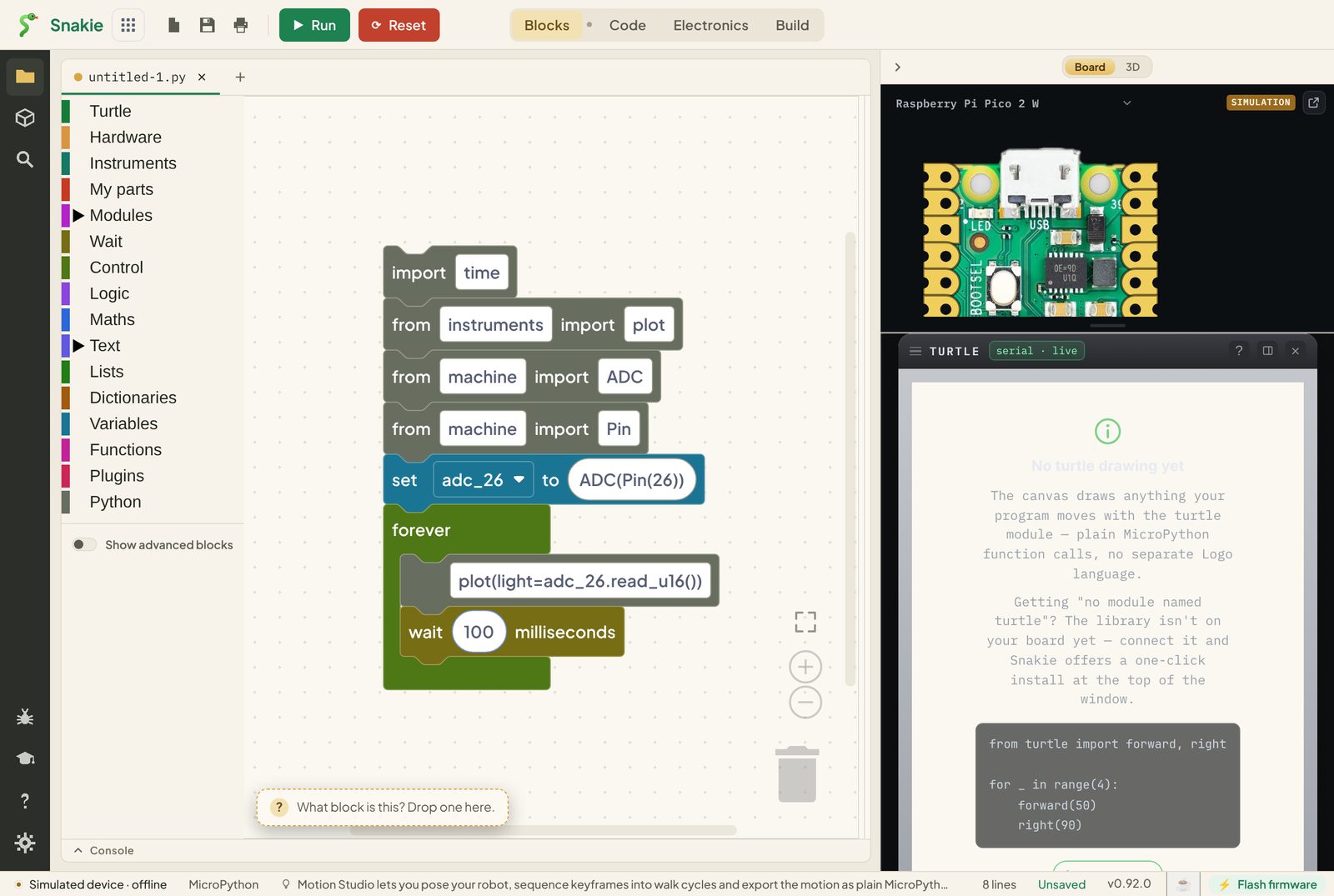
Here’s what’s on the screen:
| Where | What it is |
|---|---|
| Left | The toolbox, a list of drawers full of blocks |
| Middle | The canvas, where you build your program |
| Bottom | The console, where your program prints and errors appear |
| Right | The board and the instruments, such as the turtle’s drawing |
The toolbox
Click a drawer name and its blocks slide out. Drag one onto the canvas to use it.
| Drawer | What’s in it |
|---|---|
| Turtle | A pen that draws on screen, with no hardware needed |
| Hardware | LEDs, buttons, PWM, servos, buzzers and analogue readings |
| Instruments | Send readings to Snakie’s plotter, oscilloscope and multimeter |
| My parts | Blocks for the parts on your own breadboard |
| Wait | The two pause blocks |
| Control | forever, repeat, if, for each |
| Logic, Maths, Text, Lists | The everyday building blocks |
| Variables, Functions | Naming things, and naming groups of steps |
| Python | Grey blocks that hold code you type yourself |
Turtle is first on purpose. It’s the only drawer that needs nothing plugged in, and drawing a square is a great first ten minutes.
The split view
Look at the workspace switcher again. Between Blocks and Code there’s a small dot. Click it and you get both at once: blocks on the left, Python on the right.
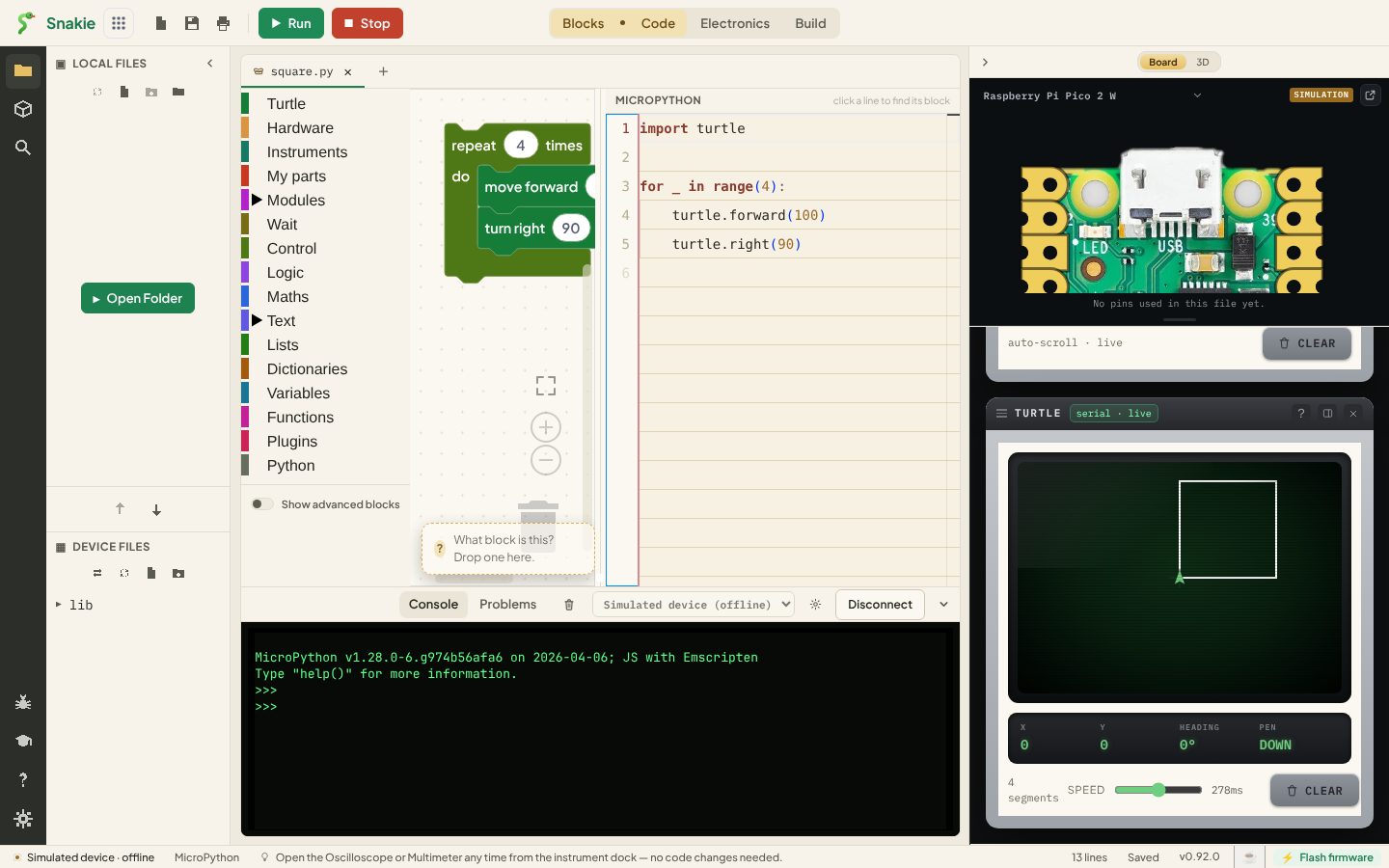
This is the most important screen in the course. The thing on the right is what the thing on the left means. Change a number in a block and the Python changes. Change the Python and the block changes. They are two views of one program.
You can drag the divider between the panes to give either side more room.
Try it here
This box starts in the split view. Use the Code, Split and Blocks buttons to switch, then change 4 to 6 in the blocks and watch the Python.
Getting rid of blocks
Made a mess? Drag a block to the bin at the bottom right of the canvas, or select it and press Delete. Ctrl+Z undoes your last change (⌘+Z on a Mac).
To copy a block and everything inside it, select it and press Ctrl+D (⌘+D on a Mac).
What block is this?
At the bottom left of the canvas is a box that says What block is this? Drop one here. Drop any block on it and Snakie opens a help page about that block, then hands the block straight back.
Try it Yourself
- Open every drawer in the toolbox and see what’s inside.
- Drag a block out, then throw it in the bin.
- Switch between Blocks, the split view and Code using the switcher at the top.
- Drop a block on What block is this? and read its help page.
Common Issues
Problem: I can’t see the Python. Solution: Click the dot between Blocks and Code at the top of the window. Why: Blocks on its own hides the code pane. The dot is the halfway stop that shows both.
Problem: A drawer is missing blocks I’ve seen in a screenshot. Solution: Turn on Show advanced blocks under the toolbox. Why: Snakie starts with the simple set. We’ll meet the advanced ones in a later lesson.
Check your understanding
Quick quiz 1 of 3
What does the pane on the right of the split view show?
Quick quiz 2 of 3
Which drawer needs no hardware at all?
Quick quiz 3 of 3
How do you see blocks and Python at the same time?
You can use the arrows ← → on your keyboard to navigate between lessons.
Comments