The Plugin Rack
Tour the Snakie Plugins panel, see the plugins that ship with the app and run your first plugin command
By Kevin McAleer, 5 Minutes
Page last updated November 21, 2026

Open the rack
Before writing a plugin, let’s use one. Open the Snakie desktop app, open any Python file, and click the Plugins icon in the activity bar on the left. It’s the jigsaw piece.
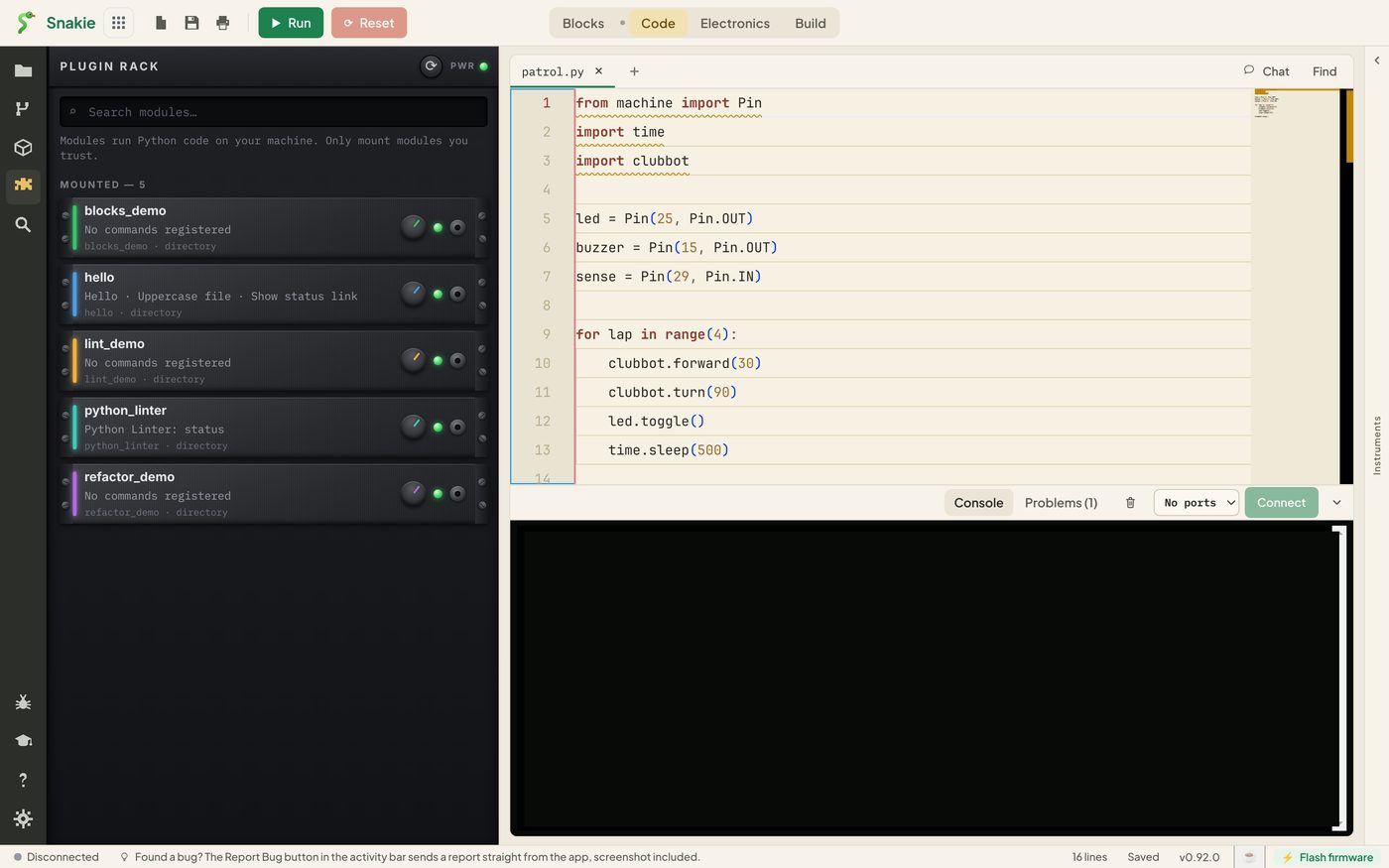
Snakie calls this the Plugin Rack, and it looks like a rack of studio equipment. Each plugin is a module bolted into the rack.
| Part | What it does |
|---|---|
| The round arrow at the top | Reload. Restarts the plugin host and loads every plugin again |
| The PWR light | Green when the host is running |
| The search box | Filters the list by name |
| The note under it | A reminder that plugins run Python code on your machine |
| MOUNTED | The plugins that loaded |
The plugins that come with Snakie
A fresh install has five. They’re examples, and one of them does real work.
| Plugin | What it shows |
|---|---|
hello |
Three commands: a message, an edit and a status bar link |
lint_demo |
A tiny linter that flags spaces at the end of a line and # TODO comments |
python_linter |
The real Python linter behind the squiggles and the Problems panel |
refactor_demo |
A classroom “house style” example |
blocks_demo |
Four blocks for an imaginary club robot |
Each module shows its name, the commands it offers, and where it was loaded from. A plugin that says “No commands registered” isn’t broken. It does its work some other way, such as linting.
Run a command
- Click the
hellomodule. It opens to show its commands - Click RUN next to Hello
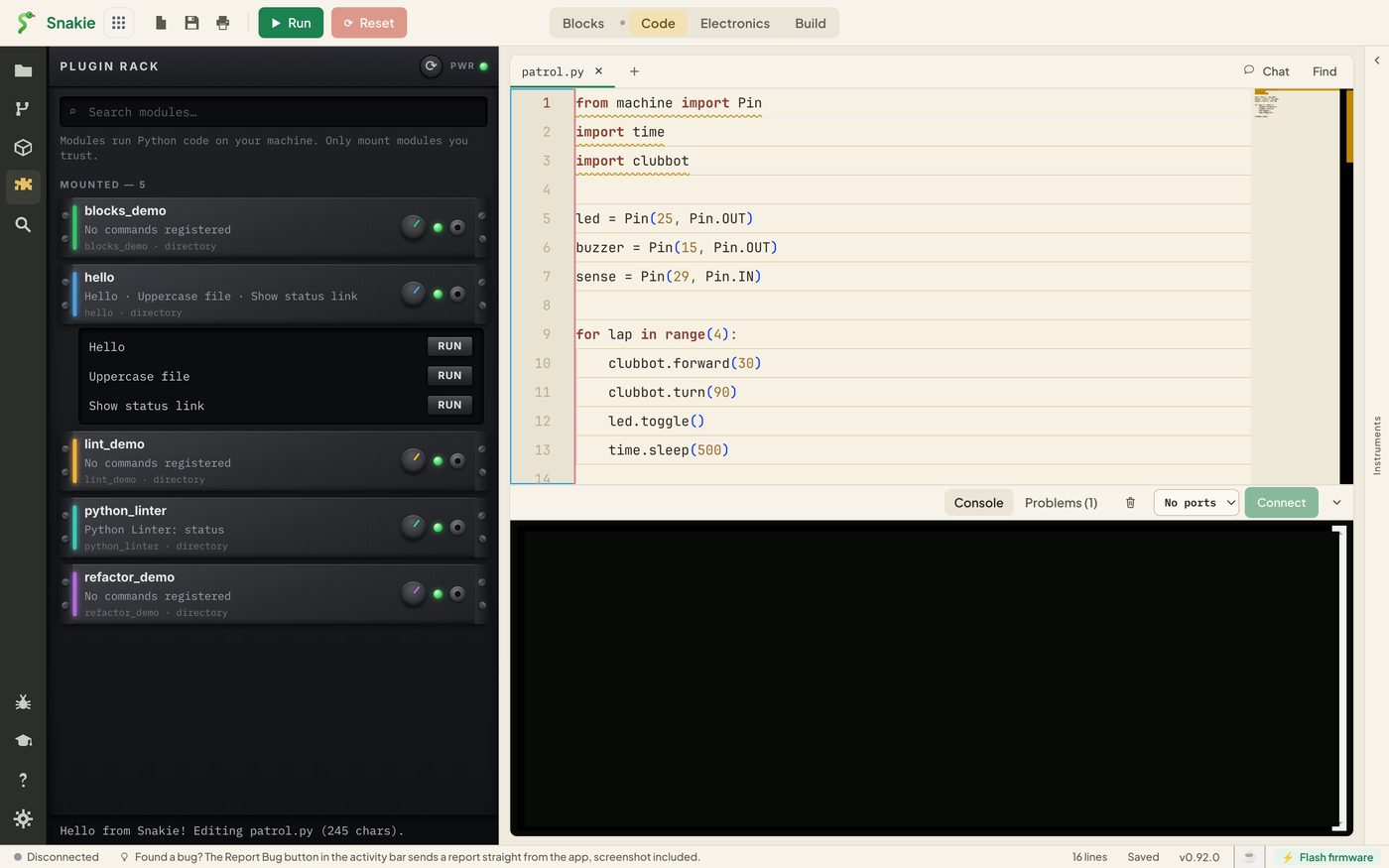
A message appears at the bottom of the panel, naming your file and how long it is. That text was put together by a Python function and sent back to Snakie.
- Click RUN next to Show status link
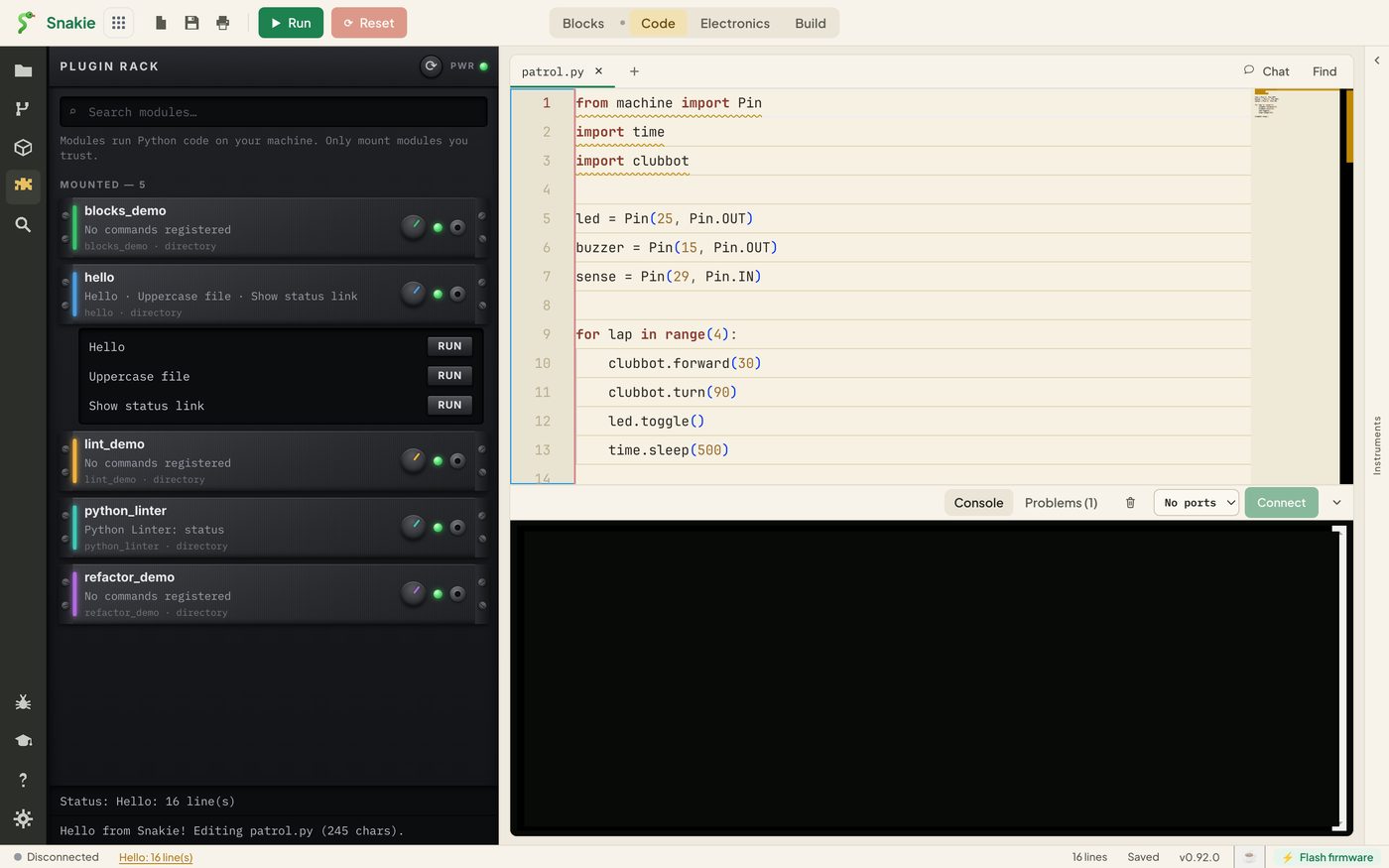
Now look at the status bar along the bottom of the window. The plugin has put a line count there, and it’s a link.
There’s a third command, Uppercase file. It replaces everything in the editor with CAPITALS. Try it on a file you don’t mind changing, then press Ctrl + Z (Cmd + Z on a Mac) or close the file without saving.
Commands work on the active file
Every command acts on the file in the editor tab you’re looking at. Switch tabs and run Hello again, and the message names the other file.
With no file open, a command still runs, but it has nothing to read.
Read the example
The hello plugin is about thirty lines. Here’s the part behind the button you pressed.
from snakie import Context, edit, message, plugin, status


@plugin.command("hello", "Hello")
def hello(ctx: Context):
    """Greet the user with the active file's name and size."""
    name = ctx.file.name or "(no file)"
    size = len(ctx.file.content)
    return message("info", f"Hello from Snakie! Editing {name} ({size} chars).")
You can already read most of it. A function receives ctx, looks at the file name and content, and returns a message. The @plugin.command line is what turns the function into a button. You’ll write one of your own in the next lesson.
Try it Yourself
- Run Hello on two different files and compare the messages
- Type
lintin the search box. Which modules are left? - Add a space to the end of a line in your file.
lint_demounderlines it. Hover over the squiggle to read why - Click the Reload arrow and watch the PWR light
Common Issues
Problem: The panel says Python wasn’t found and shows pip install snakie.
Solution: Install Python 3, restart Snakie and open the panel again. You don’t need to install anything with pip for this course.
Why: The host needs Python to run. Snakie brings its own copy of the plugin toolkit, so Python itself is the only thing missing.
Problem: There’s no Plugins icon. Solution: Use the desktop app. Why: The browser version can’t start a Python program on your computer, so it hides the panel.
Problem: RUN does nothing visible. Solution: Open a file first and look at the bottom of the Plugins panel for the message. Why: Messages collect at the bottom of the panel, newest first, and it’s easy to miss them.
Check your understanding
Quick quiz 1 of 3
What does the Reload arrow do?
Quick quiz 2 of 3
A module says “No commands registered”. What does that mean?
Quick quiz 3 of 3
Which file does a command act on?
You can use the arrows ← → on your keyboard to navigate between lessons.
Comments