KevsRobots Learning Platform
Getting Started
Designing the SMARS Base
Exporting for 3D Printing
Summary
Save as STL
Export your SMARS base for 3D printing with optimal settings
By Kevin McAleer, 7 Minutes
What We’re Building
Your SMARS base design is complete - now it’s time to turn it into a real, physical robot part! In this lesson you’ll:
- Export the model as an STL file
- Learn optimal 3D print settings
- Understand common printing issues and fixes
Understanding STL Files
What is STL?
STL (Stereolithography) is the standard file format for 3D printing. It describes your model as a collection of triangles - the more triangles, the smoother the curves.
Why STL?
- Universal format - works with any 3D printer
- Simple - just geometry, no colors or materials
- Reliable - been the standard for decades
The Export Process
FreeCAD → STL → Slicer → G-code → Printer
- FreeCAD creates the 3D model
- STL export converts to triangle mesh
- Slicer software (Cura, PrusaSlicer) creates print instructions
- G-code tells the printer exactly how to move
- Printer creates the physical part
Step-by-Step: Export to STL
1. Select the Model
In the Model tree, select the final body/feature of your SMARS base. This should be the complete model with all features.

Important: Select the body or part, not an individual sketch or feature. The export will only include what you select.
2. Open the Export Dialog
Click File menu in the top left corner.

3. Select Export
From the dropdown menu, select Export...
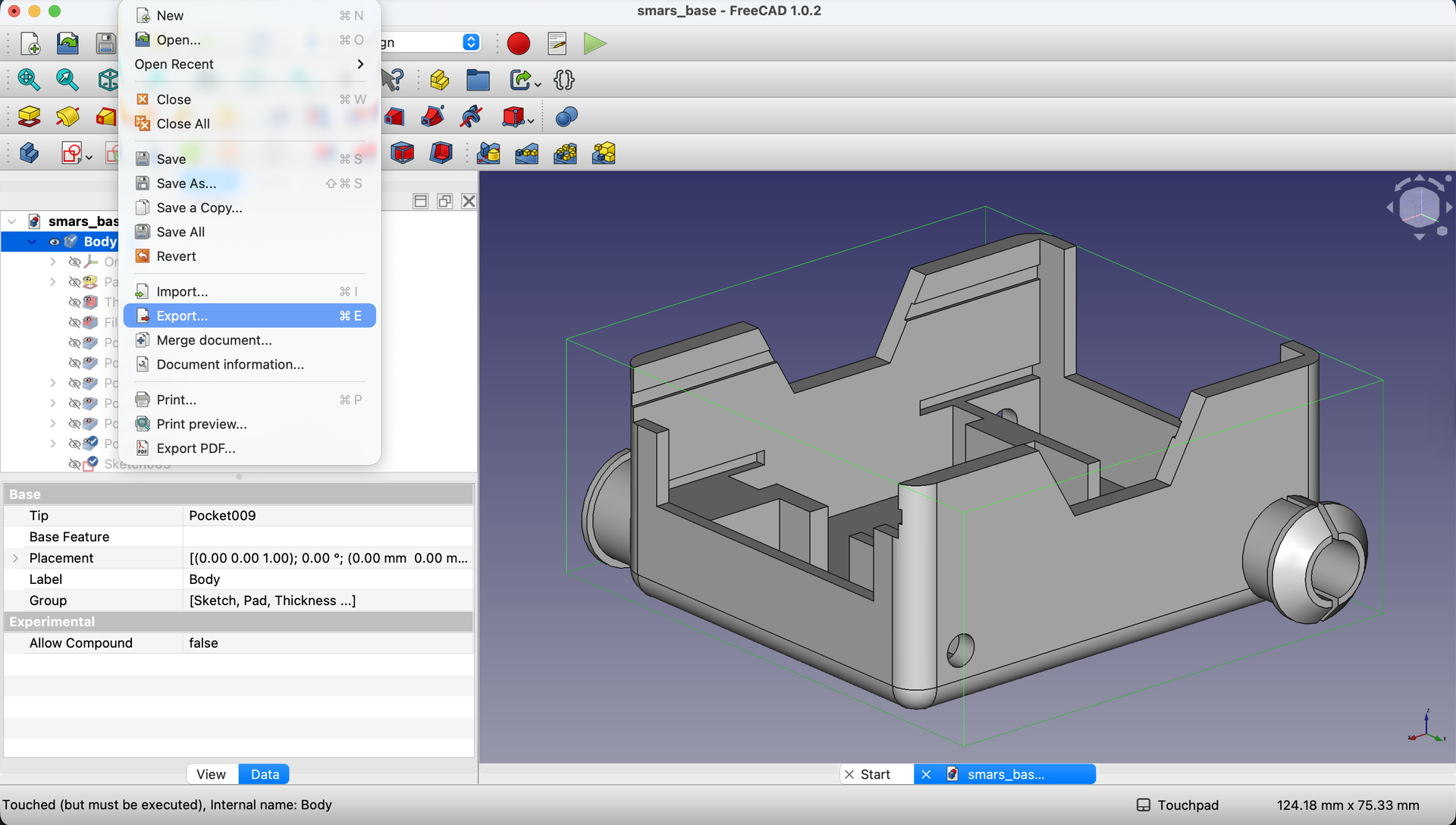
4. Choose STL Format
In the file dialog:
- Navigate to your desired save location
- In the
Save as typedropdown, selectSTL Mesh (*.stl)

5. Save the File
Enter a filename like smars_robot_base.stl and click Save.
Naming tip: Use descriptive names with no spaces: smars_base_v1.stl, smars_base_final.stl
Recommended Print Settings
Material Choice
| Material | Pros | Cons | Best For |
|---|---|---|---|
| PLA | Easy to print, no heated bed required | Can warp in heat | Indoor robots, beginners |
| PETG | Stronger, heat resistant | Strings more | Outdoor use, durability |
| ABS | Very strong, heat resistant | Needs enclosure, fumes | Professional use |
Recommendation: Start with PLA. It’s forgiving and produces great results.
Layer Height
| Setting | Result |
|---|---|
| 0.3mm | Fast print, visible layers - good for prototypes |
| 0.2mm | Balanced speed and quality - recommended |
| 0.1mm | Slow print, smooth finish - cosmetic parts |
For functional robot parts like SMARS, 0.2mm is ideal.
Infill
| Percentage | Use Case |
|---|---|
| 15-20% | Standard - good strength-to-weight ratio |
| 30-40% | Extra durability for high-stress parts |
| 50%+ | Usually unnecessary - wastes filament |
Recommendation: 20% infill with grid or gyroid pattern.
Supports
The SMARS base is designed to print without supports when oriented correctly:
- Print with the open top facing up
- The base bottom sits flat on the print bed
- All overhangs are under 45°
Print Orientation
Correct orientation:
        ┌─────────┐  ← Open top (facing up)
        │         │
        │  SMARS  │
        │  BASE   │
        │         │
        └─────────┘  ← Flat bottom (on print bed)
This orientation:
- No supports needed
- Strongest layer adhesion in stress areas
- Clean bottom surface
Slicer Software Recommendations
Free Options
| Software | Platform | Notes |
|---|---|---|
| Cura | Win/Mac/Linux | Most popular, extensive settings |
| PrusaSlicer | Win/Mac/Linux | Great defaults, good documentation |
| Bambu Studio | Win/Mac | For Bambu printers |
Import Settings
When you open the STL in your slicer:
- Scale: Should be 1:1 (70mm × 58mm × 32mm)
- Position: Center on print bed
- Orientation: Open top facing up
If the model appears tiny or huge, check that your FreeCAD units were in millimeters.
Pre-Print Checklist
Before starting your print, verify:
- Model is watertight - No holes or gaps in the mesh
- Correct size - 70mm × 58mm × 32mm (check in slicer)
- Proper orientation - Open top facing up
- No supports needed - Model should slice cleanly without them
- Print time estimate - Usually 2-4 hours depending on settings
- Filament estimate - About 15-25g of material
Common Printing Issues
“My print warped off the bed”
Cause: Poor bed adhesion, especially with PLA cooling too fast. Fix:
- Clean bed with isopropyl alcohol
- Use a brim (5-10mm) in slicer settings
- Ensure first layer is slightly squished
- Check bed leveling
“The motor holes are too tight”
Cause: 3D printers slightly shrink holes due to corner rounding. Fix:
- Use a 4mm drill bit to clean up holes
- Or increase hole size in FreeCAD to 4.7mm
“Layers are separating”
Cause: Print temperature too low or print speed too fast. Fix:
- Increase hotend temperature by 5-10°C
- Reduce print speed
- Check for drafts near printer
“Wheel stubs broke off”
Cause: Layer orientation creates weak point. Fix:
- Ensure you’re printing in the correct orientation
- Increase wall count (3-4 walls)
- Try PETG for more flexibility
“Surface is rough/bubbly”
Cause: Moisture in filament. Fix:
- Dry filament (food dehydrator or filament dryer)
- Store filament in sealed container with desiccant
Post-Processing Tips
Cleanup
- Remove any stringing with a heat gun (briefly) or knife
- Clean up support marks if you used any
- Test-fit motors and wheels
Test Assembly
Before building the full robot, verify:
- Motors fit snugly in retention cutouts
- Motor shafts pass through holes freely
- Arduino slides into slots
- Wheels attach to stubs properly
If Parts Don’t Fit
- Too tight: Sand with fine sandpaper, or drill out holes
- Too loose: Add tape, or reprint with adjusted dimensions
- Warped: Check bed leveling and try printing cooler
Try It Yourself
- Export the STL following the steps above
- Open in a slicer and verify the dimensions
- Preview the slice - look for any issues in the layer preview
- Print it! (if you have a printer)
Common Issues
“FreeCAD shows export errors”
Problem: The model has geometry issues preventing clean export. Solution:
- Check for overlapping faces in the Model tree
- Try using Part → Check Geometry to find problems
- As a workaround, export as STEP first, then convert to STL
“STL file is empty or wrong size”
Problem: Wrong item selected during export. Solution: Select the Body or Part in the Model tree, not a sketch or single feature.
“Slicer shows the model as too small/large”
Problem: Unit mismatch between FreeCAD and slicer. Solution: FreeCAD should be in mm. If the model is 1000x too big, FreeCAD was in meters. Scale by 0.001 in the slicer.
What You Learned
In this lesson, you mastered:
- STL export - Converting CAD models to printable format
- Print settings - Material, layer height, infill recommendations
- Orientation - Positioning for best print quality
- Troubleshooting - Common issues and their fixes
Next Up
Congratulations - your design is ready to print! In the final lesson, we’ll summarize everything you’ve learned and explore where to go next with your new CAD skills.
You can use the arrows ← → on your keyboard to navigate between lessons.
Comments