KevsRobots Learning Platform
Getting Started
Designing the SMARS Base
Exporting for 3D Printing
Summary
Shell and Fillet the Base
Transform a solid block into a hollow enclosure with smooth, strong edges
By Kevin McAleer, 5 Minutes
What We’re Building
Right now we have a solid brick. By the end of this lesson, it will be a hollow box with rounded edges - ready to hold motors, electronics, and batteries.
| Feature | Purpose |
|---|---|
| Shell (3mm walls) | Creates interior space while maintaining strength |
| Fillet (4mm radius) | Reduces stress concentration, easier to print |
| Thin front/back walls (2mm) | Saves material, makes room for cable routing |
Why Shell and Fillet?
The Shell Operation
Problem: A solid block can’t hold anything inside.
Solution: The Shell tool removes the interior while keeping walls of a specified thickness. Think of it like hollowing out a pumpkin, but with precise walls!
Why 3mm walls? This is the sweet spot for 3D printed parts:
- Thinner (1-2mm) = Flexible, can crack under stress
- Thicker (4-5mm) = Wastes filament, adds weight
- 3mm = Strong, rigid, efficient
The Fillet Operation
Problem: Sharp 90° corners have two issues:
- Stress concentration - Force focuses at corners, causing cracks
- Print quality - Sharp corners often have defects
Solution: Fillets round the edges, distributing stress and improving print quality.
Why 4mm radius? Large enough to see and feel, small enough not to waste interior space.
Step-by-Step: Hollow Out the Base
1. Apply the Thickness (Shell) Tool
With the base pad selected in the Model tree, click the Thickness button in the toolbar.

2. Select the Face to Remove
Click on the top face of your block. This tells FreeCAD: “Remove this face and hollow out below it.”
In the Thickness dialog, set the value to 3mm. Click OK.

What just happened? FreeCAD removed the top face and created 3mm-thick walls on all remaining sides. Your solid block is now a hollow box!
Step-by-Step: Add Fillets
3. Start the Fillet Tool
Click the Fillet button in the toolbar.

4. Select Edges to Round
This is where careful selection matters:
- Hold
Ctrland click the four vertical edges (the upright corners) - Also select the four horizontal edges on the bottom face
In the Fillet dialog, set the radius to 4mm. Click OK.
Why these edges?
- Vertical edges: Where walls meet - high stress area
- Bottom edges: Where the base contacts surfaces - protects against chipping
Step-by-Step: Thin the Front and Back Walls
The front and back walls will have cutouts for cables and component access. Thinning them now makes those later operations easier.
5. Select the Front Interior Face
Click on the inside surface of the front wall.
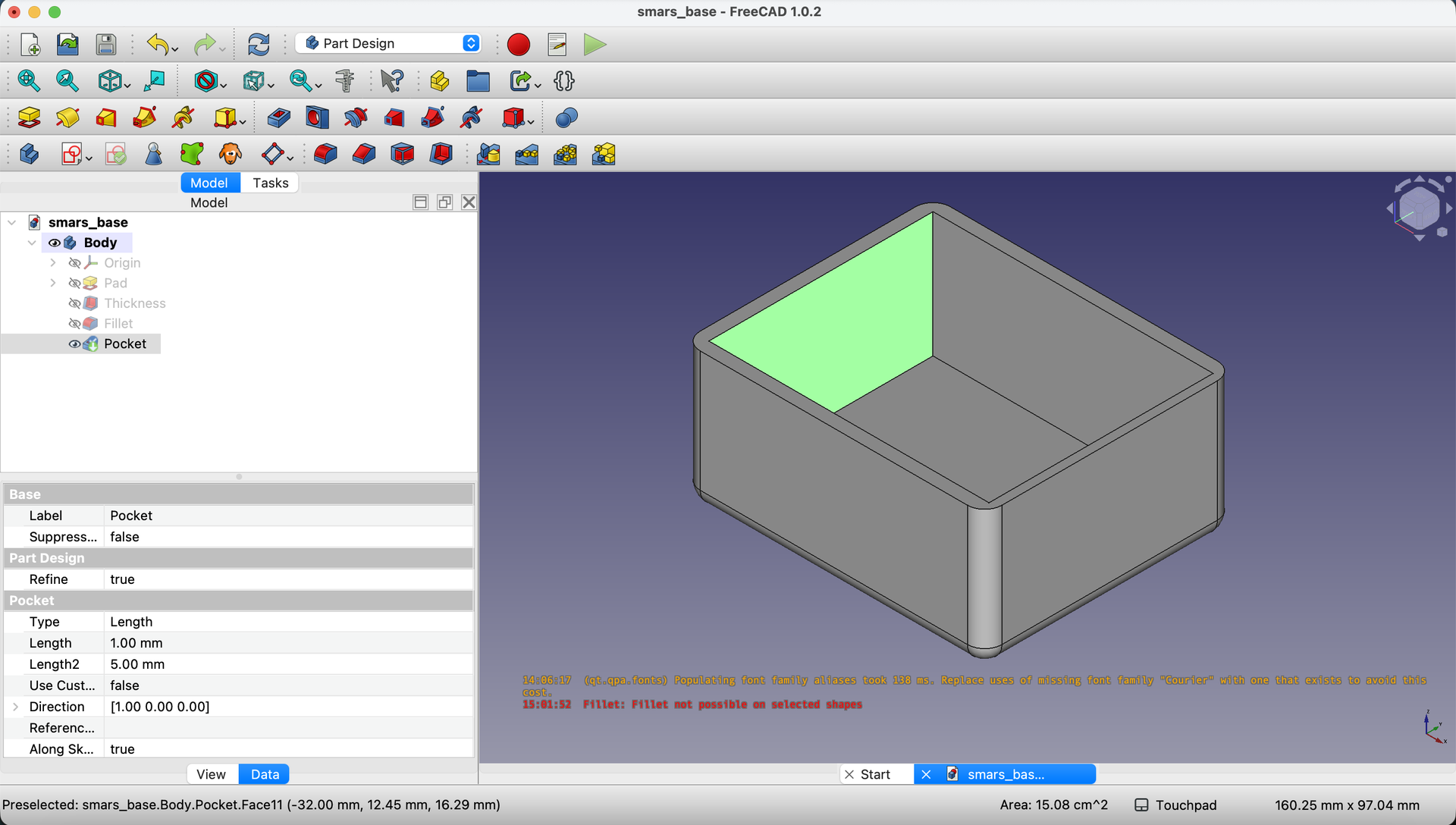
6. Apply Thickness to Front Wall
Click Thickness again. Set the value to 1mm. Click OK.
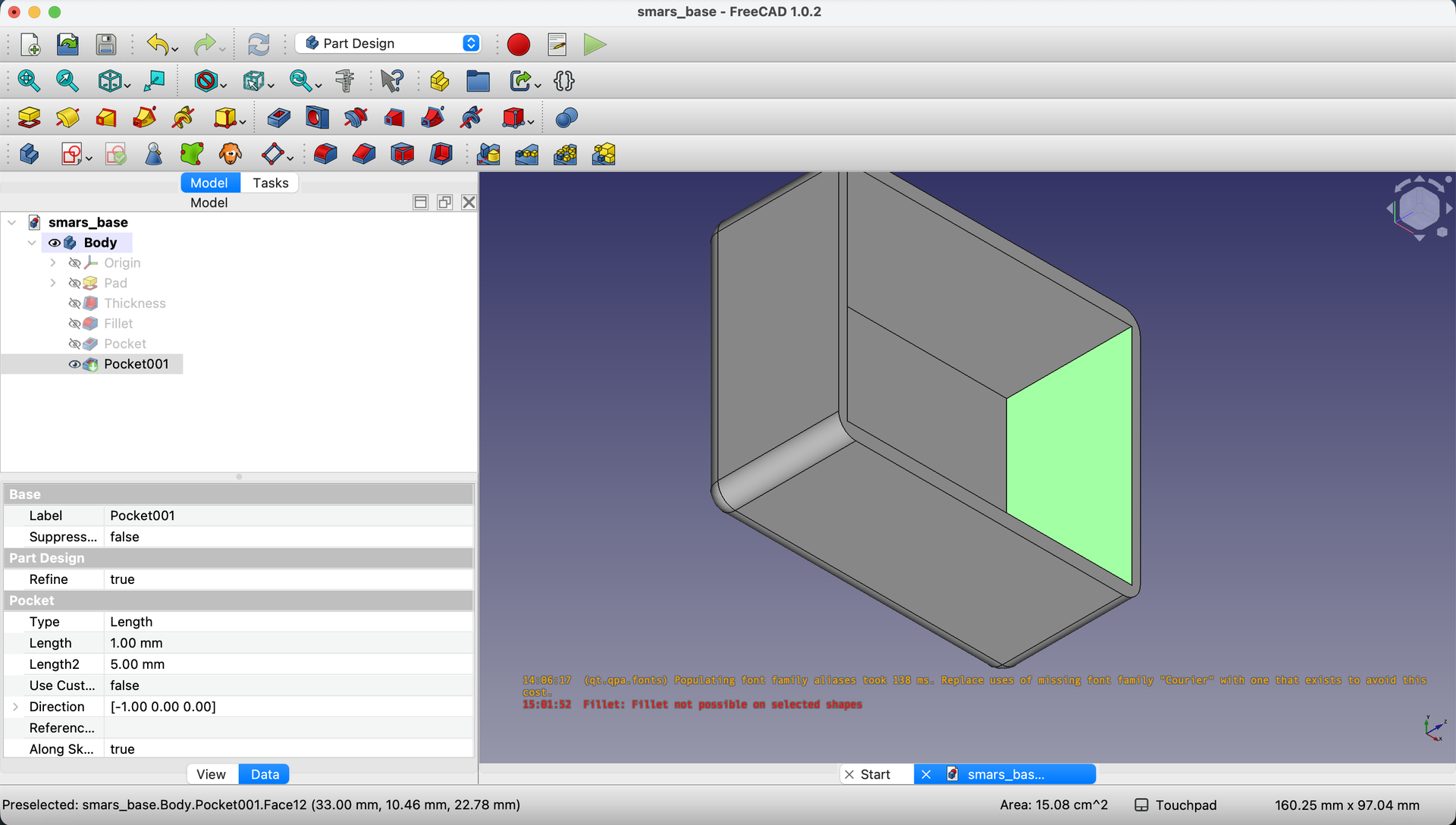
Wait, 1mm? Yes - we’re adding 1mm of thinning to an already 3mm wall, making it 2mm total. FreeCAD’s Thickness tool works by offsetting the selected face.
7. Repeat for Back Wall
Use the navigation cube to rotate the view and select the inside surface of the back wall.
Apply the same 1mm Thickness operation.

8. Return to Default View
Press 0 on your keyboard to return to the isometric view.
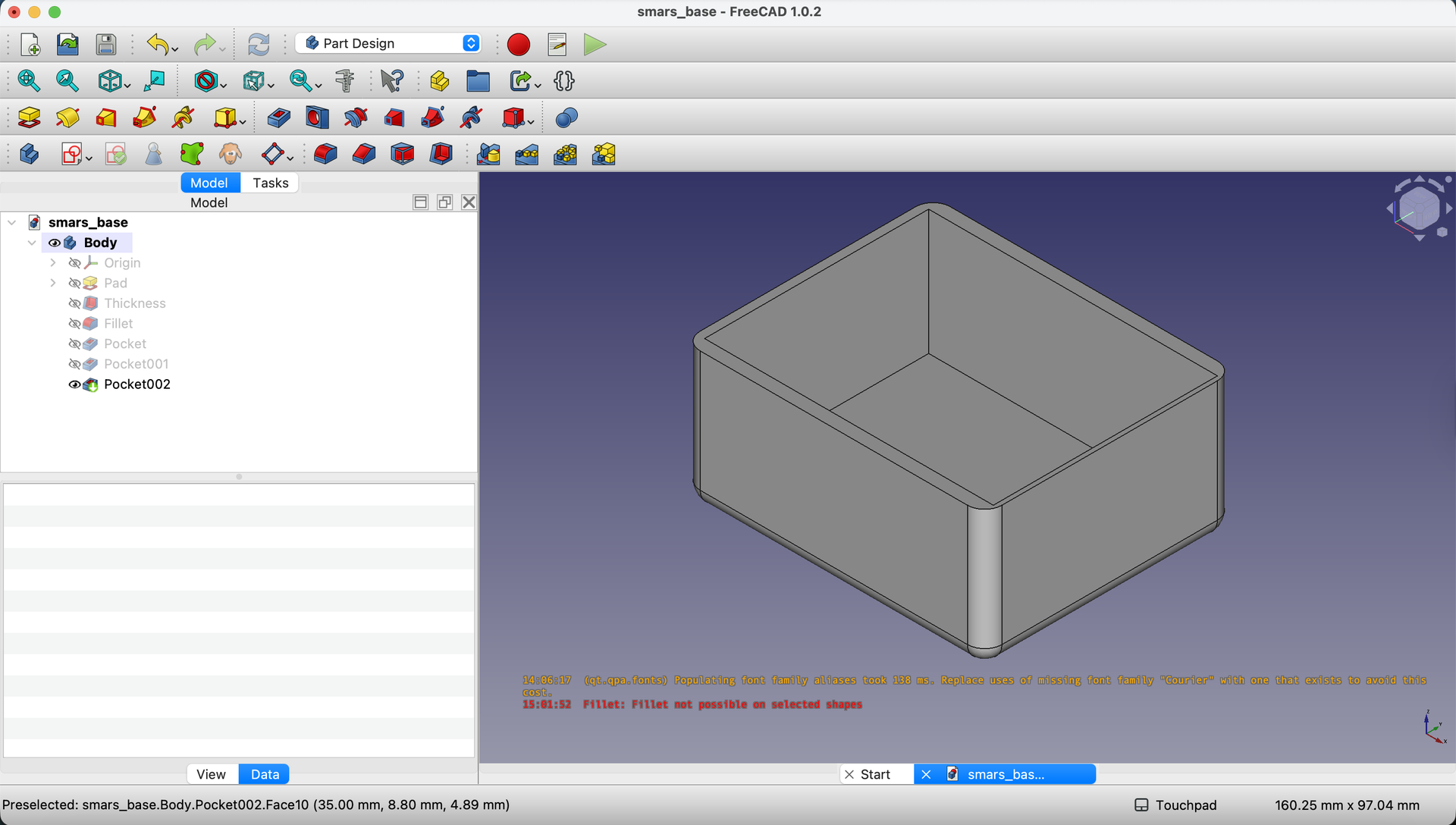
Understanding the Design Choices
| Decision | Reasoning |
|---|---|
| 3mm side walls | Strong enough for handling, thin enough for weight |
| 2mm front/back walls | Will have large cutouts - don’t need extra material |
| 4mm fillet radius | Visible rounding, better print quality |
| Shell before fillet | Easier to select edges after hollowing |
Try It Yourself
- Inspect the interior: Rotate to look inside. Notice how the shell created uniform walls.
- Measure the walls: Use View → Measure to verify wall thickness (should be 3mm sides, 2mm front/back).
- Feel the difference: If you print this later, notice how fillets make it comfortable to hold.
Common Issues
“The shell operation fails with an error”
Problem: FreeCAD can’t compute the shell for complex geometry. Solution: This usually means wall thickness is larger than some feature. Try a smaller shell value (2mm instead of 3mm).
“I selected the wrong face for shell”
Problem: The interior is on the wrong side.
Solution: Undo (Ctrl+Z), then carefully click only the face you want removed. Use the rotation view to verify your selection before confirming.
“Fillet fails on some edges”
Problem: The fillet radius is too large for certain edges. Solution: Either reduce the radius, or deselect the problematic edges and fillet them separately with a smaller radius.
“I can’t select the interior face”
Problem: Clicking seems to select the exterior. Solution: Rotate the view so you’re looking INTO the box. Click on the visible interior surface. Zoom in for precise selection.
“The wall thickness isn’t uniform”
Problem: Some walls appear thicker than others. Solution: This can happen if you applied thickness to the wrong faces. Undo and start fresh, being careful about face selection.
What You Learned
In this lesson, you mastered:
- Shell operation - Hollowing solids while maintaining wall thickness
- Fillet operation - Rounding edges for strength and aesthetics
- Selective face operations - Modifying specific walls independently
- Design-for-printing - Choosing dimensions that work well with 3D printing
Next Up
Our hollow box needs its iconic SMARS side profile - the distinctive rhombus shape that makes SMARS instantly recognizable. We’ll also add the motor shaft holes. Time for the Pocket operation!
You can use the arrows ← → on your keyboard to navigate between lessons.
Comments