KevsRobots Learning Platform
Getting Started
Designing the SMARS Base
Exporting for 3D Printing
Summary
Creating the Base
Build the foundation of your SMARS robot - a parametric 3D sketch extruded into a solid
By Kevin McAleer, 6 Minutes
What We’re Building
The SMARS base is a 70mm × 58mm × 32mm solid block. These aren’t random numbers:
| Dimension | Size | Why This Size? |
|---|---|---|
| Length | 70mm | Fits two N20 motors side by side with clearance |
| Width | 58mm | Matches standard SMARS wheel track width |
| Height | 32mm | Tall enough for Arduino Nano + batteries |
This block becomes the foundation for everything else - we’ll hollow it out, add holes, and create mounting features in later lessons.
Understanding Parametric Design
We’re about to do something clever: create a parametric sketch. This means:
- We draw shapes (rectangles, lines, circles)
- We add constraints (dimensions, positions, relationships)
- FreeCAD calculates the exact geometry
Why this matters: If you later decide the base should be 75mm long instead of 70mm, you change ONE number and the entire model updates. That’s the power of parametric CAD!
Step-by-Step: Create the Base
1. Create a New Document
Click on File > New to create a fresh FreeCAD document.

2. Save Your Work (Important!)
Click File > Save As and name it smars_base.FCStd.

Pro tip: Save frequently! FreeCAD can crash during complex operations. Use Ctrl+S after every major step.
3. Enter Part Design Workbench
Click on Create Sketch. If you don’t see this option, switch to the Part Design workbench using the dropdown in the toolbar.
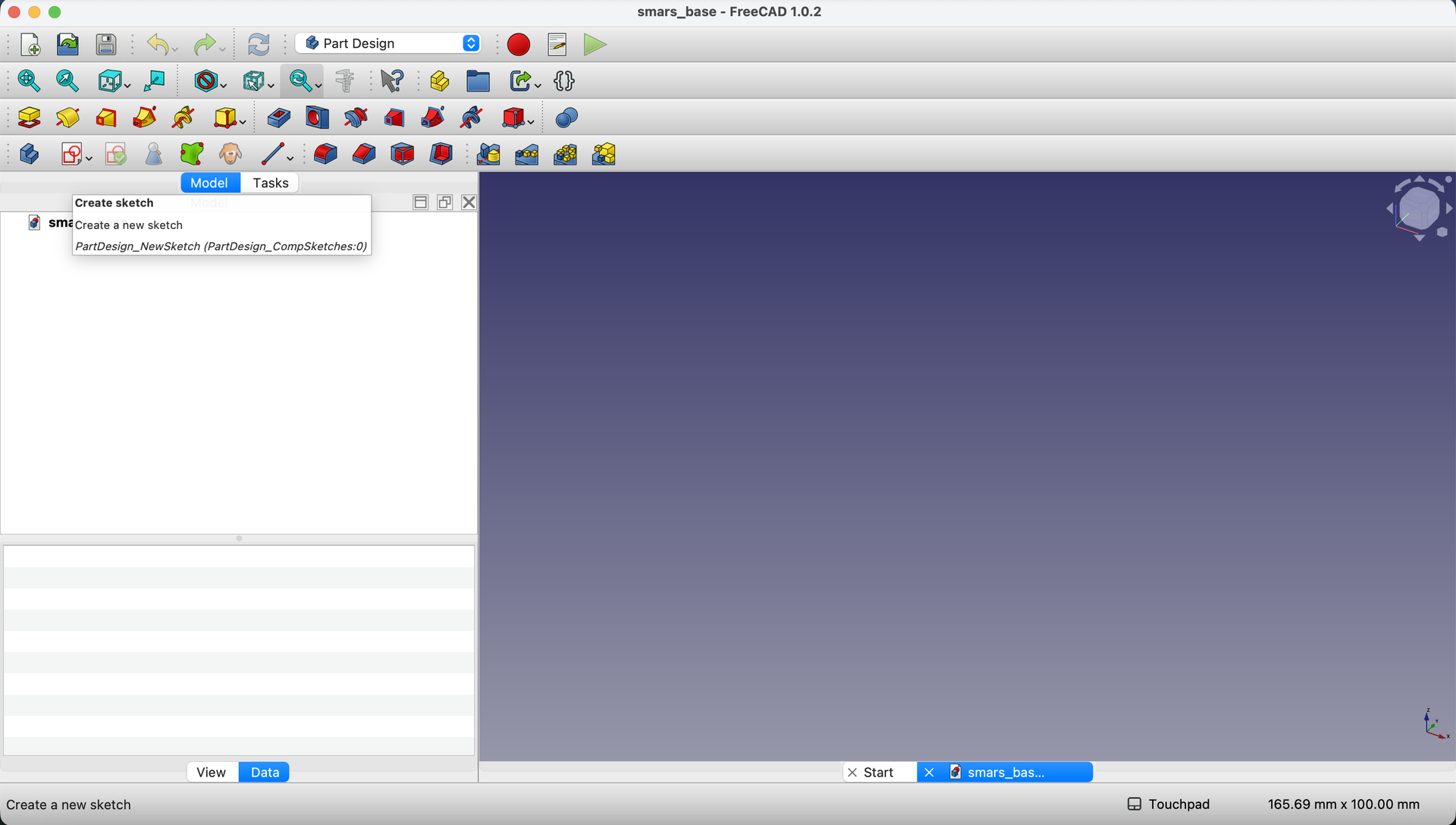
What’s a workbench? FreeCAD uses “workbenches” for different tasks. Part Design is for creating solid parts - exactly what we need.
4. Select the Sketch Plane
Click on XY-Plane to sketch on the horizontal plane.
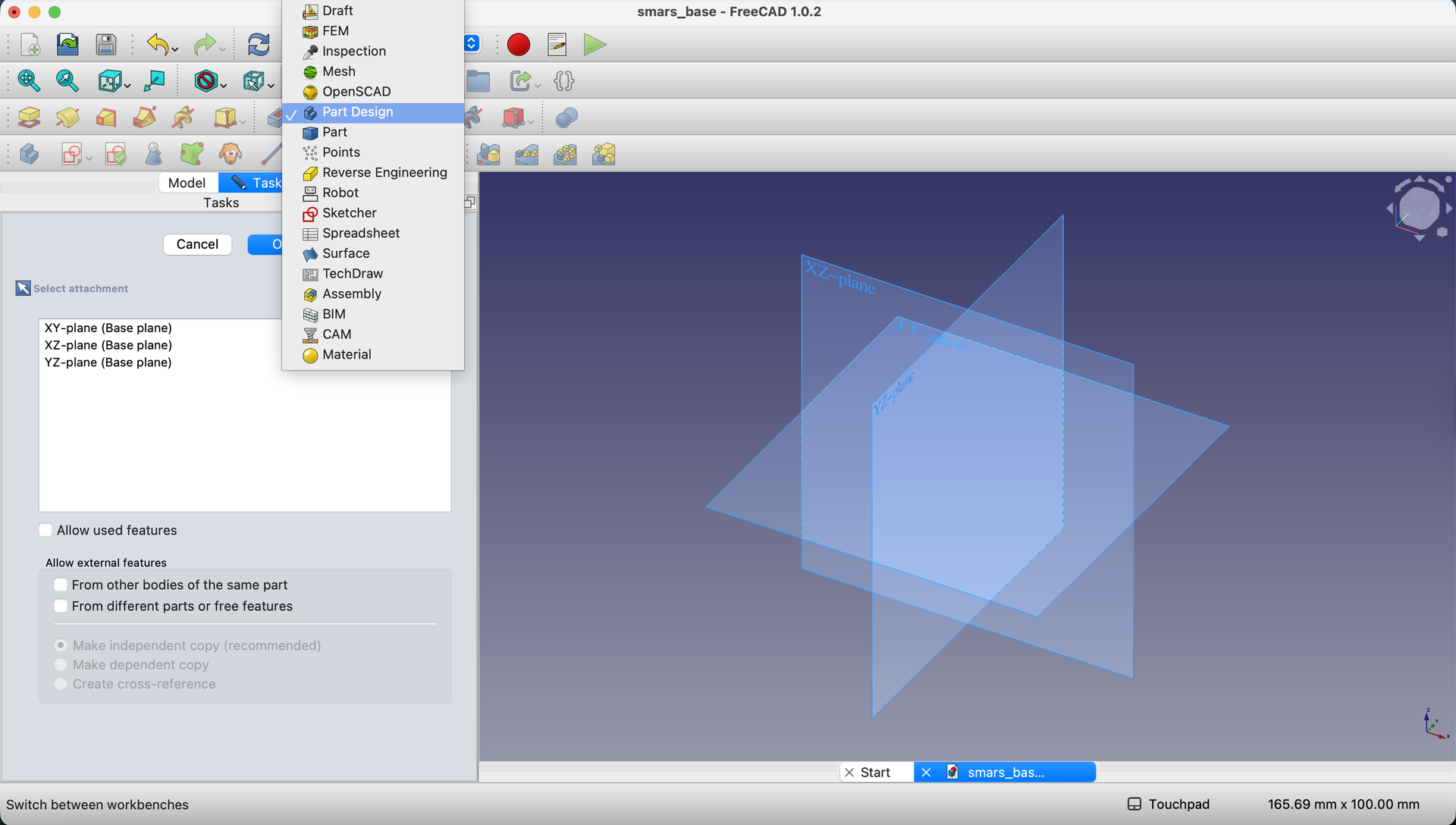
Why XY? The XY plane is like your workbench surface. Our robot sits on this plane, so it makes sense to start here.
5. Draw a Rectangle
Select the Rectangle tool from the toolbar and draw a rectangle anywhere on the sketch plane.

6. Add Dimensions
Type 70mm for length and 58mm for width. Press Tab to switch between fields.
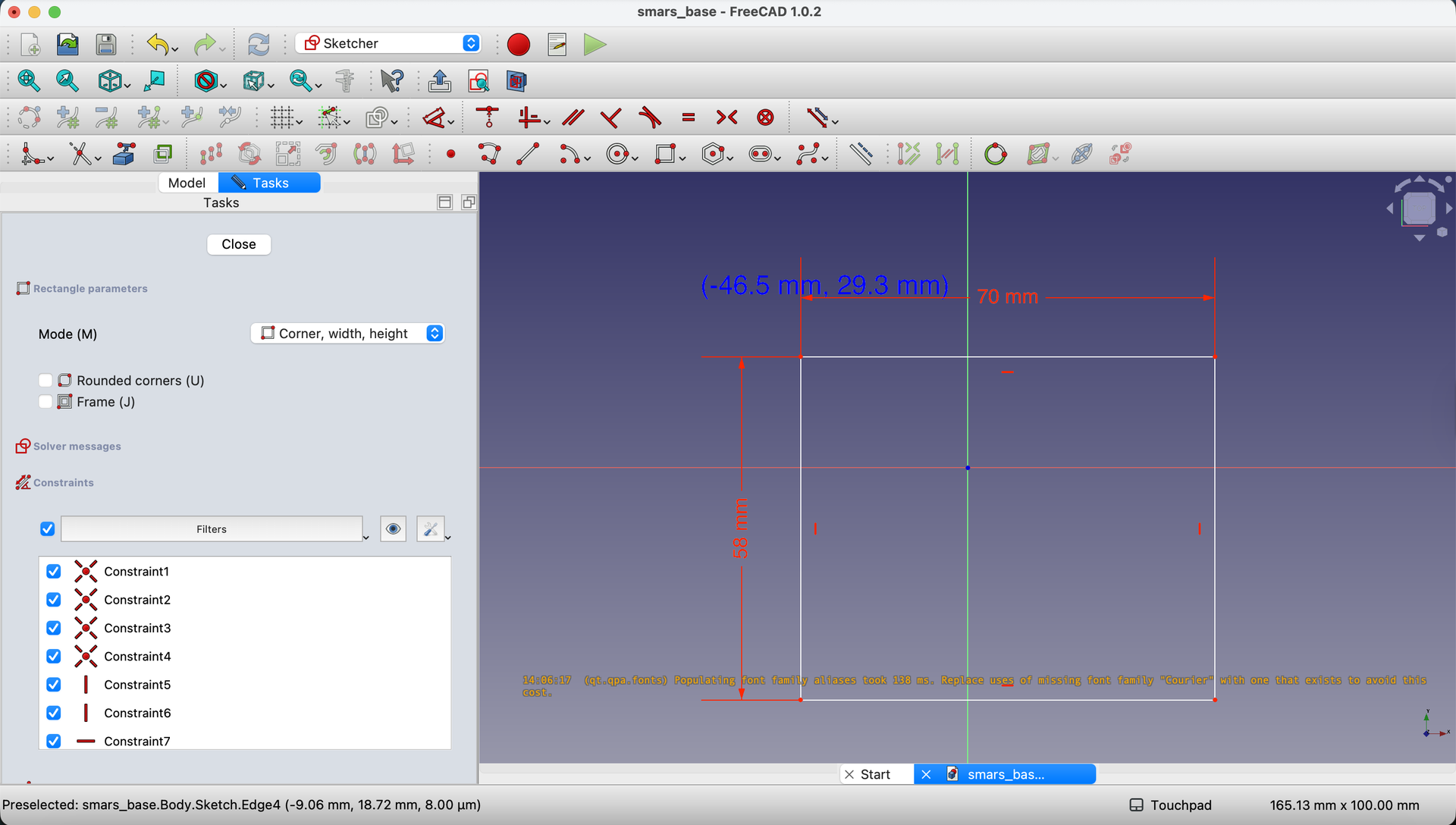
Design note: The 70mm length comes from N20 motor dimensions. Each motor is about 25mm long, and we need space between them plus wall thickness.
Centering the Rectangle (The Professional Way)
Right now our rectangle is somewhere random on the sketch. For a symmetric robot base, we want it centered on the origin (0, 0). Here’s a clever technique using construction geometry:
7. Draw Diagonal Lines
Use the Line tool to draw diagonal lines from corner to corner - both diagonals. When your mouse pointer comes close to the corners, the cursor changes to indicate you can snap to that point.
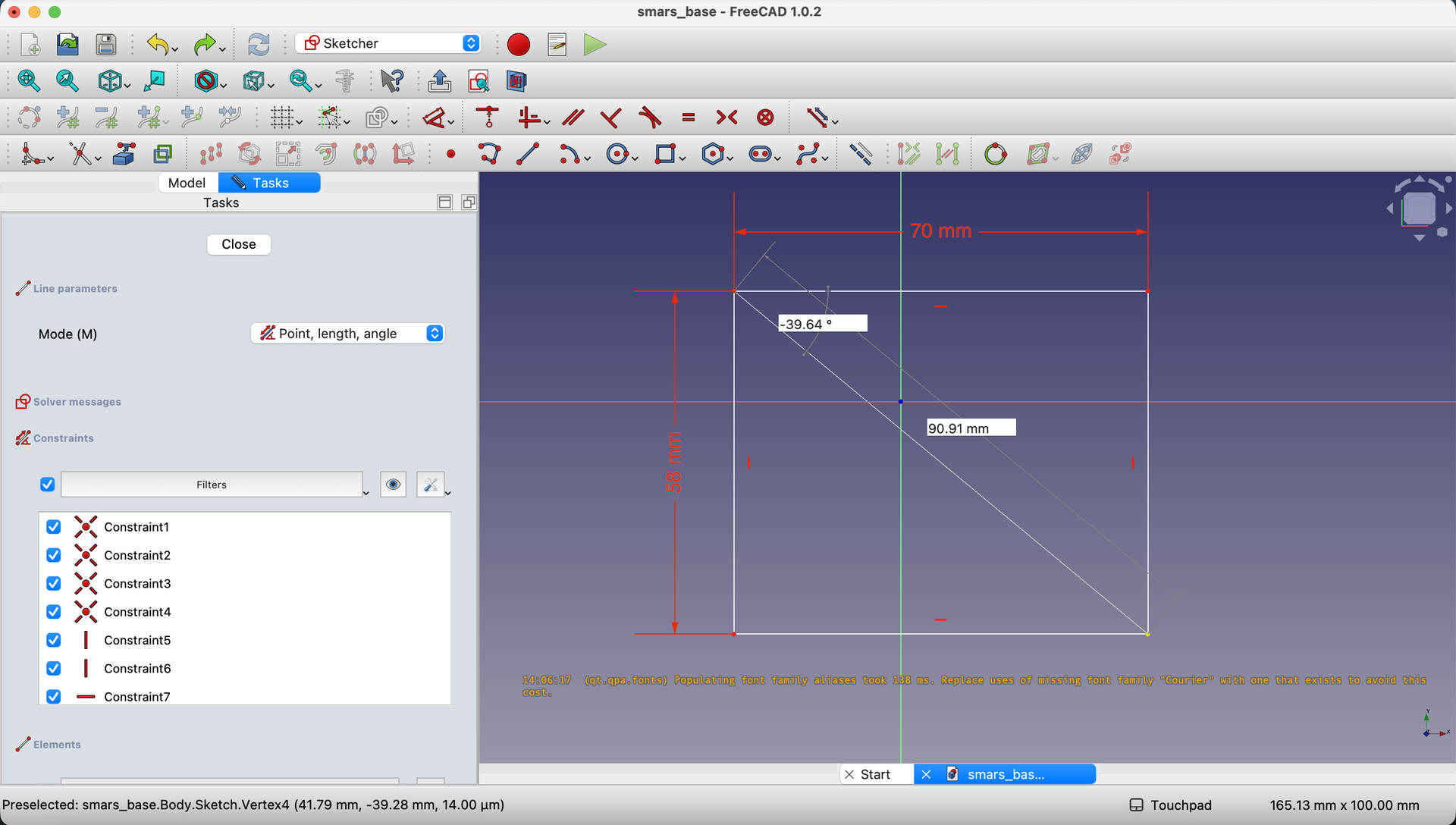

Why diagonals? The intersection of a rectangle’s diagonals is its exact center. Geometry in action!
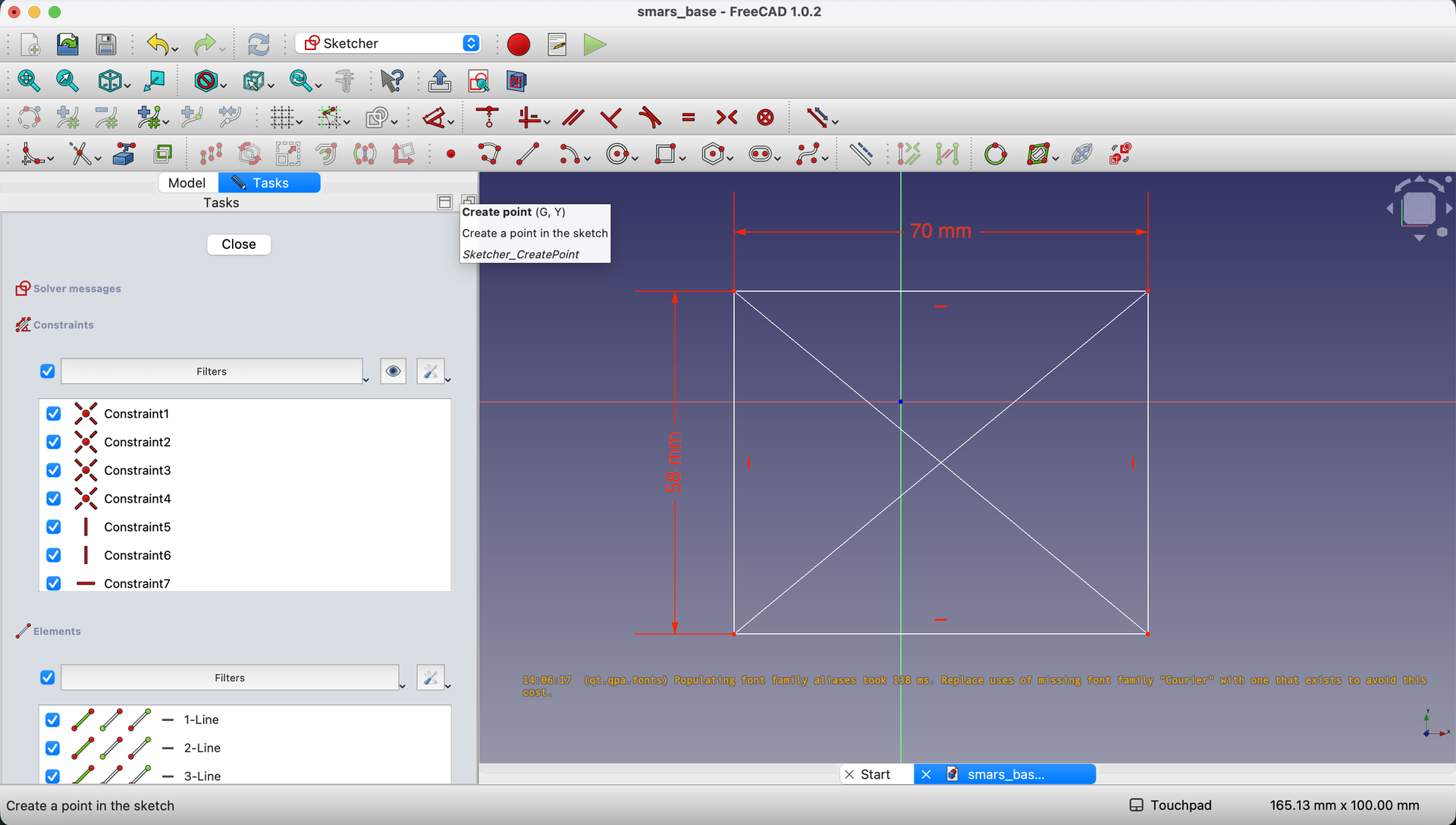
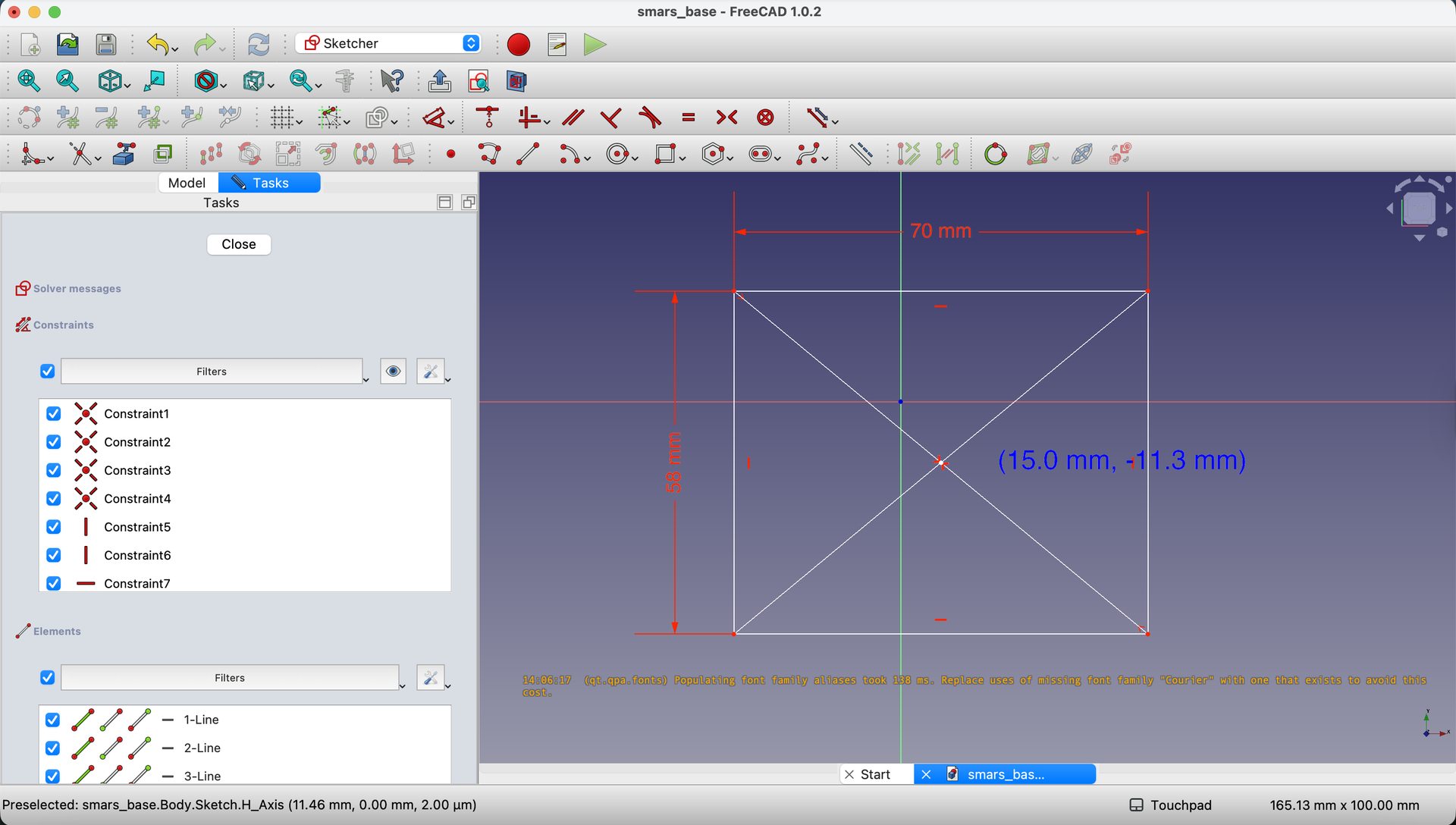
8. Mark the Center Point
Select the Point tool and click at the intersection of the two diagonals.
9. Convert to Construction Geometry
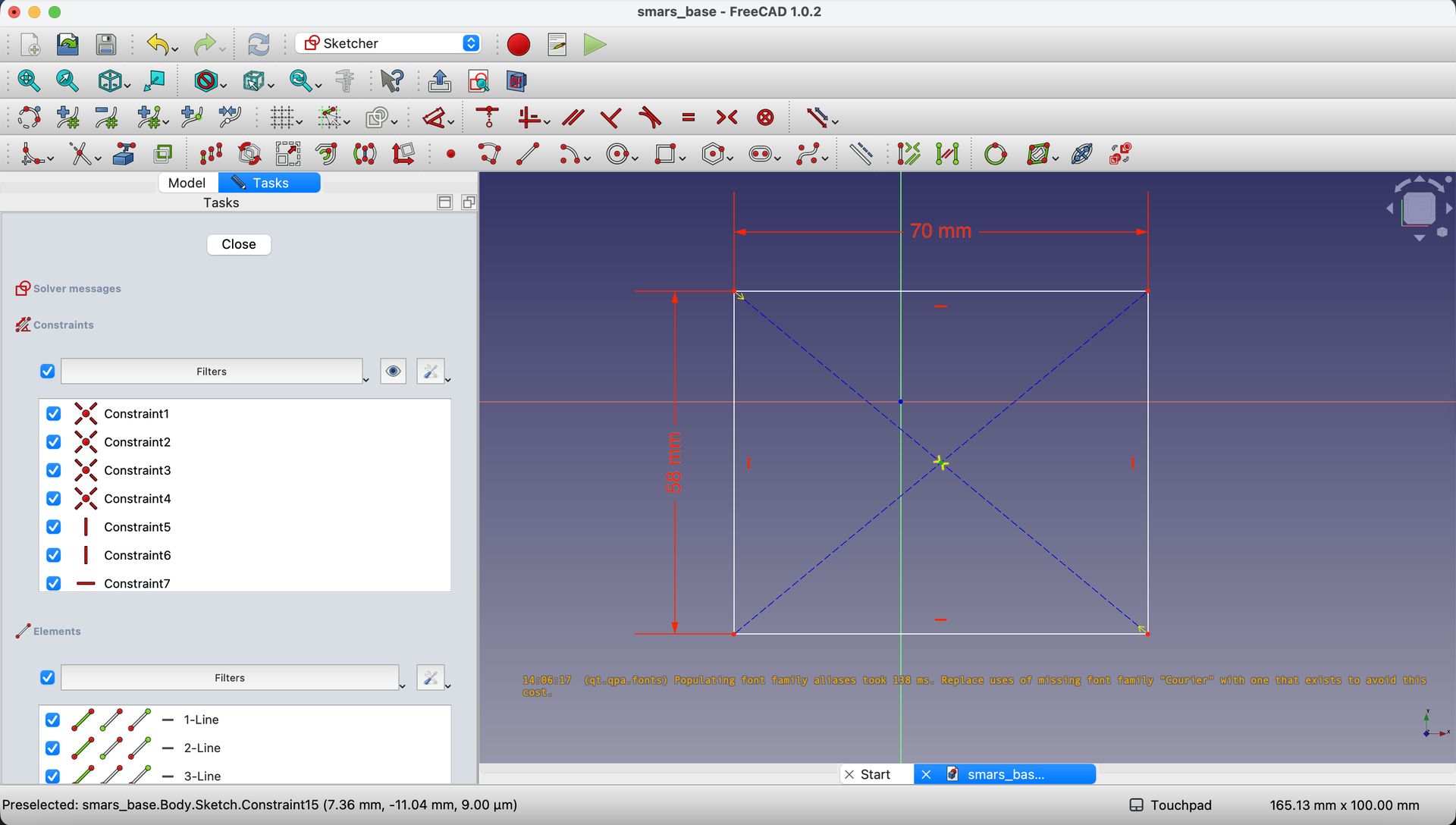
Press Escape to exit the point tool. Select both diagonal lines (hold Ctrl and click each), then click Toggle construction mode (the dashed line icon).

What’s construction geometry? Lines marked as “construction” help you position things but don’t become part of the final shape. The dashed appearance shows they’re helpers, not features.
10. Constrain Center to Origin
This is the key step:
- Click the center point we created
- Hold
Ctrland click the origin (the small red/green circle where axes meet) - Click Constrain Coincident (or press
C)
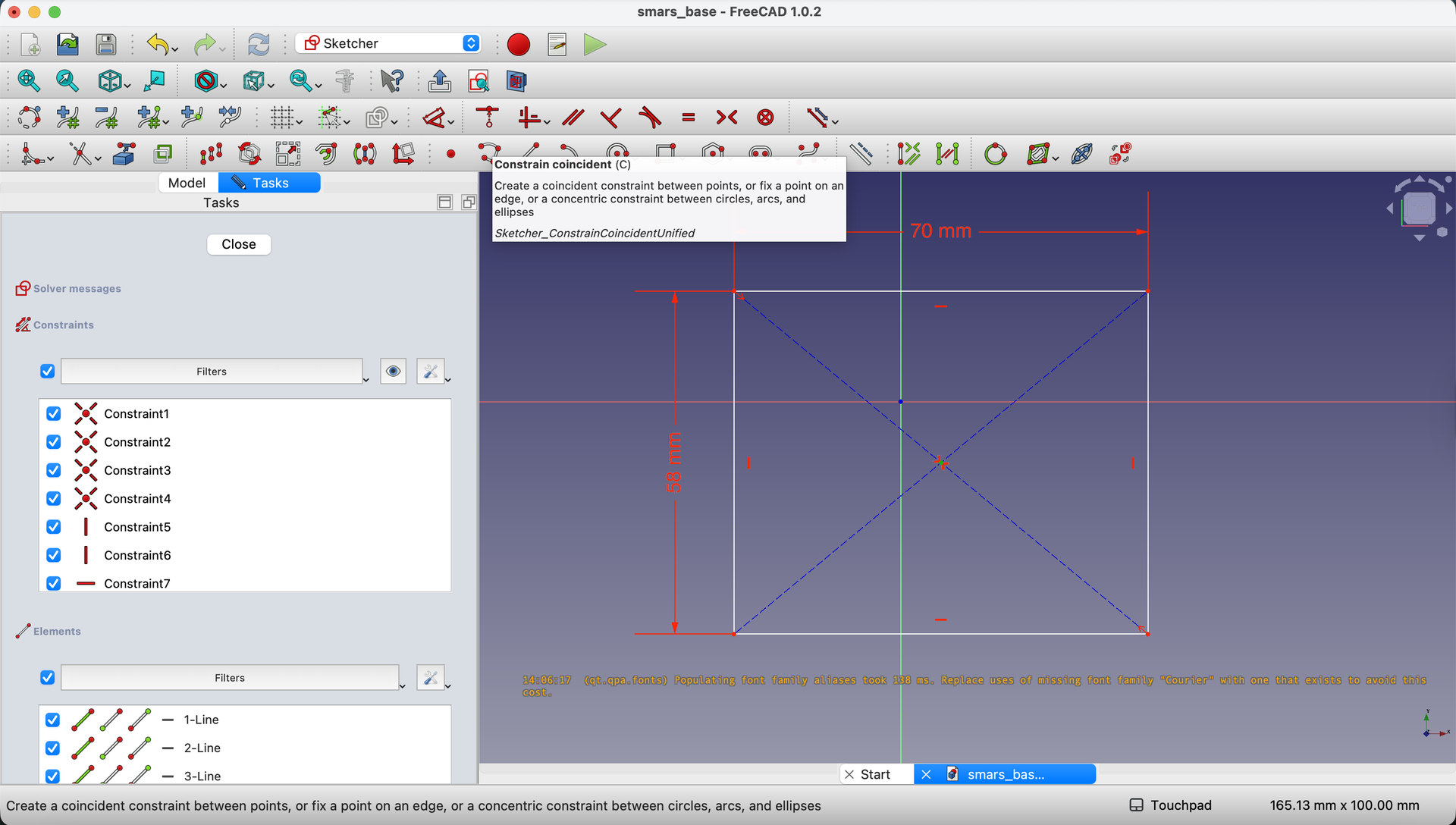

What just happened? You told FreeCAD: “These two points must always be in the same place.” Now if you change the rectangle size, it stays centered!
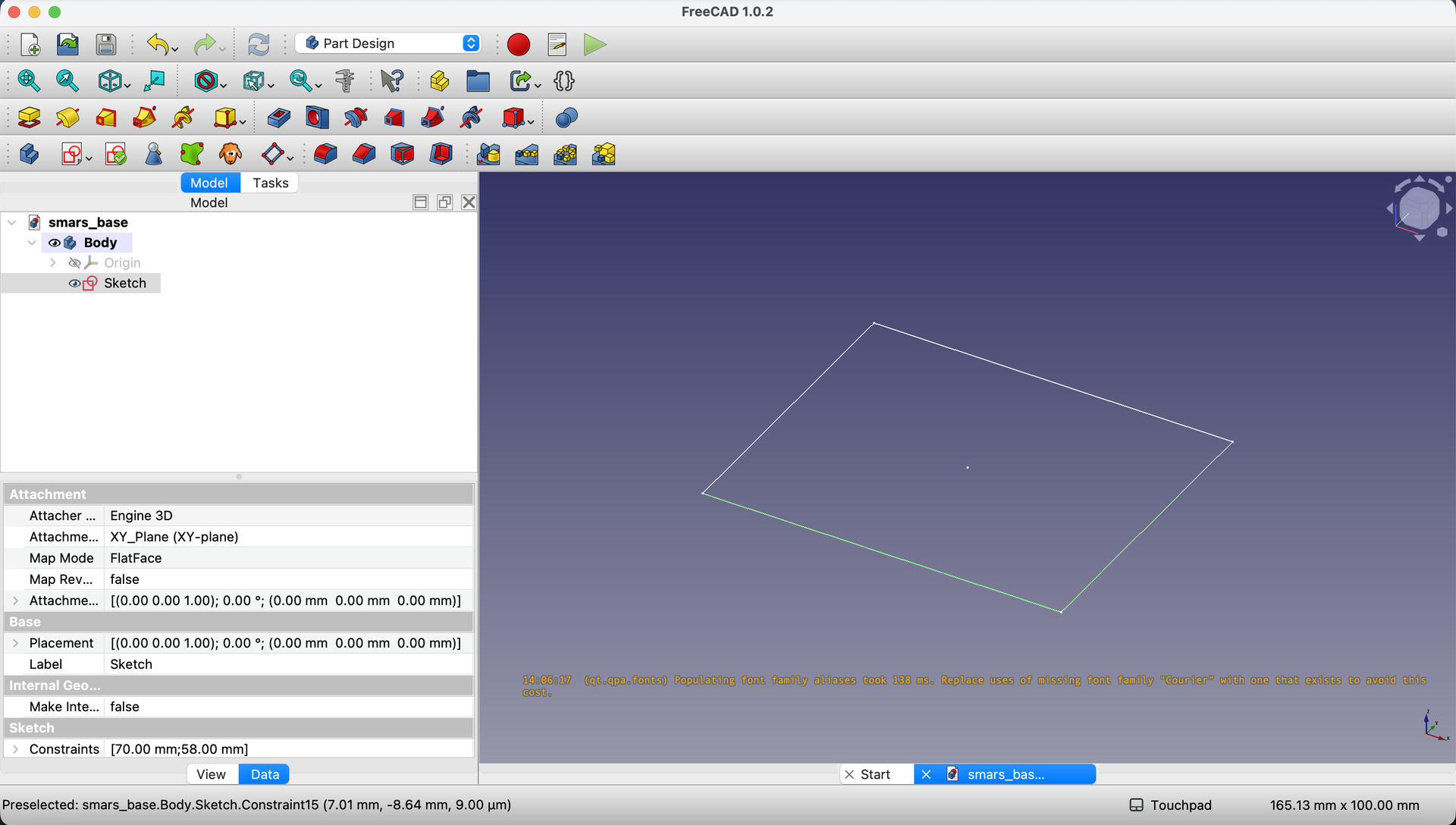
11. Close the Sketch
Click the Close button in the toolbar.
Extrude to 3D: The Pad Operation
We have a 2D sketch. Now let’s make it 3D!
12. Pad the Sketch
With the sketch selected in the Model tree, click the Pad button (looks like a yellow box above a red rectangle).

Enter 32mm for the length and click OK.
Why “Pad”? Different CAD programs call this “extrude” or “boss.” FreeCAD calls it “Pad.” It pushes your 2D sketch into 3D space.
What You Built
Congratulations! You’ve created:
- A parametric sketch with constraints
- A centered rectangle using construction geometry
- A 3D solid using the Pad operation
Your SMARS base is now a solid 70mm × 58mm × 32mm block, perfectly centered on the origin.
Try It Yourself
- Change a dimension: Double-click the sketch in the Model tree, change 70mm to 80mm. Watch everything adjust!
- Examine the constraints: In sketch edit mode, notice the green color - that means “fully constrained.” Orange or white means under-constrained.
Common Issues
“My sketch is orange/white, not green”
Problem: The sketch isn’t fully constrained. Solution: Add more constraints. Common missing ones: fixing one corner position, or constraining the center to origin.
“The Pad button is grayed out”
Problem: Nothing is selected, or you’re not in Part Design workbench. Solution: Click on your sketch in the Model tree, ensure you’re in Part Design workbench.
“My rectangle isn’t the size I specified”
Problem: Dimensions didn’t apply correctly. Solution: Double-click the sketch to edit it, use the Dimension tool to set/verify each dimension.
“I can’t select the origin point”
Problem: The origin is hard to see or click. Solution: Zoom in on where the axes cross. The origin appears as a small point where the green and red lines meet.
What You Learned
In this lesson, you mastered:
- Parametric sketching - Drawing with constraints for flexible designs
- Construction geometry - Helper lines that guide but don’t build
- Coincident constraints - Locking points together
- The Pad operation - Extruding 2D sketches into 3D solids
Next Up
Our solid block needs to become hollow - after all, we need to fit motors, electronics, and batteries inside! In the next lesson, we’ll use the Shell and Fillet tools to create that interior space.
You can use the arrows ← → on your keyboard to navigate between lessons.
Comments