KevsRobots Learning Platform
Getting Started
Designing the SMARS Base
Exporting for 3D Printing
Summary
Arduino Slots
Create mounting slots with the Mirror tool for perfect symmetry
By Kevin McAleer, 7 Minutes
What We’re Building
The Arduino Nano sits inside the SMARS base on two slots - one on each side wall. These slots:
- Hold the Arduino securely without screws
- Allow easy removal for programming
- Work with the “screwless” SMARS philosophy
| Feature | Dimension | Purpose |
|---|---|---|
| Slot width | 2mm | Matches Arduino PCB thickness (1.6mm) + clearance |
| Slot depth | 0.5mm | Shallow grip - won’t weaken the wall |
| Position | 5.5mm from top | Centers Arduino at ideal viewing height |
Understanding the Mirror Tool
We need identical slots on both side walls. We could create two separate sketches… but there’s a better way!
The Mirror tool duplicates a feature across a plane. Benefits:
- Perfect symmetry - Both sides are guaranteed identical
- Single edit - Change one side, both update
- Less work - Create once, mirror once
This is how professionals handle symmetric parts!
Step-by-Step: Create the First Slot
1. Start a Sketch on the Inside Right Face
Click on the inside face of the right side wall, then click Create Sketch.

2. Enable Clipping View
When the sketch opens, you can’t see the surface because the model is in the way. Let’s fix that with a clipping plane.
Go to View menu → Clipping plane.

Click the appropriate clipping option to slice the view so you can see inside.
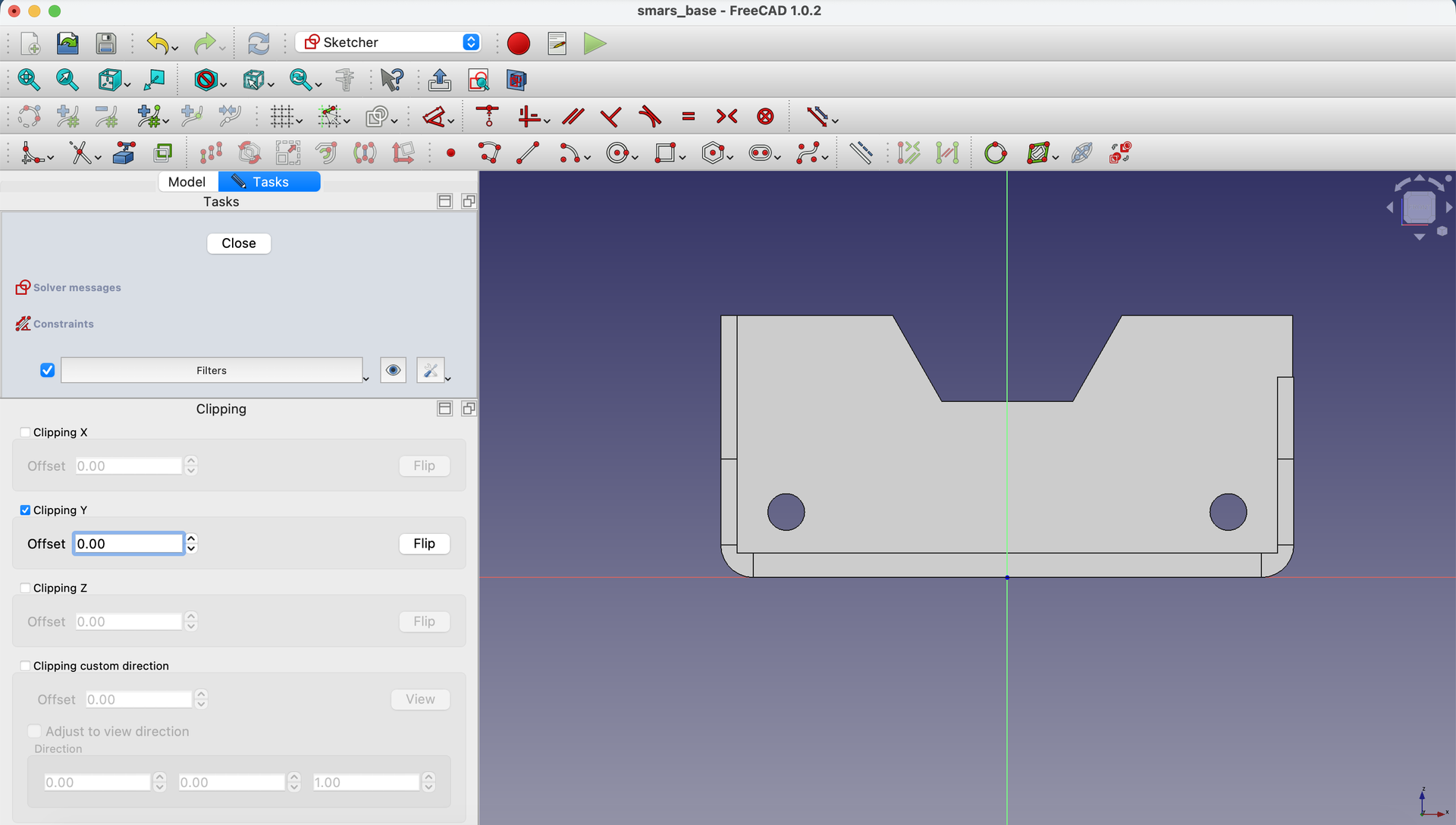
What’s clipping? It temporarily hides part of the model so you can see and work on interior surfaces. The model isn’t changed - it’s just a view setting.
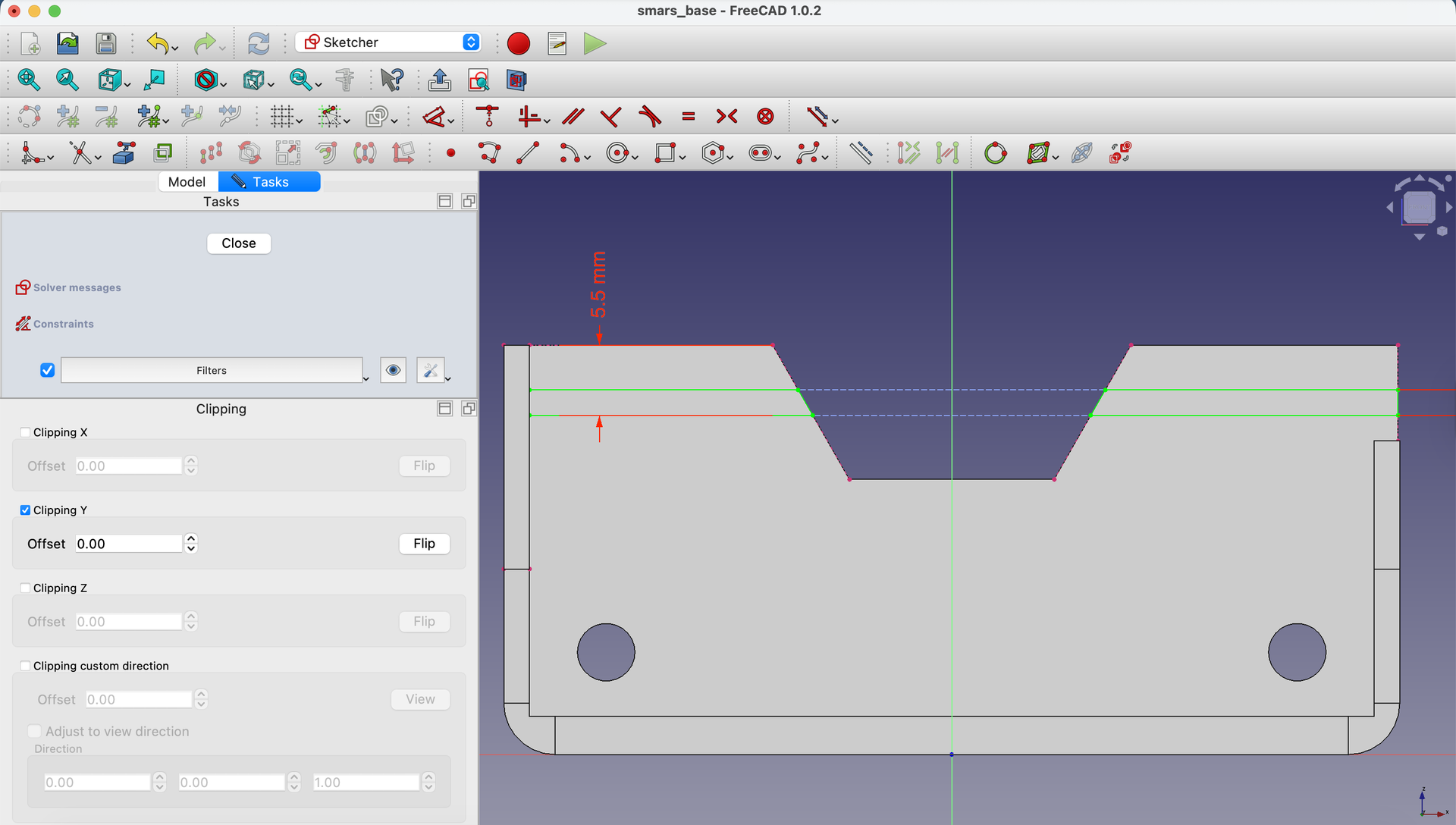
3. Draw the Slot Rectangle
Using the Rectangle tool, draw a rectangle for the slot.
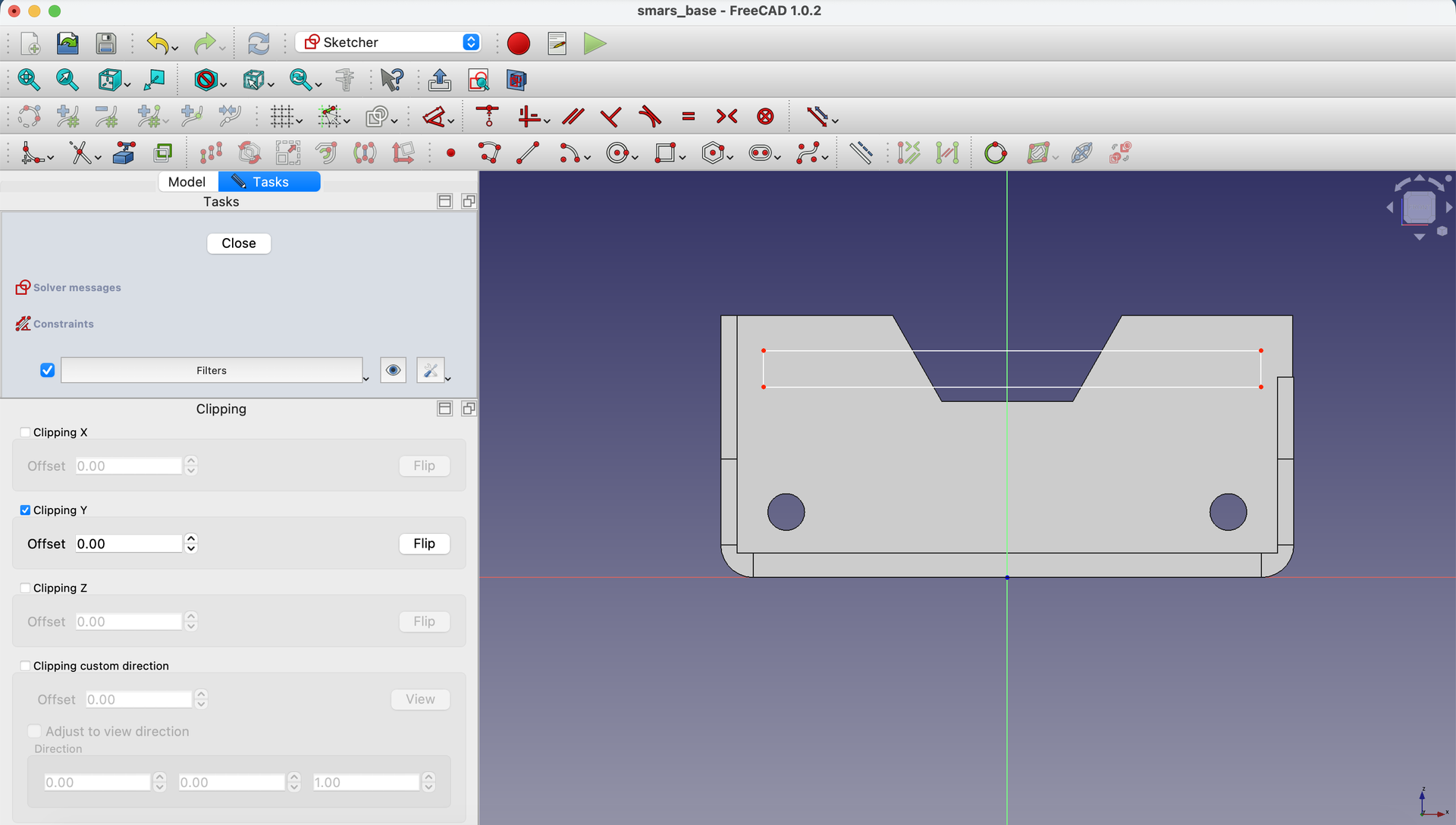
4. Add Dimensions
Set the rectangle height to 2mm using the Dimensions tool.

5. Position from Top Edge
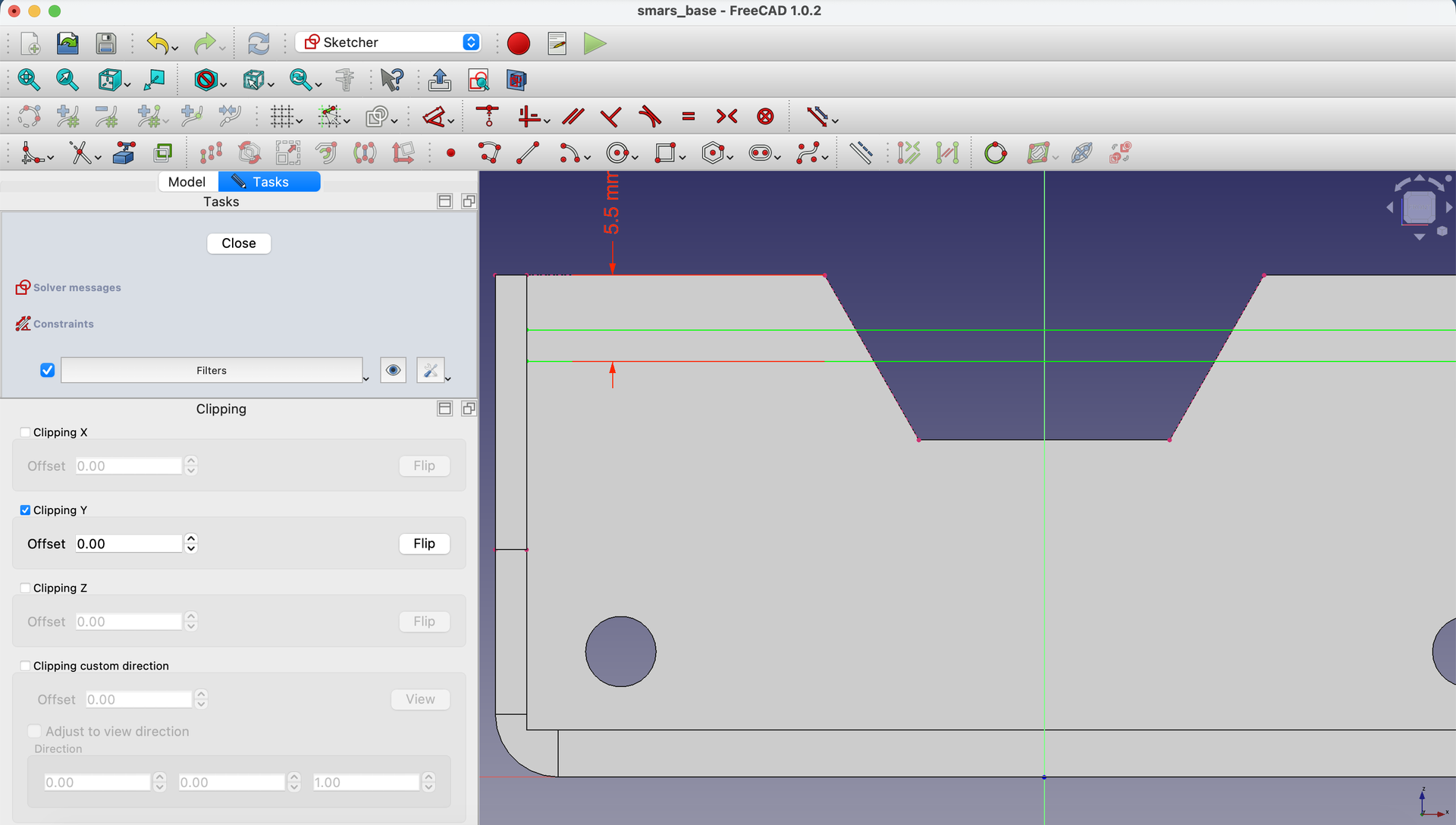
Use Create external geometry to project the top edge of the base.
Constrain the bottom of the rectangle to be 5.5mm from this top edge.

6. Extend to the Inner Edge
Project both the inner edge (where the slot starts) and the side edges as external geometry.
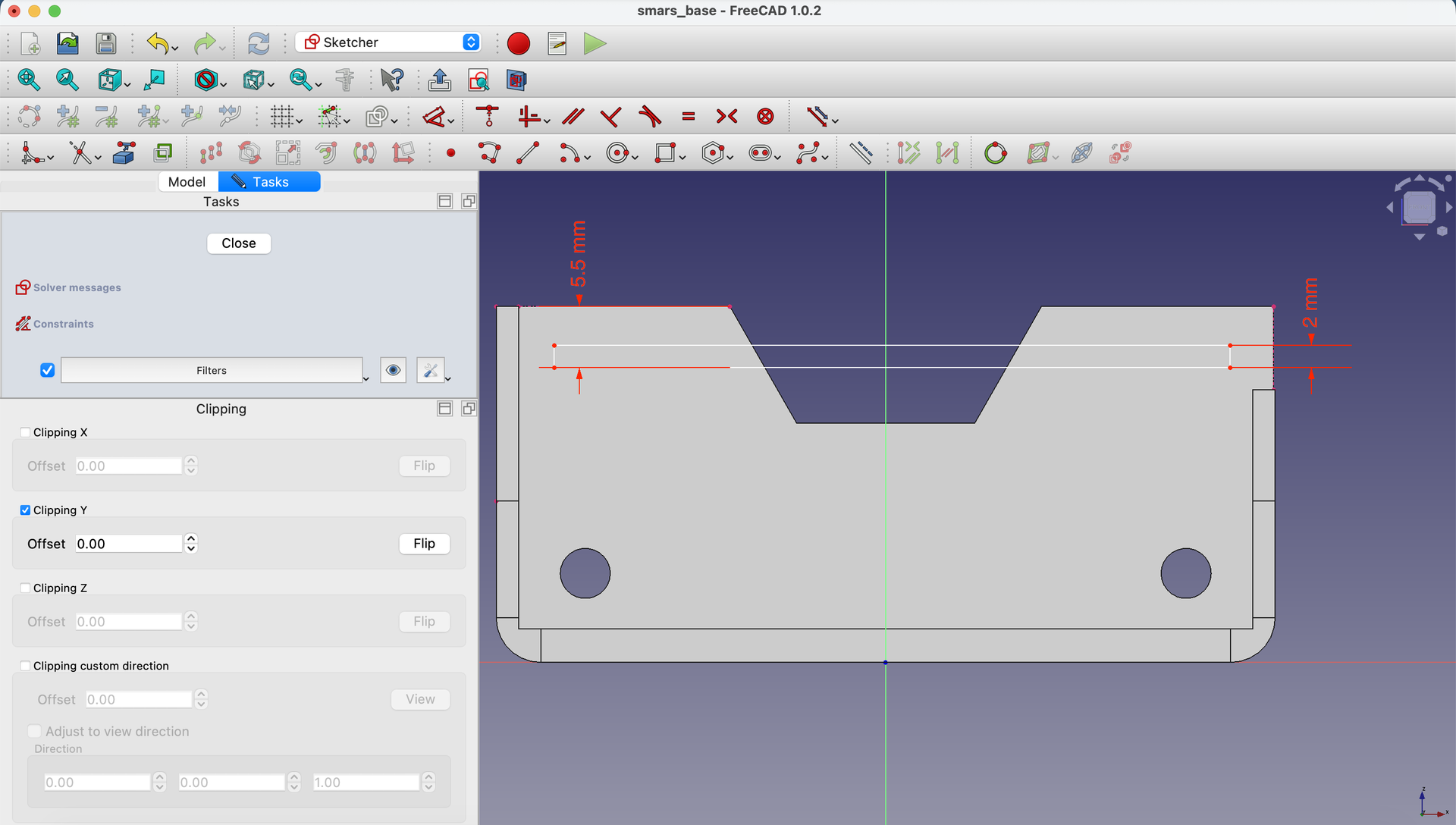
Constrain the left edge of the rectangle to the inner wall edge using Constrain Coincident.
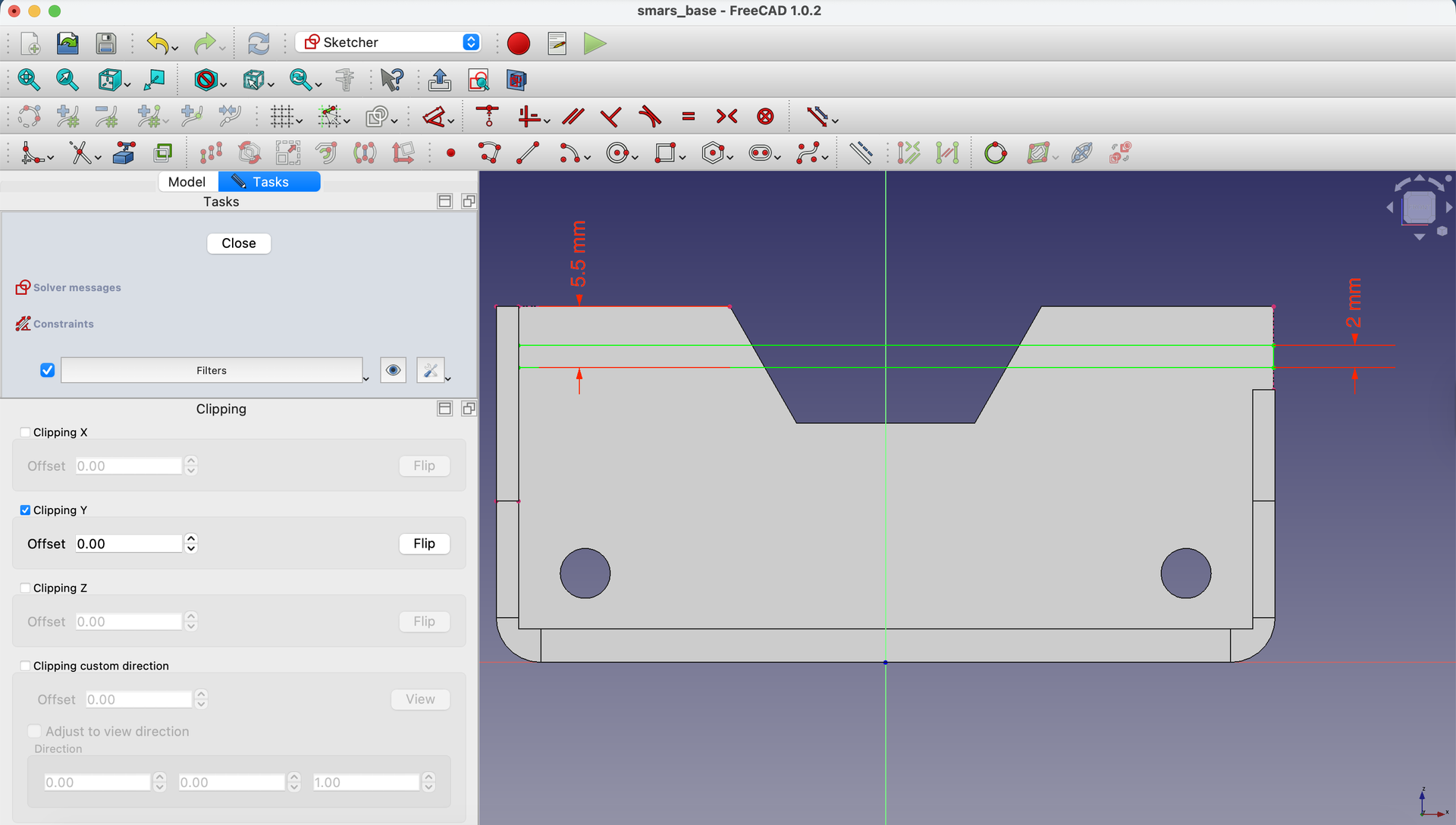
Handling FreeCAD’s Closed Sketch Requirement
Unlike some CAD tools (like Fusion 360), FreeCAD requires sketch shapes to be fully enclosed. Our slot runs into the rhombus cutout, so we need to handle this carefully.
7. Project the Rhombus Diagonal Edges
Use Create external geometry to project the diagonal edges of the rhombus cutout.
8. Convert Horizontal Lines to Construction
Select the two horizontal lines of the rectangle and click Toggle construction mode to make them construction lines.

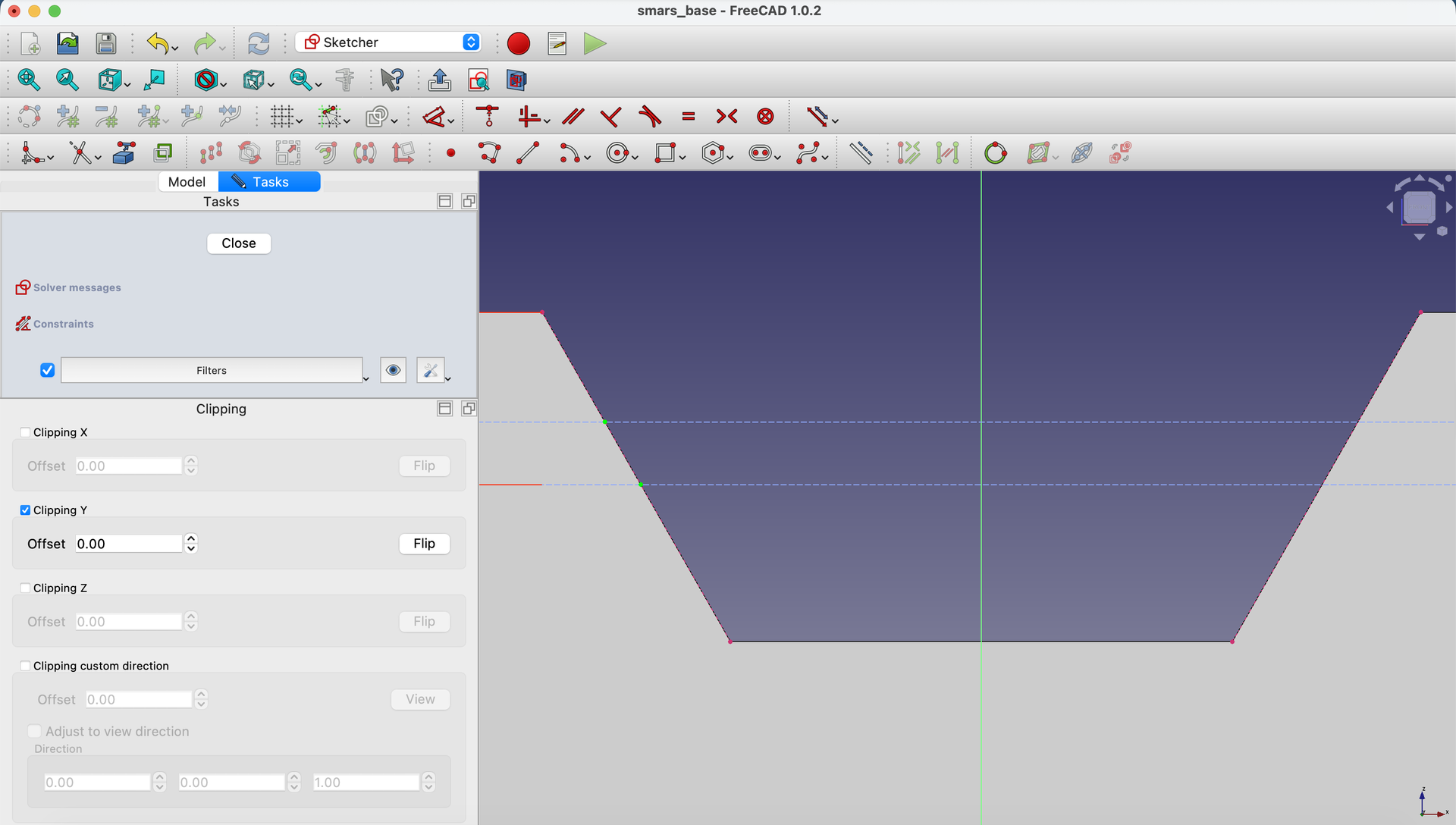
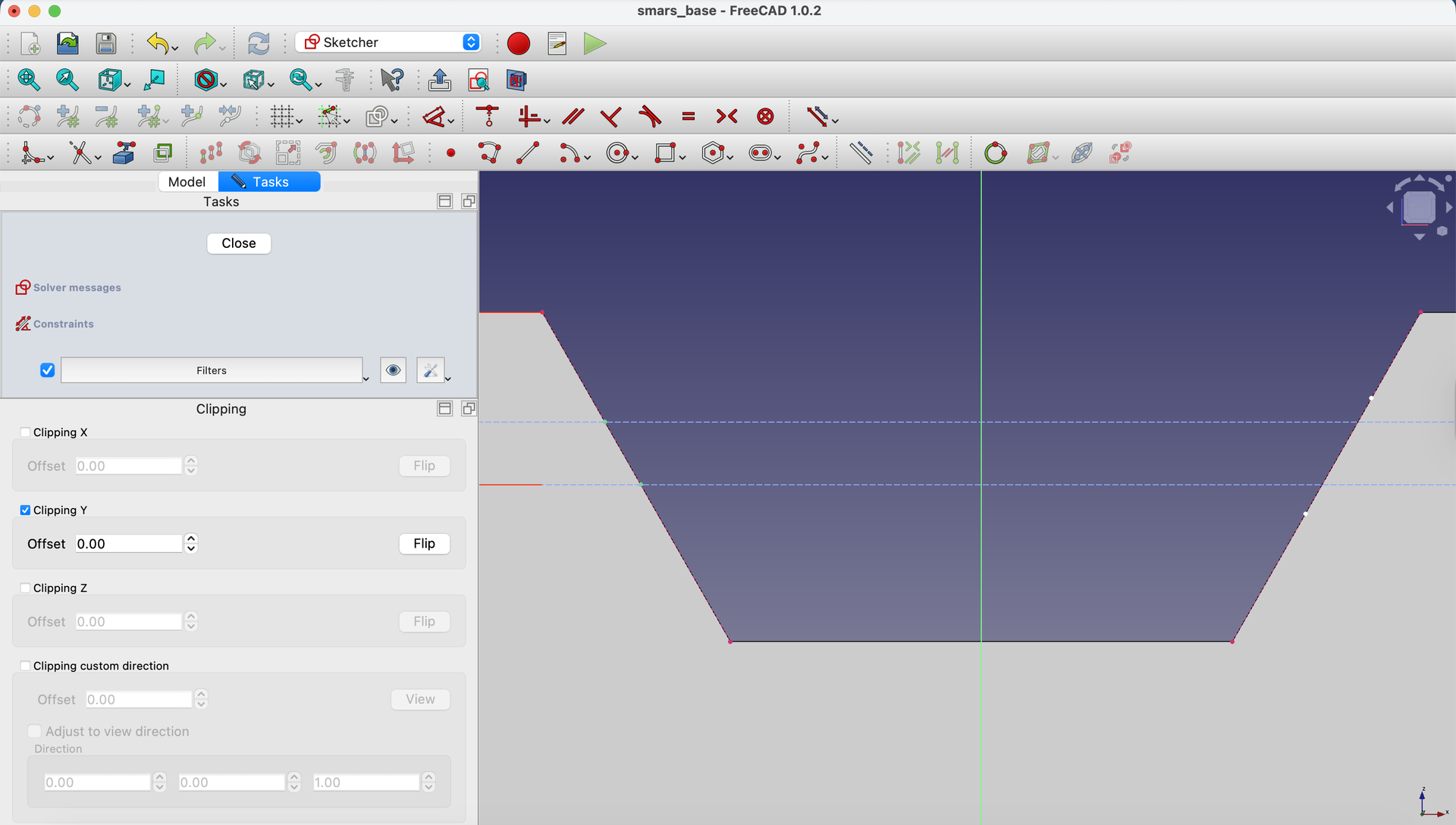
9. Create Intersection Points
Use the Point tool to create points along the projected diagonal lines - where the slot edges would intersect them.

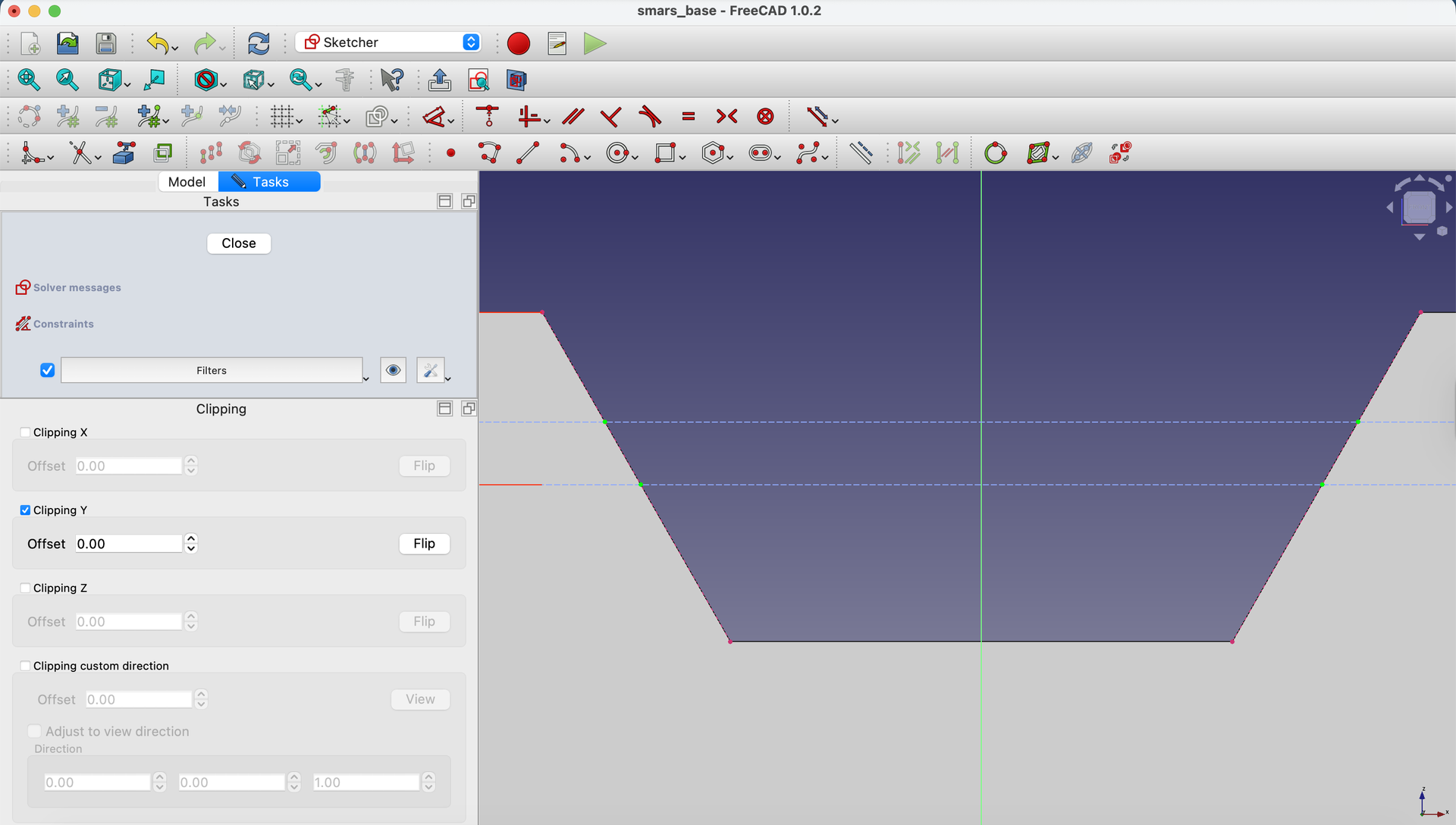
10. Constrain the Intersection Points
Use Constrain Coincident to attach these points to both the diagonal edges AND the horizontal construction lines.
Repeat for the right side of the cutout profile.
11. Close the Shape with Solid Lines
Use the Line tool to connect the points, creating a closed shape that follows the diagonal edges.
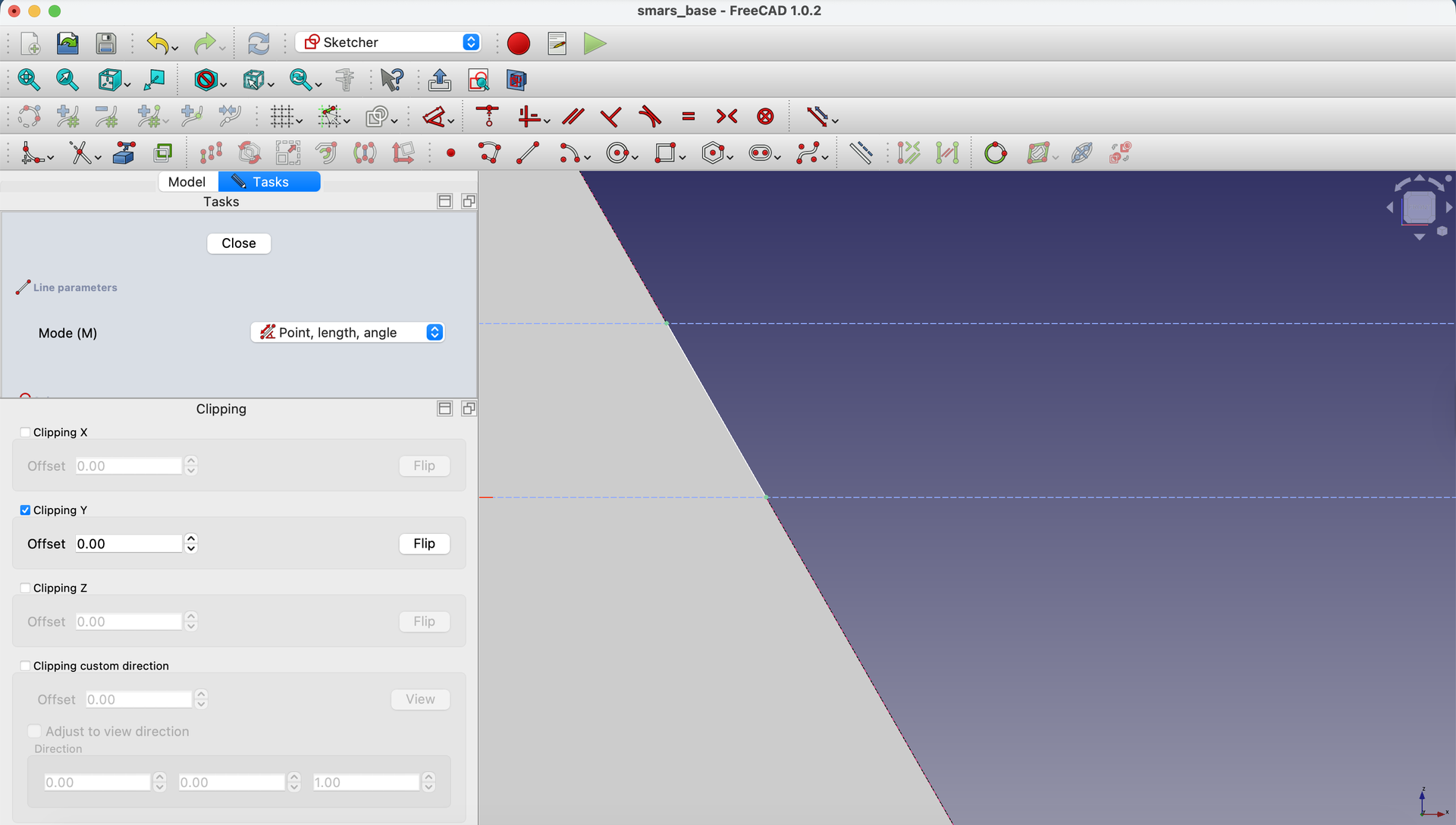
Connect the top and bottom construction lines to these new diagonal lines to create enclosed areas.
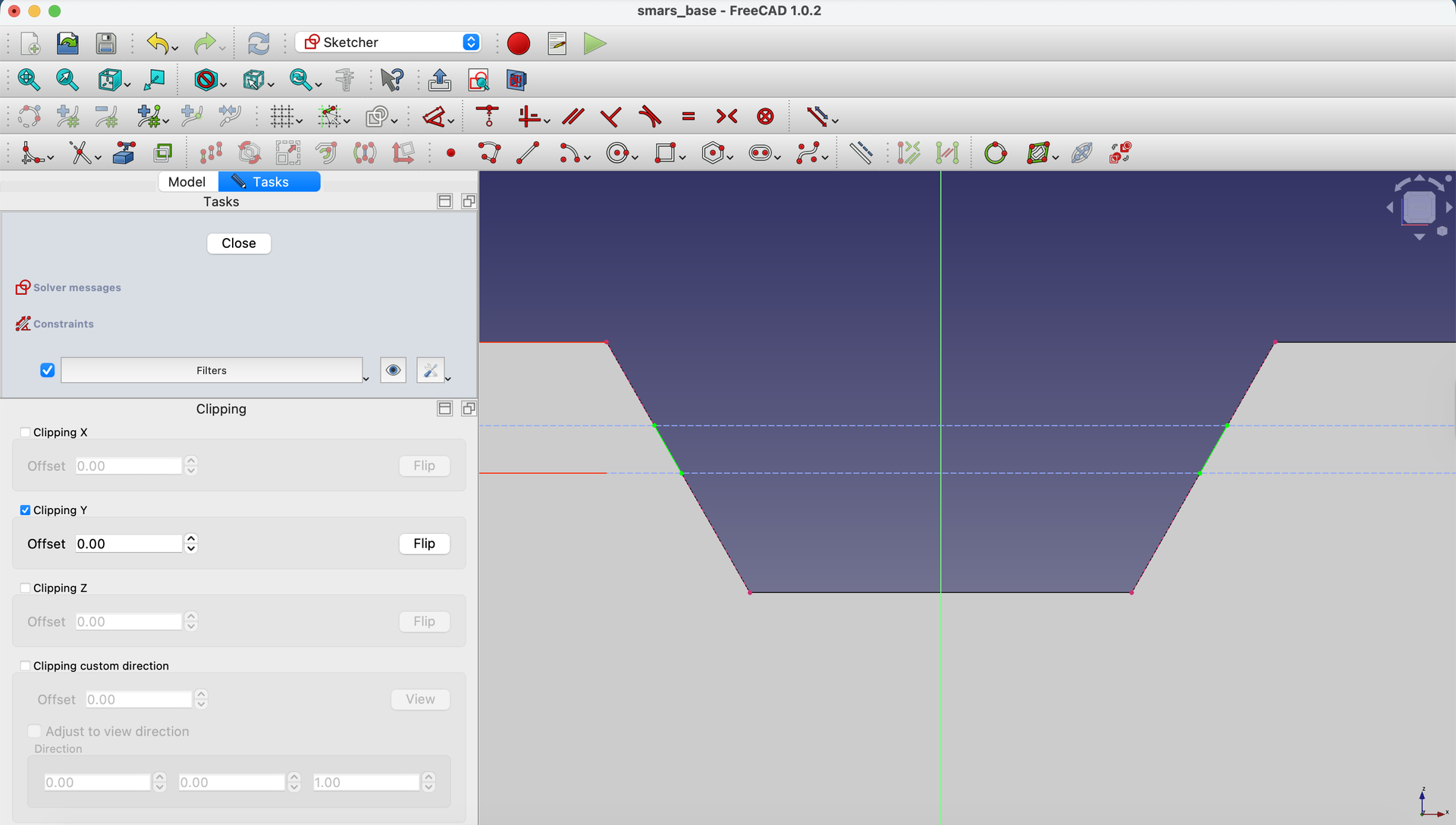
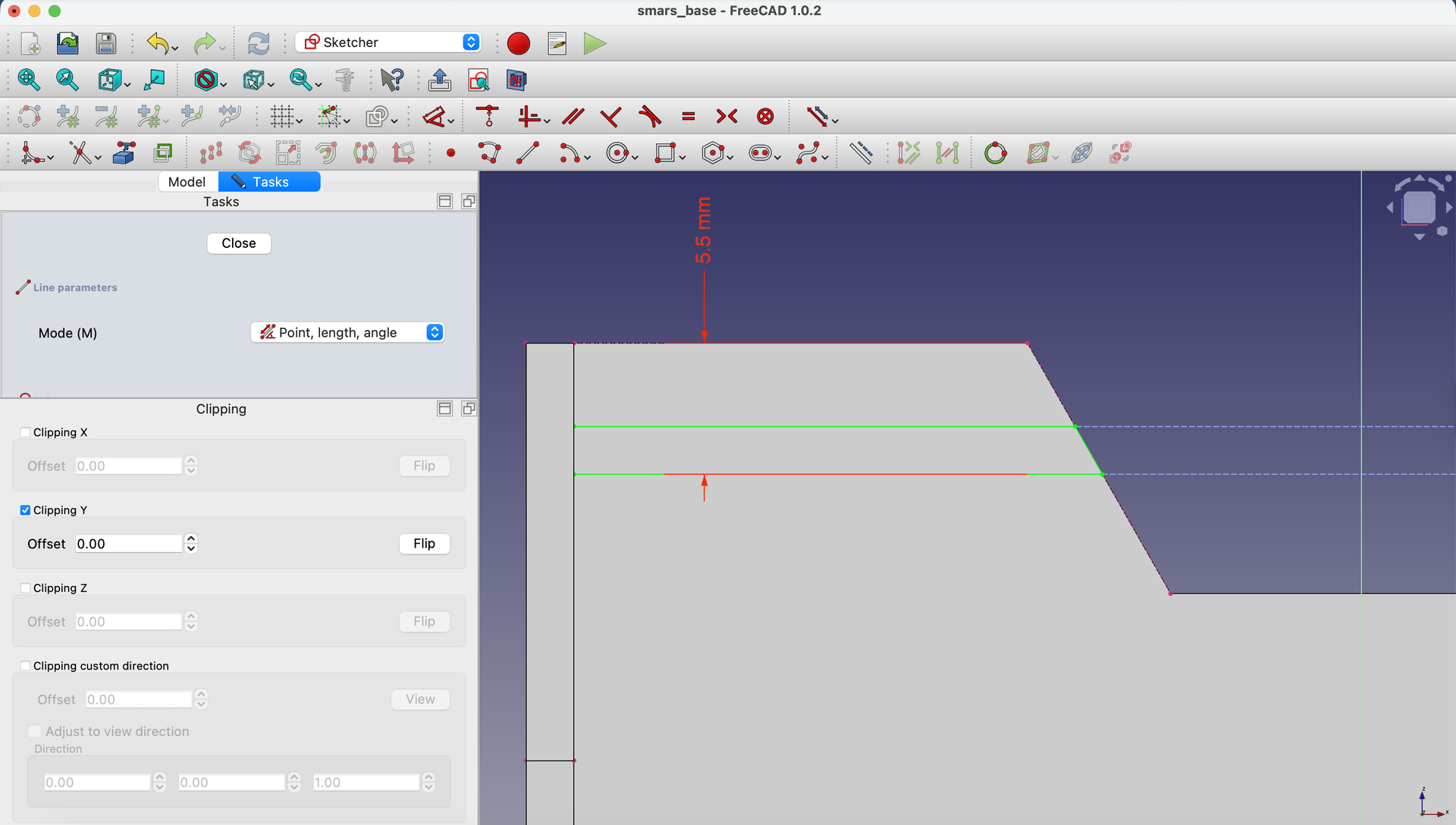
12. Close the Sketch
Click the Close button.
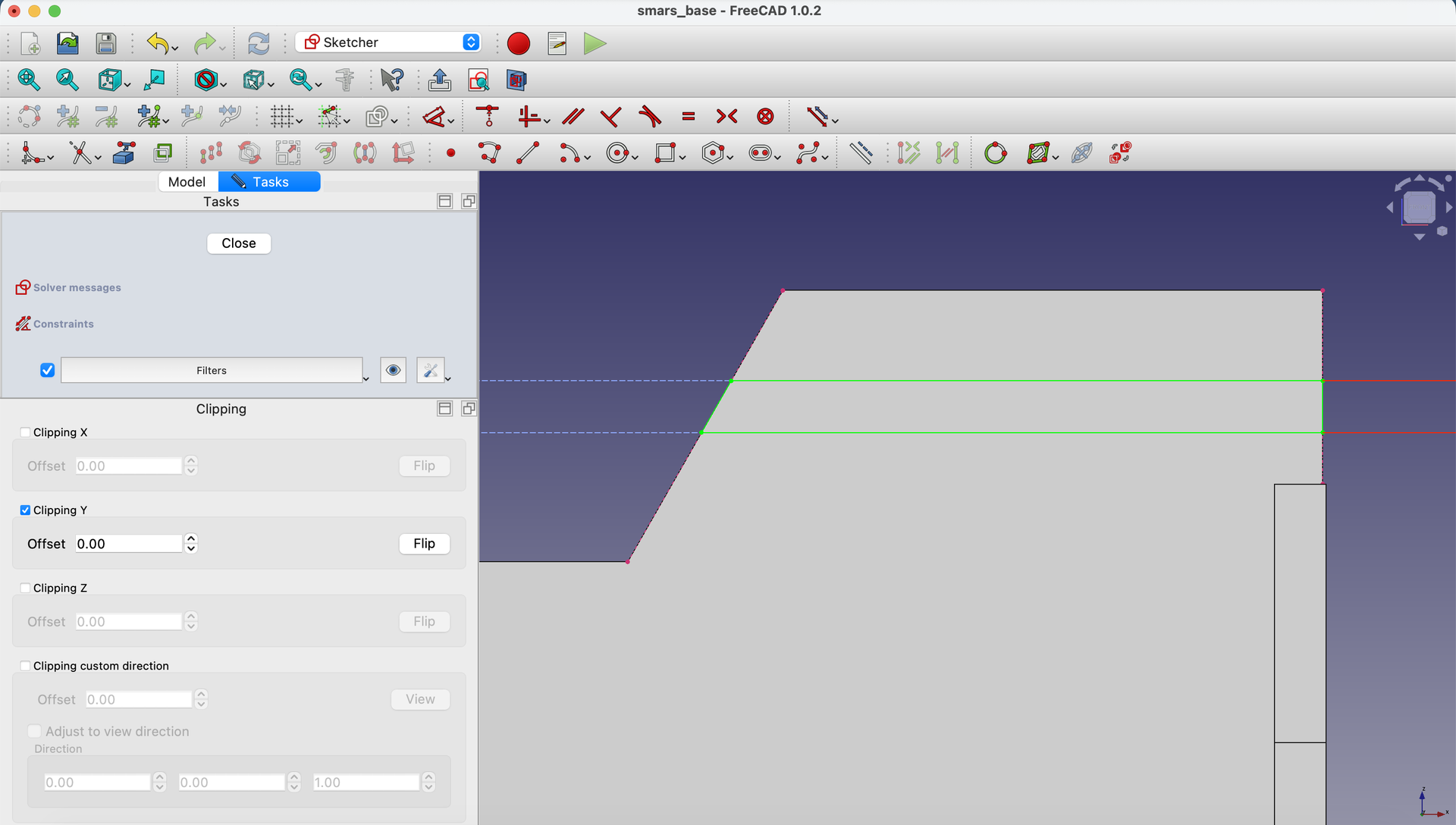

Create the Slot Pocket
13. Pocket the Slot
With the sketch selected, click Pocket.
Set the depth to 0.5mm - just a shallow cut into the wall.
Click OK.
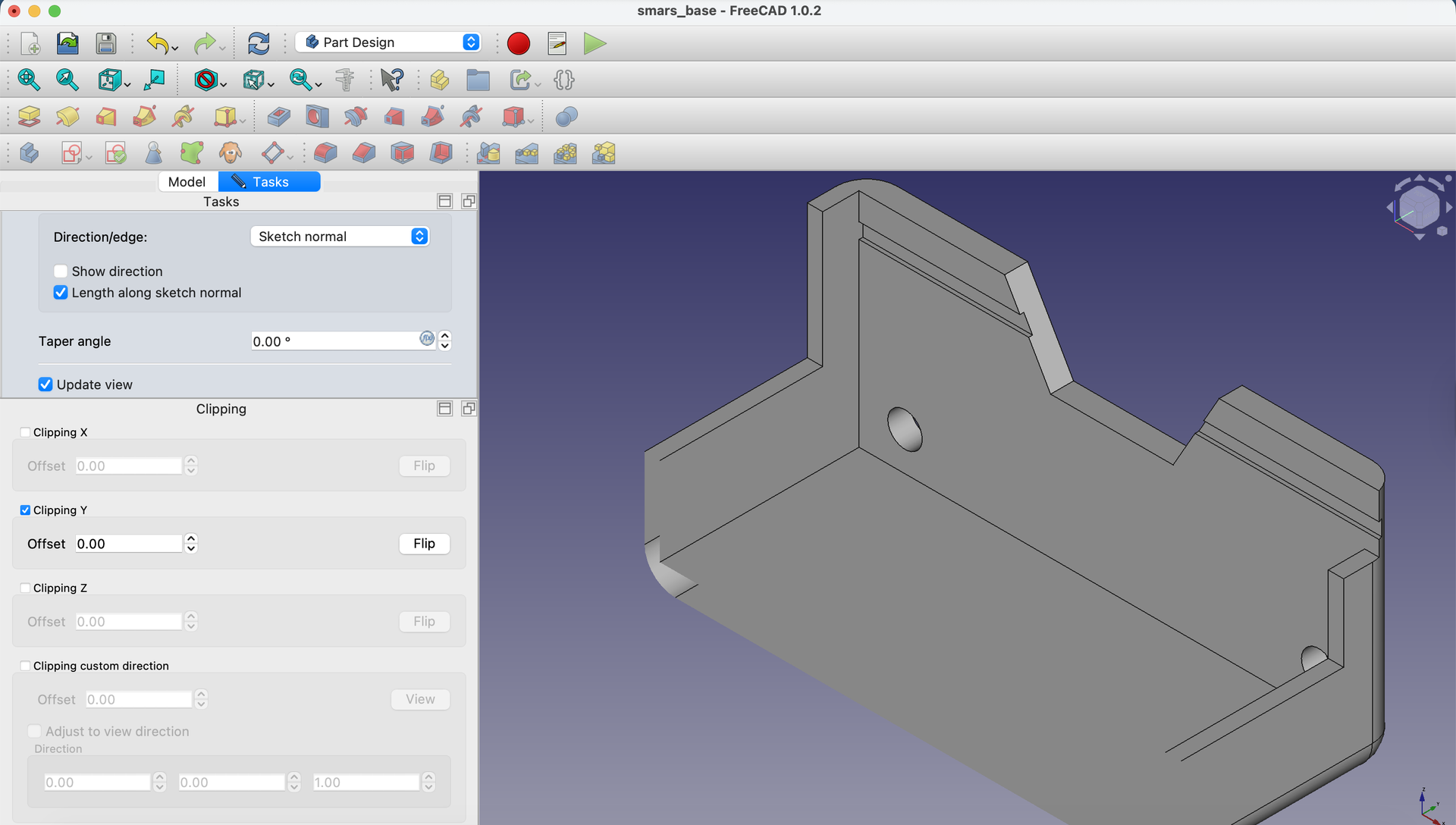
14. Close Clipping View
Close the clipping plane by clicking Clipping Y again in the Clipping View pane.

Mac tip: If the close button is off-screen, double-click the pane’s title bar to bring it into view.
Create a Datum Plane for Mirroring
To mirror the slot, we need a plane exactly in the center of the base.
15. Create Reference Sketch
Create a new sketch on the back face of the base.
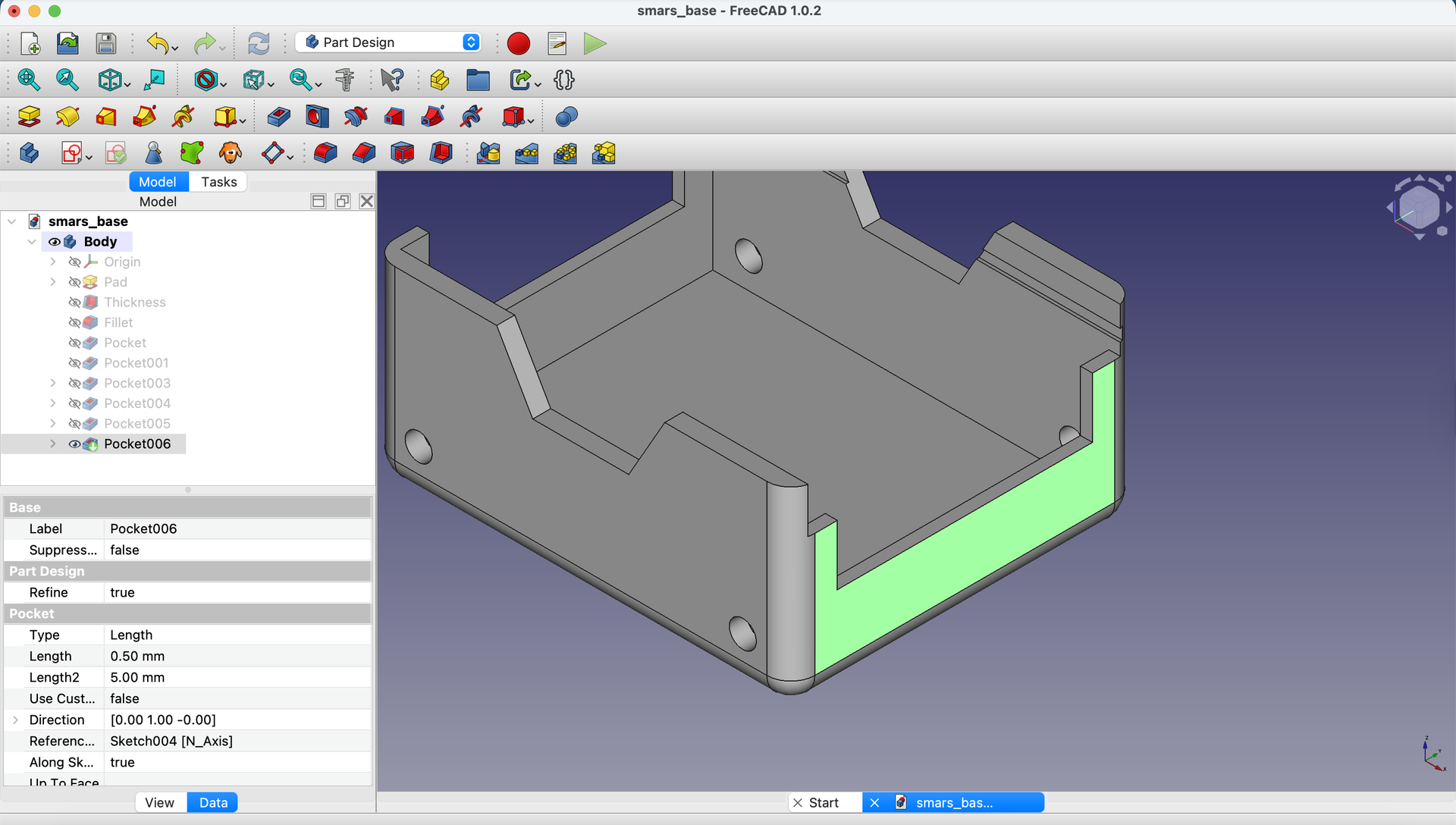
16. Project and Mark Center
Use Create external geometry to project the top edge.

Use the Point tool to create a point at the midpoint of this edge.

Close the sketch.

17. Create the Datum Plane
With the sketch selected, click Datum Plane in the toolbar.
In the dialog, set the attachment to Object's YZ.
Click OK.

What’s a datum plane? It’s a reference surface that doesn’t show in the final part but helps with operations like mirroring, measuring, or aligning.
Mirror the Slot
18. Apply Mirror
Select the Pocket feature (the slot) in the Model tree.
Click the Mirror button in the toolbar.
Set the mirror plane to the datum plane you just created.
Click OK.

19. Verify Both Slots
You should now see Arduino slots on both sides of the base!

20. Hide the Datum Plane
Click the eye icon next to the datum plane in the Model tree to hide it.

Why This Technique Matters
The Mirror workflow is essential for professional CAD:
| Technique | Use Case |
|---|---|
| Single feature + Mirror | Symmetric parts (like SMARS) |
| Datum planes | Reference surfaces for operations |
| Construction geometry | Guides that don’t become features |
These skills transfer to any parametric CAD software!
Try It Yourself
- Test the slot: Would an Arduino PCB (1.6mm thick) fit in the 2mm slot? (Yes, with clearance)
- Edit and observe: Change the slot depth in one pocket - does the mirror update?
- Visibility practice: Hide/show the datum plane to understand what’s construction vs. final geometry
Common Issues
“The mirror creates the slot in the wrong location”
Problem: The mirrored feature isn’t on the opposite wall. Solution: Check that your datum plane is truly centered. Edit the reference sketch and verify the midpoint is constrained to the center.
“Clipping view won’t close”
Problem: The clipping plane dialog is off-screen. Solution: On Mac, double-click the title bar. On Windows/Linux, drag the dialog or restart FreeCAD.
“The slot sketch won’t close properly”
Problem: FreeCAD says the sketch isn’t valid for pocket. Solution: Check that all regions are fully enclosed. Use construction lines for reference but solid lines for the actual cut area.
“Datum plane won’t create”
Problem: The Datum Plane button is grayed out. Solution: Make sure you have a sketch or point selected that can serve as a reference.
What You Learned
In this lesson, you mastered:
- Clipping views - Seeing inside your model for interior work
- Datum planes - Creating reference surfaces for operations
- Mirror tool - Duplicating features with perfect symmetry
- Closed sketch requirement - Working with FreeCAD’s geometry rules
Next Up
Time to create the wheel stubs - the connection points for SMARS wheels. We’ll use the Revolve tool and Polar Pattern for rotational features!
You can use the arrows ← → on your keyboard to navigate between lessons.
Comments