KevsRobots Learning Platform
Getting Started
Designing the SMARS Base
Exporting for 3D Printing
Summary
Side Holes
Create the iconic SMARS side profile and motor shaft holes using sketches and pockets
By Kevin McAleer, 6 Minutes
What We’re Building
This lesson creates two critical features:
- The SMARS rhombus profile - The distinctive diamond-shaped cutout that defines the SMARS look
- Motor shaft holes - 4.5mm circles for the N20 motor shafts to pass through
| Feature | Dimension | Purpose |
|---|---|---|
| Rhombus top | 28mm | Visual design, weight reduction |
| Rhombus bottom | 16mm | Tapers toward motor area |
| Rhombus height | 20mm | Maximizes opening while maintaining strength |
| Motor holes | 4.5mm diameter | Fits N20 motor shaft (4mm) with 0.5mm clearance |
Understanding the Design
Why a Rhombus?
The rhombus shape isn’t just aesthetic - it’s clever engineering:
- Weight reduction - Less material = lighter robot = longer battery life
- Visibility - You can see inside to check wiring and components
- Ventilation - Air can flow through to cool electronics
- Distinctive look - Makes SMARS instantly recognizable
Why 4.5mm Motor Holes?
N20 motors have 4mm shafts. We add 0.5mm clearance because:
- 3D prints have slight inaccuracies
- Clearance allows shaft rotation without friction
- If too tight, the motor works harder (wastes battery)
Step-by-Step: Create the Side Profile Sketch
1. Start a New Sketch on the Side Face
Click on the side face of the base to select it, then click Create Sketch.


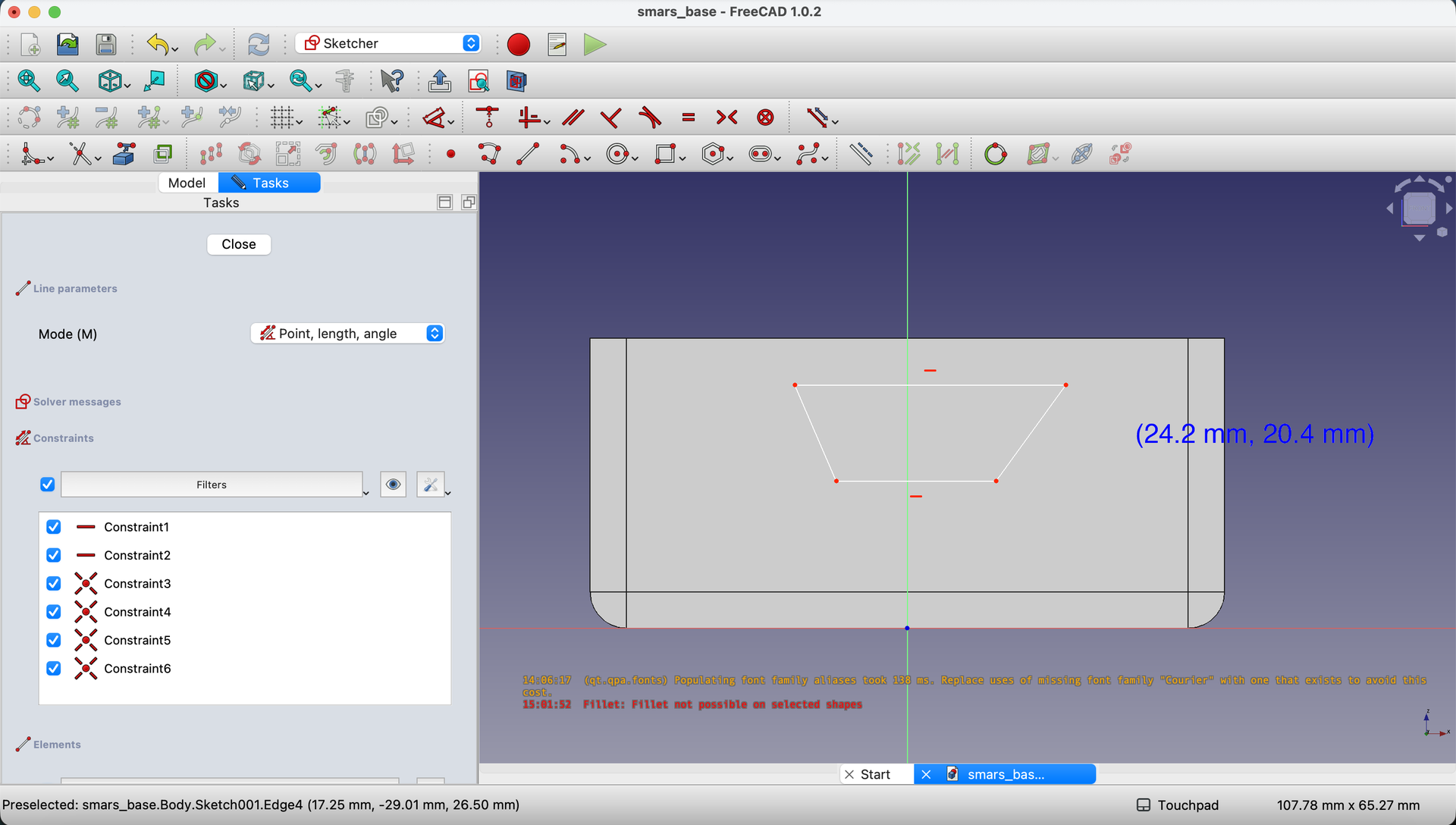
2. Draw the Rhombus Shape
Using the Line tool, draw a four-sided rhombus shape (like a squashed diamond). Don’t worry about exact placement yet - we’ll add dimensions next.
3. Add Dimensions to the Rhombus
Use the Dimensions tool to constrain the shape:
- Bottom line:
16mm - Top line:
28mm - Total height:
20mm - Bottom edge position:
10.5mmfrom the base bottom
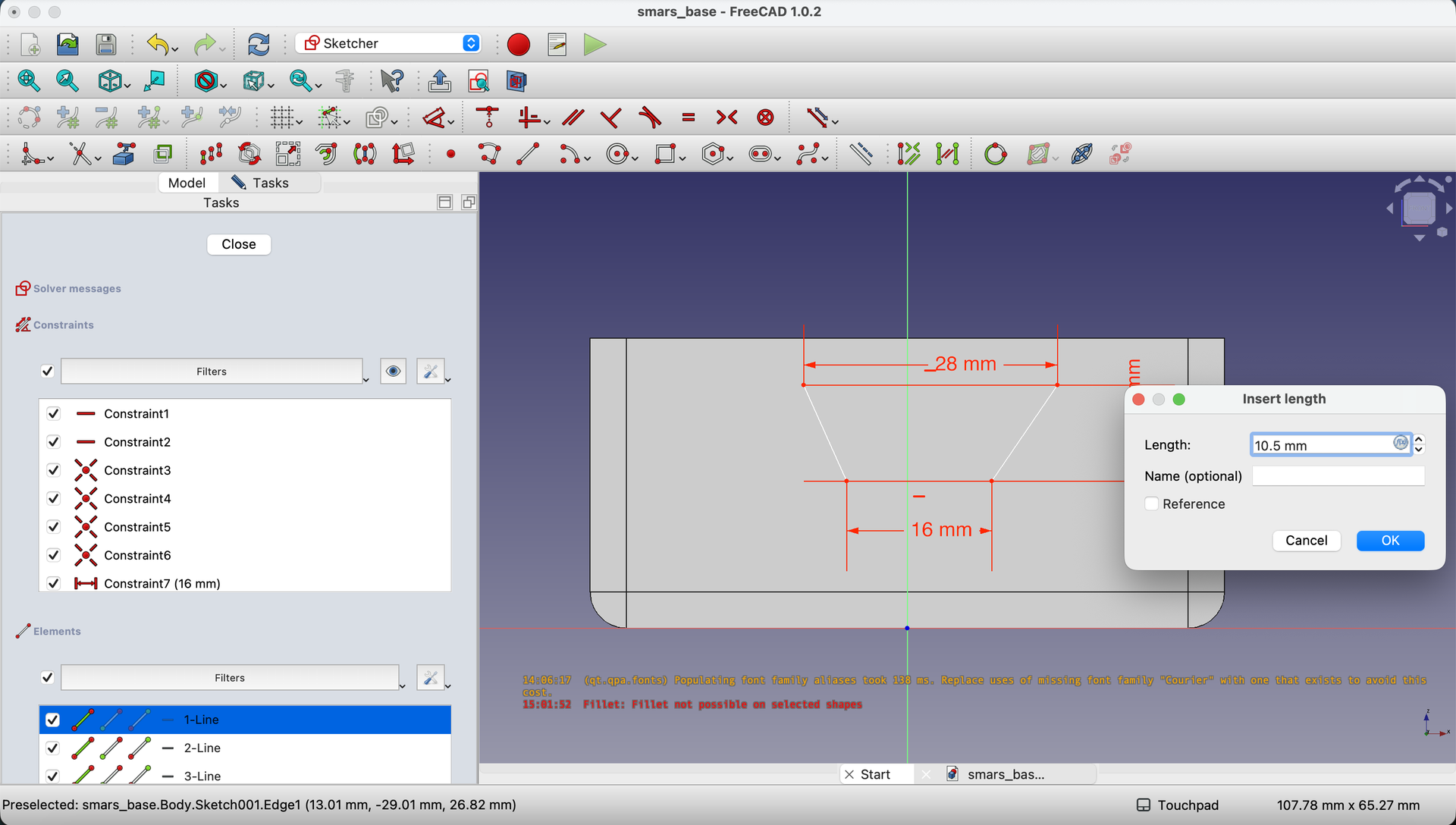
Notice the problem? The rhombus might be lopsided. We’ll fix that with a centerline.
Centering the Rhombus (Professional Technique)
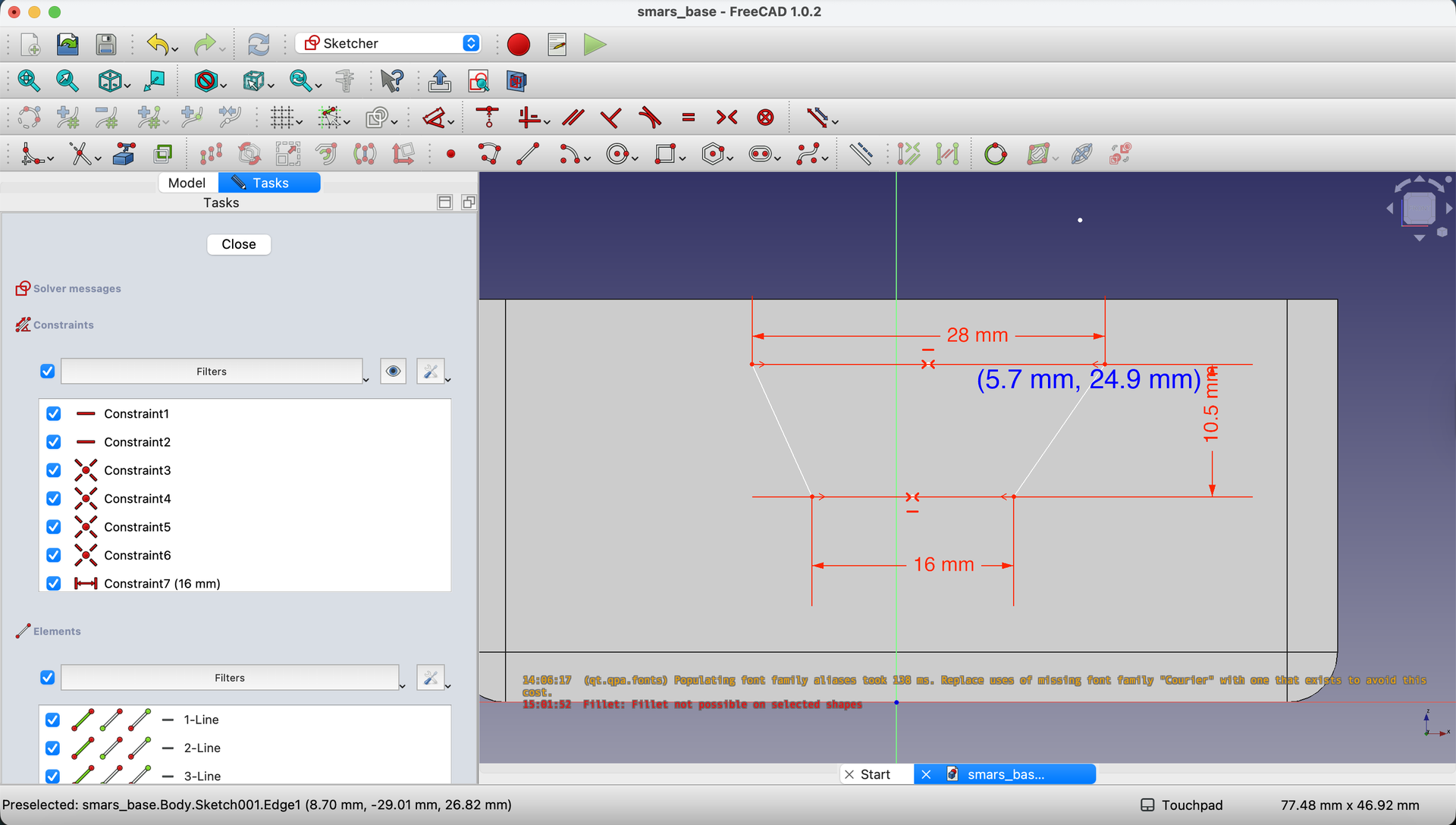
4. Add Midpoints and a Centerline
Using the Point tool, create points at:
- The midpoint of the top line
- The midpoint of the bottom line
The cursor shows a red symmetry indicator when you’re over a midpoint.
Using the Line tool, connect these two midpoints with a line.
Tip: If the main body blocks your view, hide it by clicking the eye icon next to the body in the Model tree.
5. Make the Centerline Vertical
Select the line and use the Vertical Constraint tool to make it perfectly vertical. This forces the rhombus to be symmetric!
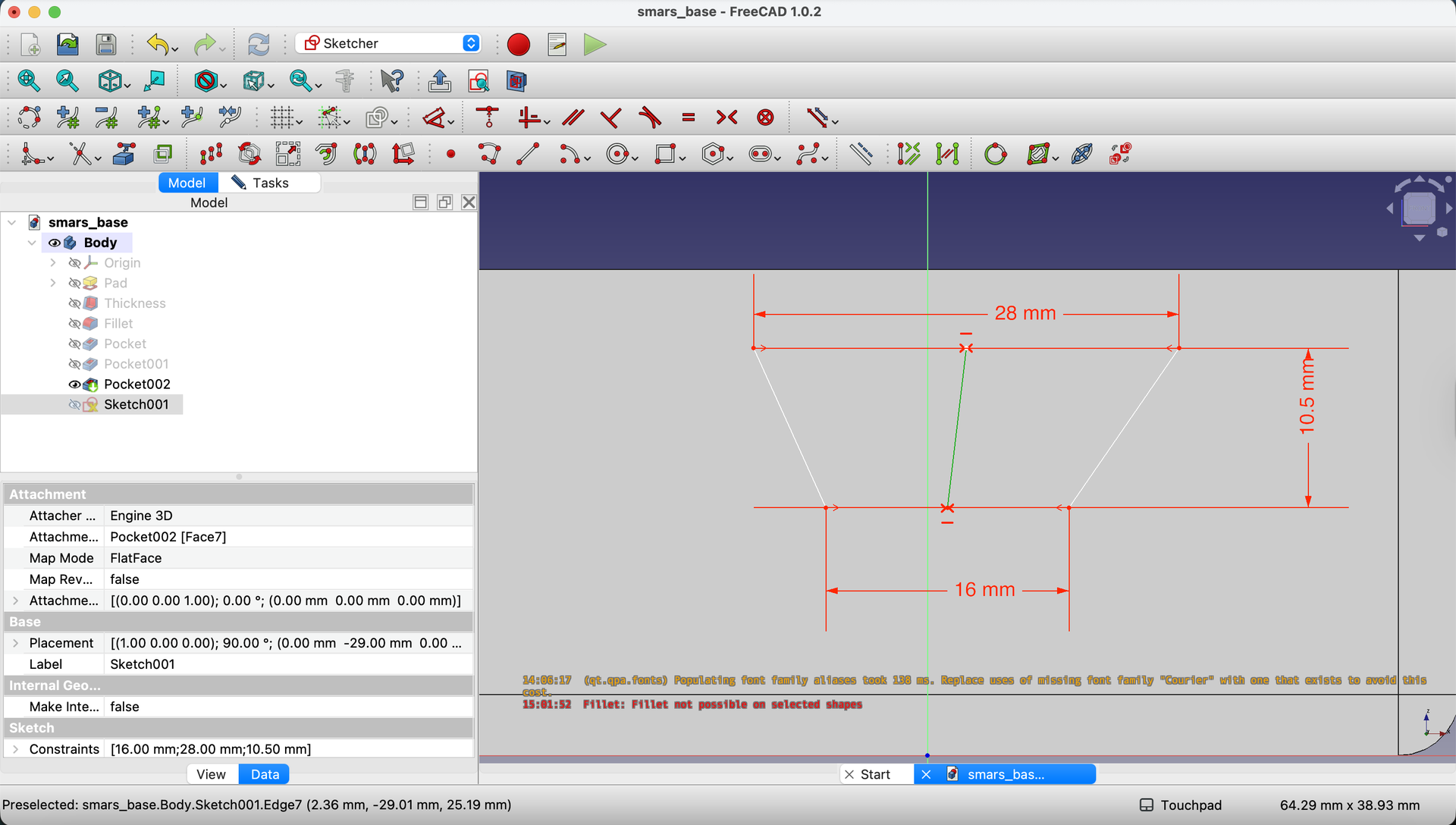
Make this line a construction line by selecting it and clicking Toggle construction mode.
Aligning to the Model Center
Now we need to position our rhombus in the center of the side face.
6. Project External Geometry
Click the Create external geometry button in the toolbar.

Click on the top edge of the base to project it into your sketch. This creates a reference line you can use for alignment.

7. Create and Constrain the Midpoint
Use the Point tool to create a point at the midpoint of the projected top edge.
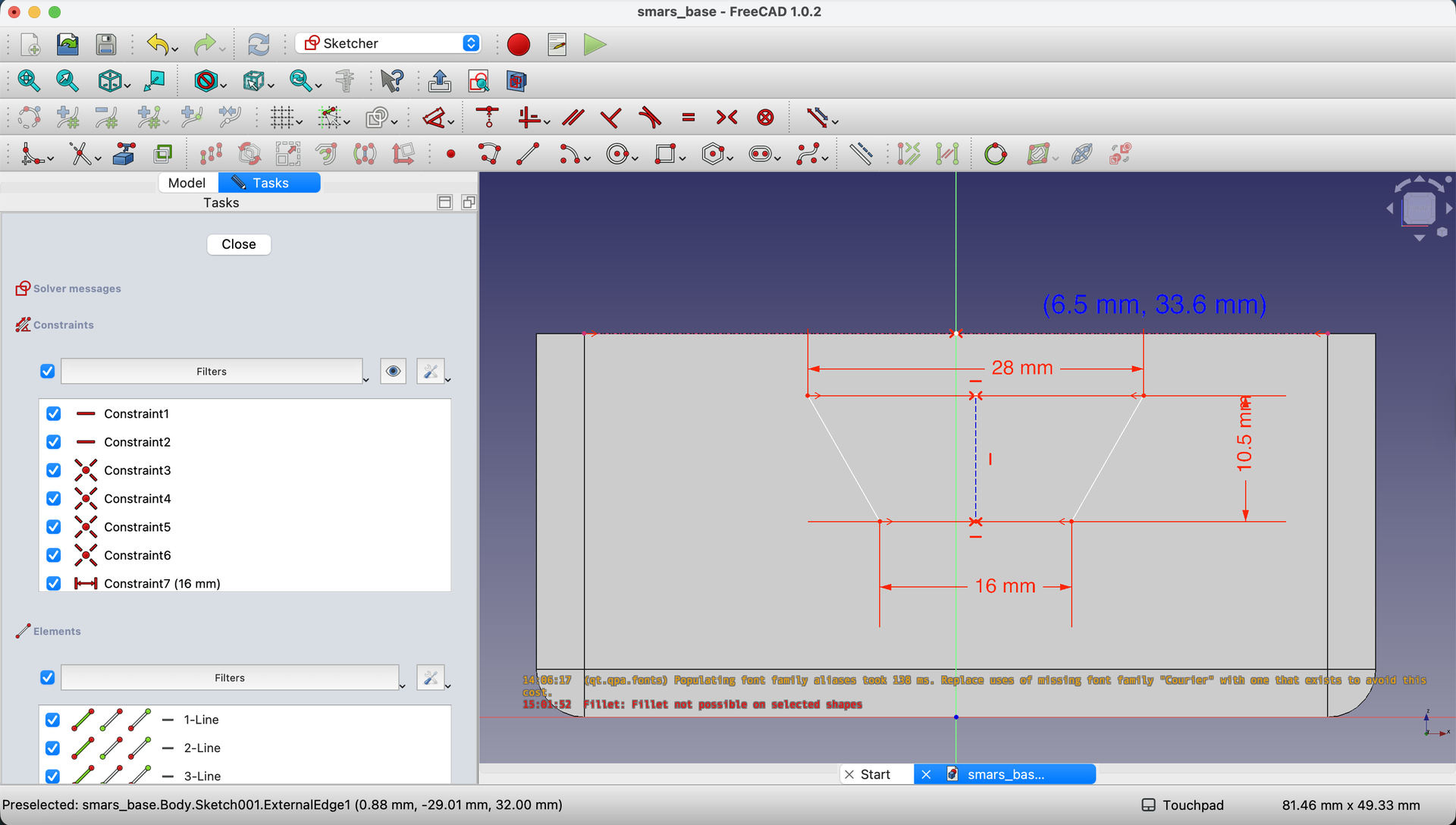
8. Attach Rhombus to Center
Select the top point of the rhombus, then hold Ctrl and select the midpoint you just created.
Click Constrain Coincident to lock them together.
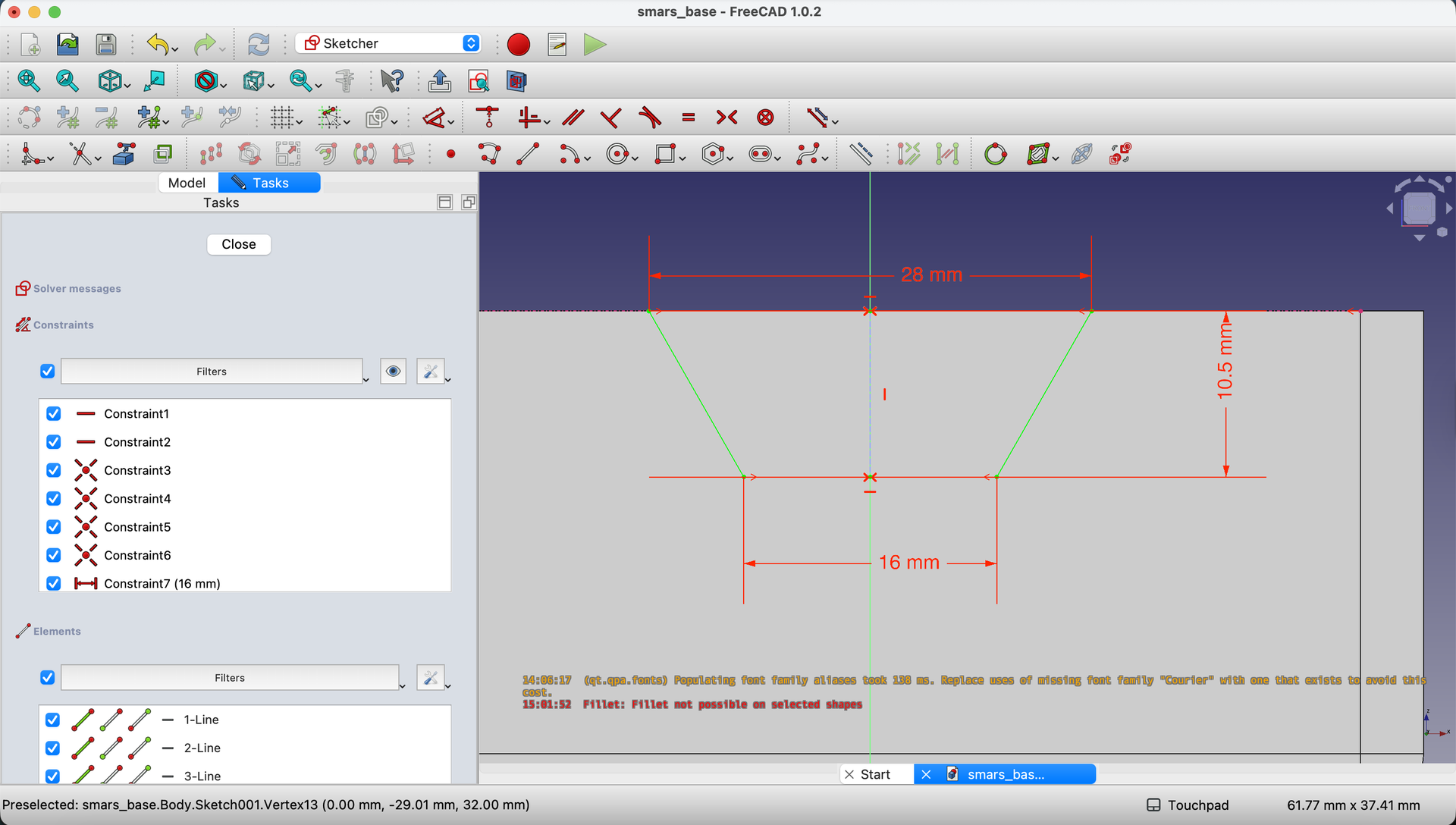
Now your rhombus is perfectly centered on the side face!
Step-by-Step: Add Motor Holes
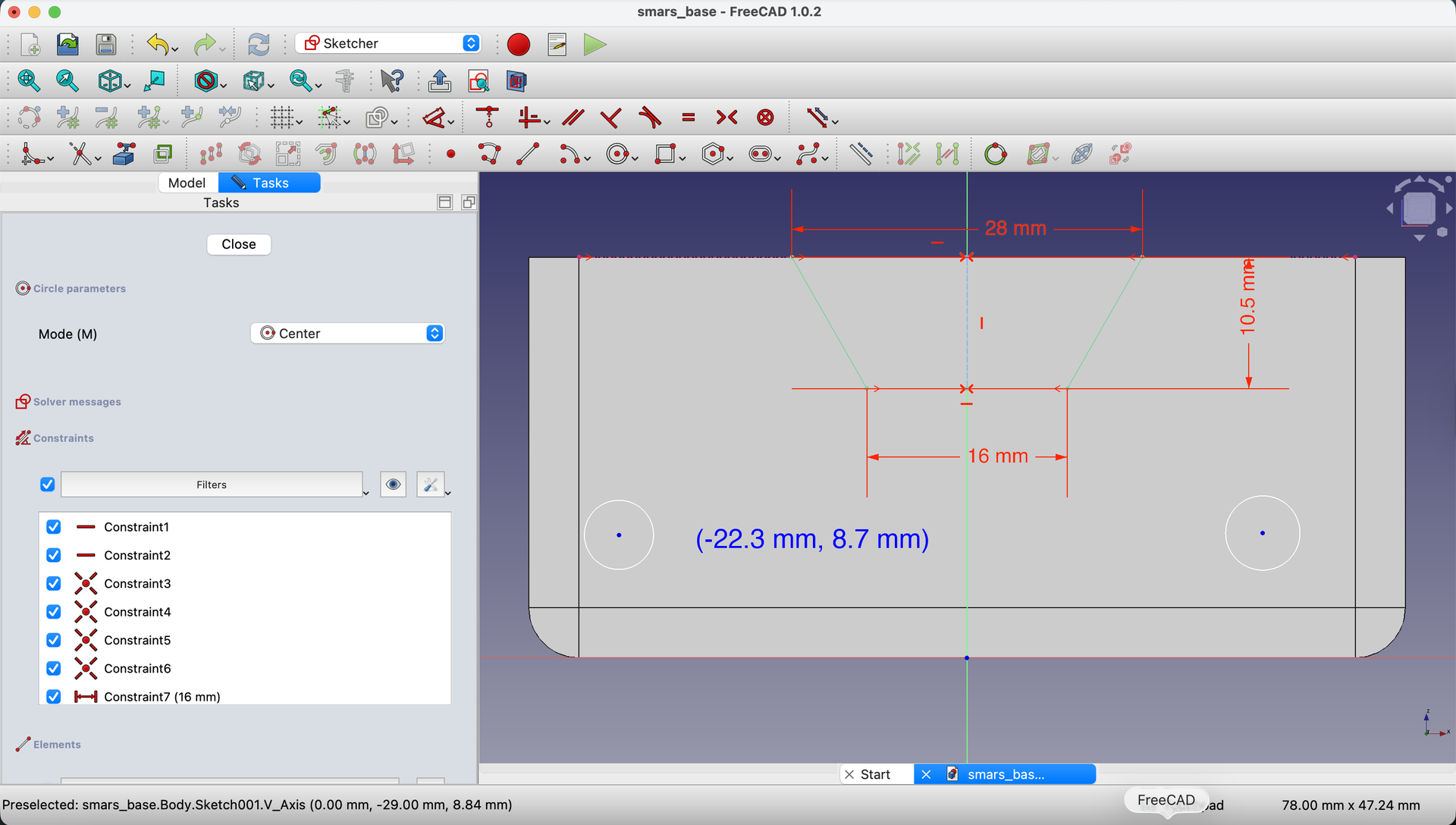
9. Draw the Motor Hole Circles
Using the Circle tool, draw two circles toward the bottom of the body - roughly where the motors will go.
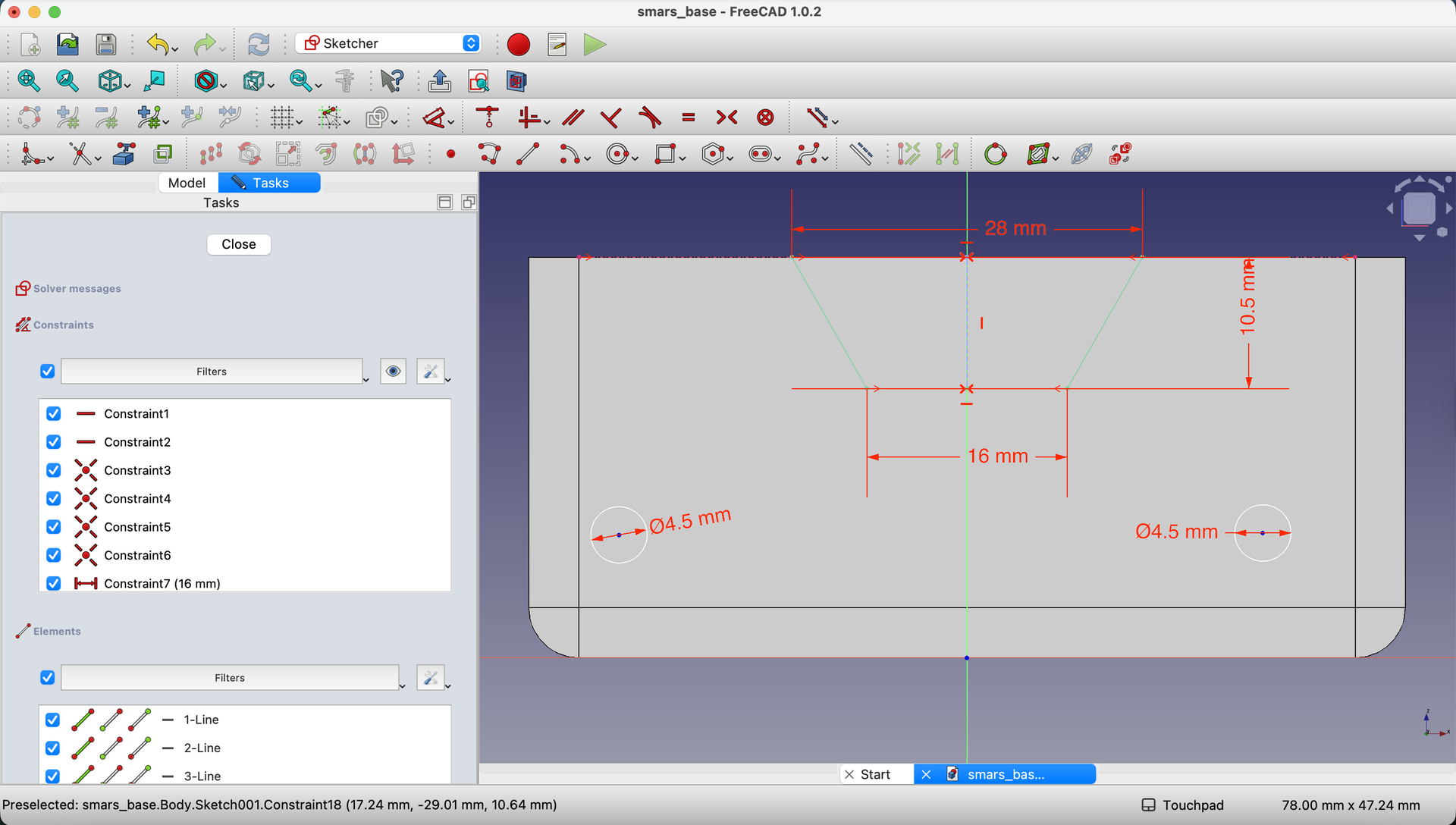
10. Dimension the Circles
Using the Dimensions tool:
- Set each circle diameter to
4.5mm
11. Position the Motor Holes
Each motor hole center should be:
8mmfrom the bottom edge8mmfrom the respective side edge
Use Create external geometry to project the left and right side edges, then dimension the circles from these edges.

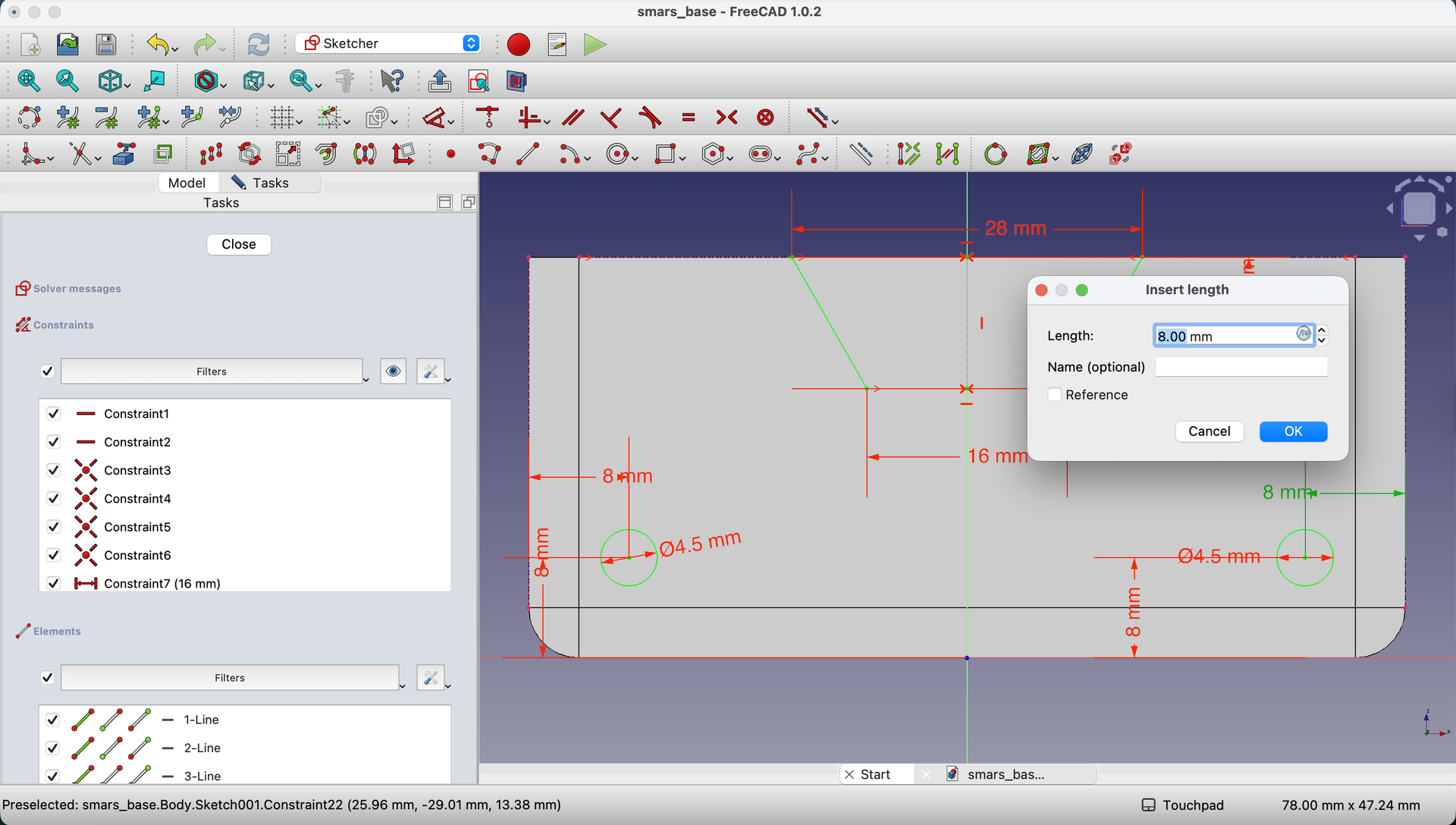
When fully constrained, the circles turn green - this means FreeCAD knows exactly where everything should be!
12. Close the Sketch
Click the Close button in the toolbar.
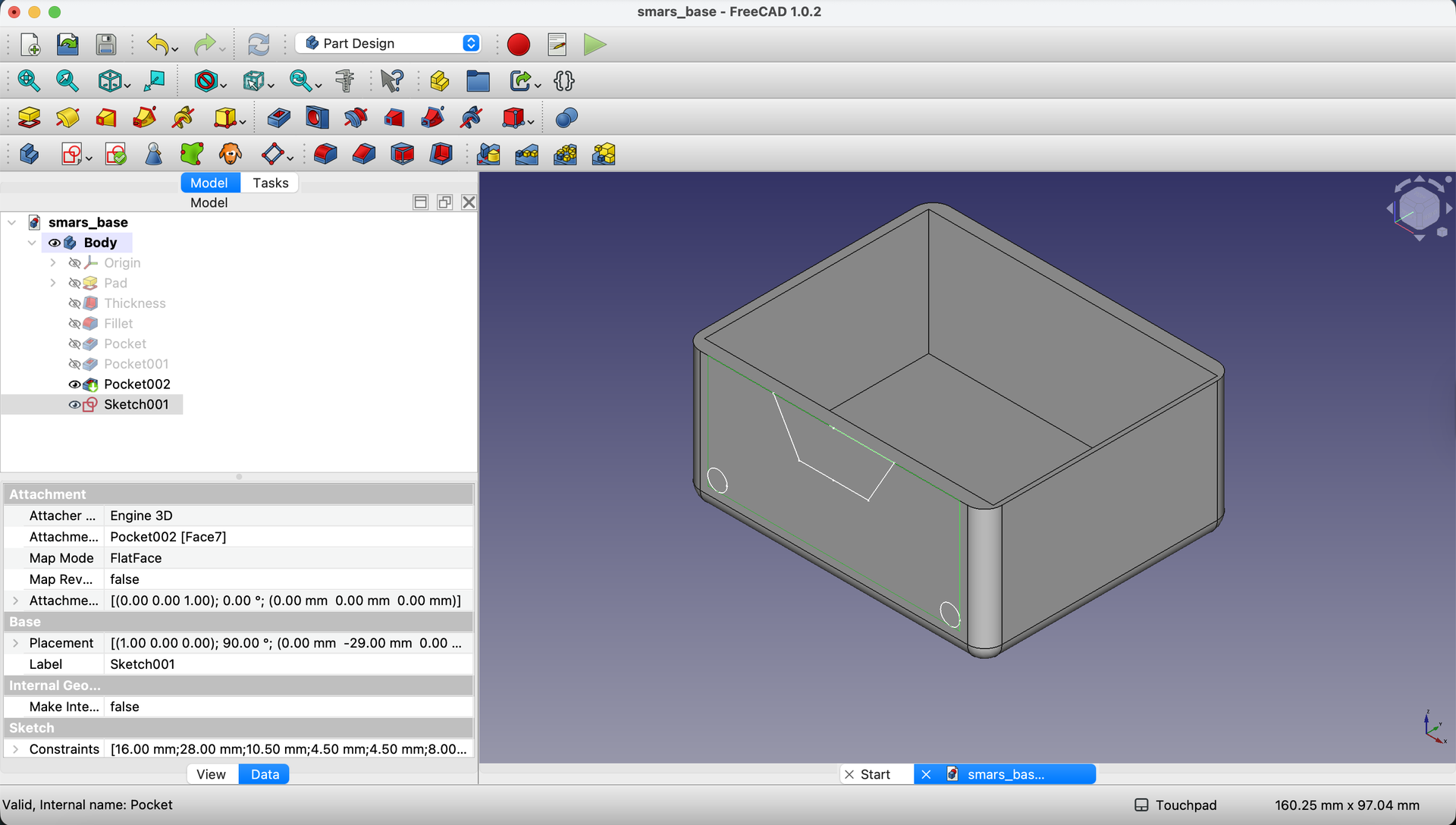
Step-by-Step: Cut Through the Base
13. Pocket the Features
With the sketch selected in the Model tree, click the Pocket button.
In the Pocket dialog, set the length to 58mm - this cuts all the way through the base from one side to the other.
Click OK to apply.
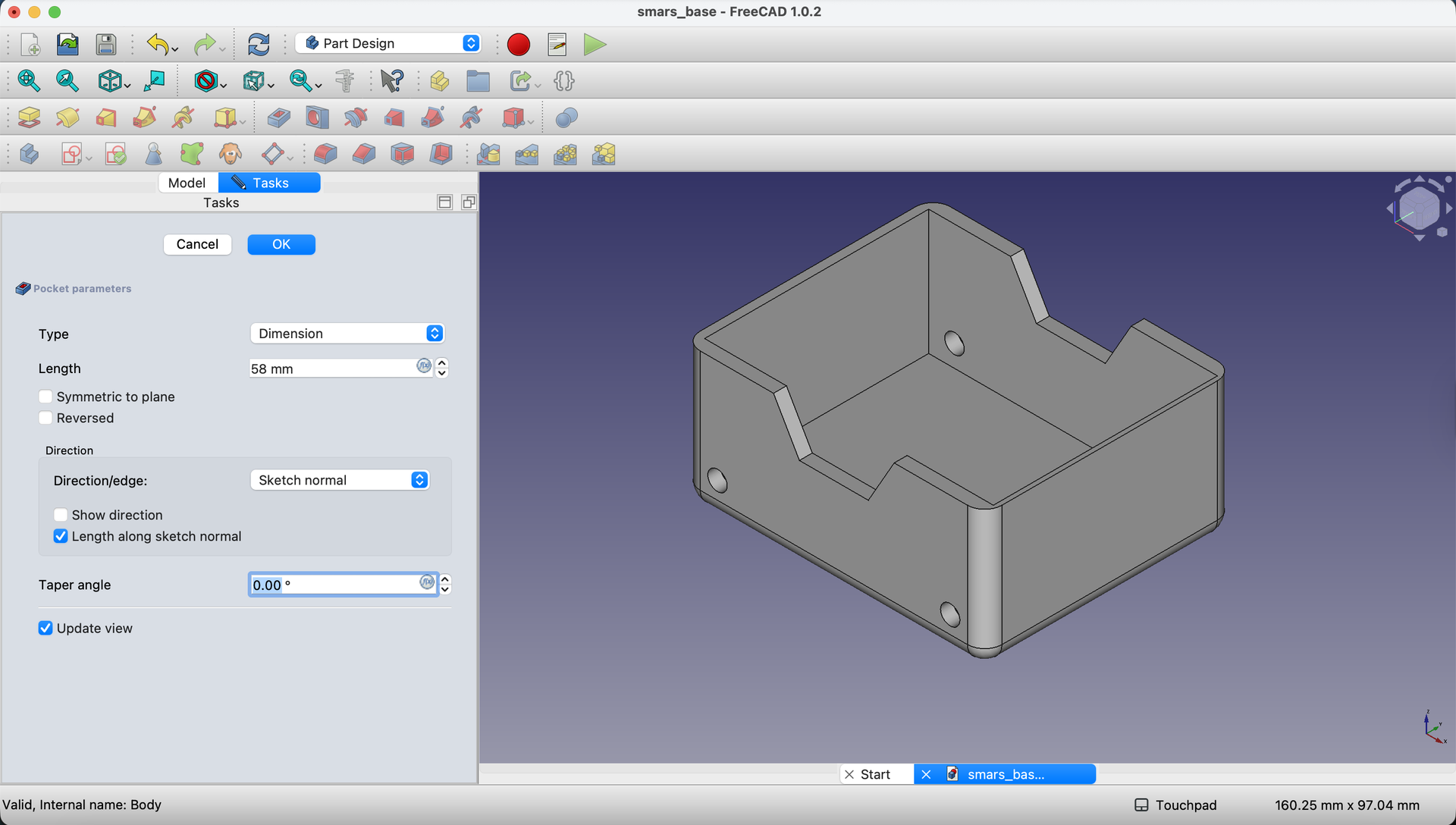
14. Verify the Result
You should now see:
- The rhombus profile cut through both sides
- Two motor shaft holes ready for N20 motors

Understanding External Geometry
Why project edges? External geometry lets you reference existing features in your sketch:
- You can dimension from them
- You can constrain to them
- If the original feature moves, your sketch updates automatically
This is the parametric power of FreeCAD - everything stays connected!
Try It Yourself
- Verify symmetry: Look at the model from the top. The rhombus should be perfectly centered.
- Check hole alignment: Both motor holes should be at identical heights.
- Test the design: Imagine sliding an N20 motor shaft through - is there enough clearance?
Common Issues
“My rhombus isn’t symmetric”
Problem: One side is longer than the other. Solution: Ensure the centerline has a Vertical constraint. If not, select it and apply one.
“The pocket didn’t cut all the way through”
Problem: The rhombus or holes only appear on one side. Solution: The pocket length should be 58mm (the full width of the base). Check your dimension.
“Circles show as orange/white, not green”
Problem: The circles aren’t fully constrained. Solution: Make sure both the diameter AND position (distance from edges) are dimensioned.
“I can’t select the side face”
Problem: Clicking selects something else. Solution: Rotate the view so the side face is directly visible. Click in the center of the face, not near edges.
“External geometry isn’t visible”
Problem: Projected lines don’t appear. Solution: Make sure you clicked directly on the edge you want to project. The projected geometry appears as dashed purple lines.
What You Learned
In this lesson, you mastered:
- External geometry - Referencing existing features in sketches
- Vertical constraints - Forcing perfect alignment
- Multiple features in one sketch - Combining shapes for a single operation
- Through-all pockets - Cutting features that go all the way through
Next Up
The front and rear of our SMARS base need openings for cables and component access. We’ll create more sketches and pockets to complete the enclosure profile!
You can use the arrows ← → on your keyboard to navigate between lessons.
Comments