KevsRobots Learning Platform
Getting Started
Designing the SMARS Base
Exporting for 3D Printing
Summary
Front and Rear Profiles
Create cable routing and component access openings using symmetric constraints
By Kevin McAleer, 6 Minutes
What We’re Building
The front and rear of the SMARS base need openings for:
- Large central cutout - Access to install/remove components
- Small top slot - Cable routing for sensors and power
| Feature | Dimensions | Purpose |
|---|---|---|
| Main opening | 42.5mm × 30mm | Arduino installation, battery access |
| Cable slot | 52mm × 7.5mm | Route wires to front sensors |
| Opening position | 14.5mm from bottom | Clears motor area, provides structural lip |
Understanding the Design
Why These Openings?
The main opening (42.5mm × 30mm) allows you to:
- Insert an Arduino Nano
- Replace batteries
- Access wiring for debugging
- Install sensors and modules
The cable slot (52mm × 7.5mm) at the top:
- Routes wires to front-mounted sensors (ultrasonic, IR, etc.)
- Keeps cables organized and protected
- Wide enough for multiple cable types
Why Center Everything?
We’ll use Symmetric constraints to center these openings. This ensures:
- The robot looks balanced
- Weight distribution is even
- The same design works for front and rear
Step-by-Step: Create the Main Opening
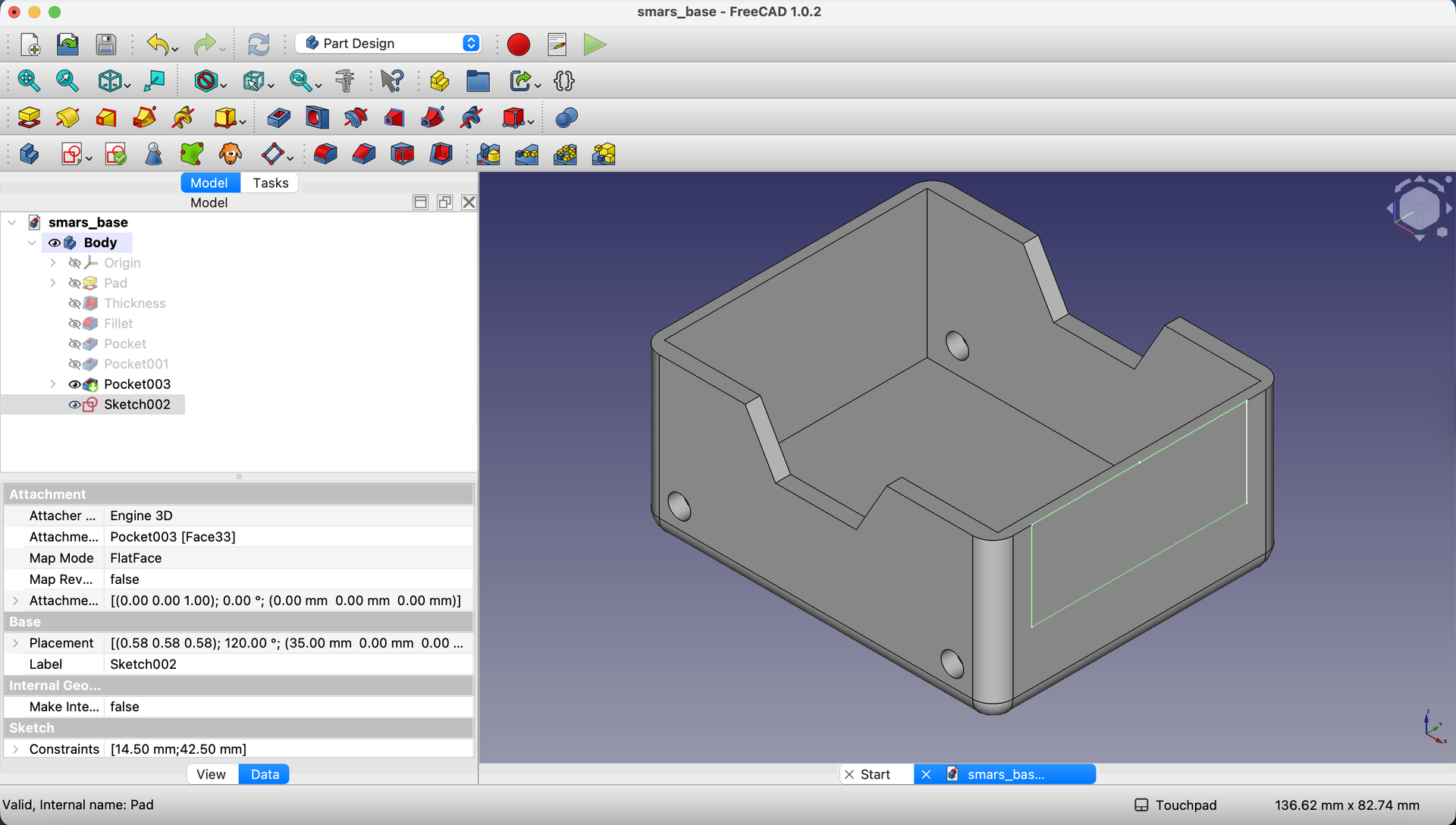
1. Start a Sketch on the Rear Face
Click on the rear face of the base, then click Create Sketch.

2. Draw the Main Rectangle
Using the Rectangle tool, draw a rectangle - we’ll dimension it next.
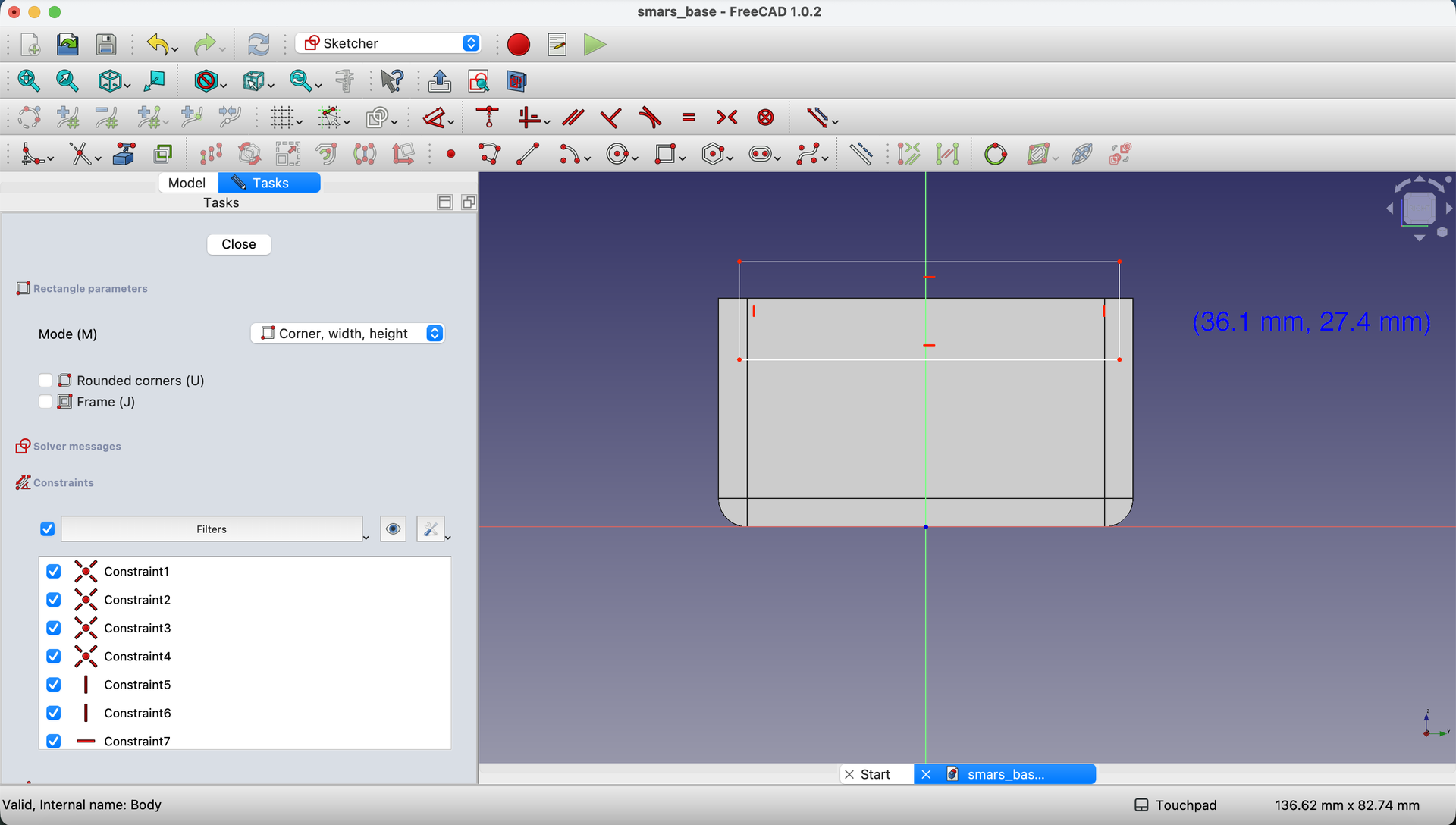
3. Add Dimensions
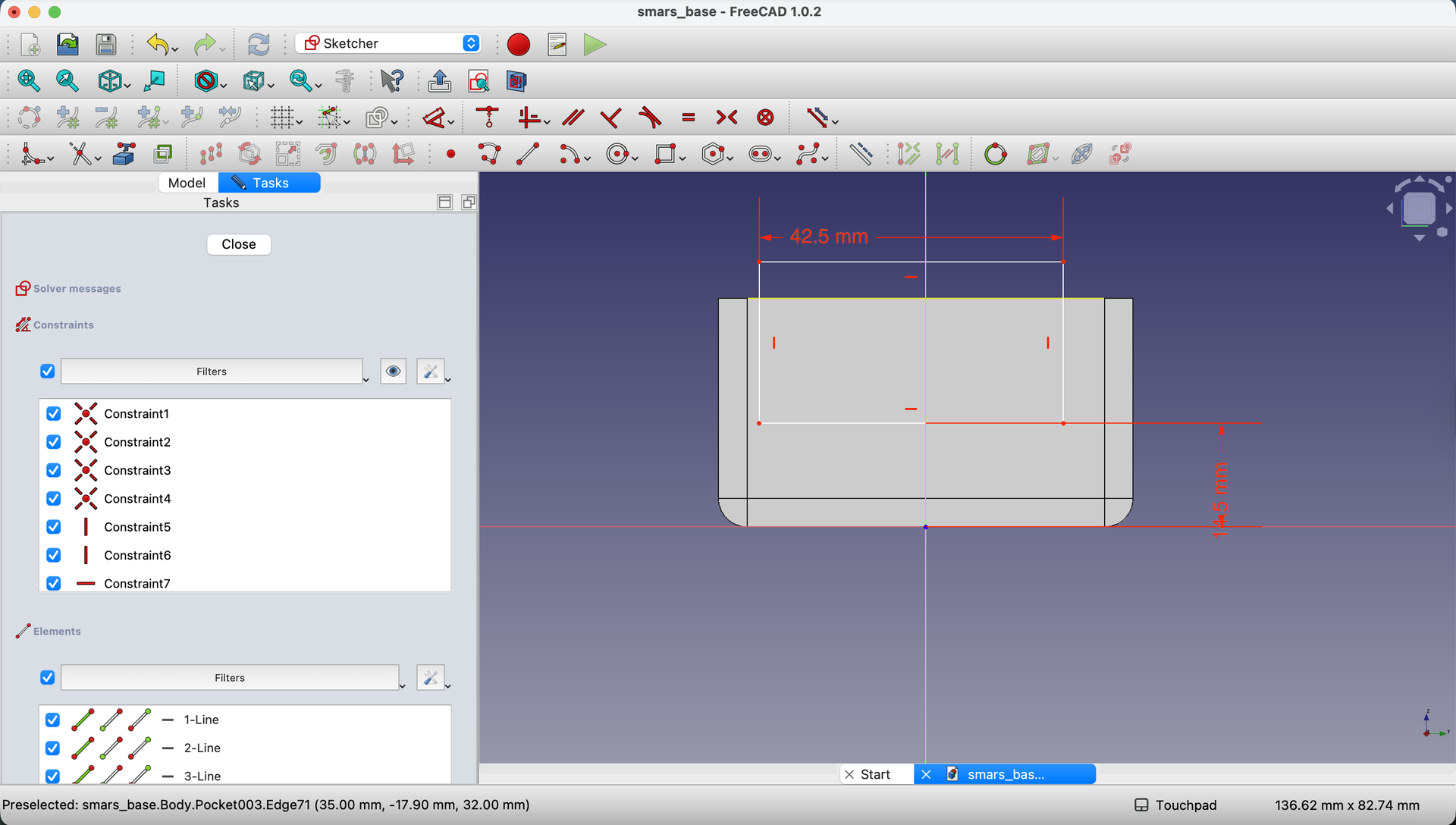
Use the Dimensions tool to set:
- Width:
42.5mm - Height:
30mm - Distance from bottom:
14.5mm(constrains the bottom edge position)

Why 14.5mm from bottom? This leaves a solid lip at the base that:
- Provides rigidity
- Clears the motor mounting area
- Prevents the opening from weakening the structure
Centering with External Geometry
4. Project the Top Edge
Click Create external geometry and select the top edge of the base.
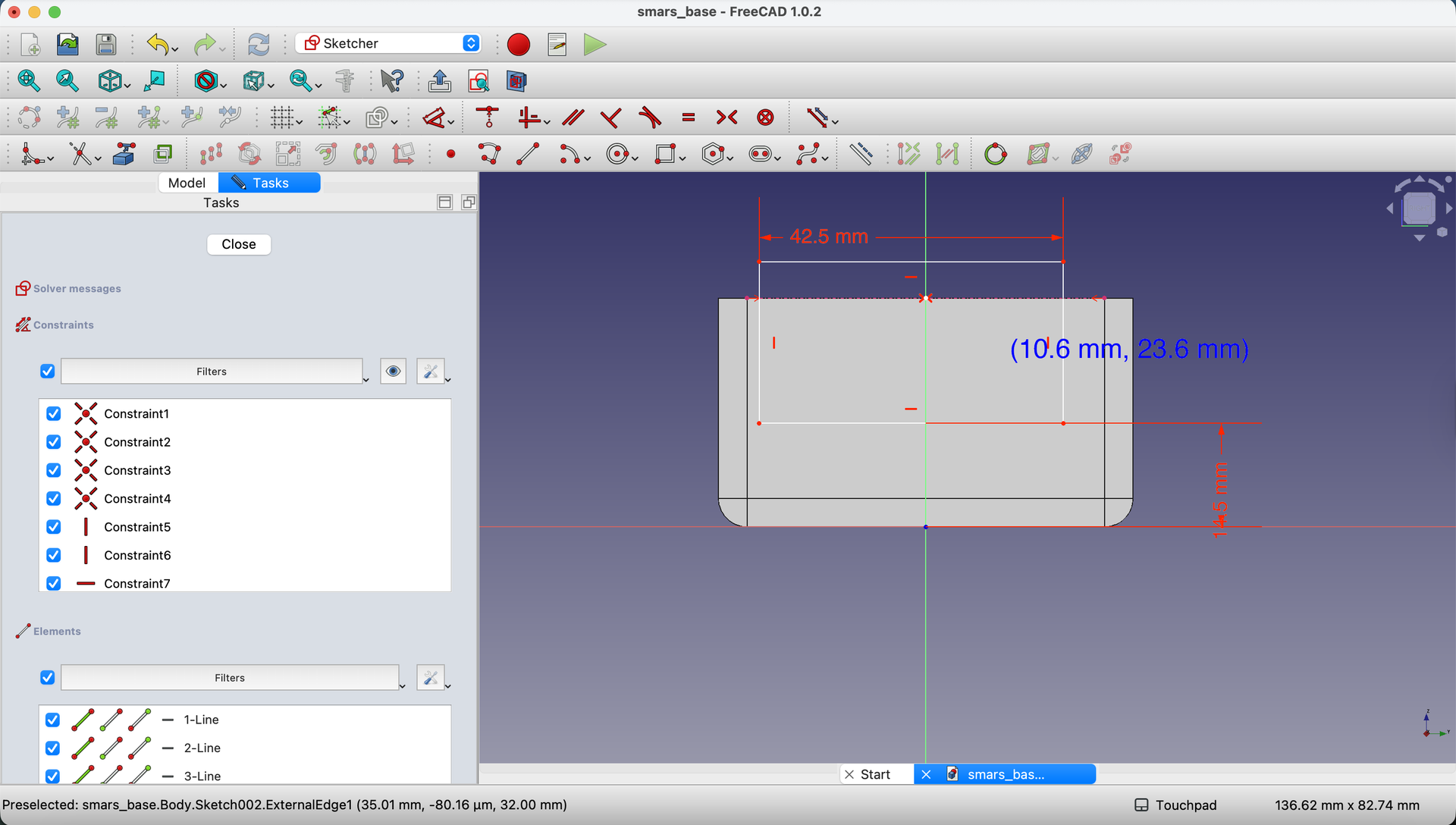
5. Add Midpoint to Projected Edge
Use the Point tool to create a point at the midpoint of the projected top edge. Watch for the red symmetry indicator.
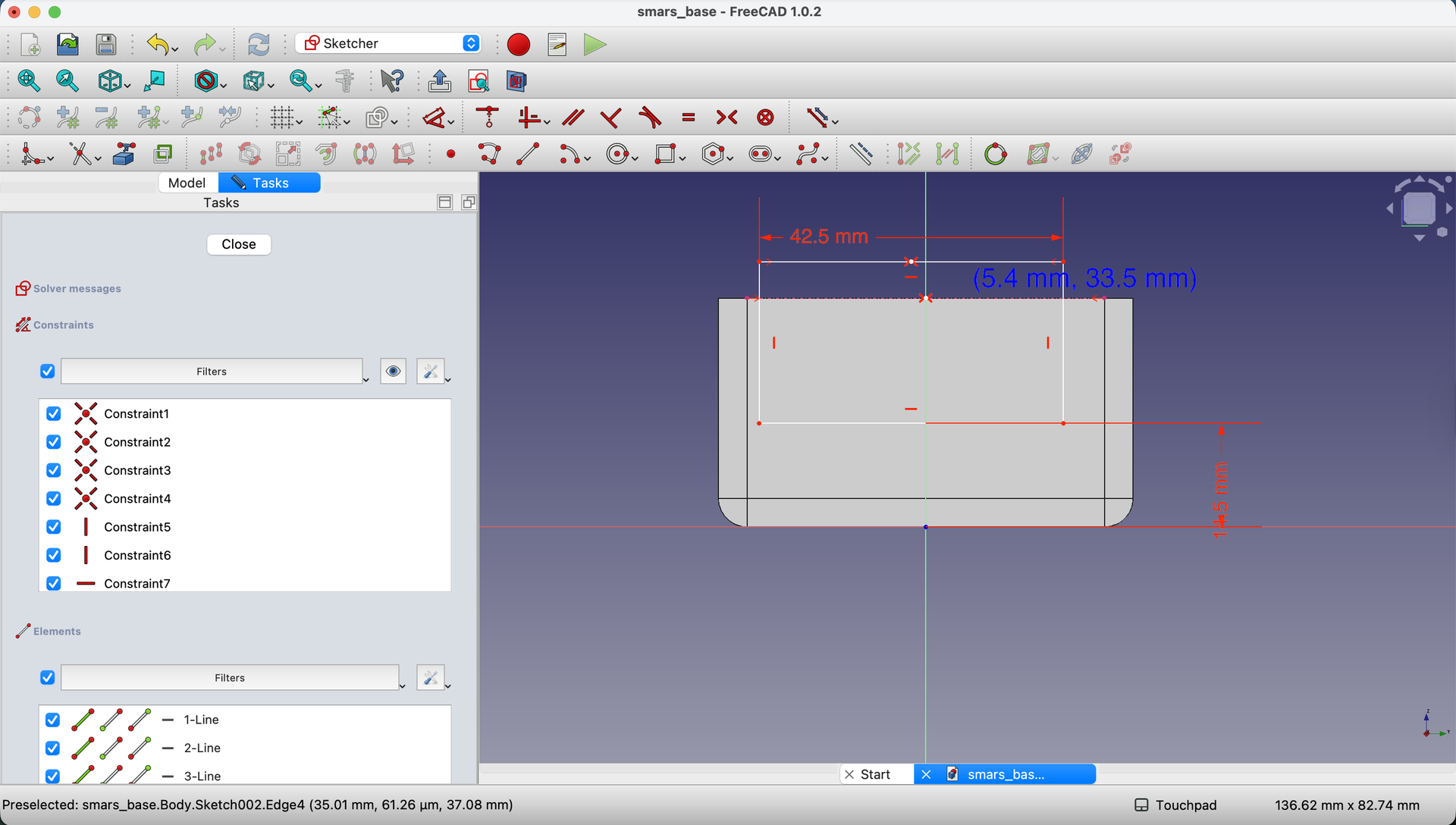
6. Add Midpoint to Rectangle
Create another point at the midpoint of the rectangle’s top edge.
7. Constrain to Center
Select the rectangle’s midpoint, then hold Ctrl and select the base’s midpoint.
Click Constrain Coincident to lock them together.

Your rectangle is now perfectly centered on the rear face!
8. Close the Sketch
Click the Close button.
Pocket the Main Opening
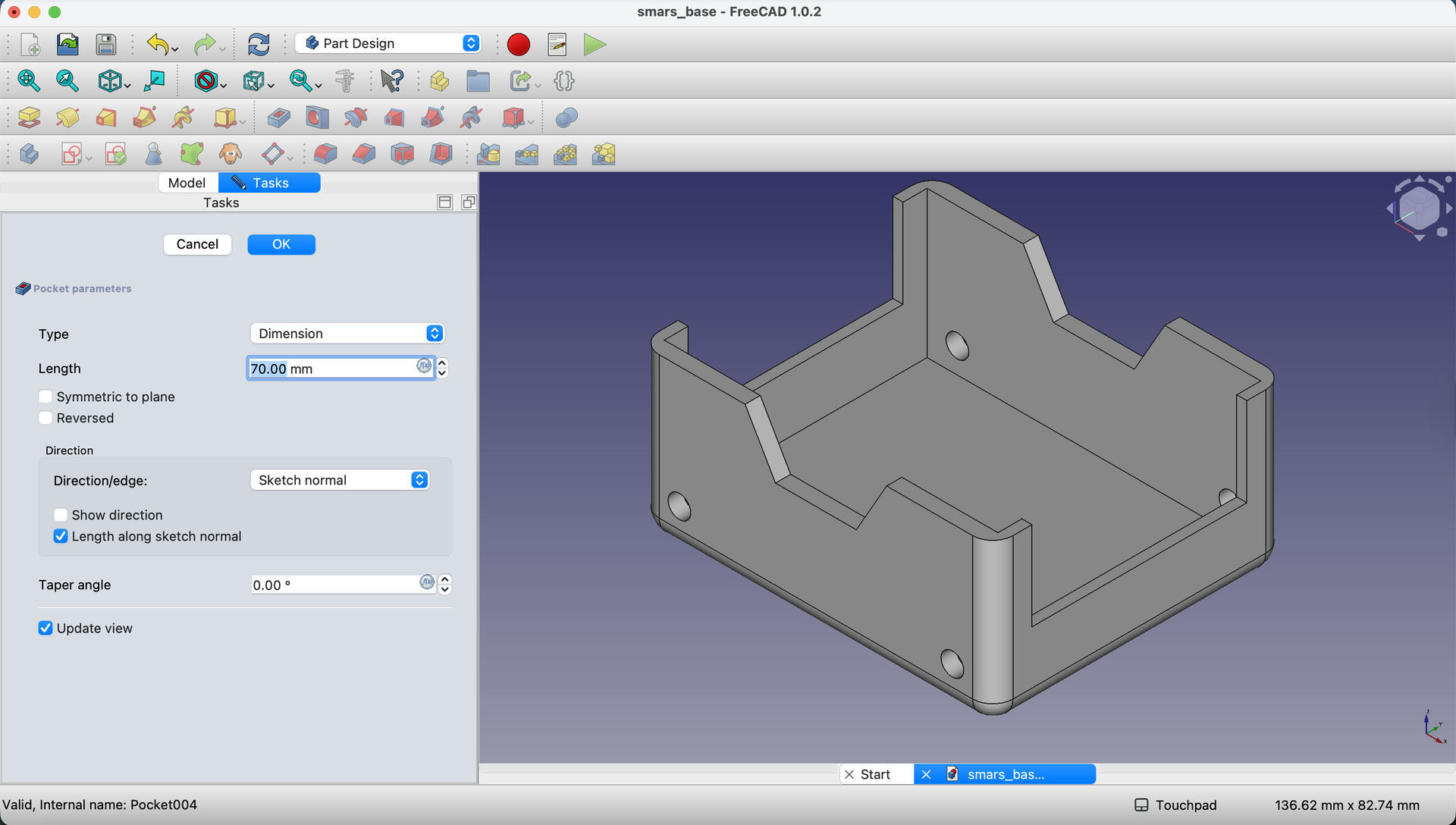
9. Create the Pocket
With the sketch selected, click the Pocket button.
Set the depth to 70mm - this cuts through the entire base from rear to front.
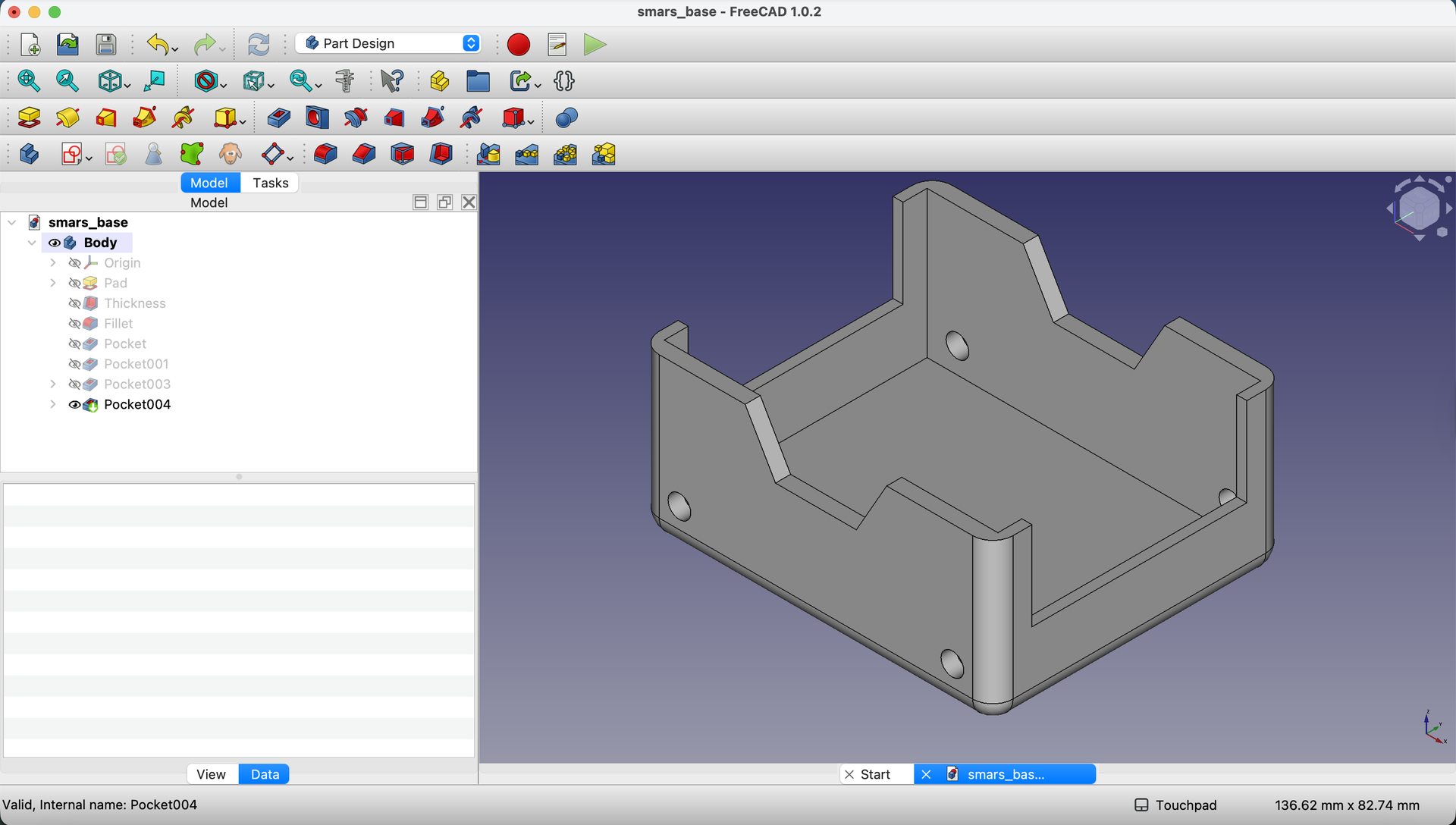
10. Verify the Cut
Click OK to confirm. You should see a clean rectangular opening through both front and rear faces.
Step-by-Step: Create the Cable Slot
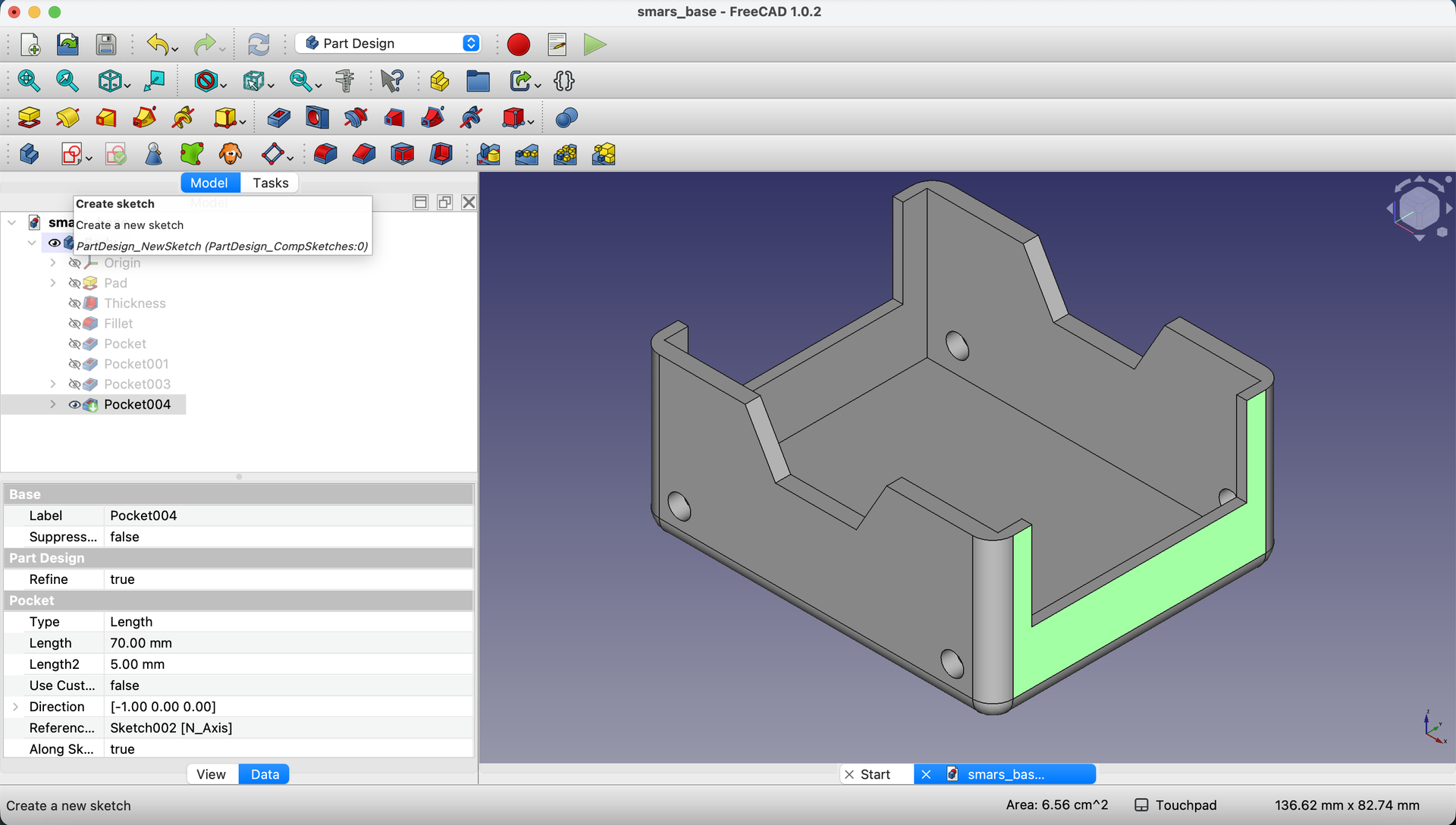
11. Start a New Sketch on the Rear Face
Click on the rear face again and create another sketch.
12. Draw the Cable Slot Rectangle
Using the Rectangle tool, draw a rectangle at the top of the opening.
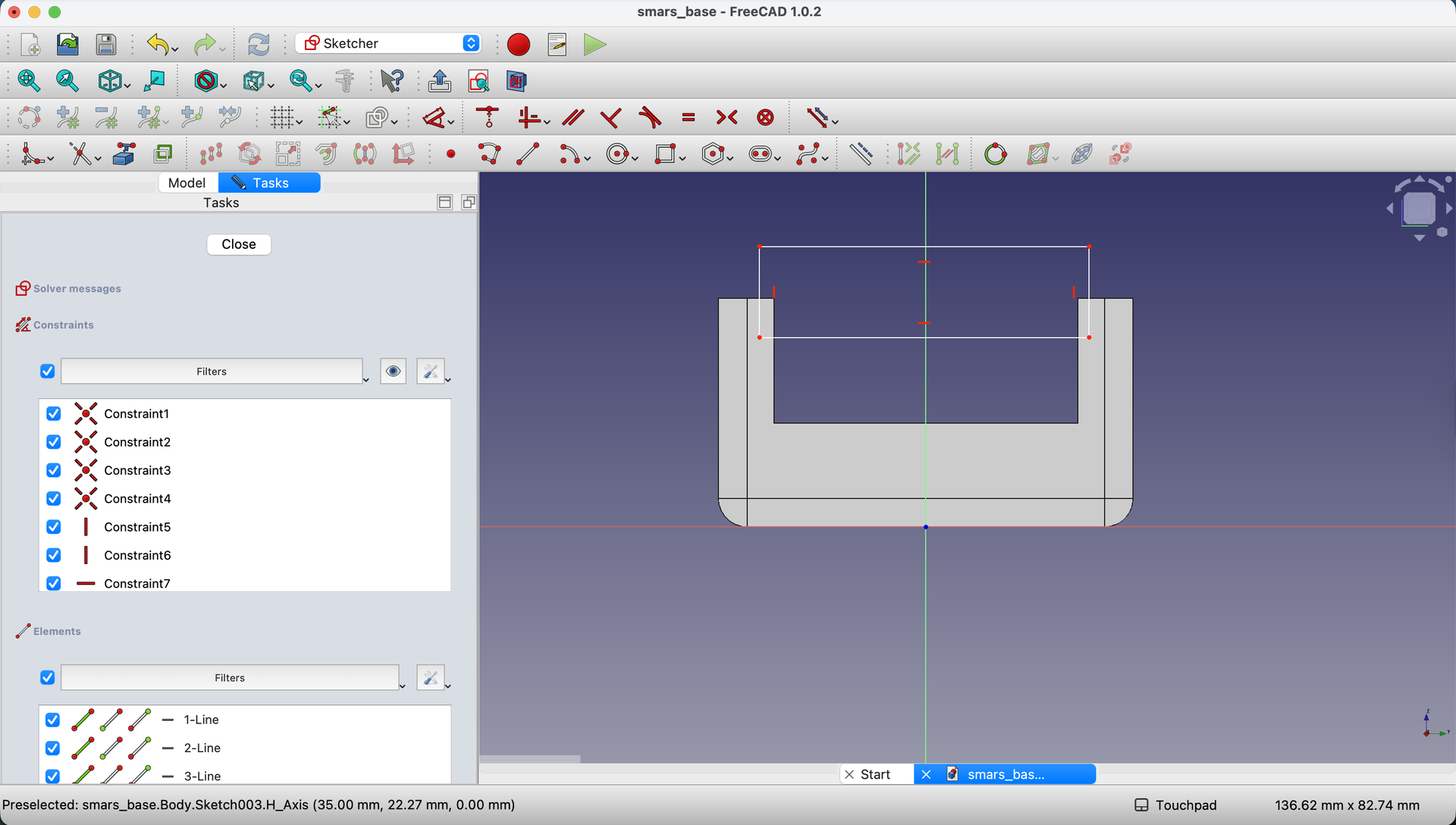
13. Add Dimensions
Constrain the rectangle:
- Width:
52mm - Height:
7.5mm

14. Create Midpoint Reference
Use the Point tool to create a point at the center of the rectangle’s top edge.
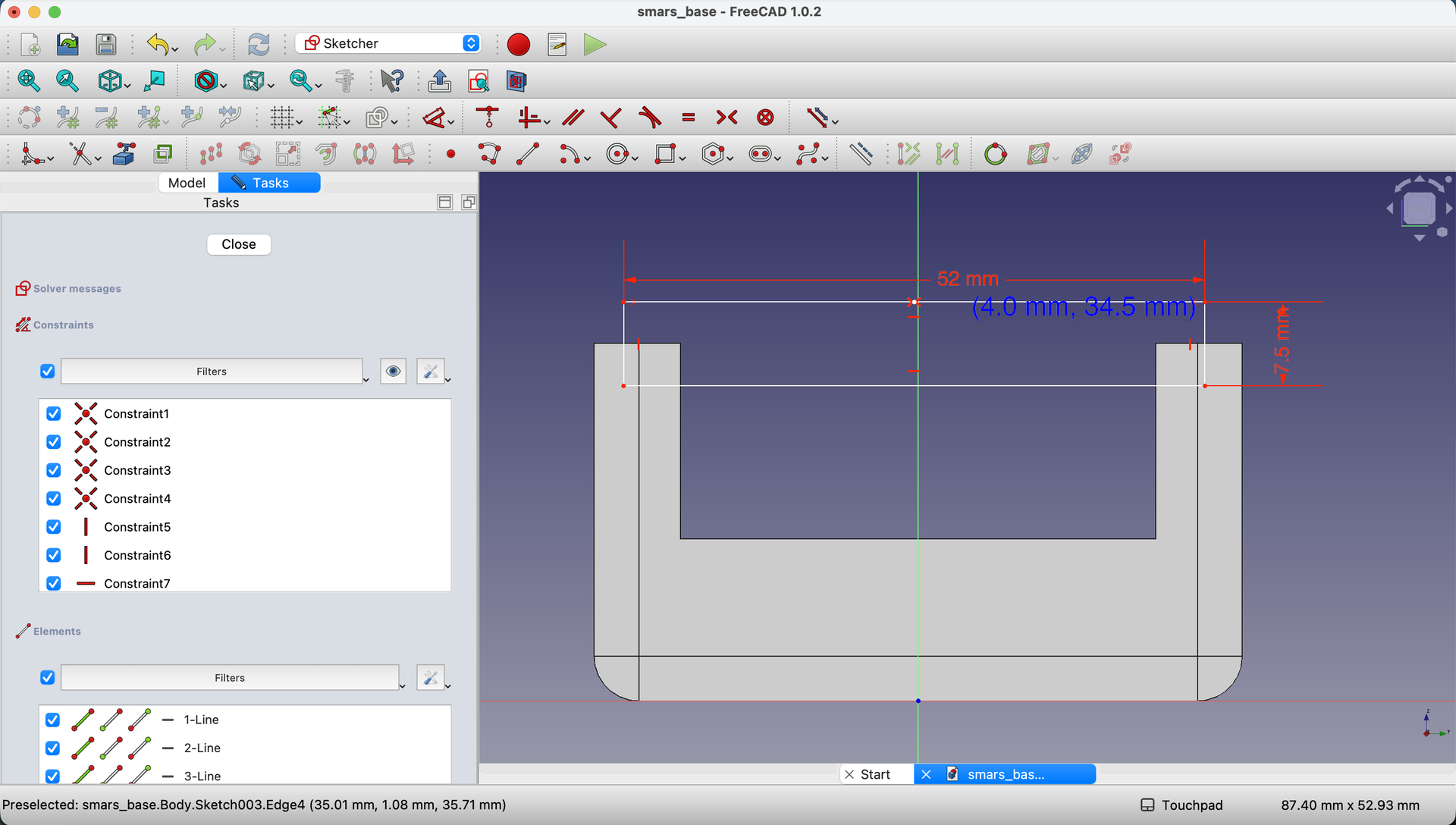
15. Use Symmetric Constraint
This time we’ll use a different technique: Symmetric constraint.
- Project the top-left and top-right corners of the base as external geometry
- Select the rectangle’s center point
- Hold
Ctrland select both projected corners - Click Constrain Symmetric
This centers the rectangle between the two corners.
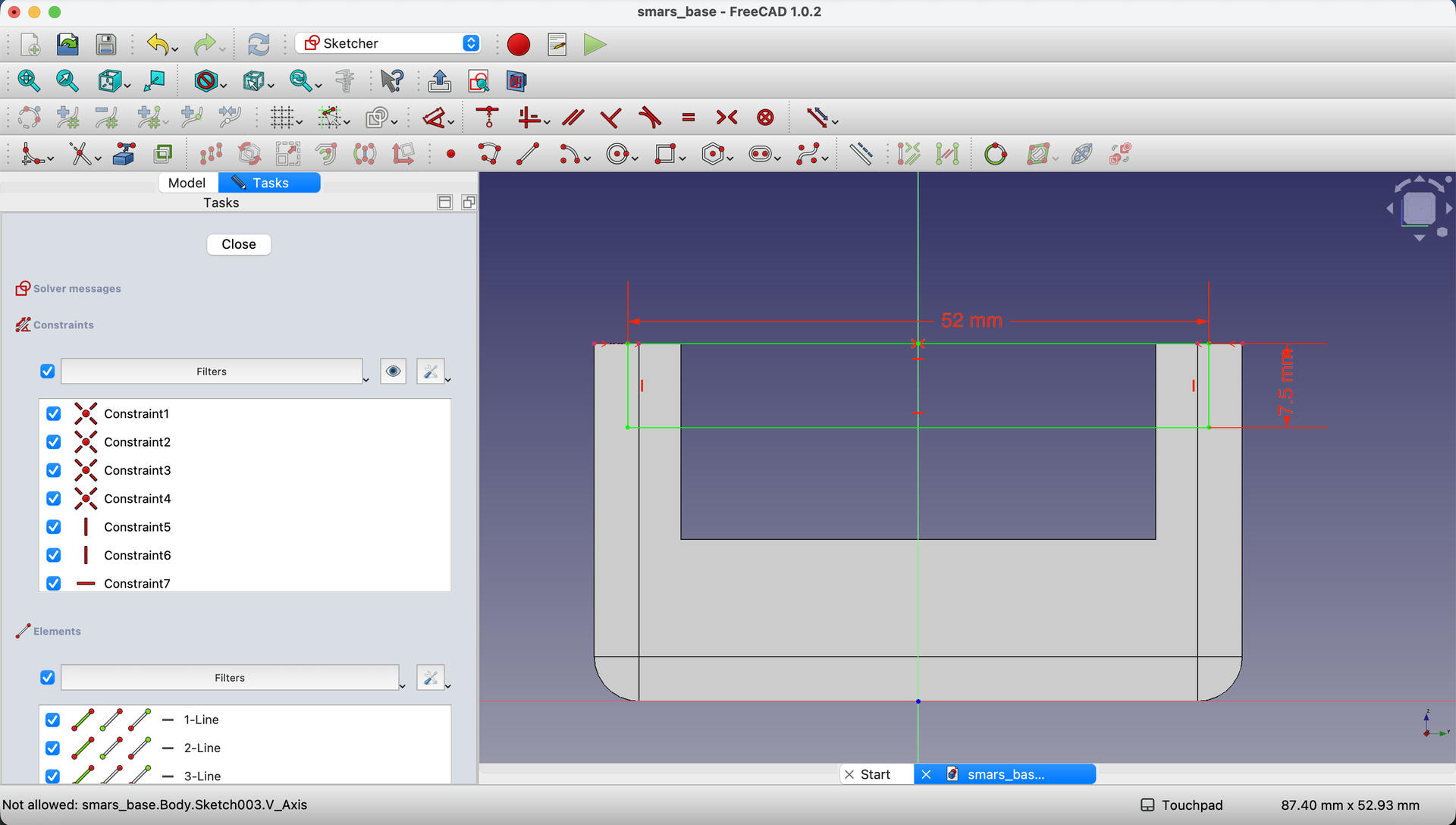
16. Close the Sketch
Click the Close button.
Pocket the Cable Slot
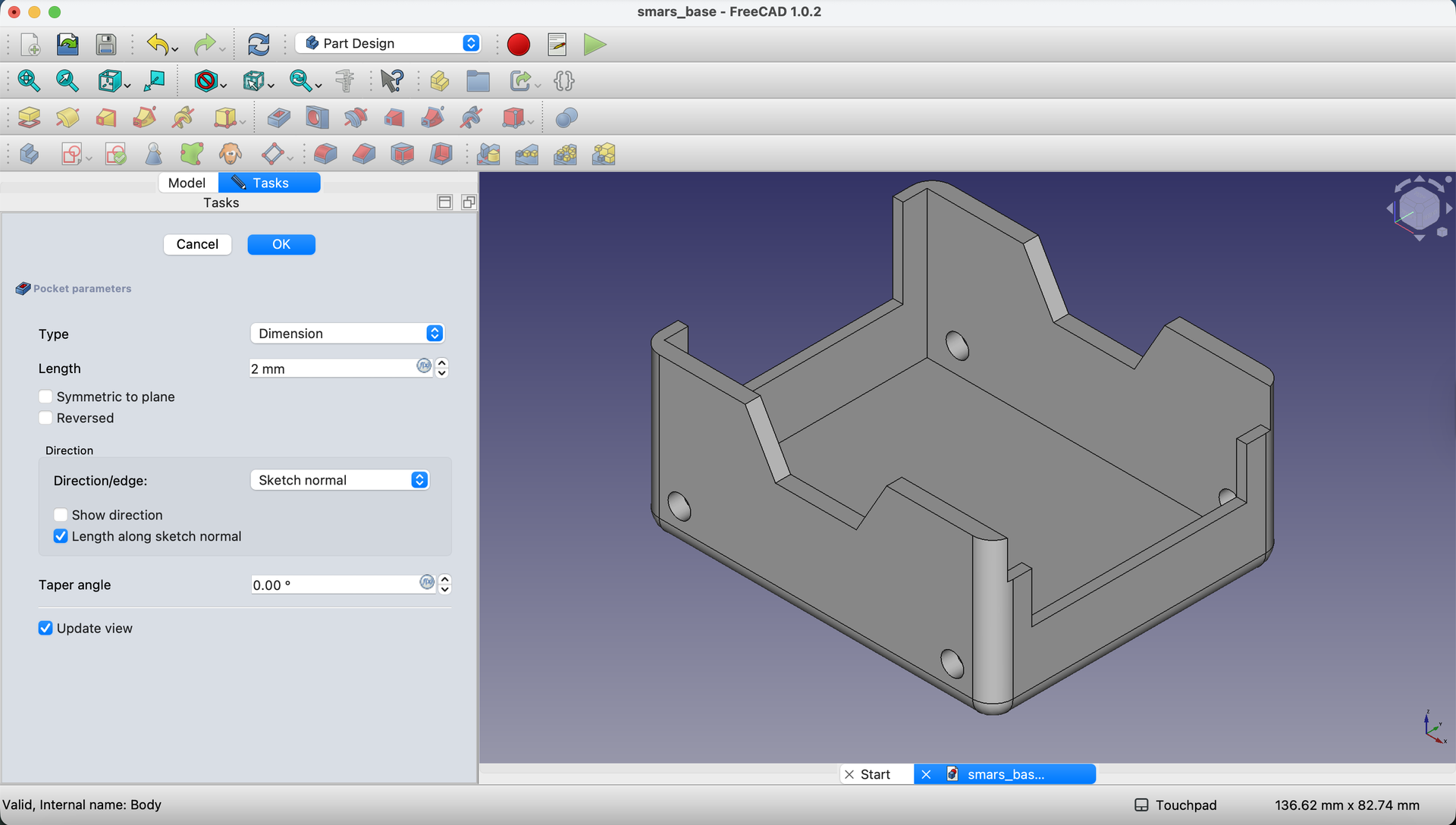
17. Create Shallow Pocket
With the sketch selected, click Pocket.
Set the depth to 2mm - this creates a shallow slot in the wall, not cutting all the way through.
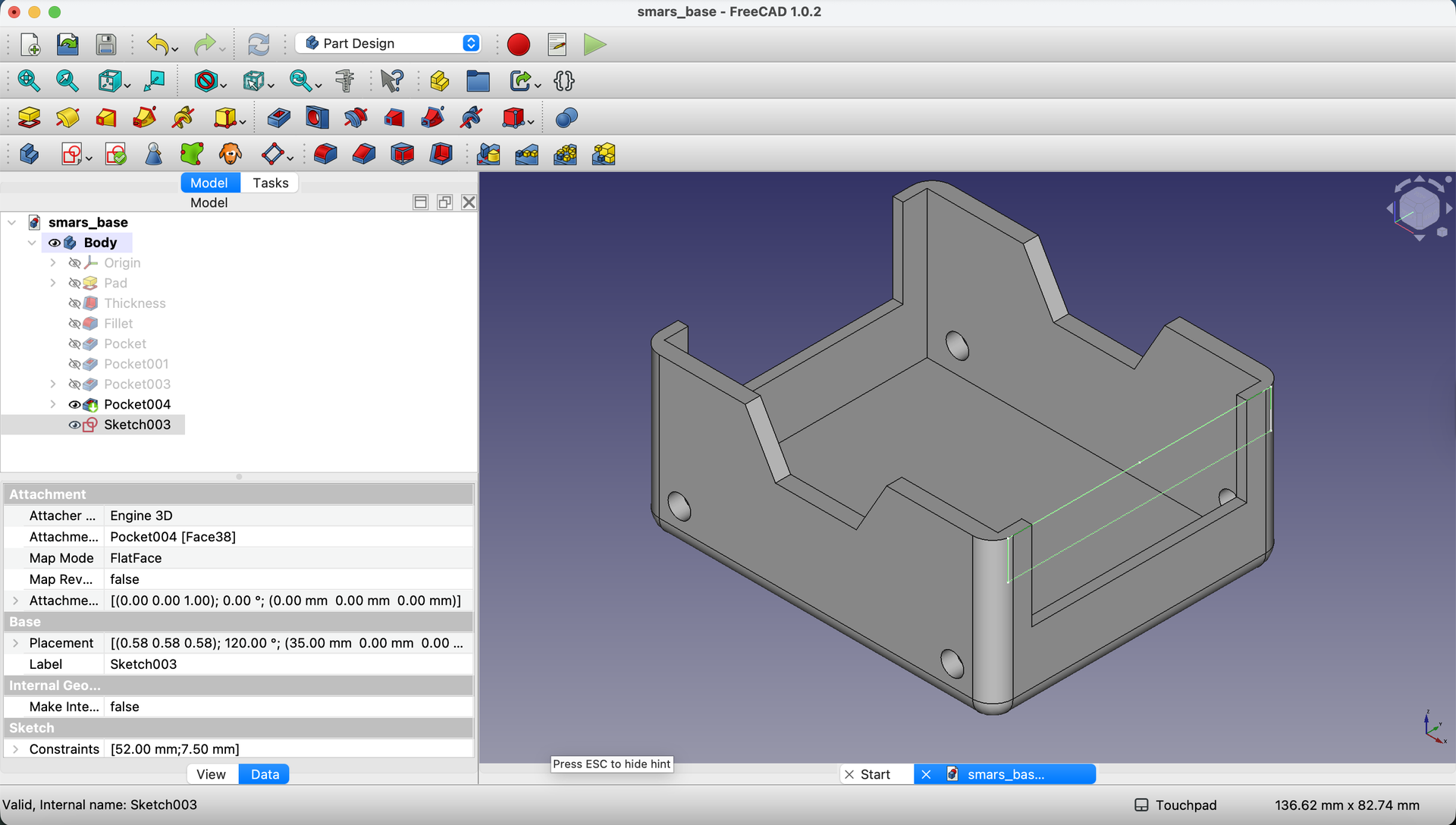
18. Confirm the Result
Click OK. You now have a cable routing slot at the top of the rear (and front) opening.
Understanding Symmetric vs. Coincident Constraints
| Constraint | What It Does | When to Use |
|---|---|---|
| Coincident | Two points must be at same location | Centering on a single reference point |
| Symmetric | A point is exactly between two others | Centering between two edges/corners |
Both achieve centering, but Symmetric is powerful when you have two reference points you want to center between.
Try It Yourself
- Test the opening size: Would an Arduino Nano fit through? (17mm × 43mm - it should!)
- Imagine cable routing: Picture wires running through the top slot to a sensor
- Check symmetry: View from front - is everything centered?
Common Issues
“The pocket cuts the wrong direction”
Problem: The opening goes outside the base instead of inside. Solution: In the Pocket dialog, check the “Reversed” option if needed. FreeCAD sometimes guesses the wrong direction.
“Symmetric constraint doesn’t work”
Problem: Clicking Constrain Symmetric does nothing or fails. Solution: Make sure you have exactly 3 elements selected: 1 point to center, and 2 reference points. The center point must be selected first.
“The cable slot is too deep”
Problem: The slot cut all the way through. Solution: Undo and check your pocket depth - it should be 2mm, not 70mm.
“My rectangle isn’t positioned correctly”
Problem: The opening is off-center or at the wrong height. Solution: Double-click the sketch to edit it. Verify all dimensions and constraints. Green = fully constrained.
What You Learned
In this lesson, you mastered:
- Symmetric constraints - Centering features between two points
- Multiple sketches/pockets - Building up features in layers
- Shallow vs. deep pockets - Controlling cut depth for different purposes
- Through-all cuts - Creating openings that go completely through
Next Up
Time to add mounting slots for the Arduino! We’ll learn the Mirror tool to create symmetric features efficiently.
You can use the arrows ← → on your keyboard to navigate between lessons.
Comments