What is Picotamachibi?
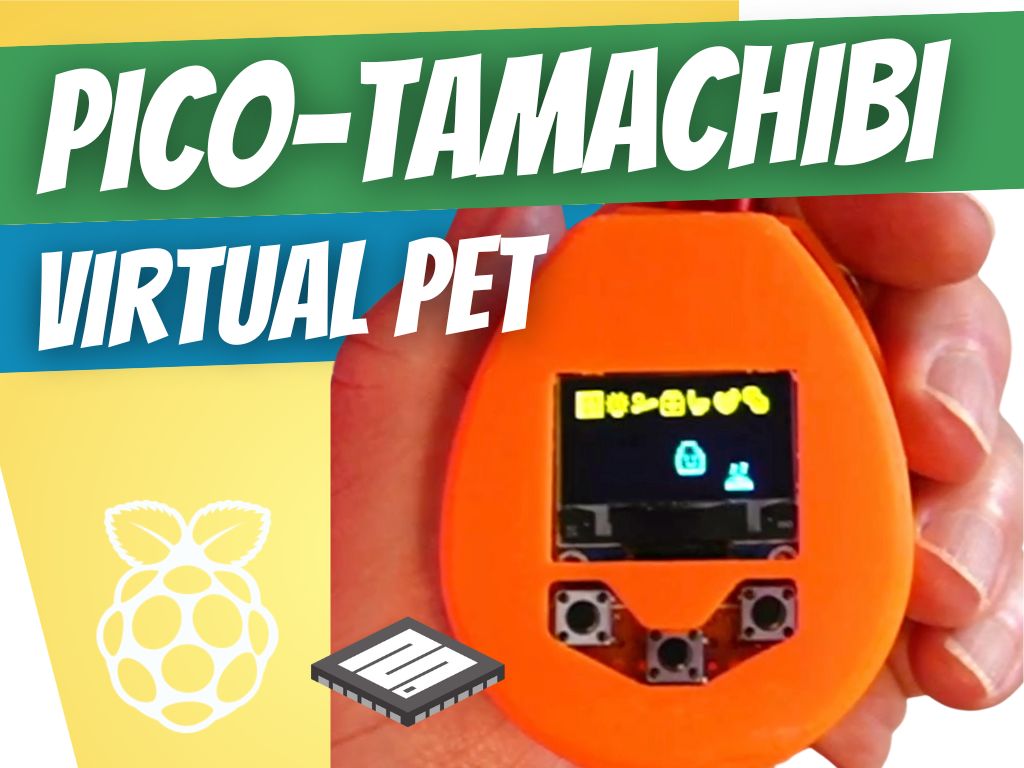
Picotamachibi is the name for a fun MicroPython based virtual pet.
The word is formed from ‘Pico’ - the name of the MicroPython board, ‘tama’ from tamagotchi, and ‘chibi’ from the Japanese chibi kyara (ちびキャラ, ‘tiny character’), where chibi (ちび) is a colloquial word for very short people and children, itself deriving from chibiru (禿びる, v. ‘to wear down’), and kyara (キャラ) is loaned from the English “character.”
I’ve always love the 90s Tamagotchi toys and wanted to build and program my own, using MicroPython and a Raspberry Pi Pico.
This project involved programming and 3D design with Fusion 360.
Bill of Materials
| Item |
Description |
Qty |
Price |
| Pico |
Raspberry Pi Pico / Pico W (either will do) |
1 |
£4.00 |
| 3x Buttons |
3x Tact switches |
3 |
£0.50 |
| Wire |
Red, Black, Green, Blue wire & solder |
1 |
£0.50 |
| OLED Display |
SSD1306 128x64 OLED Display |
1 |
£16.00 |
| Veroboard |
Small strip of veroboard |
1 |
£4.00 |
| |
|
Total |
£25.00 |
Programming challenge
The challenge is that the Pico has a small amount of memory and tamagotchis feature a number of animated graphics (sprites) as well as basic game play.
First of all I create a series of graphics, an icon set for the menu system, and various animations for the game play, such as the main character, food, and pooping.
Hardware design
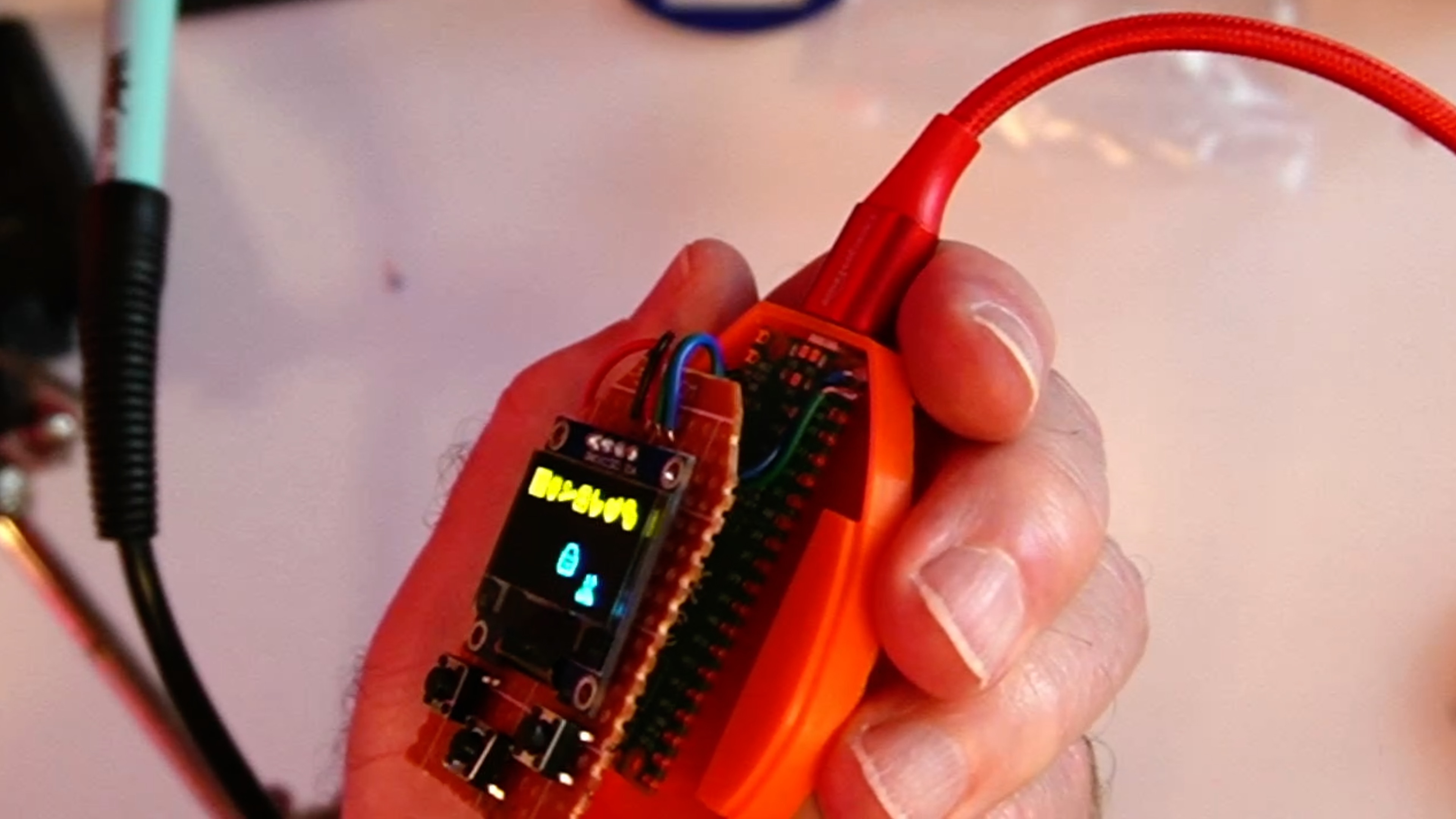
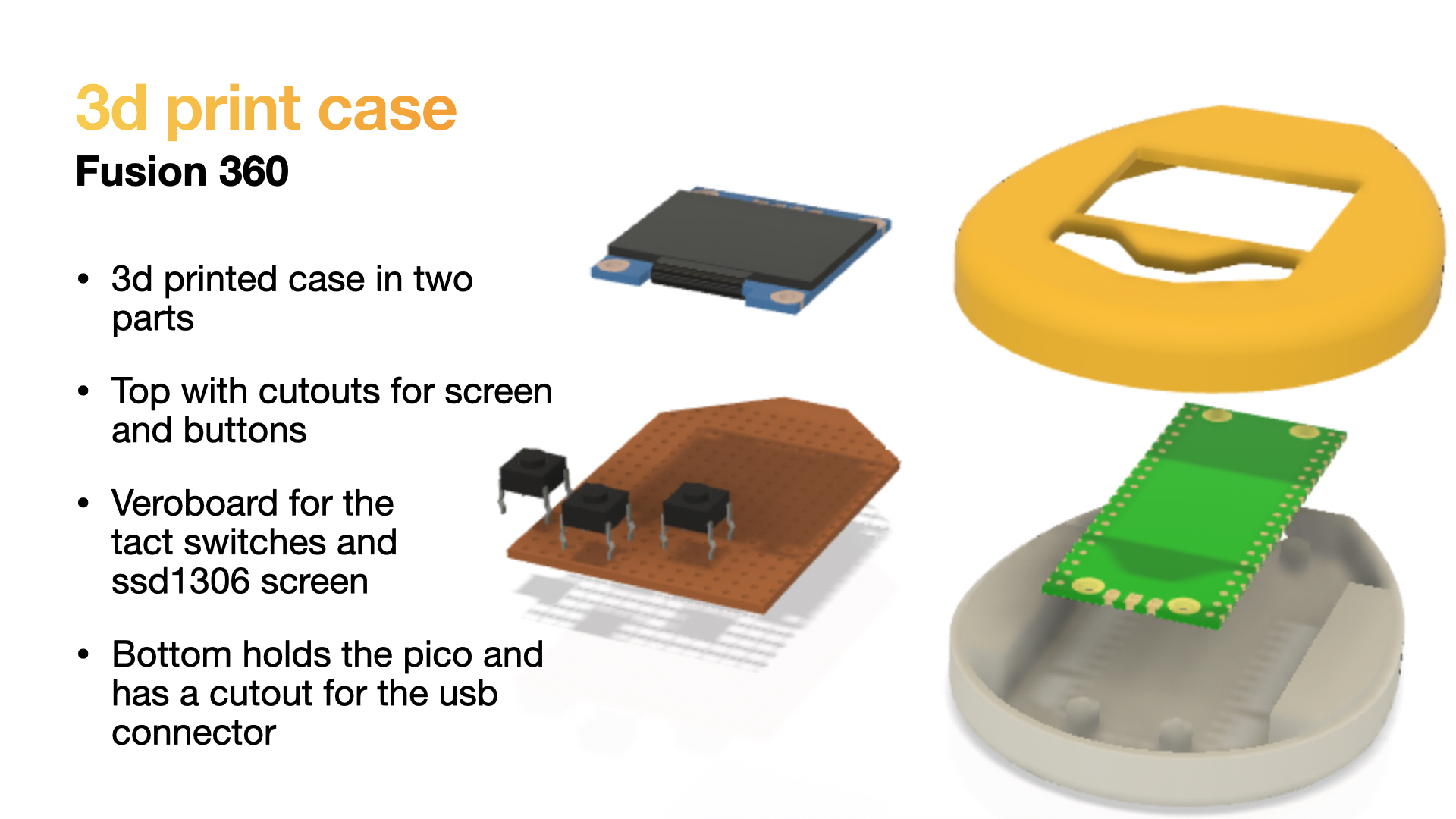
The length of the pico defines the main extent of the phyiscal design, along with the black and white screen.
The base houses the Pico and has mounts that will enable the pico to firmly sit in place.
The front has holes for the phyiscal buttons (of which there are three; select, menu and back, labelled A, B and X).
The screen is a SSD1306 black and white display with 128x64 pixels, and connects to the Pico with just 4 wires:
Wiring
The wiring is pretty simple, though you may have to keep the wires short to fit everything in the case.
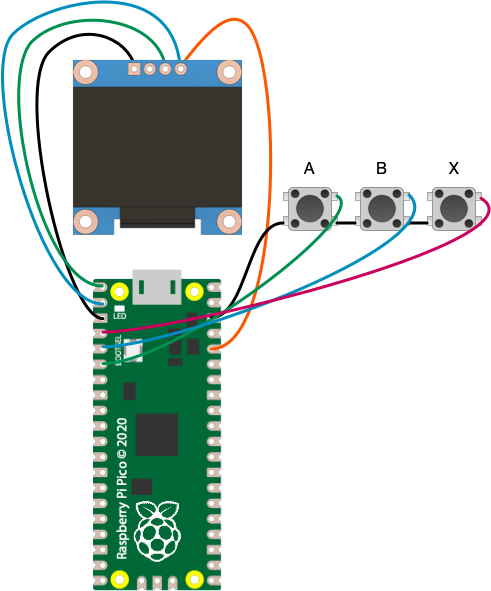
| Pico GPIO |
Component |
GPIO00 |
SDA |
GPIO01 |
SCL |
3.3v out |
VCC |
GND |
GND |
GPIO04 |
Button A |
GPIO03 |
Button B |
GPIO02 |
Button X |
Code design
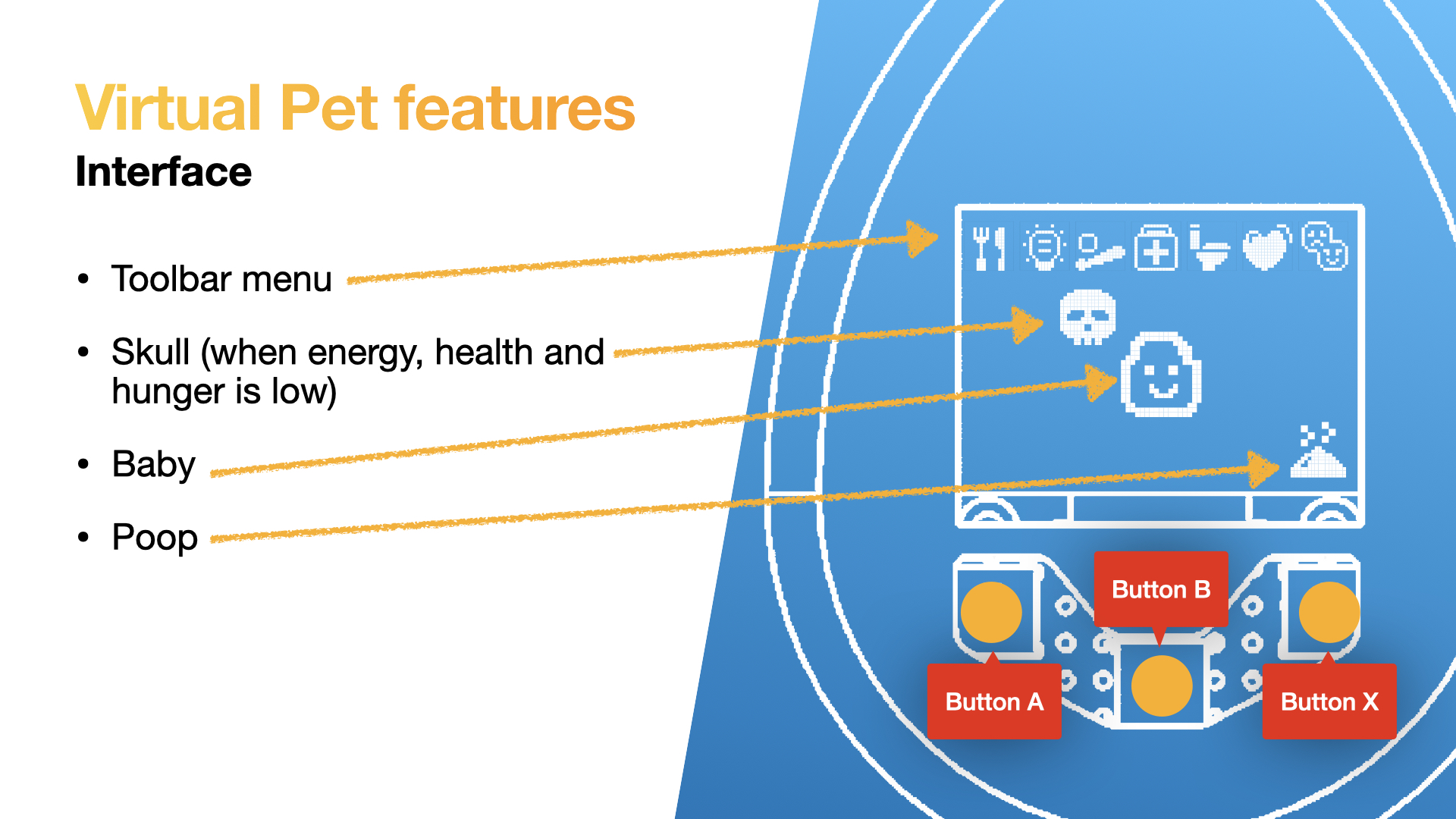
The User Interface has a toolbar menu at the top and a main game area filling the rest of the screen. Some elements of game play always appear in the same place, such as the poop, and skull when your character is low on energy, health and hungry.
The physcial interface has three buttons:
A - for moving the menu selector forwardB - for selecting an actionX - for cancelling an action
Framebuffer
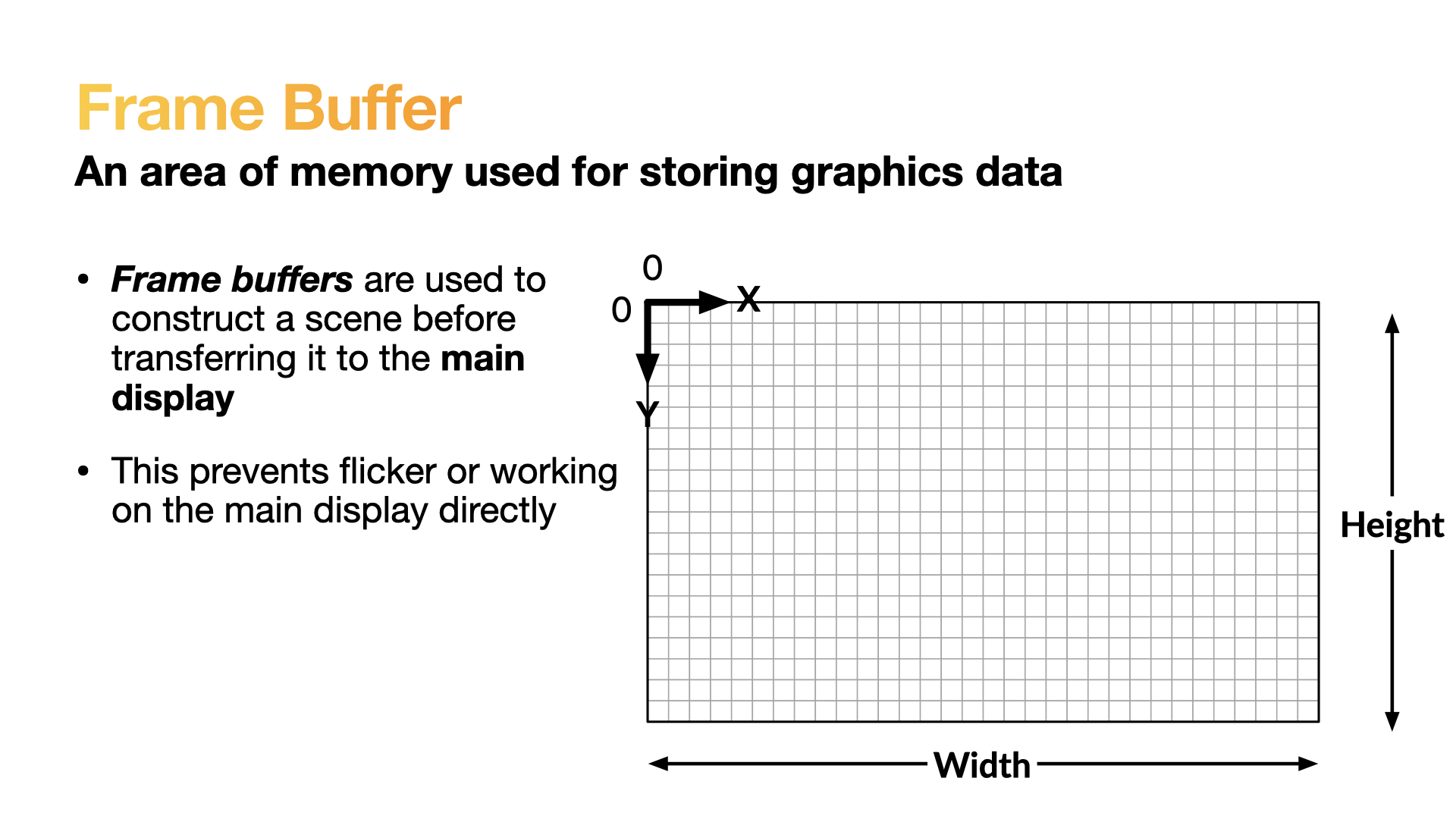
MicroPhython has a built-in class called a framebuffer. A framebuffer is used to store graphical data that is ready for rendering on a display. You can have as many framebuffers as you like (and they can be of different size and bit-depths), however remember that Picos have limited RAM (264k).
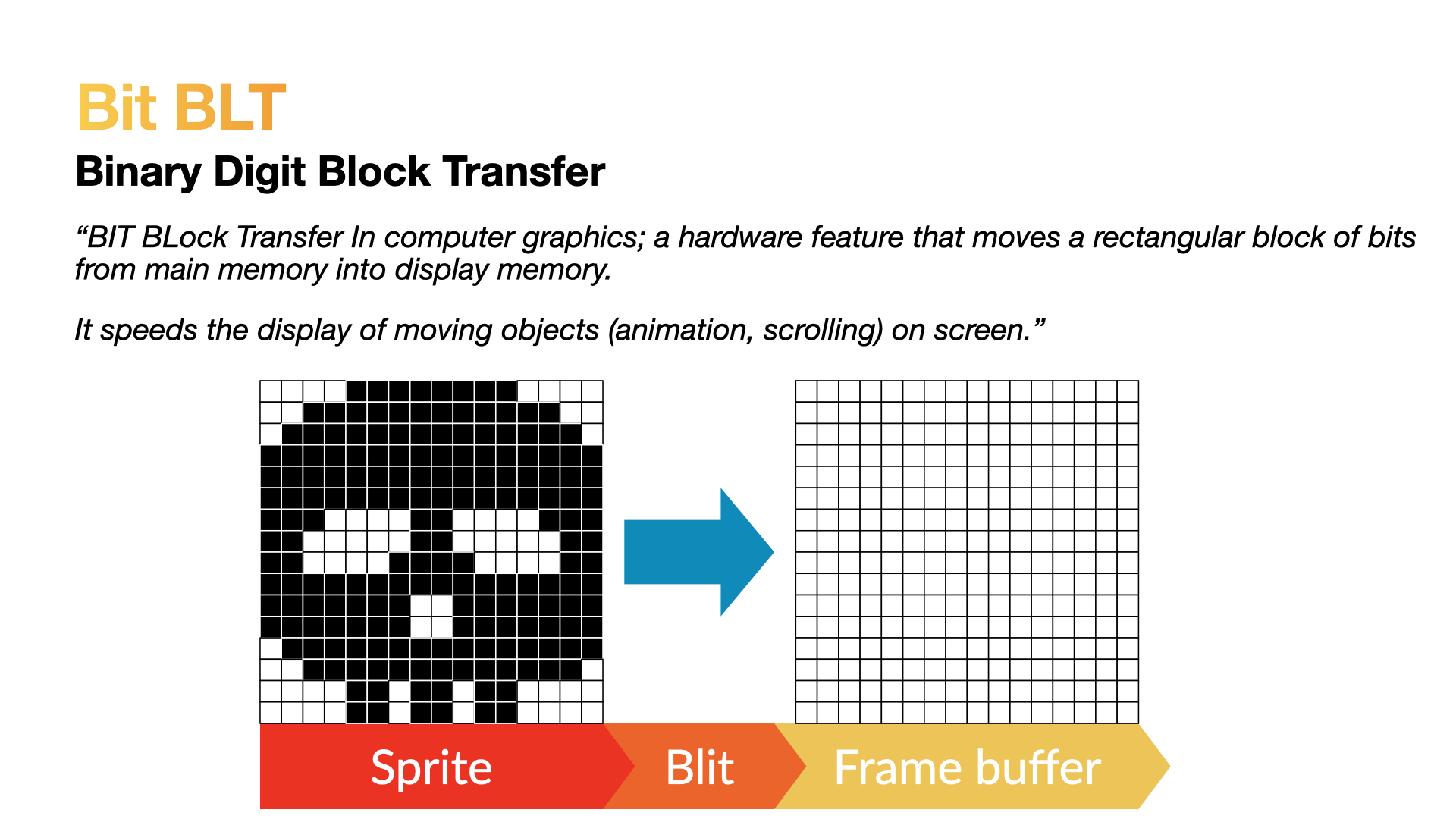
Bit Bliting
BIT BLock Transfer in computer graphics is the term for quickly moving rectangular blocks of bits from main memory into display memory. This can speed up the moving of objects (animation, scrolling) on screen.
How Blitting works
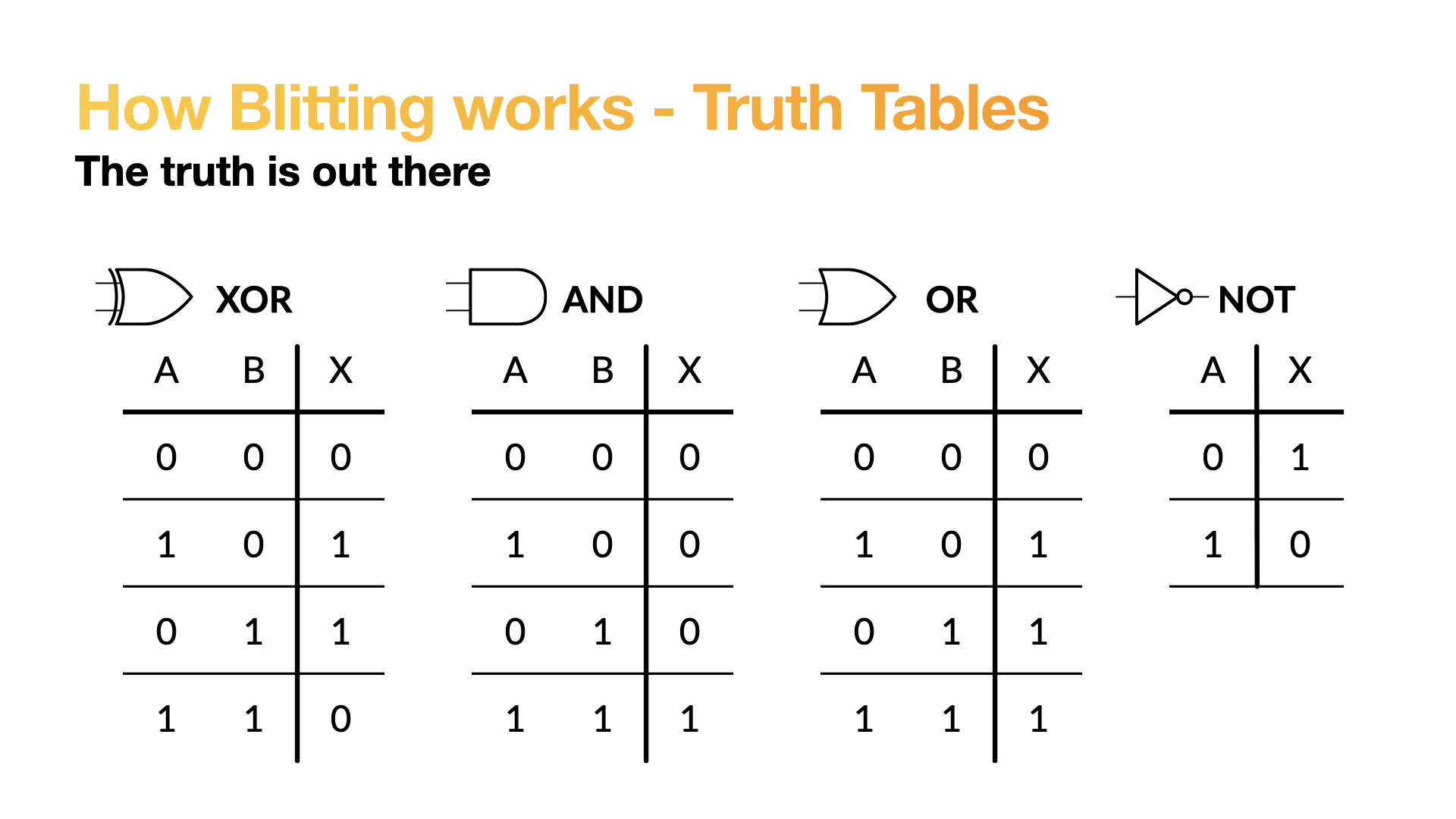
Blitting uses low level binary operations such as XOR - exclusive OR, AND, OR and NOT. These are also known as gates, which as simple electrical circuits with a few inputs and fewer outputs, and are often described as truth tables. The inputs to the gate are processed and a output provided, in the case of an AND gate the output will only be a 1 if both inputs are also a 1; all other possibilies will result in a 0 as the output.
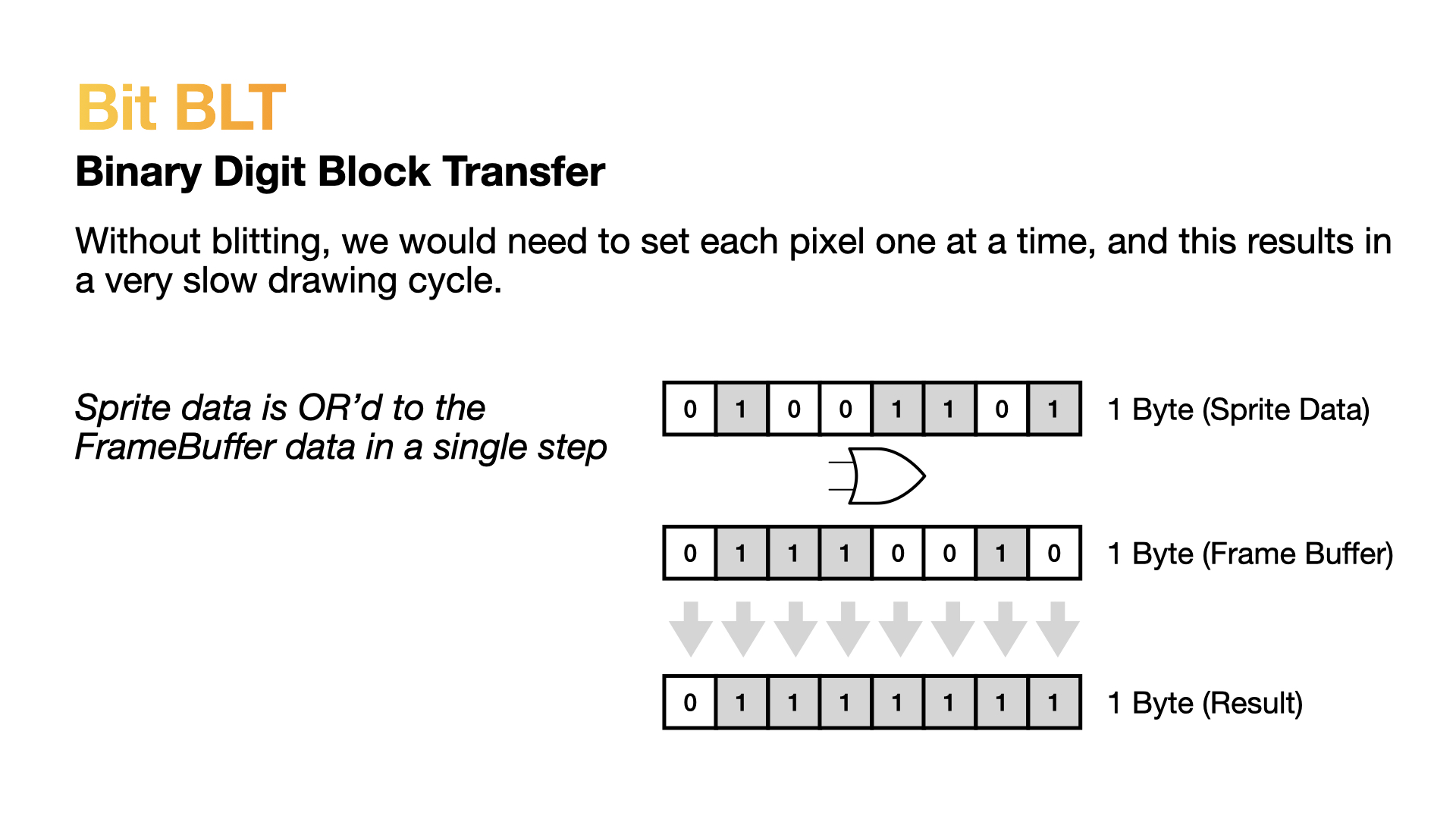
Blitting commonly uses the OR operation to compare and set the current display with the framebuffer being moved to it; this can be performed very fast.
Binary Digit Block Transfer
Without blitting, we would need to set each pixel one at a time, and this results in a very slow drawing cycle. Sprite data is OR’d to the FrameBuffer data in a single step.
Animation
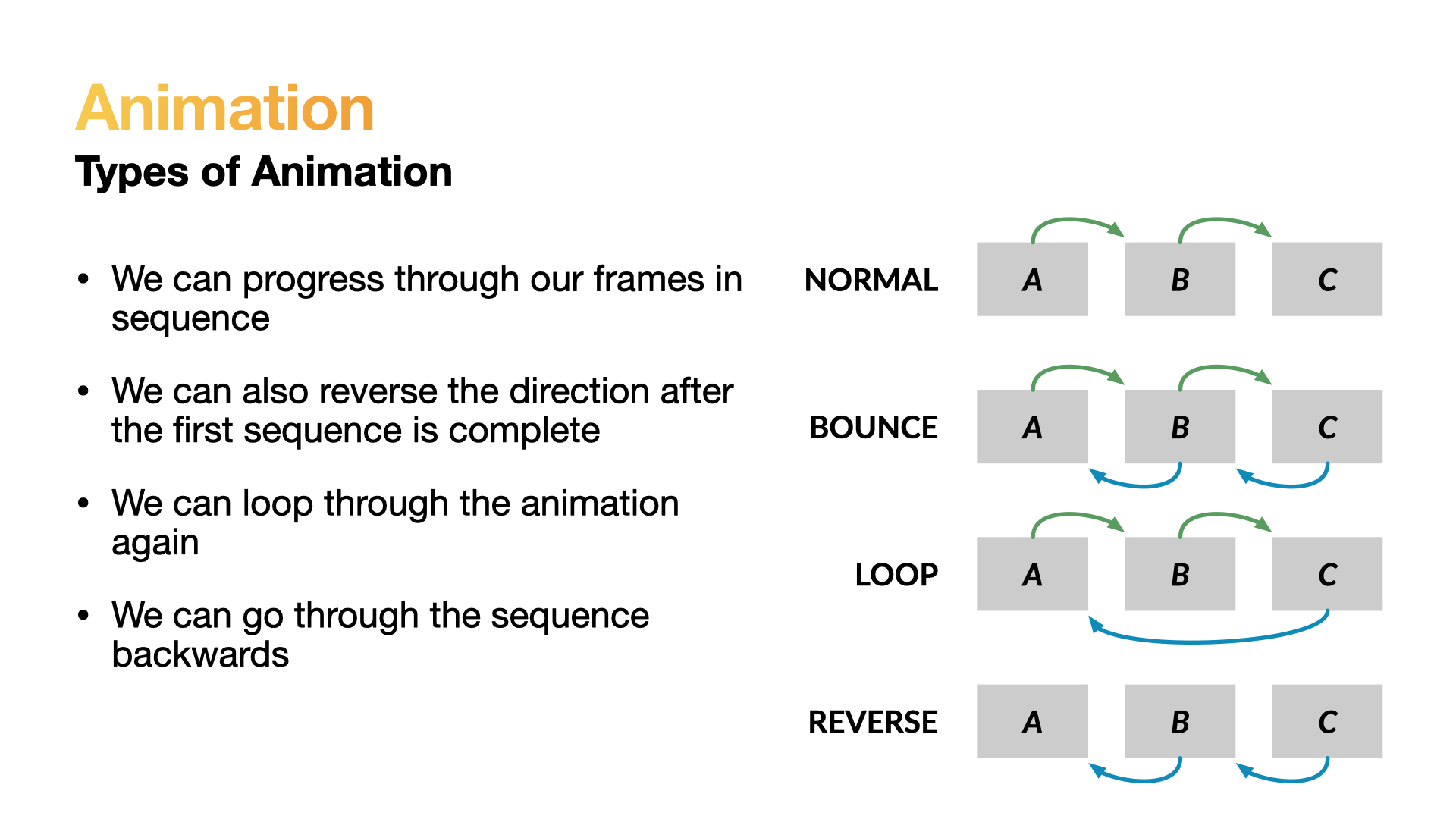
There are many types of graphics animation, and to make our programming easier we can define 4 common types of animation.
Types of Animation
Normal - We can progress through our frames in sequenceBounce - We can also reverse the direction after the first sequence is completeLoop - We can loop through the animation againReverse - We can go through the sequence backwards
Icons
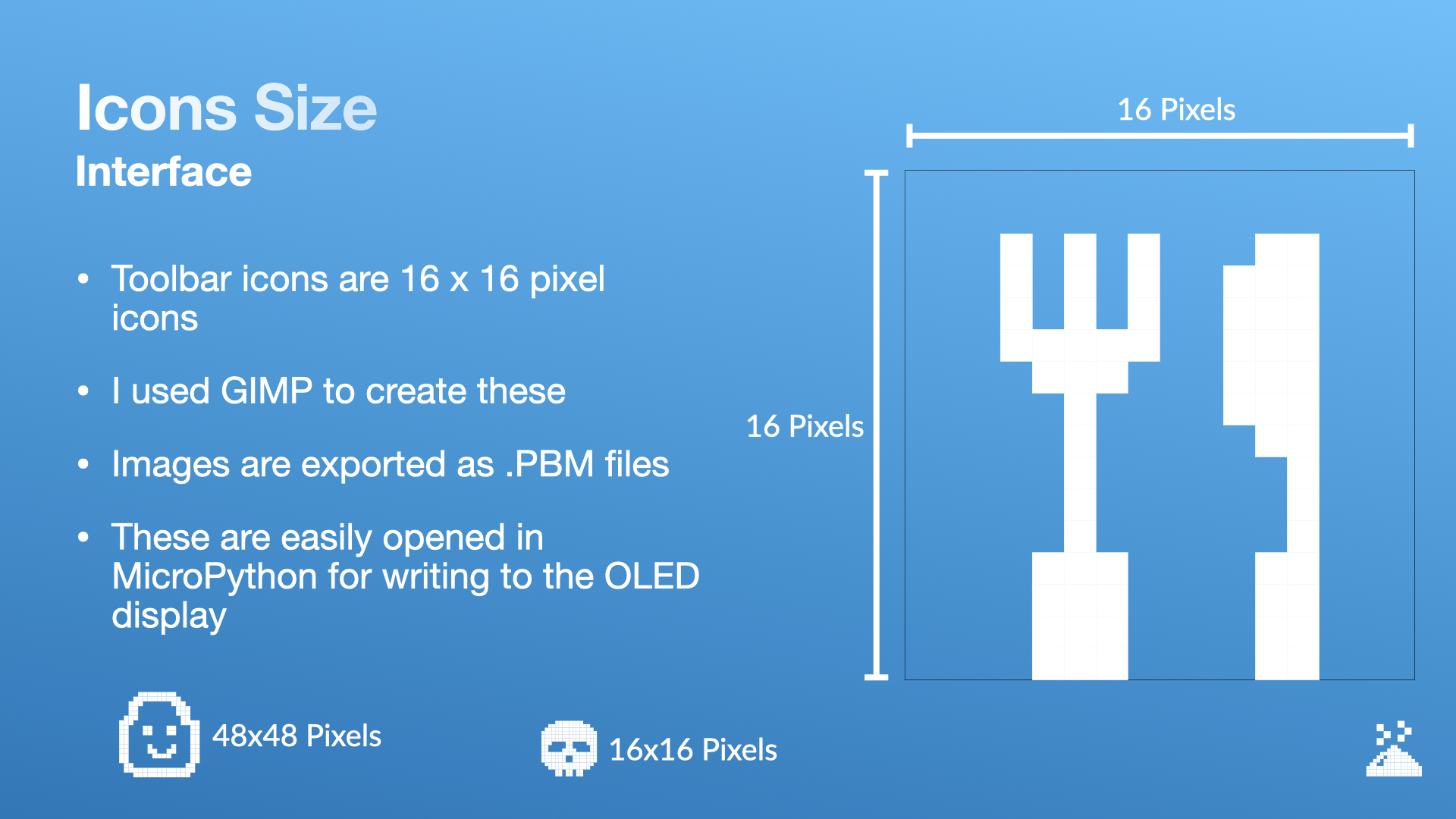
Icons are the small graphics that represent an option, item or action in our game. To make designing and manipulating icons easier we can standardise the size of our icons to 16x16 pixels.
The Gnu Image Manipulation Programme (Gimp - yes I know that sounds weird), can be used to design and export graphics for use with our game. The output format is called .pbm (Portable Bitmap format).
Our main character will be 48x48 pixels, to allow for more expressiveness.
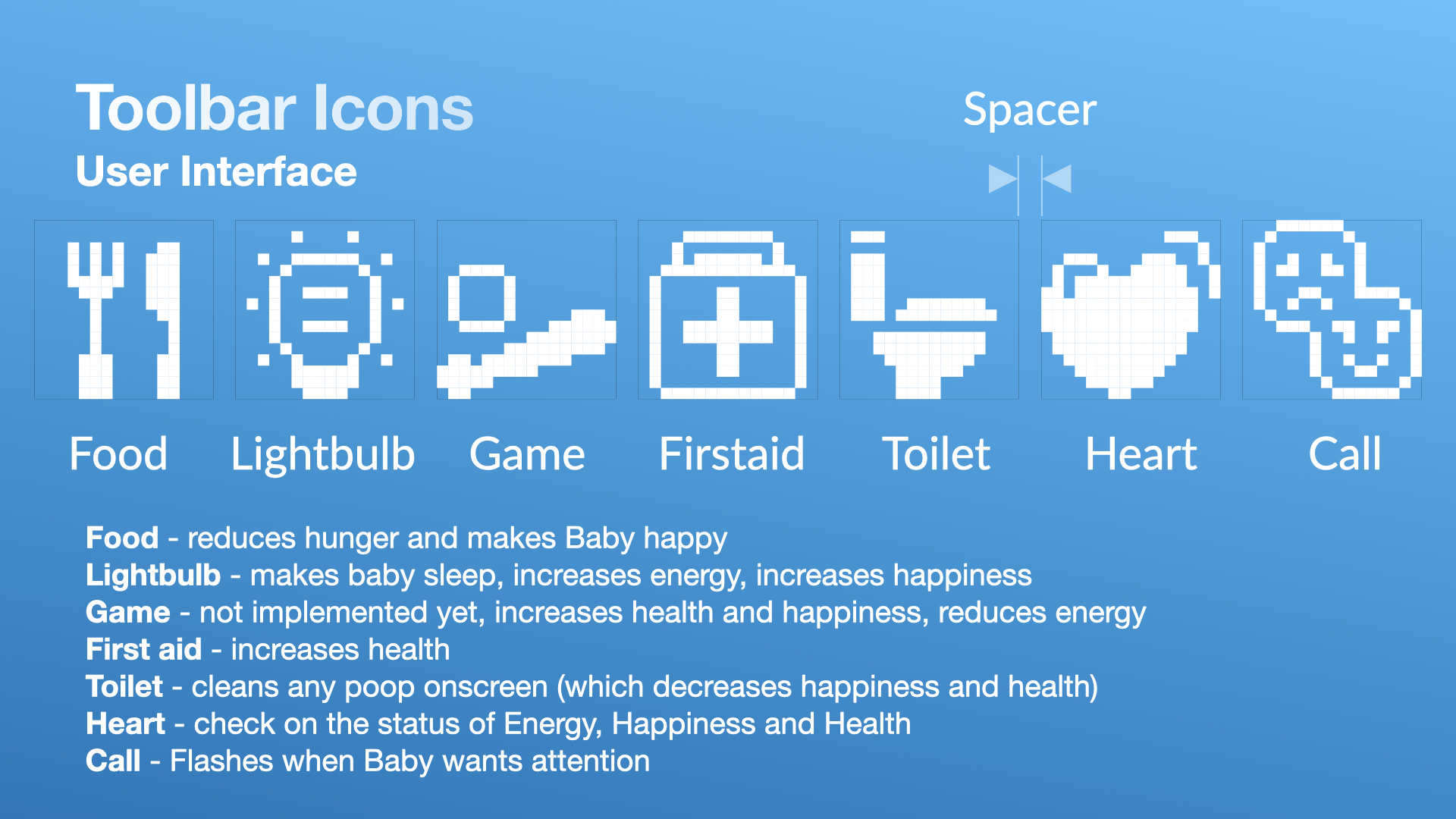
There are a number of icons that we can use on our toolbar:
Food - reduces hunger and makes Baby happyLightbulb - makes baby sleep, increases energy, increases happinessGame - not implemented yet, increases health and happiness, reduces energyFirst aid - increases healthToilet - cleans any poop onscreen (which decreases happiness and health)Heart - check on the status of Energy, Happiness and Health Call - Flashes when Baby wants attention
We can toggle the icon to swap the black and white pixels - this can enable a simple selected state when moving through our toolbar with the buttons.
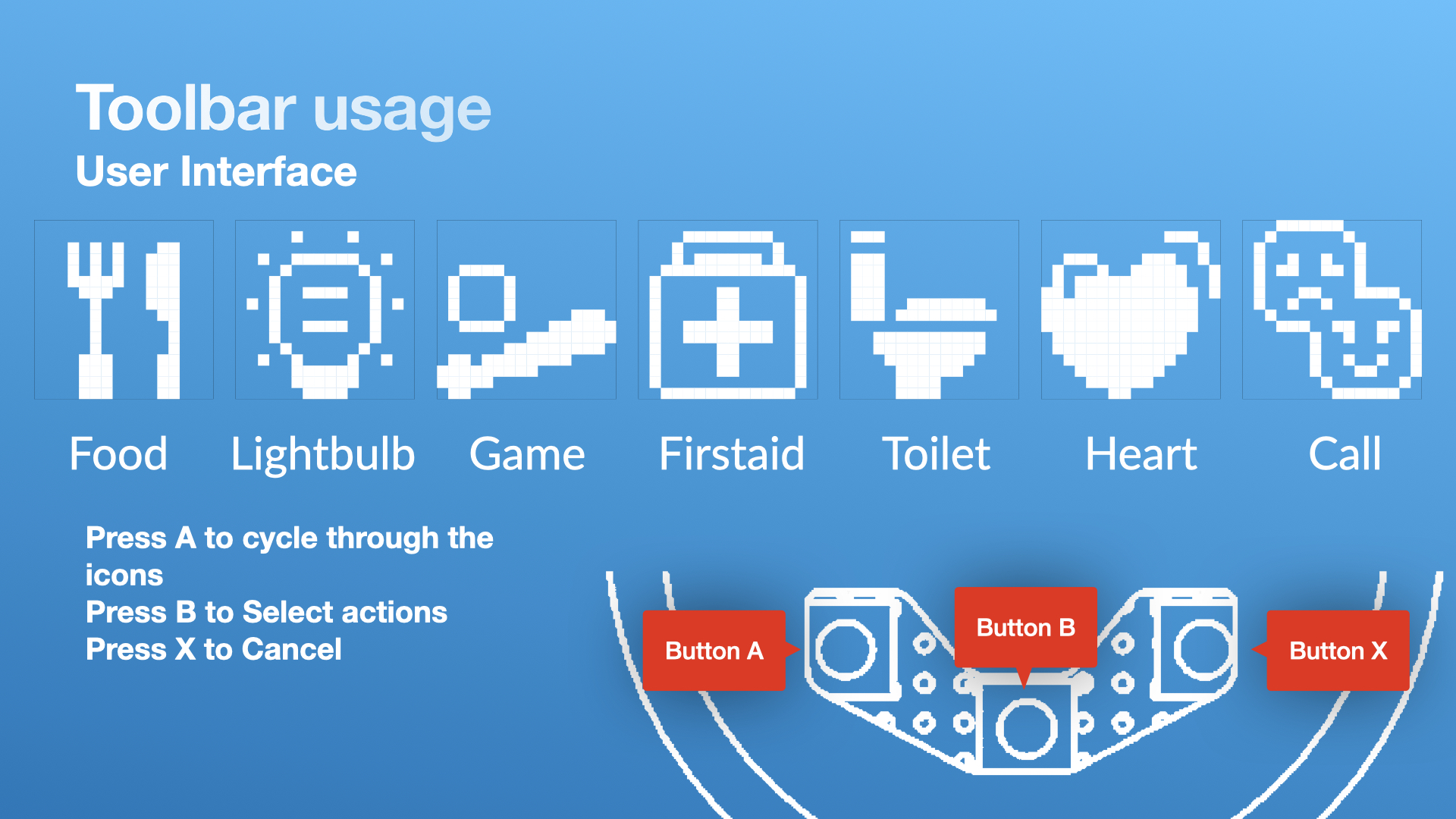
Our toolbar can be used to select menu items, by cycling through the currently selected icons on the menu bar with the A button.
Toolbar actions:
- Press
A to cycle through the toolbar menu icons
- Press
B to select actions
- Press
X to cancel the selection
Code Overview
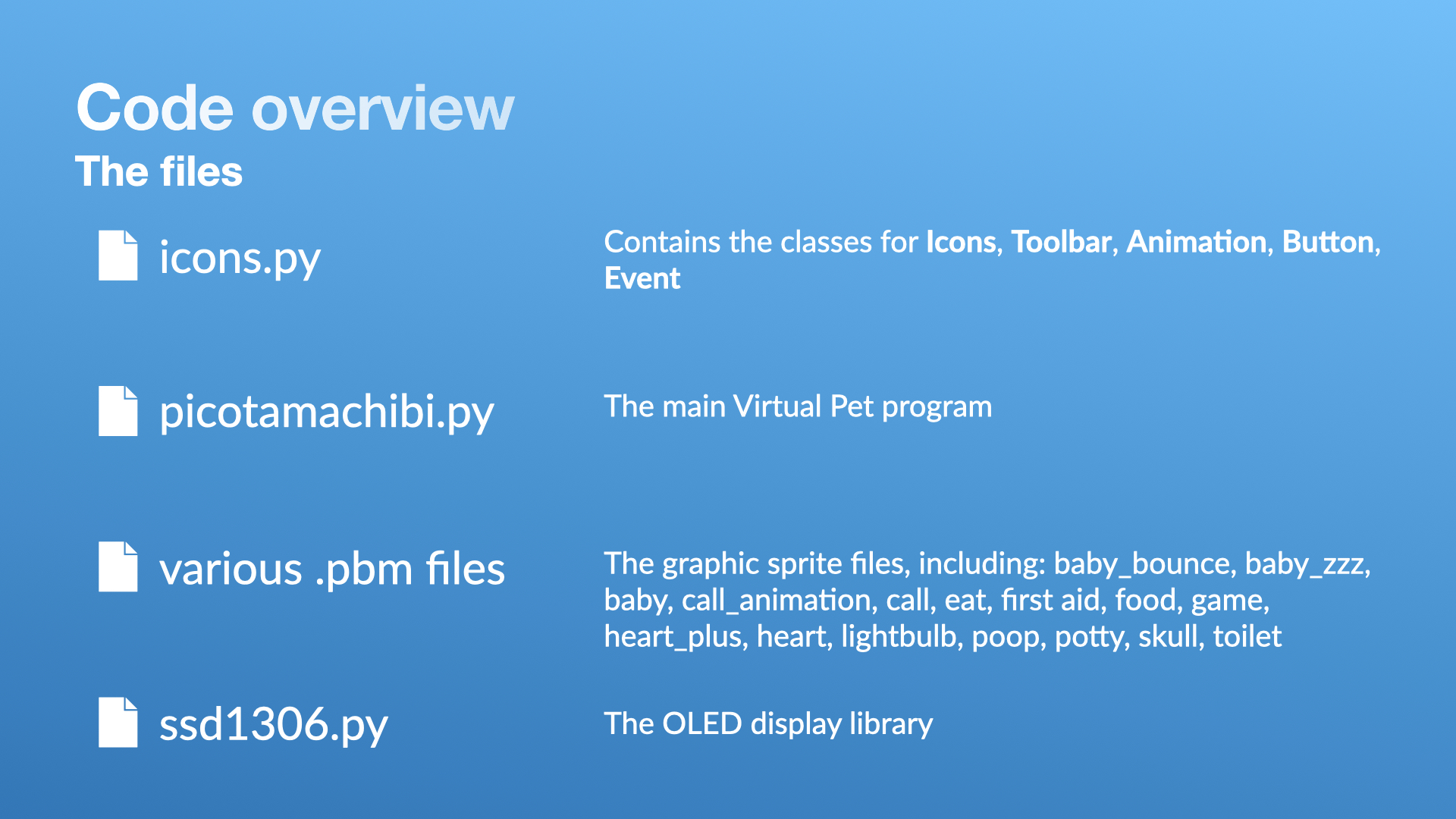
icons.py - Contains the classes for Icons, Toolbar, Animation, Button, and Eventpicotamachibi.py - The main virtual pet program- various
.pbm files - the original graphics sprite files including: baby_bounce, baby, baby_zzz, baby, call_animation, call, eat, first aid, food, game, heart_plus, heart, light_bulb, poop, potty, skull, toilet
ssd1306.py - The OLED library
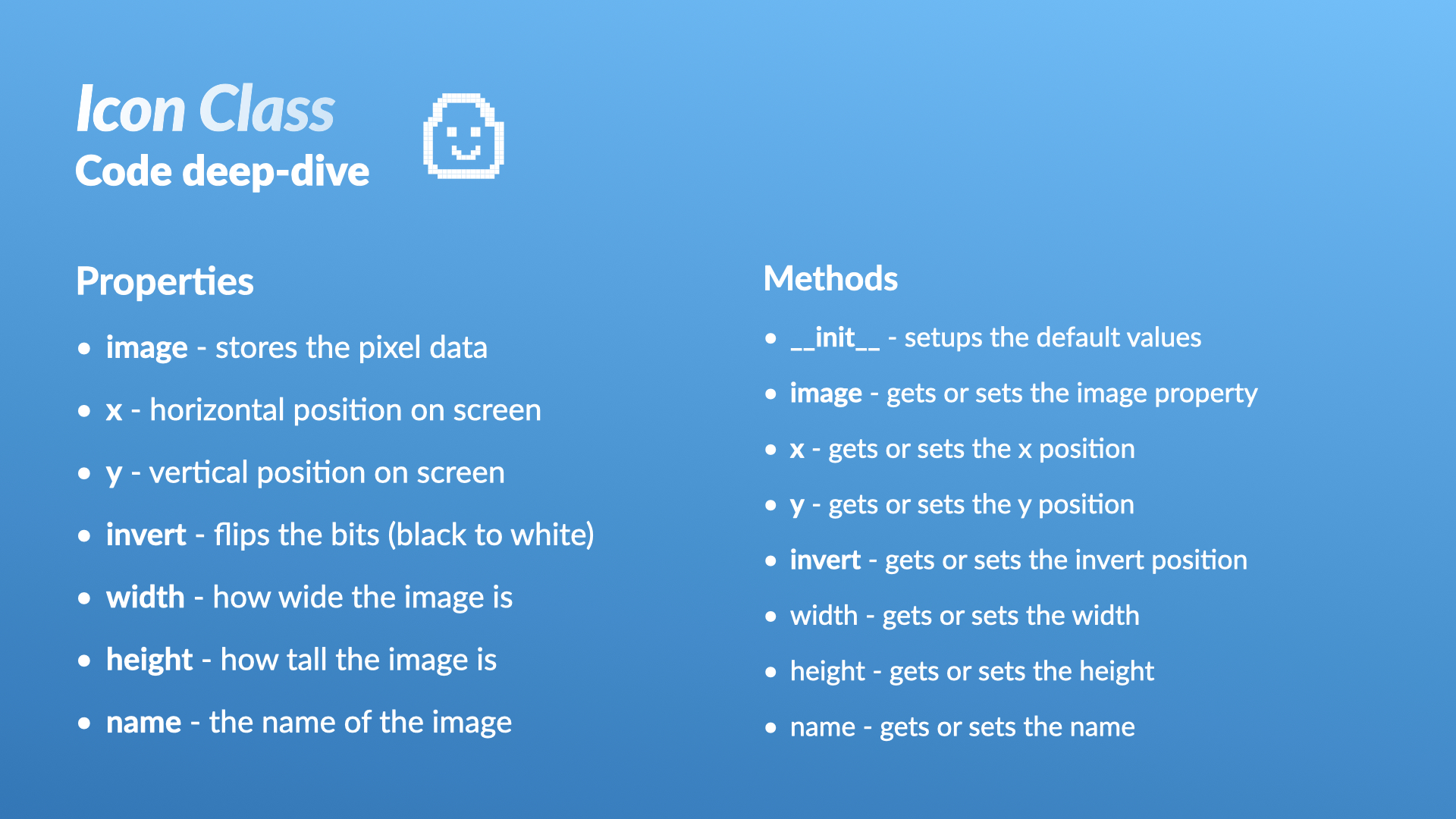
The Icon Class
Icon Properties
image - stores the pixel datax - horizontal position on screeny - vertical position on screeninvert - flips the bits (black to white)width - how wide the image isheight - how tall the image isname - the name of the image
Icon Methods
__init__() - setups the default valuesimage() - gets or sets the image propertyx() - gets or sets the x positiony() - gets or sets the y positioninvert() - gets or sets the invert positionwidth() - gets or sets the widthheight() - gets or sets the heightname() - gets or sets the name
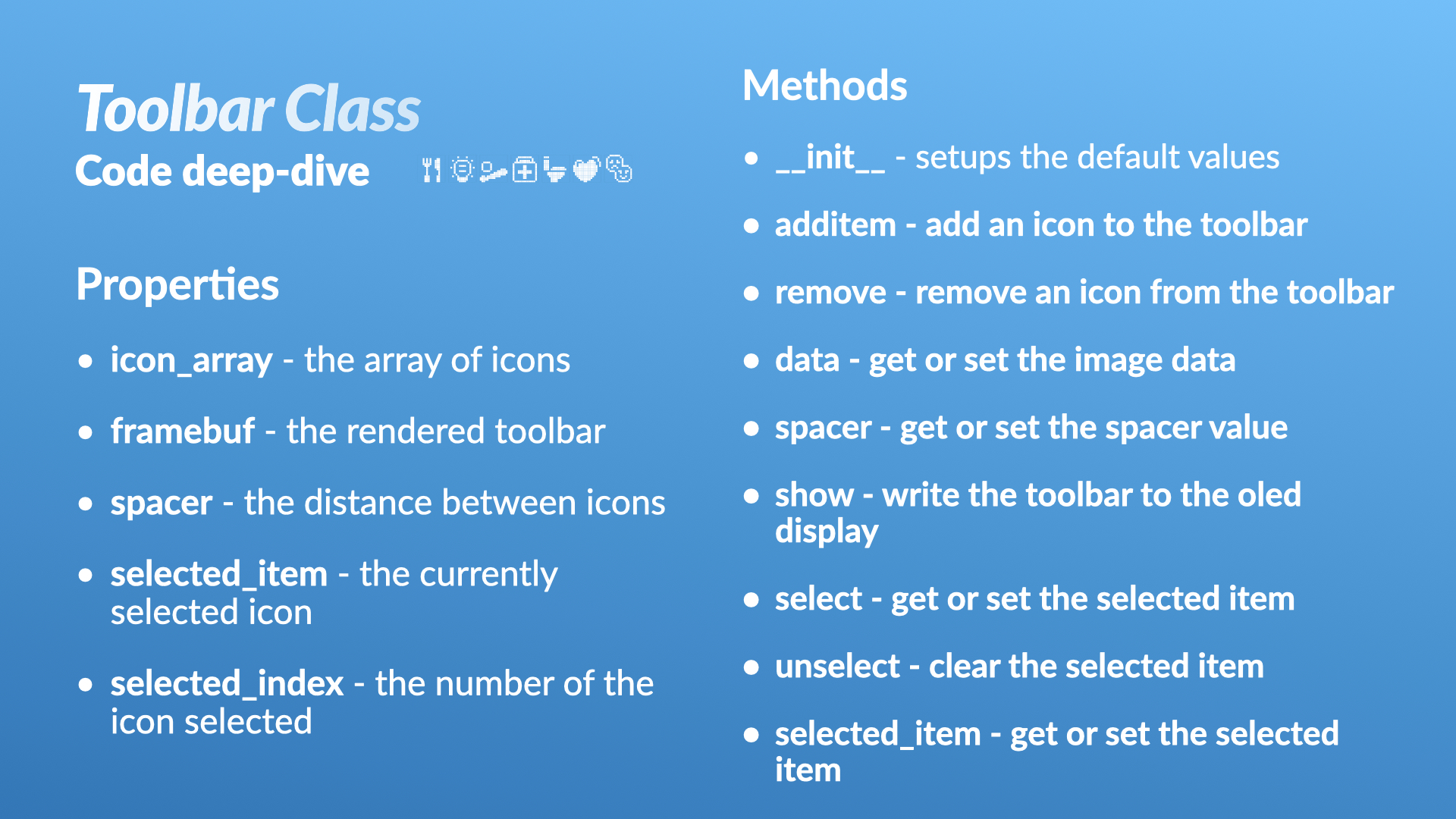
icon_array - the array of iconsframebuf - the rendered toolbarspacer - the distance between iconsselected item - the currently selected iconselected index - the number of the icon selected
__init__() - setups the default valuesadditem() - add an icon to the toolbarremove() - remove an icon from the toolbardata() - get or set the image dataspacer() - get or set the spacer valueshow() - write the toolbar to the oled displayselect() - get or set the selected itemunselect() - clear the selected itemselected_item() - get or set the selected item
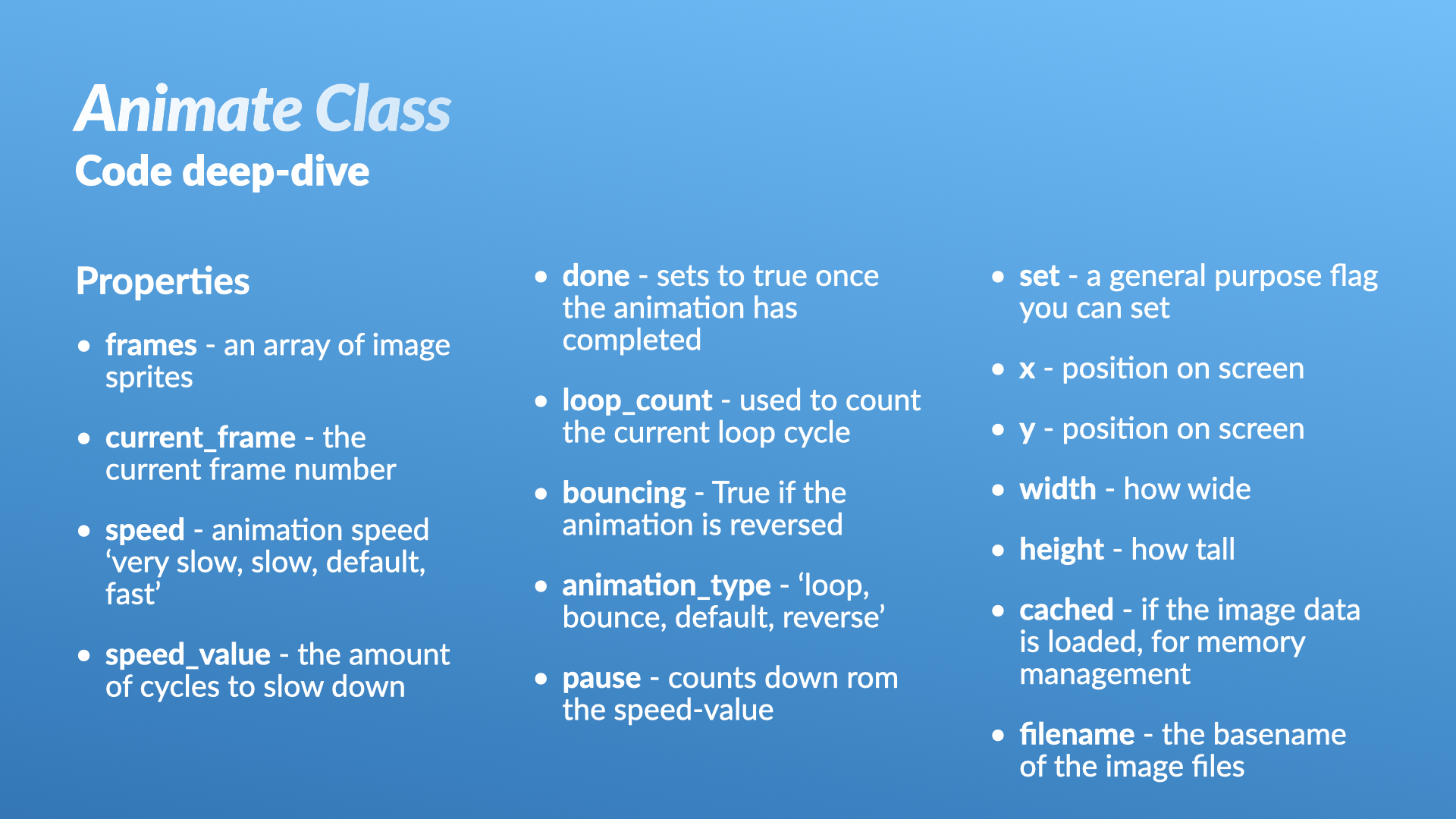
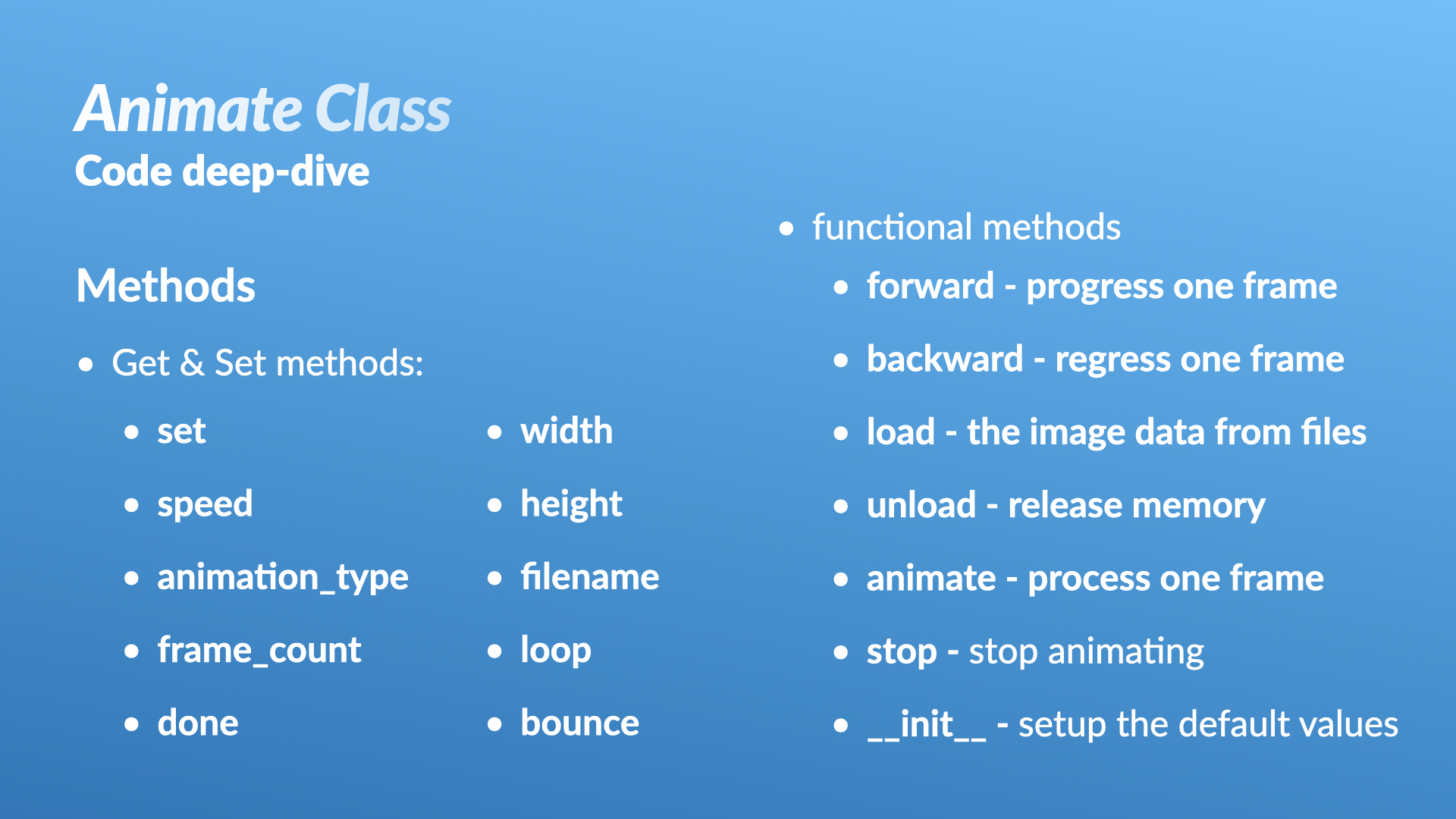
Animate Class
Properties
frames - an array of image spritescurrent frame - the current frame numberspeed - animation speed, ‘very slow, slow, default, fast’speed_value - the amount of cycles to slow downdone - sets to true once the animation has completedloop_count - used to count the current loop cyclebouncing - True if the animation is reversedanimation_type - ‘loop, bounce, default, reverse’pause - counts down rom the speed-valueset - a general purpose flag you can setx - position on screeny - position on screenwidth - how wideheight - how tallcached - if the image data is loaded, for memory managementfilename - the basename of the image files
Methods
Get & Set methods:
set()speed()animation_type()frame_count()done()width()height()filename()loop()bounce()
Functional methods:
forward - progress one framebackward - regress one frameload - the image data from filesunload - release memoryanimate - process one framestop - stop animating__init__ - setup the default values
Micropython code on Github
You can find the full sourcecode for Picotamachibi here: https://github.com/kevinmcaleer/picotamachibi, the main program is listed below, but you will need to upload all the .pbm files along with the icons.py, ssd1306.py and picotamachibi.py to the Raspberry Pi Pico. It’s easy to do this with Thonny.
3D Printable files
Download the 3D printable files here:
base.stl - The base or back of the casetop.stl - The front or top of the case
Version 2.0
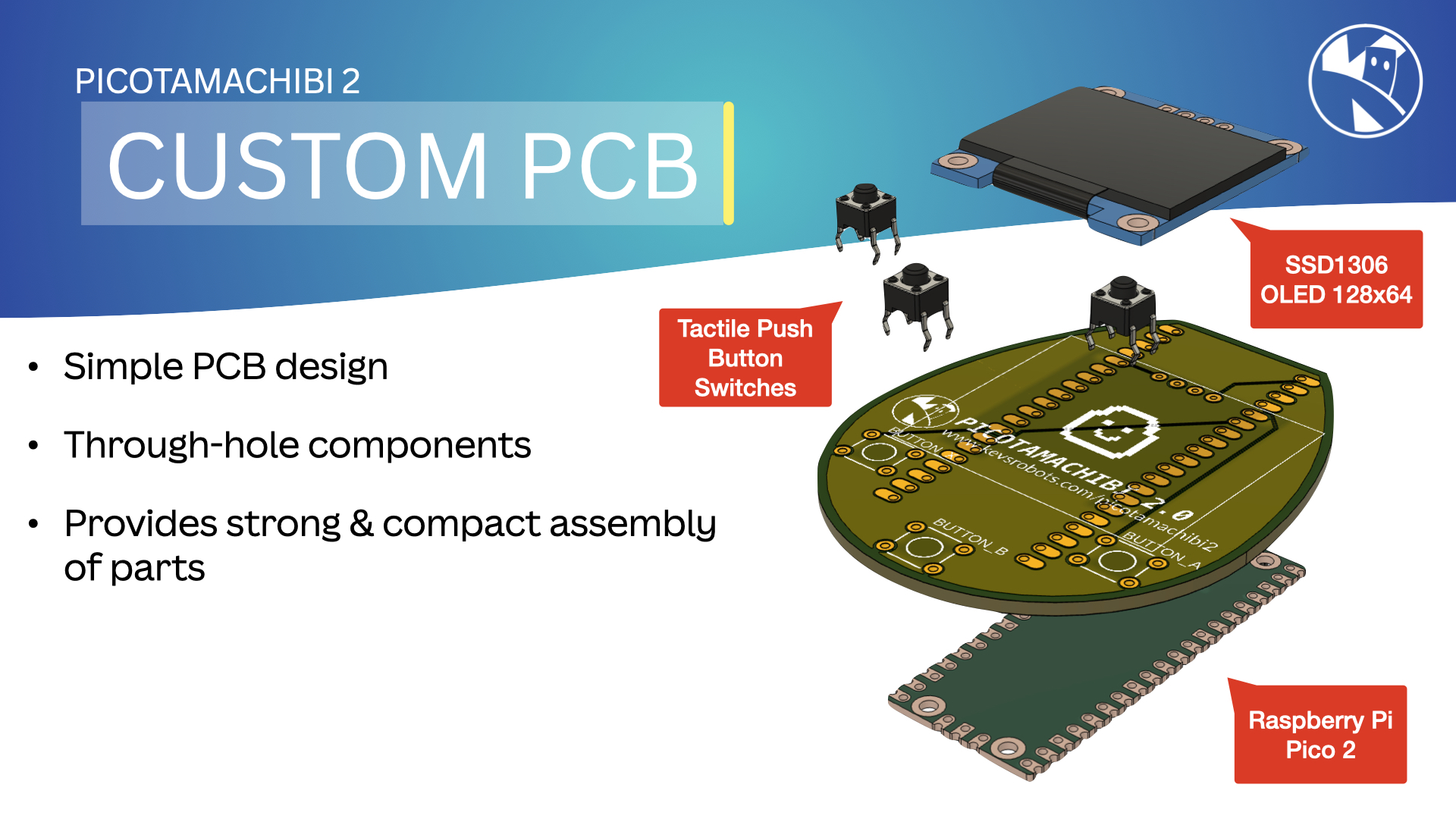
An update to this project is available at Picotamachibi 2, where we build a similar virtual pet using a Raspberry Pi Pico 2.


Comments