Course 1: Getting Started with Snakie
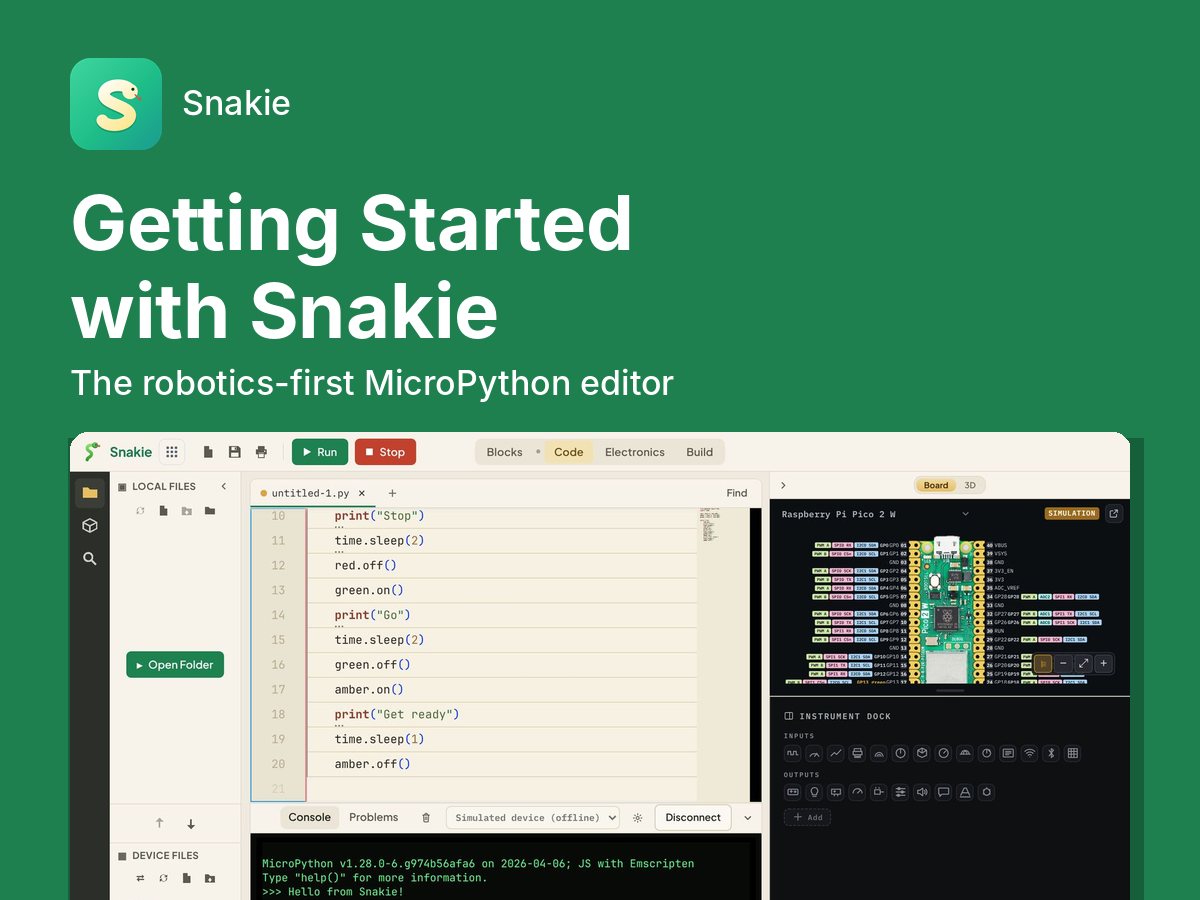
Meet Snakie, the robotics-first MicroPython editor. Write and run your first programs on the built-in simulator, then find your board, flash MicroPython, and build a traffic light on a real Raspberry Pi Pico.
New to Snakie, the robotics-first MicroPython editor? Start here. You’ll find your way around the app, program a Raspberry Pi Pico by snapping blocks together, and learn the MicroPython behind them. Then you’ll plan and check a robot’s wiring in the Electronics workspace, and use the oscilloscope, multimeter and plotter to see what your code is really doing. After that you’ll draw a pair of eyes in the Sprite editor and make them blink on an OLED screen. Most of it runs on Snakie’s built-in simulator, so you can begin before you own a board.
Each course stands on its own. If you already know the first ones, check the level and description and start further down.
Meet Snakie, the robotics-first MicroPython editor. Write and run your first programs on the built-in simulator, then find your board, flash MicroPython, and build a traffic light on a real Raspberry Pi Pico.
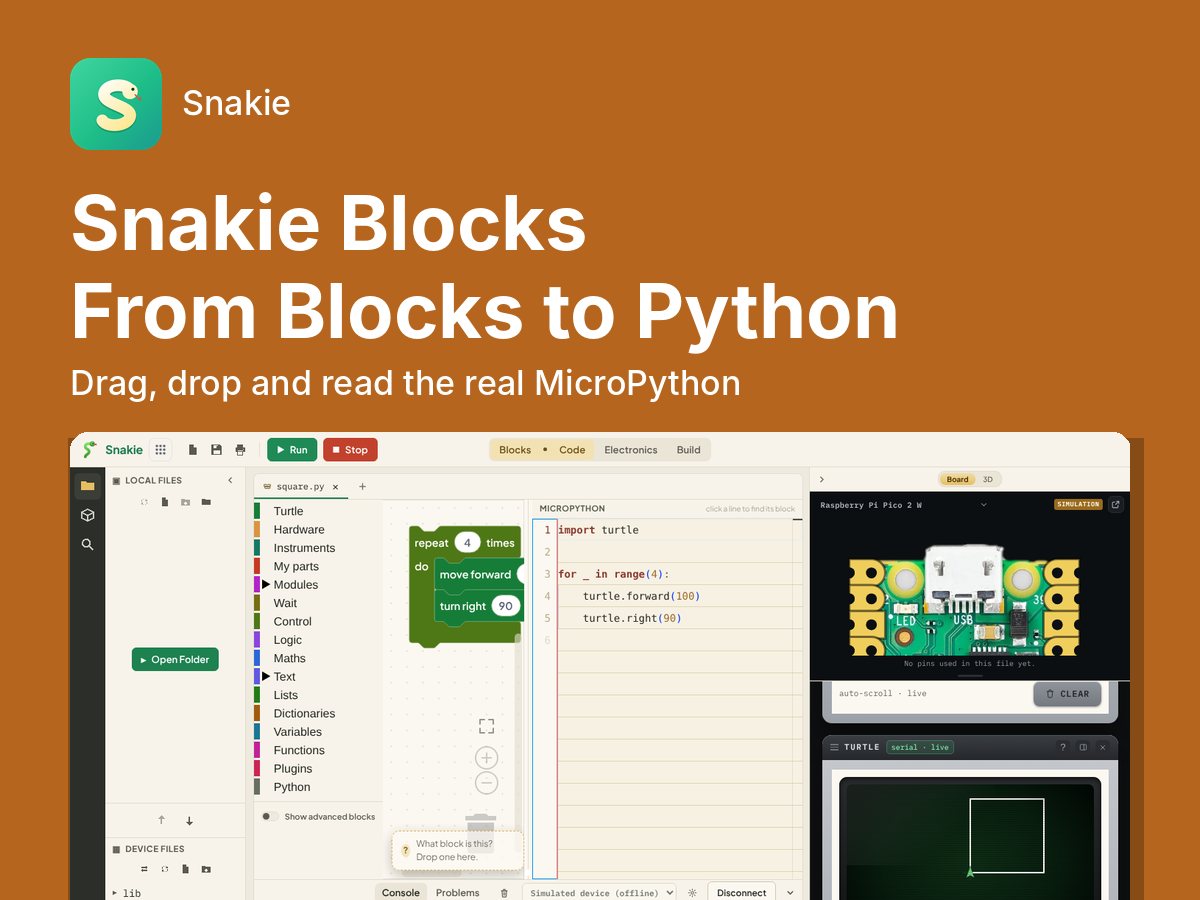
Program a Raspberry Pi Pico by snapping blocks together in Snakie, and watch the real MicroPython appear beside them. Draw with the turtle, drive LEDs, buttons, servos and buzzers, then build a reaction timer game and read every line of its Python.
Get started with MicroPython, What Python is, where to download it and which software to use to develop MicroPython code
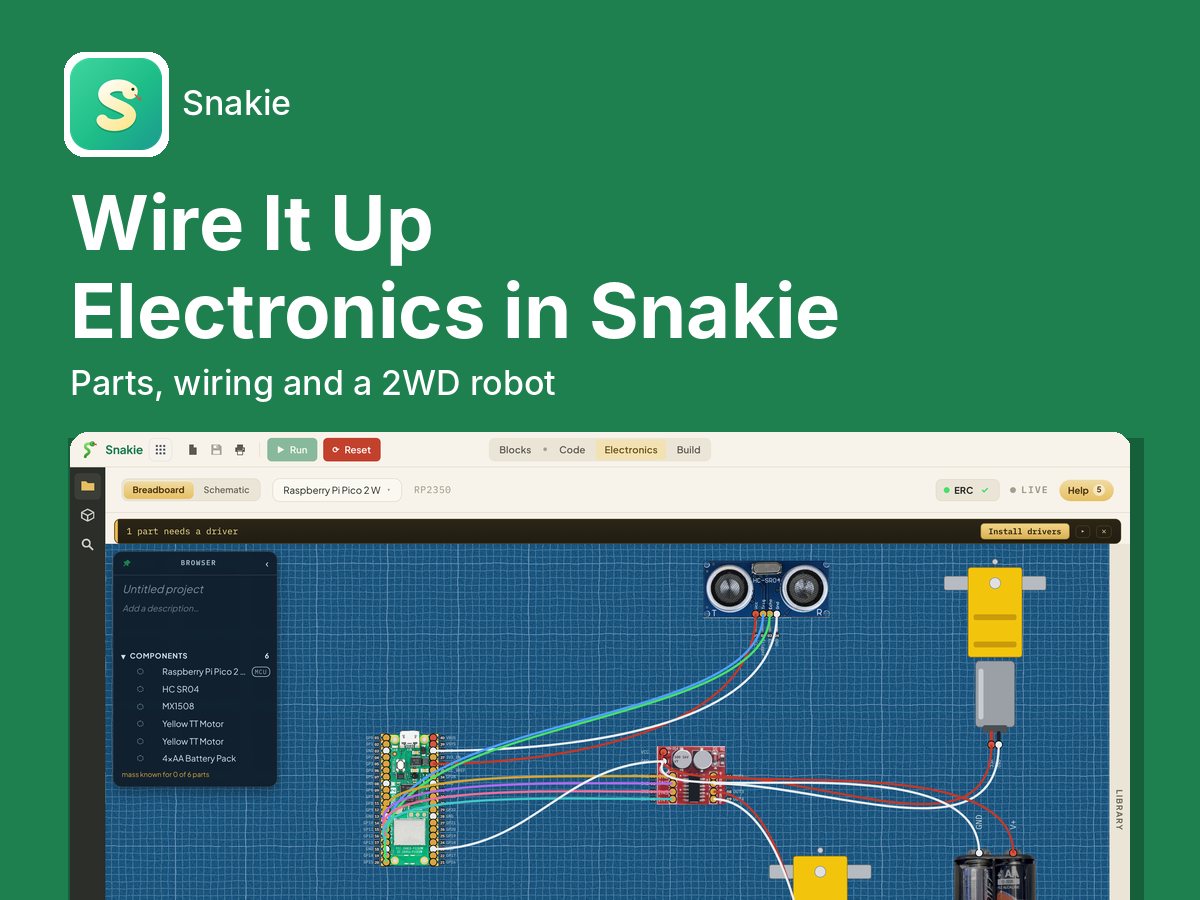
Plan a circuit on screen before you touch a wire. Use Snakie's Electronics workspace to pick parts, wire them to a Raspberry Pi Pico, check the wiring for mistakes and print a build guide, then wire and code a two-wheeled obstacle-avoiding robot.
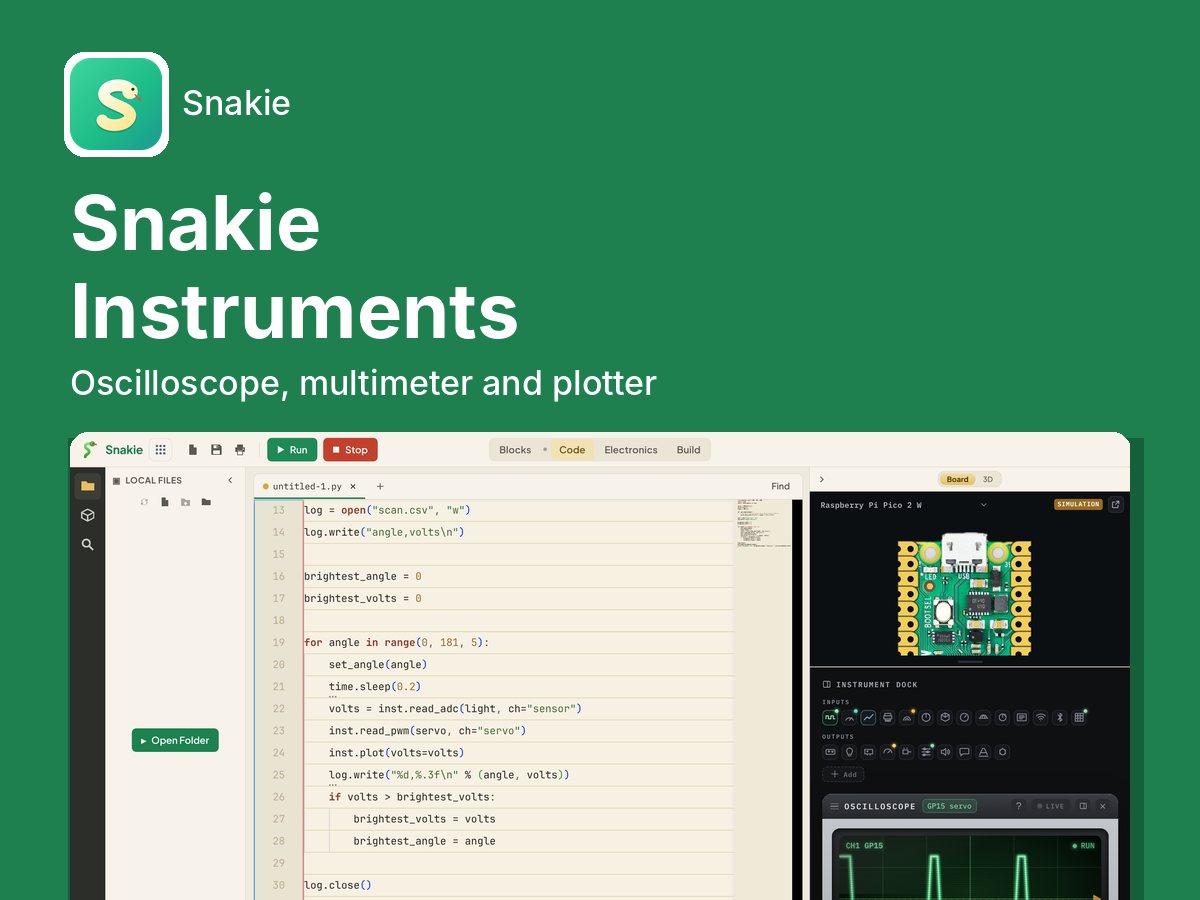
See what your MicroPython program is really doing. Use Snakie's built-in plotter, multimeter, oscilloscope and data logger to watch sensors and signals live, then scan a room for its brightest spot with a servo and a light sensor and log the results to a file.
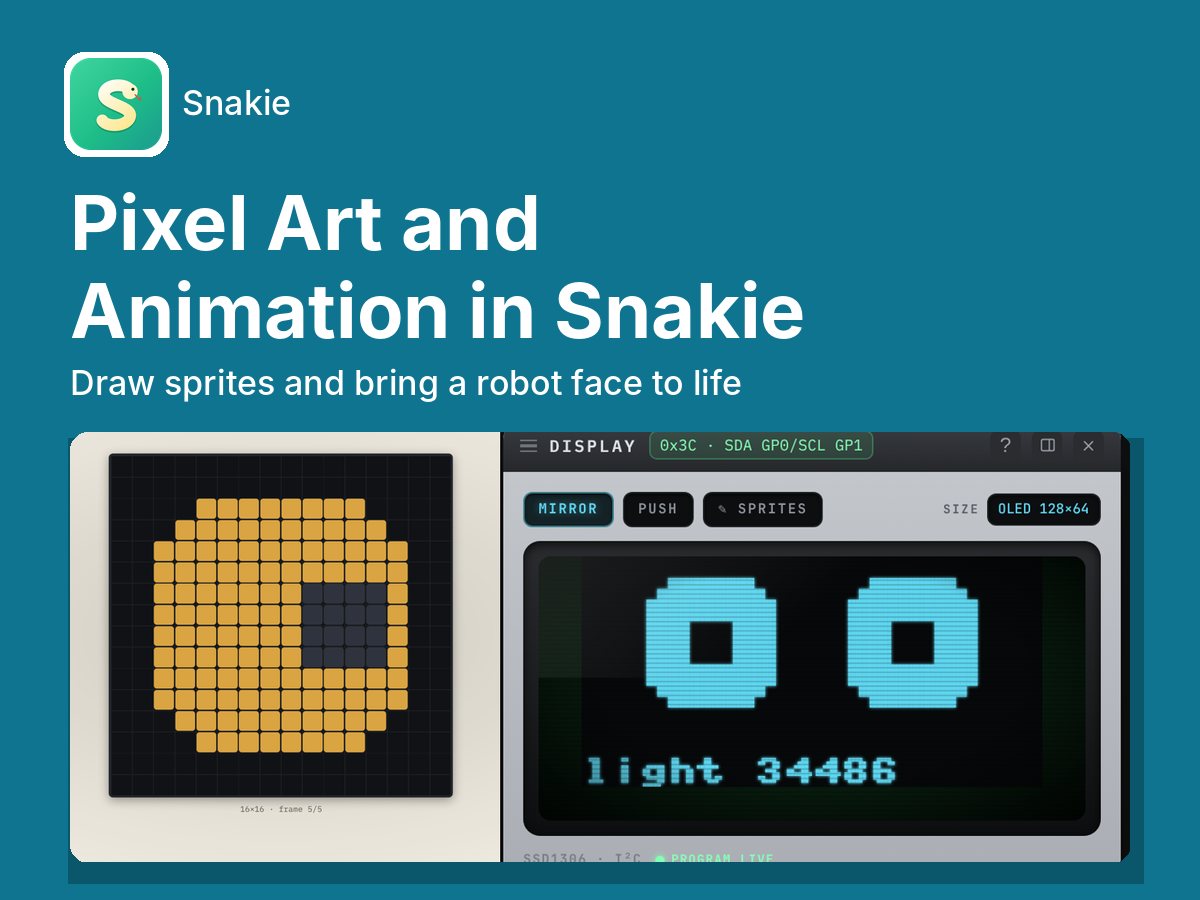
Give your robot a face. Draw 1-bit sprites and frame animations in Snakie's Sprite editor, learn how pixels become bytes, then use MicroPython's framebuf to make a pair of eyes blink, glance around and react to light on a simulated OLED, before moving the same code to a real SSD1306 screen.
Master the use of GPIO pins on the Raspberry Pi Pico with MicroPython. Learn about various types of pins, their functions, and how to work with them in real-world projects.
If you found this high quality content useful please consider supporting my work, so I can continue to create more content for you.
I give away all my content for free: Weekly video content on YouTube, 3d Printable designs, Programs and Code, Reviews and Project write-ups, but 98% of visitors don't give back, they simply read/watch, download and go. If everyone who reads or watches my content, who likes it, helps fund it just a little, my future would be more secure for years to come. A price of a cup of coffee is all I ask.
There are a couple of ways you can support my work financially:
If you can't afford to provide any financial support, you can also help me grow my influence by doing the following:
Thank you again for your support and helping me grow my hobby into a business I can sustain.
- Kevin McAleer

Comments