KevsRobots Learning Platform
BrachioGraph Tutorial
36% Percent Complete
Introduction
Build the plotter
Programming
Summary
Wiring up the BrachioGraph
Learn how to wire up the BrachioGraph plotter using a Raspberry Pi and SG90 servos.
By Kevin McAleer, 3 Minutes
Wiring up the BrachioGraph
In this lesson, we will learn how to wire up the BrachioGraph plotter using a Raspberry Pi and SG90 servos. The BrachioGraph is a simple pen plotter that can be controlled using Python. By connecting the servos to the Raspberry Pi, we can move the pen in the X and Y directions to create drawings and designs.
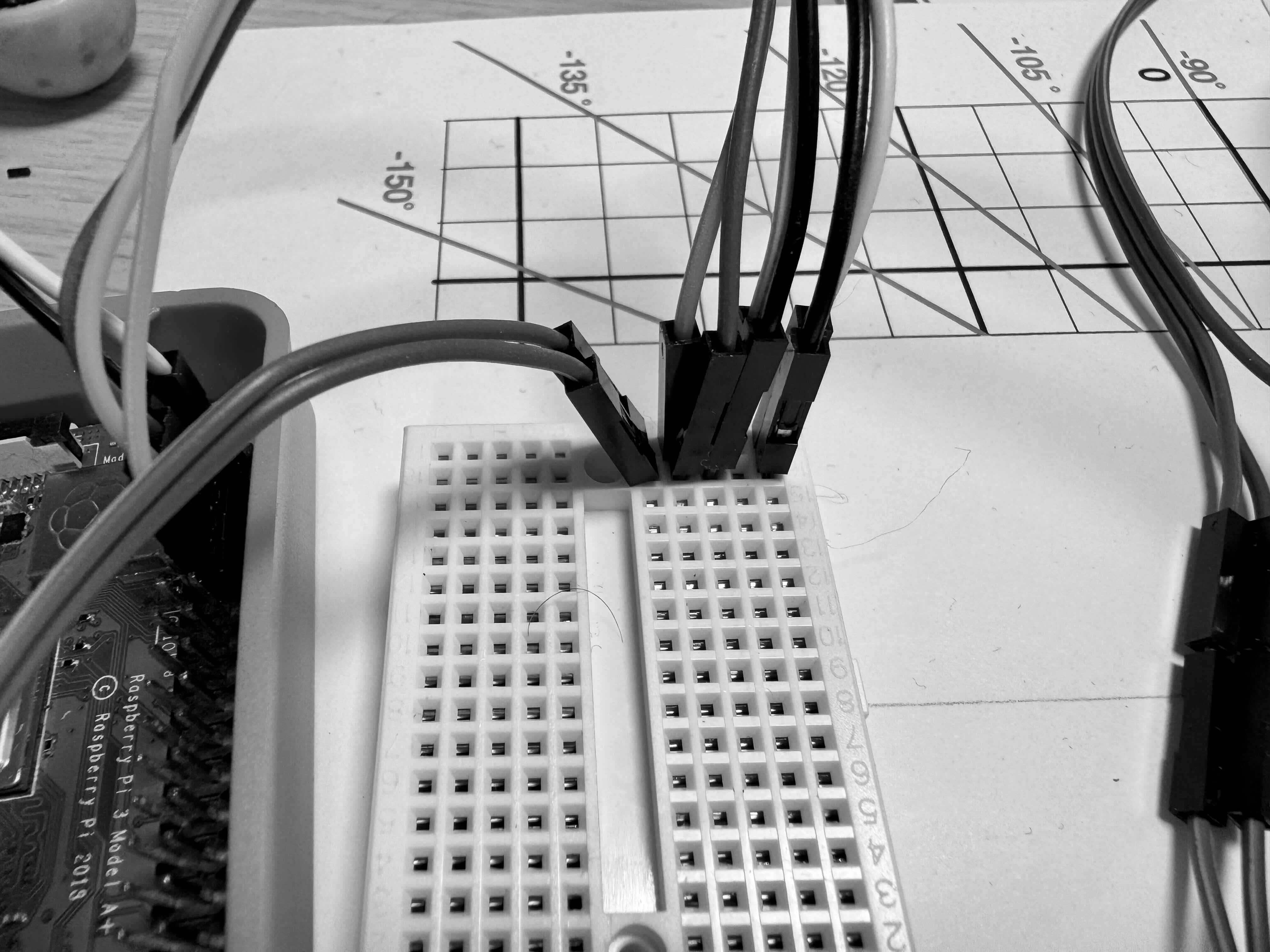
Pinout of the Raspberry Pi
The Raspberry Pi has a set of GPIO (General Purpose Input/Output) pins that can be used to connect external devices such as servos, sensors, and LEDs. The GPIO pins are numbered from 1 to 40 and can be accessed using Python code.
Here is the pinout of the Raspberry Pi 3+:
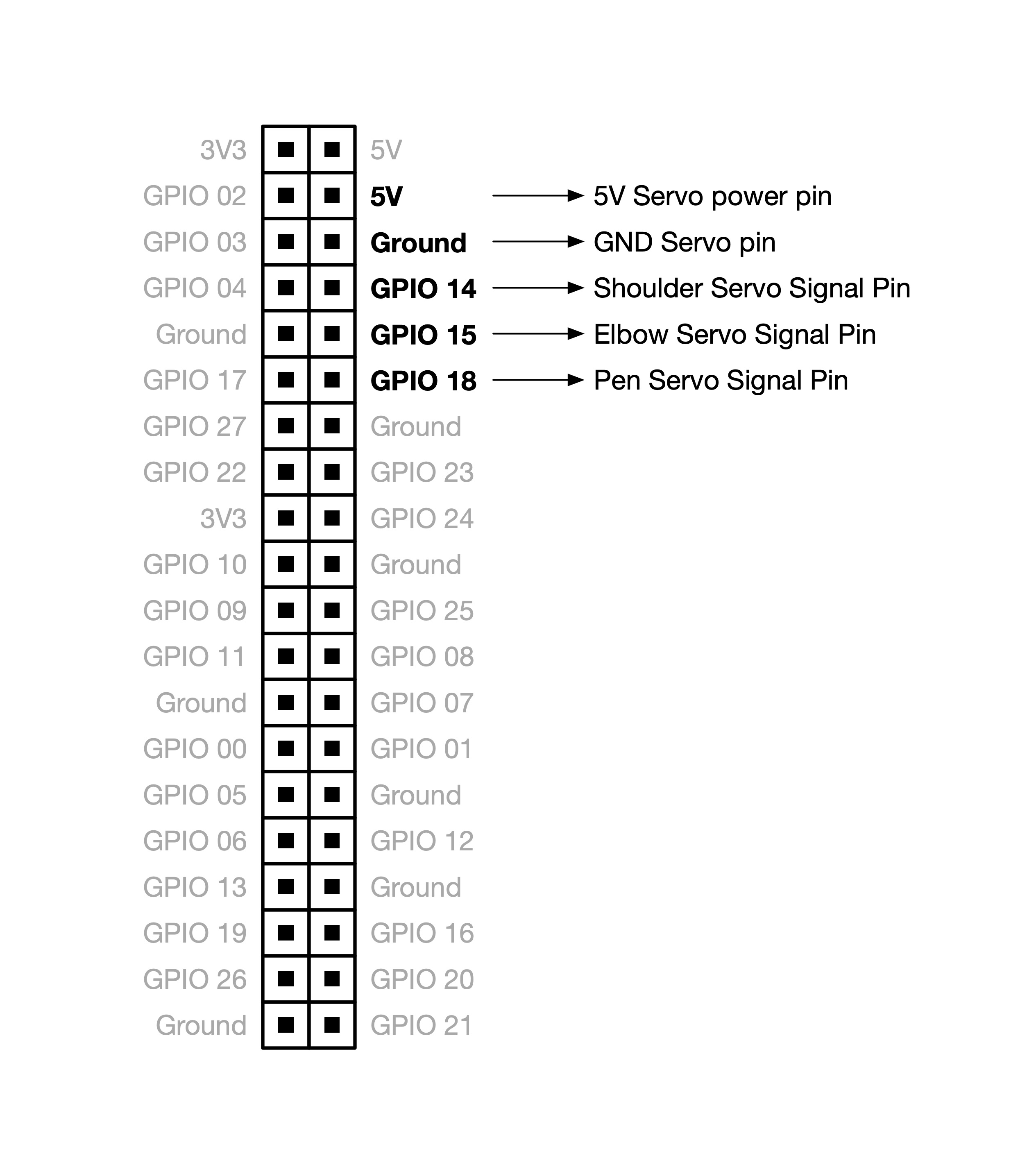
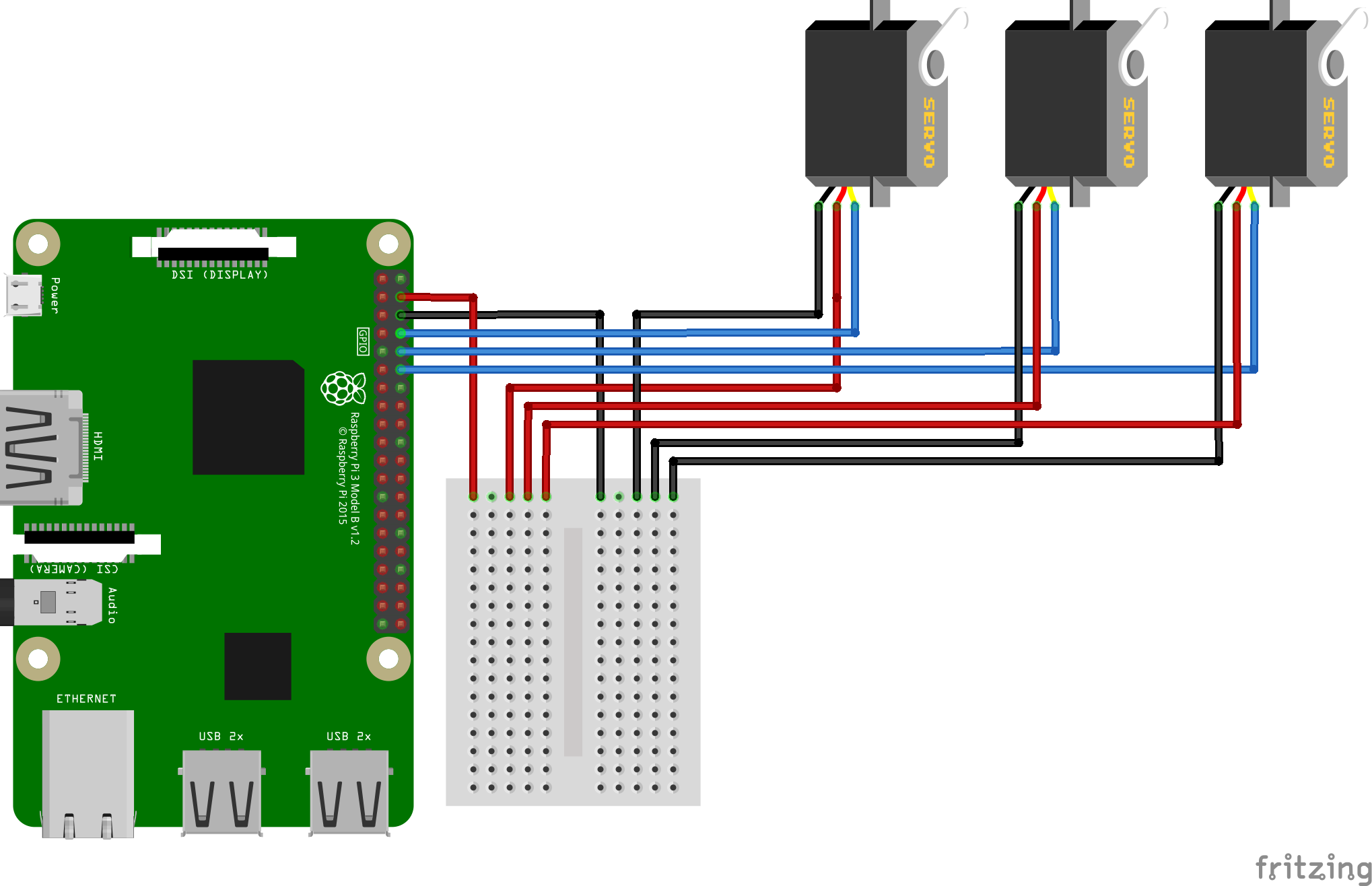
Note: The Raspberry Pi GPIO pins are sensitive and can easily damage the board if connected incorrectly. Always double-check the connections before powering on the Raspberry Pi.
GPIO to Servo Wiring table
Here is the wiring table for connecting the SG90 servos to the Raspberry Pi GPIO pins:
| Servo | Raspberry Pi GPIO |
|---|---|
| 5V | 5V |
| GND | GND |
| Shoulder | GPIO 14 |
| Elbow | GPIO 15 |
| Pen | GPIO 18 |
Hobby Servo pins
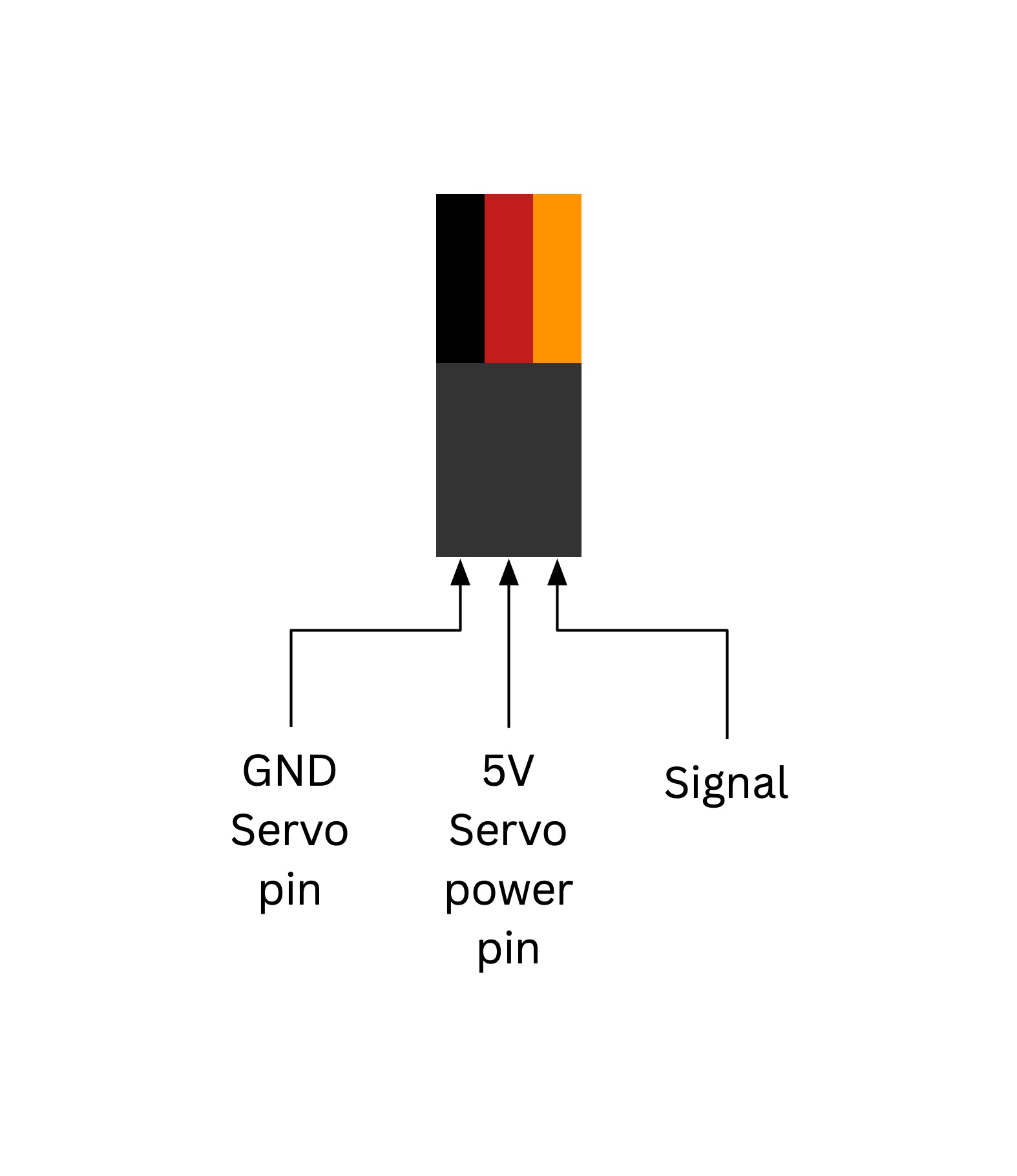
Hobby Servo motors have three wires: Ground (GND) which is the black wire, Power (VCC) which is the red wire, and Signal (SIG) which is the orange or white wire. The Signal wire is connected to the GPIO pin on the Raspberry Pi to control the position of the servo.
The VCC Can be 5V or higher depending on the servo, the SG90 servos recommended for this project are powered by 5V.
Common Issues
- Problem: Servos don’t move at all when code runs
- Solution: Check all connections: Red servo wire to 5V pin (physical pin 2 or 4), black/brown wire to GND, orange/yellow wire to correct GPIO (14, 15, or 18)
-
Why: All three connections must be secure for servos to work
- Problem: Servos jitter or behave erratically
- Solution: Use an external 5V power supply rated for at least 2A. Connect servo power to external supply, but keep grounds connected together (common ground)
-
Why: Three servos draw too much current for the Pi’s onboard 5V regulator - causes voltage drops
- Problem: Only one servo works, others don’t respond
- Solution: Check that each servo’s signal wire goes to the correct GPIO pin (Shoulder→GPIO 14, Elbow→GPIO 15, Pen→GPIO 18)
-
Why: Wrong GPIO pins means the signal goes nowhere
- Problem: Pi shuts down or reboots when servos move
- Solution: You’re drawing too much power! Use an external 5V power supply for the servos. Never power all 3 servos from the Pi’s 5V pin
-
Why: Servo current spikes can cause the Pi to brownout and reboot
- Problem: GPIO pins get hot during operation
- Solution: Immediately disconnect power! You may have wired power (5V) to a GPIO signal pin by mistake. Double-check your wiring against the diagram
-
Why: GPIO pins are designed for low-current signals, not power - incorrect wiring can damage the Pi
- Problem: Servos move but in the wrong direction
- Solution: This is normal and will be fixed in calibration. For now, just verify all servos respond to commands
- Why: Servo direction depends on how the horn is attached - software calibration corrects this
You can use the arrows ← → on your keyboard to navigate between lessons.
Comments