KevsRobots Learning Platform
Overview
Robotics 101
What are the different parts of a Robot?
The Anatomy of a Robot
By , Minute
Robots are made up of lots of different parts, for example:
- A brain (Processor)
- A body (Chassis)
- A power source, or battery
- Sensors
- Motors (Or Actuators)
- Motor driver
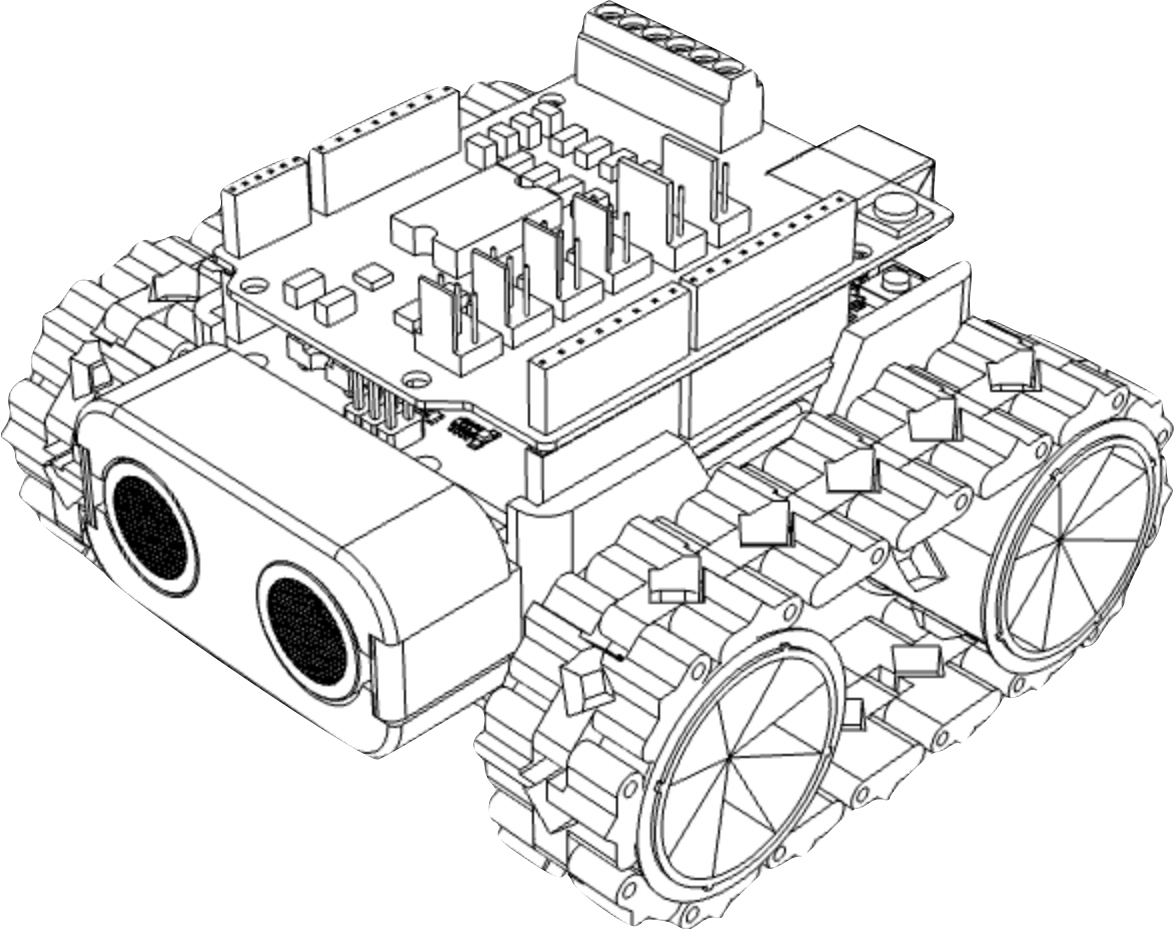
The Body
Houses all the parts
Robots need somewhere to house the different parts, and keep dust and dirt out of the inside of the robot:
- The Brain
- The Power source
- The Motors
- The Sensors
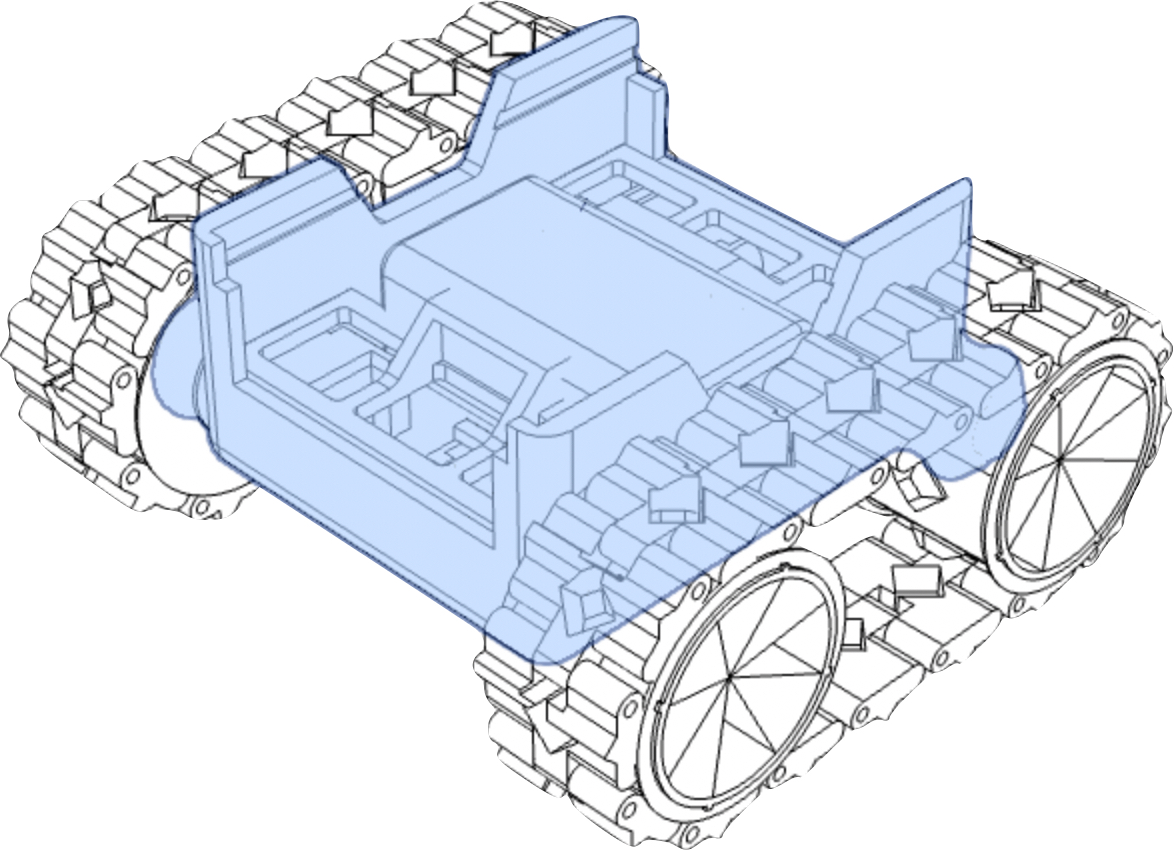
The Battery
Provides power, when the robot is not connected to an external power supply.
Robots need a battery to power the electronics including:
- The Brain, so it can ‘think’ and run programs
- The Motors, so it can move and react
- The Sensors, so it can feel, see and hear
SMARS is powered by a 9V battery
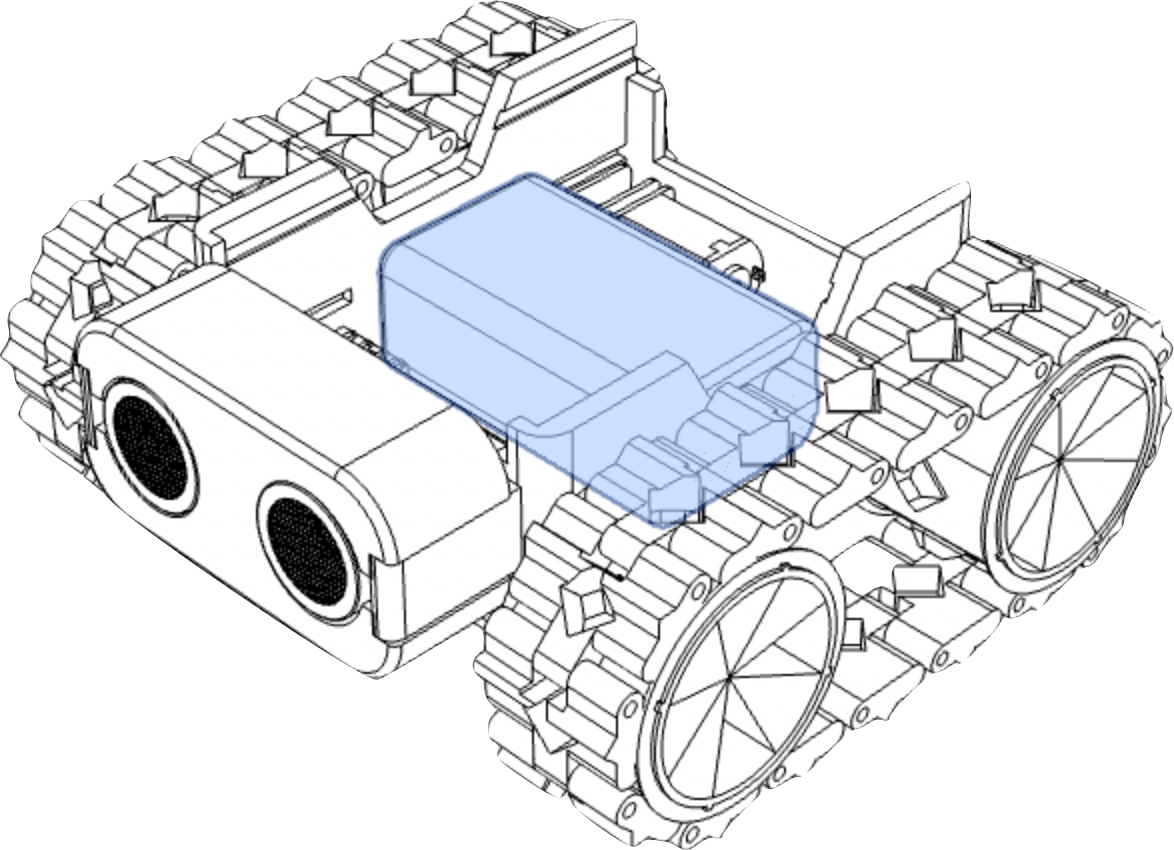
The Brain (Processor)
Runs programs, connects to sensors and motors
- Most robots have a computer or micro-controller to perform the instructions from the program
- The ‘brain’ could just be a simple circuit, without a central processing unit (CPU)
- Common microcontrollers include:
- BBC micro:bit
- Raspberry Pi Pico
- Arduino Uno
- NodeMCU (ESP8266)
SMARS uses an Arduino Uno for its brain
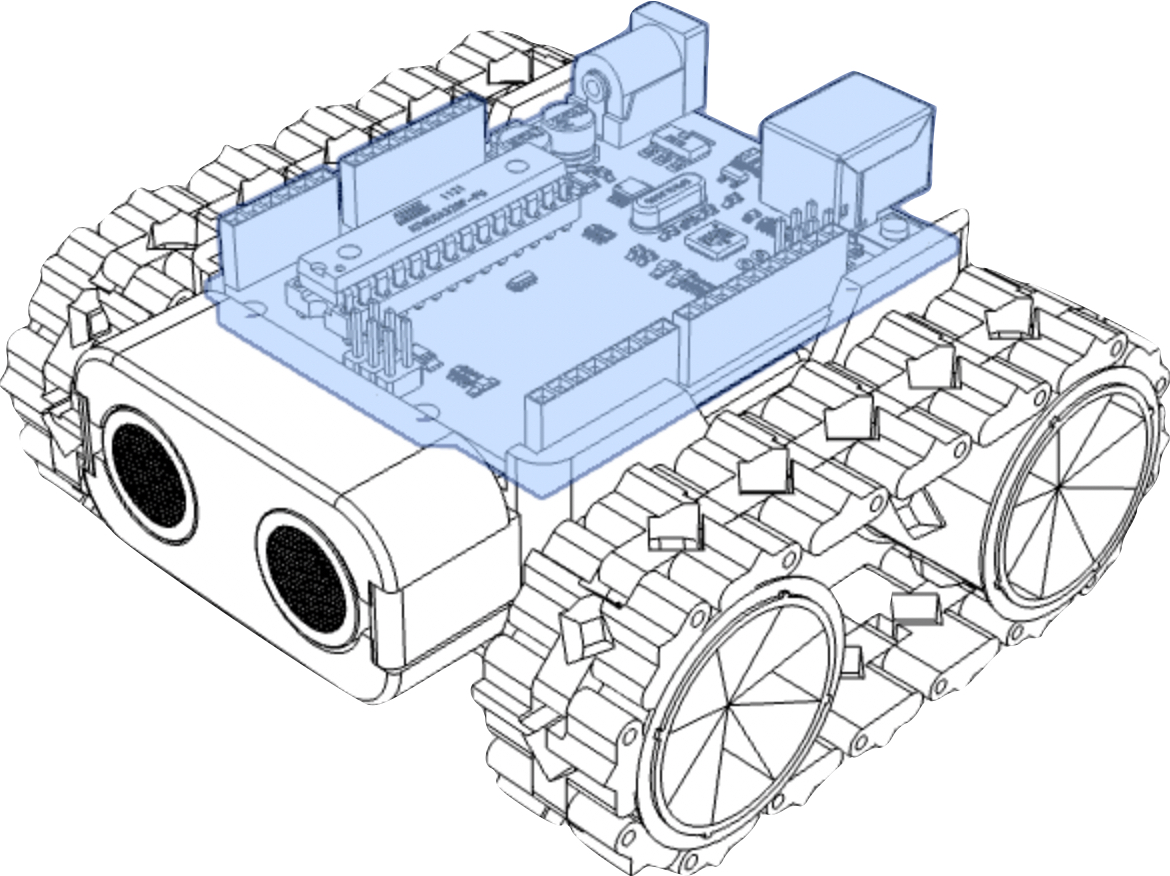
The Sensors
Provides information about the outside world to the Robot:
- Robots need sensors to detect, measure and provide input to the brain so it can make decisions
- Common sensors include:
- Switches and buttons
- Range finders
- Temperature, Humidity sensors
- Infrared & Ultrasonic sensors
- Lasers
- Cameras
- Microphones
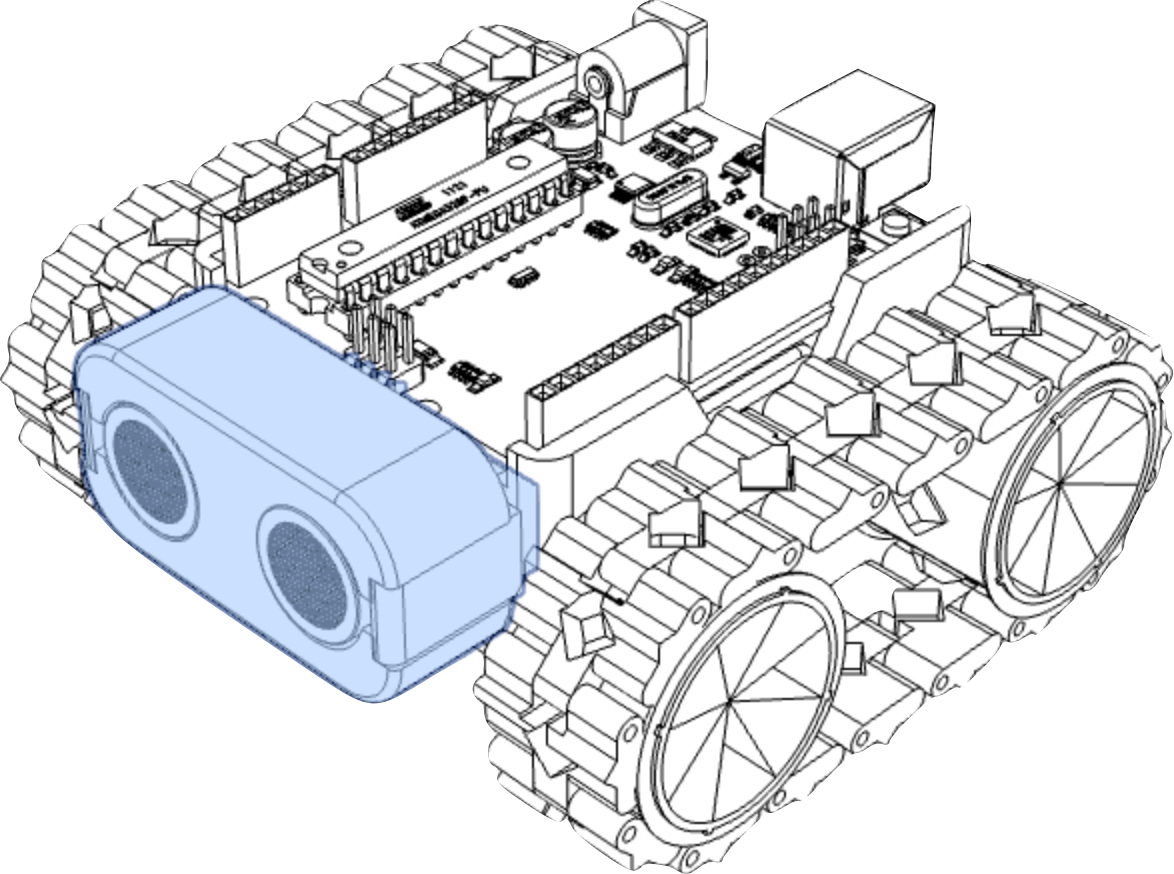
SMARS uses an ultrasonic range finder to ‘see’
The Motors
Enable the robot to move around
- Robots use outputs, such as Motors to move around and interact with their environment
- Motors rotate at a set speed and direction
- Turning the motors in the same direction moves the robot forward or backward
- Turning the motors in opposite directions rotates the robot
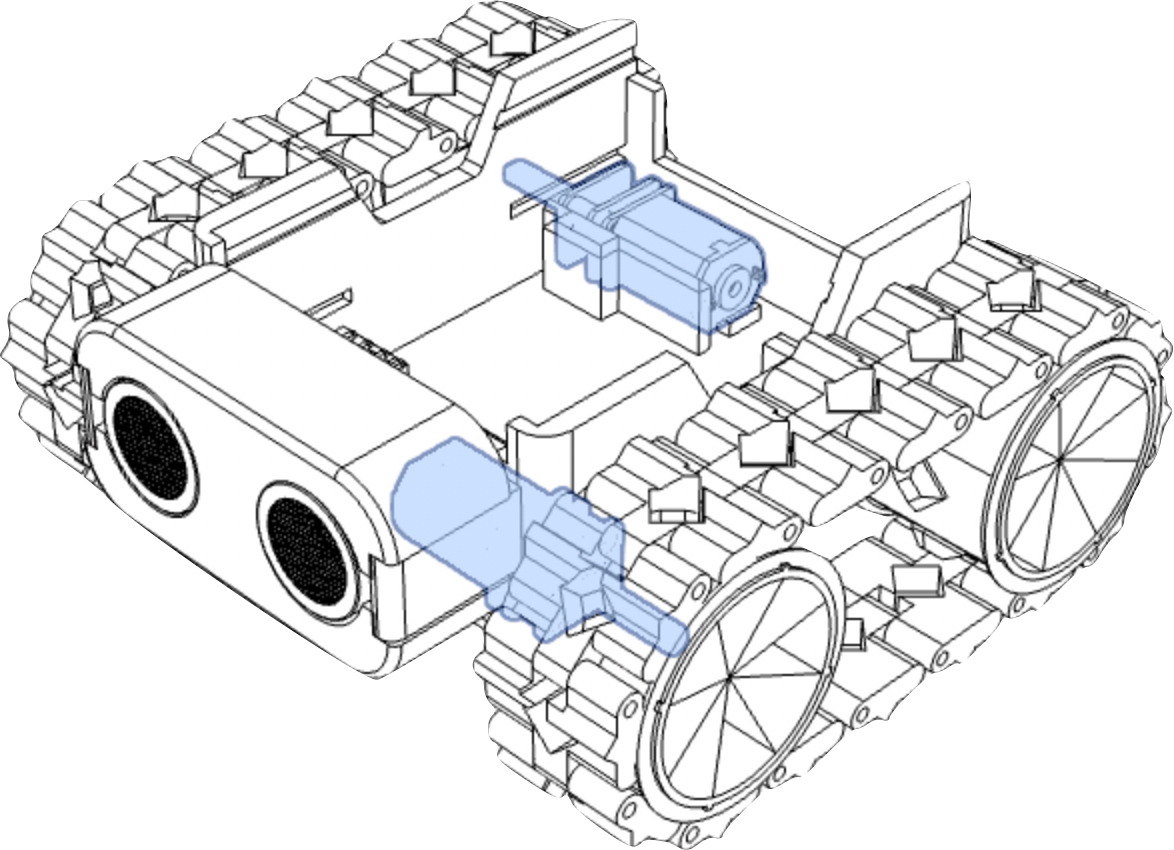
SMARS uses two motors to move about
The Motorshield
Also known as a motor driver; it enables the robot to power the motors:
- A Motorshield routes power to the motors - they need much more power than the brain
- Motorshields can also bring extra outputs such as a buzzer
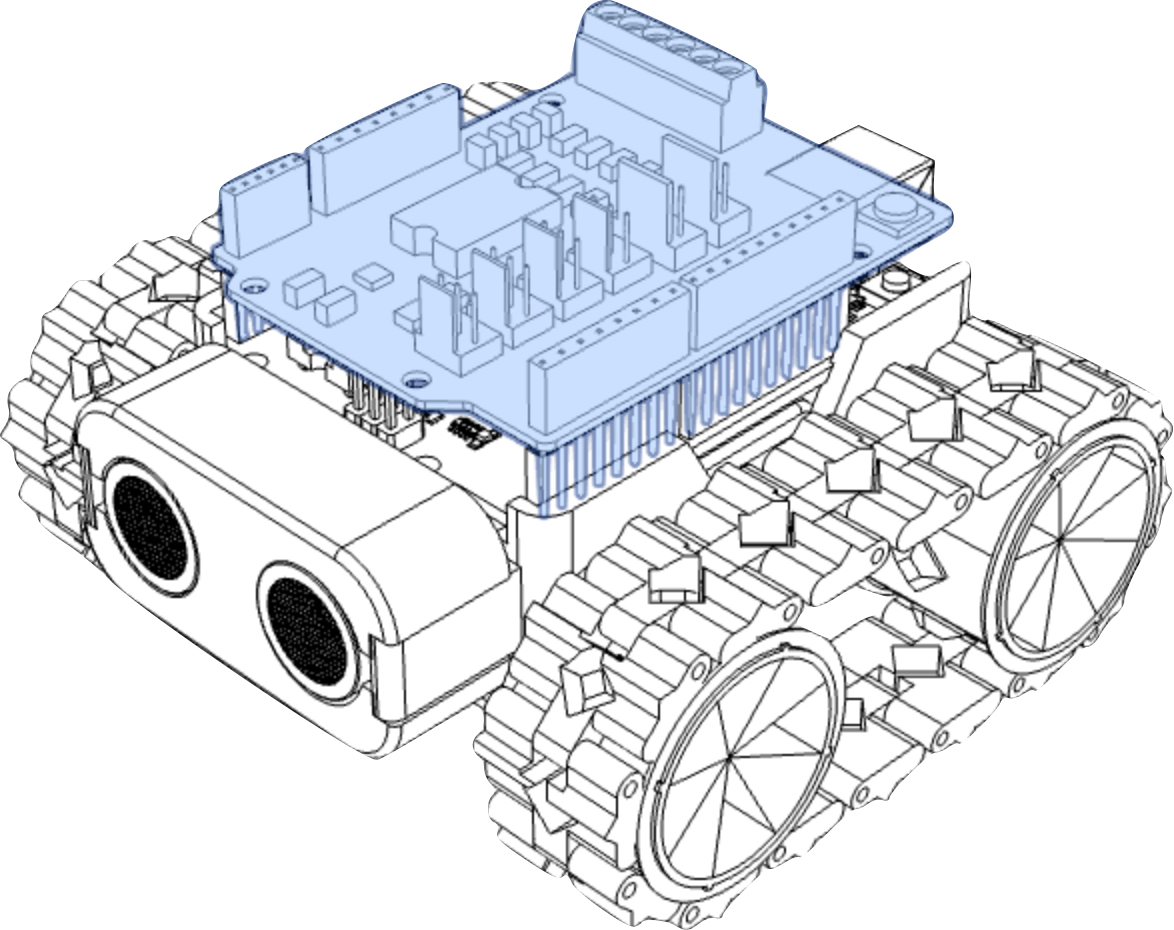
- The motorshield sits on top of the Arduino and the connector pins push into the header pins on the Arduino
SMARS uses a motorshield to power and control the motors
Check your understanding
Quick quiz 1 of 3
Why does a robot need a motor driver (motorshield)?
Quick quiz 2 of 3
How does a two-wheeled robot like SMARS turn on the spot?
Quick quiz 3 of 3
What does SMARS use to “see”?
You can use the arrows ← → on your keyboard to navigate between lessons.
Comments