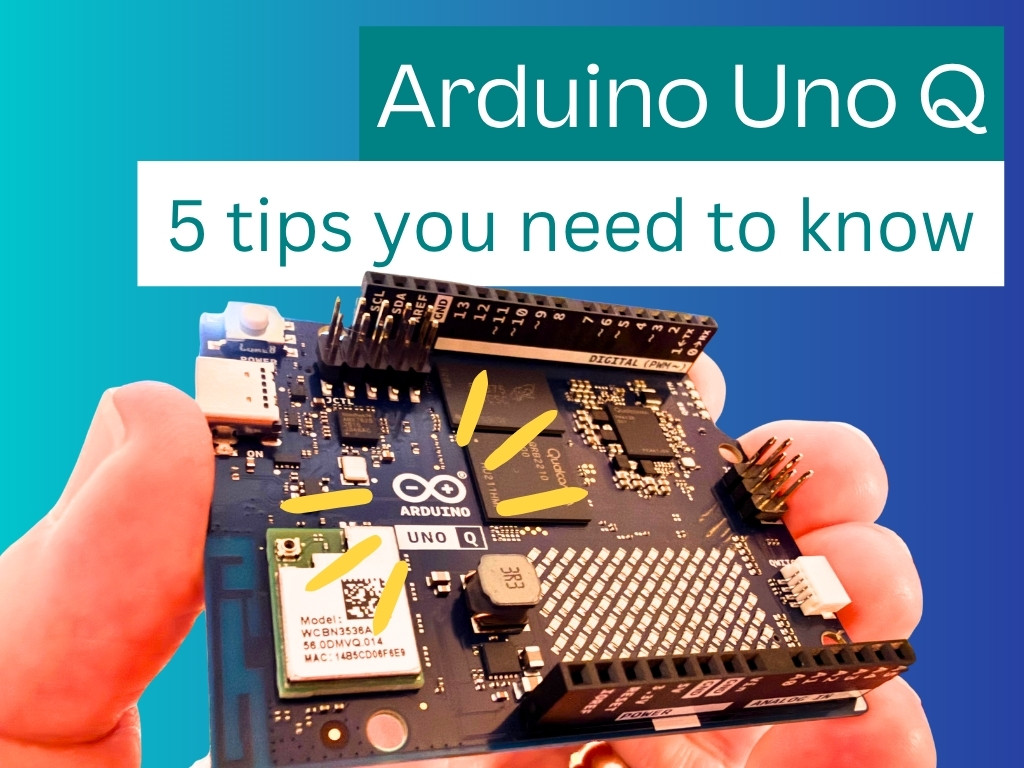
5 Tips for Managing Your Arduino Uno Q
Essential Tips for Maintaining and Optimizing Your Arduino Uno Q
25 October 202513 minute read
By Kevin McAleer
Share this article on
Table of Contents
- 5 Tips for Managing Your Arduino Uno Q
- Tip 1: File Sharing with Samba
- Why Use Samba?
- Installation and Setup
- Accessing Your Share
- Troubleshooting
- Tip 2: Backing Up Your Uno Q
- Why Backups Matter
- Full Filesystem Backup
- Selective Backups with rsync
- Archiving with tar
- Creating a tar backup
- Excluding files from tar backups
- Restoring from tar
- Listing tar contents without extracting
- Version Control with Git
- Setting up Git for backups
- Creating commits (snapshots)
- Pushing to a remote repository
- Restoring from Git
- Backing up configuration files with Git
- Automated Git backups
- Cloud and External Storage
- Tip 3: Console Over USB with ADB
- Why Use ADB?
- Installation on Uno Q
- Installation on Your Host Machine
- Connecting
- Useful ADB Commands
- Tip 4: Updating Packages & Installing Security Patches
- Understanding the Update Process
- Regular Updates
- Major Version Upgrades
- Security-Only Updates
- Best Practices
- Tip 5: Cleaning Up Space
- Checking Your Disk Space
- Docker Cleanup
- Apt Cleanup
- Vacuuming Logs
- Finding Large Files
- Putting It All Together
- Conclusion
5 Tips for Managing Your Arduino Uno Q
Essential Tips for Maintaining and Optimizing Your Arduino Uno Q

Video
For every project I create, I often make a corresponding YouTube video. Sometimes, there might be more than one video for a single project. You can find these videos in this section.
Explore more through this this dedicated video.
5 Tips for Managing Your Arduino Uno Q
The Arduino Uno Q is a powerful single-board computer running Debian Linux, perfect for projects that need more computational power than traditional Arduino boards. However, like any Linux system, it requires regular maintenance to keep it running smoothly. In this guide, we’ll walk through five essential management tips that will help you keep your Uno Q healthy, secure, and performing at its best.
Tip 1: File Sharing with Samba
One of the most useful features of the Uno Q is its ability to share files over your network. Samba is a straightforward way to access your Uno Q’s filesystem from other devices on your network without needing to SSH into the terminal every time.
Why Use Samba?
Samba allows you to mount your Uno Q as a network drive on Windows, macOS, or Linux machines. This is especially useful for transferring large files, editing configuration files in your favorite text editor, or browsing project files graphically.
Installation and Setup
Start by installing Samba:
sudo apt update
sudo apt install samba samba-utils
Next, create a simple share. Edit the Samba configuration file:
sudo nano /etc/samba/smb.conf
Add the following at the end of the file to create a shared home directory:
[uno-q-home]
    path = /home/username
    browsable = yes
    writable = yes
    guest ok = no
    valid users = username
Replace username with your actual username. Save and exit (Ctrl+X, then Y, then Enter).
Set your Samba password (this can be different from your system password):
sudo smbpasswd -a username
Restart Samba:
sudo systemctl restart smbd
Accessing Your Share
From another machine on your network, you can now access your Uno Q:
- Windows: Open File Explorer and type
\\<uno-q-ip-address>\uno-q-home - macOS: Open Finder, press Cmd+K, and type
smb://<uno-q-ip-address>/uno-q-home - Linux: Use your file manager to connect to
smb://<uno-q-ip-address>/uno-q-home
Troubleshooting
If you can’t connect, verify that Samba is running:
sudo systemctl status smbd
Make sure your firewall isn’t blocking port 445 (SMB port). You can test connectivity with:
smbclient -L //<uno-q-ip-address> -U username
Tip 2: Backing Up Your Uno Q
Your Uno Q contains configurations, code, and data that would be painful to lose. Regular backups are essential for any serious project work.
Why Backups Matter
Hardware fails, accidents happen, and experiments sometimes go wrong. A good backup strategy ensures you can recover quickly from disasters and gives you peace of mind to experiment confidently.
Full Filesystem Backup
The simplest approach is to create a full backup of your Uno Q’s filesystem. First, identify your SD card or storage device:
lsblk
To create a backup image (run this from another machine with enough storage):
sudo dd if=/dev/sdX of=uno-q-backup.img bs=4M status=progress
sudo sync
Replace sdX with your actual device (e.g., sdb). This creates a complete image that you can restore later.
To restore:
sudo dd if=uno-q-backup.img of=/dev/sdX bs=4M status=progress
sudo sync
Selective Backups with rsync
For ongoing maintenance, rsync is more efficient. It only backs up changes:
rsync -av --delete /home/username/ /backup/location/uno-q-home/
You can automate this with a cron job. Edit your crontab:
crontab -e
Add a line to run backups daily at 2 AM:
0 2 * * * rsync -av --delete /home/username/ /backup/location/uno-q-home/ >> /home/username/backup.log 2>&1
Archiving with tar
The tar (tape archive) command is perfect for creating compressed backups of specific directories or projects. Unlike full disk images, tar creates portable archives that are easy to transfer and restore on any Linux system.
Creating a tar backup
To create a compressed backup of a directory:
tar -czvf backup-$(date +%Y%m%d).tar.gz /path/to/directory
Breaking down the options:
-c= create archive-z= compress with gzip-v= verbose (show files being archived)-f= filename
For example, to backup your entire home directory:
tar -czvf uno-q-home-backup-$(date +%Y%m%d).tar.gz /home/username
The $(date +%Y%m%d) automatically adds the current date to the filename (e.g., uno-q-home-backup-20251026.tar.gz).
Excluding files from tar backups
You can exclude certain directories or files to reduce backup size:
tar -czvf backup.tar.gz --exclude='node_modules' --exclude='*.log' /home/username/project
This is particularly useful for skipping cache directories, build artifacts, or temporary files.
Restoring from tar
To extract a tar archive:
tar -xzvf backup-20251026.tar.gz
Options:
-x= extract-z= decompress gzip-v= verbose-f= filename
To extract to a specific directory:
tar -xzvf backup-20251026.tar.gz -C /restore/location
Listing tar contents without extracting
Before extracting, you can preview what’s inside:
tar -tzvf backup-20251026.tar.gz | less
Version Control with Git
For code projects and configuration files, Git provides powerful backup capabilities with the added benefit of version history and change tracking.
Setting up Git for backups
Initialize a Git repository in your project directory:
cd /home/username/my-project
git init
Create a .gitignore file to exclude files you don’t want to track:
cat > .gitignore <<EOF
*.log
*.tmp
__pycache__/
node_modules/
.env
EOF
Creating commits (snapshots)
Add and commit your files:
git add .
git commit -m "Backup: $(date +%Y-%m-%d) - Project snapshot"
This creates a snapshot of your project at this point in time.
Pushing to a remote repository
For off-site backups, push to GitHub, GitLab, or a self-hosted Git server:
# Add remote repository (first time only)
git remote add origin https://github.com/username/uno-q-project.git

# Push your commits
git push -u origin main
Restoring from Git
To restore your project on another machine or after data loss:
git clone https://github.com/username/uno-q-project.git
cd uno-q-project
To restore to a specific point in time:
# View commit history
git log --oneline

# Restore to a specific commit
git checkout abc1234
Backing up configuration files with Git
Many developers create a “dotfiles” repository for configuration files:
cd ~
git init
git add .bashrc .vimrc .gitconfig
git commit -m "Initial dotfiles backup"
git remote add origin https://github.com/username/dotfiles.git
git push -u origin main
This makes it easy to replicate your setup on new machines or recover after system failures.
Automated Git backups
You can automate Git commits with a cron job:
crontab -e
Add this line to commit changes daily at 3 AM:
0 3 * * * cd /home/username/my-project && git add -A && git commit -m "Auto-backup $(date +\%Y-\%m-\%d)" && git push origin main >> /home/username/git-backup.log 2>&1
Note: Only use automated commits for personal projects where commit messages can be generic. For collaborative projects, thoughtful commit messages are important.
Cloud and External Storage
Consider backing up critical files to cloud storage or external USB drives for extra redundancy. Services like rsync.net, Backblaze, or simple USB drive backups all work well.
Tip 3: Console Over USB with ADB
Android Debug Bridge (ADB) might seem like an Android-only tool, but it also works wonderfully with Linux systems including the Uno Q. It provides a lightweight way to access your device’s console over USB without needing SSH or a separate serial connection.
Why Use ADB?
ADB is particularly useful when your Uno Q doesn’t have network access, when you’re troubleshooting connectivity issues, or when you need quick, direct access to the console. It’s also faster than traditional serial connections.
Installation on Uno Q
First, install ADB on your Uno Q:
sudo apt install android-tools-adbd
Enable the ADB daemon:
sudo systemctl enable adbd
sudo systemctl start adbd
Installation on Your Host Machine
On the machine you’ll be connecting from, install the Android tools:
# On Linux
sudo apt install android-tools-adb

# On macOS
brew install android-platform-tools

# On Windows
# Download from https://developer.android.com/studio/releases/platform-tools
Connecting
Connect your Uno Q to your host machine via USB. On your host machine, list connected devices:
adb devices
If this is your first time, you may need to authorize the connection. Accept the authorization prompt on the Uno Q.
Once connected, open a shell:
adb shell
You now have a console on your Uno Q over USB!
Useful ADB Commands
# Push a file to the device
adb push local-file /path/on-device/

# Pull a file from the device
adb pull /path/on-device/local-file

# Reboot the device
adb reboot

# View system logs
adb logcat
Tip 4: Updating Packages & Installing Security Patches
Keeping your Uno Q updated is one of the most important maintenance tasks. Security vulnerabilities are discovered regularly, and updates fix bugs and improve performance.
Understanding the Update Process
Debian uses apt (Advanced Package Tool) to manage software. There are two main operations:
apt update: Refreshes the list of available packages from repositoriesapt upgrade: Installs the latest versions of packages you already have
Regular Updates
To update your system, run:
sudo apt update
sudo apt upgrade
Review the packages that will be upgraded before confirming. Most updates are safe, but occasionally you’ll want to check the changelog for major changes.
Major Version Upgrades
To upgrade to a new major version of Debian (e.g., from Debian 11 to 12):
sudo apt update
sudo apt dist-upgrade
This is more invasive than a regular upgrade and should be tested before running on production systems. It may remove or replace packages.
Security-Only Updates
If you want to be more conservative and only install security updates:
sudo apt update
sudo apt install -y unattended-upgrades
sudo dpkg-reconfigure -plow unattended-upgrades
This configures automatic security updates. Check the status:
sudo systemctl status unattended-upgrades
Best Practices
- Update regularly: Don’t let months pass without updates
- Test first: Before applying updates to a production system, test on a backup or development machine
- Keep backups: Always have a recent backup before major updates
- Read changelogs: For significant packages, skim the release notes to understand changes
Tip 5: Cleaning Up Space
Single-board computers often have limited storage. Over time, old files, unused packages, and log files accumulate. Regular cleanup keeps your Uno Q running efficiently.
Checking Your Disk Space
Before you start cleaning, it’s helpful to see how much space you have available. The df (disk free) command shows you filesystem disk space usage. For a more human-readable format, use df -h which displays sizes in gigabytes (GB) and megabytes (MB) instead of raw bytes. Simply run df -h in the terminal to see a breakdown of all your mounted filesystems, their total size, how much is used, and how much is available. Look for your main filesystem (usually mounted at /) to see your Uno Q’s storage status.
df -h
This gives you a baseline before cleanup and lets you verify the space you’ve freed afterward.
Docker Cleanup
If you’re using Docker on your Uno Q, it can quickly consume storage with unused images, containers, and volumes.
View your Docker usage:
docker system df
Remove unused containers:
docker container prune
Remove unused images:
docker image prune
Remove unused volumes:
docker volume prune
The nuclear option (removes everything unused):
docker system prune -a
Be careful with the -a flag—it removes all unused images, even if they’re not currently associated with a container.
Apt Cleanup
Debian’s package manager leaves behind files that are no longer needed.
Remove packages that were automatically installed as dependencies but are no longer required:
sudo apt autoremove
Clean the package cache (removes downloaded .deb files):
sudo apt autoclean
To be more aggressive and remove all package cache:
sudo apt clean
Check how much space you’re saving:
du -sh /var/cache/apt
Vacuuming Logs
System logs accumulate in /var/log and can consume surprising amounts of space over time.
Check log usage:
du -sh /var/log
List the largest log files:
sudo du -sh /var/log/* | sort -rh | head -10
Debian includes a tool called logrotate that automatically manages logs, but you can manually clean old logs:
sudo journalctl --vacuum=30d
This keeps only the last 30 days of systemd journal logs. You can also clean specific log files:
sudo truncate -s 0 /var/log/syslog
sudo truncate -s 0 /var/log/auth.log
Finding Large Files
Use du (disk usage) to find space hogs:
# Find the 10 largest directories in your home
du -sh ~/* | sort -rh | head -10

# Find files larger than 100MB
find ~ -type f -size +100M
For a more interactive approach, use ncdu:
sudo apt install ncdu
ncdu /home
Navigate with arrow keys to explore directory sizes visually. This is incredibly useful for tracking down where your storage is going.
Putting It All Together
Here’s a quick cleanup routine you can run monthly:
# Update package lists and install updates
sudo apt update
sudo apt upgrade -y

# Clean up apt
sudo apt autoremove -y
sudo apt autoclean

# Clean up Docker (if you use it)
docker system prune -a -f

# Vacuum old logs
sudo journalctl --vacuum=30d

# Show current storage usage
df -h
Conclusion
Managing your Arduino Uno Q doesn’t have to be complicated. By following these five tips, you’ll keep your system secure, stable, and running efficiently:
- Set up Samba for easy file sharing across your network
- Regular backups protect your data and configurations
- Use ADB for convenient USB-based console access
- Keep packages updated to stay secure and get bug fixes
- Clean up regularly to maintain storage and performance
Start with whichever tip resonates most with your workflow, then gradually adopt all five. Your future self will thank you when your Uno Q runs smoothly for years to come.
Happy computing!
This page is awesome - Show some love!


Comments